


















Exports, SEZ and imports with GST in ERPNext
This page answers the frequent questions about sales to overseas customers and SEZ units, with or without payment of GST, and about importing goods with a Bill of Entry.
First, turn on Enable SEZ / Overseas Transactions in GST Settings → General. Without it, the
Overseas and SEZ GST categories cannot be used. See
Sales transactions in the India Compliance documentation.
Which GST category to use
The GST treatment comes from the GST Category on the customer's billing address (and the customer):
| Customer | GST Category | Place of Supply |
|---|---|---|
| Overseas customer | Overseas | 96-Other Countries |
| Unit in a Special Economic Zone | SEZ | 96-Other Countries |
| Deemed export | Deemed Export | the customer's state |
If an SEZ customer's invoice gives "No GST is being charged on Taxable Items", check the billing address.
Its GST Category must be SEZ. An address that only says "SEZ" in the text is treated as a normal
registered customer, so GST is expected.
Export without payment of GST (under LUT or bond)
- Use a customer and address with GST Category Overseas or SEZ.
- On the Sales Invoice, leave Is Export With Payment of GST unticked.
- Do not add GST tax rows. Remove any GST template that came in by default.
The items are treated as zero-rated. No special setting is needed for LUT.
Export with payment of GST (IGST, to claim a refund)
- Use a customer and address with GST Category Overseas or SEZ.
- On the Sales Invoice, tick Is Export With Payment of GST.
- Add the IGST tax template.
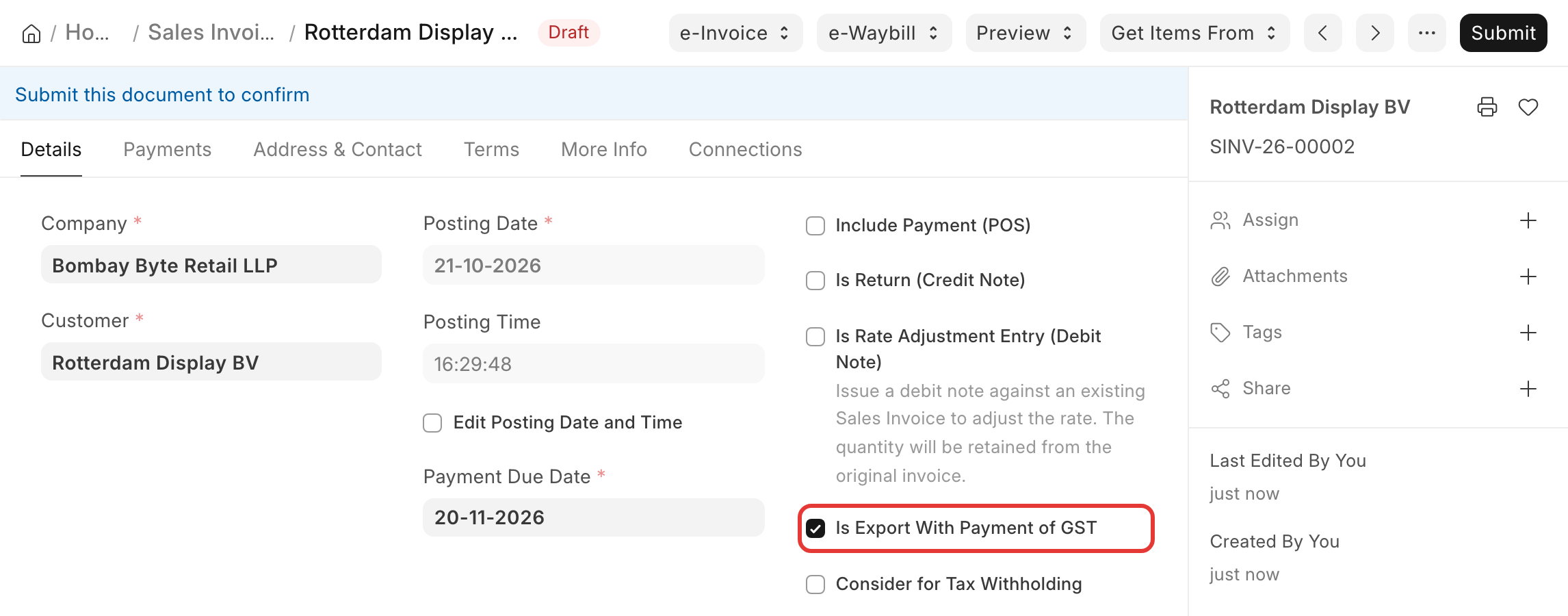
The IGST is a receivable from the government until it is refunded. When the refund reaches your bank, record it with a Journal Entry: debit the bank account, credit the account where you keep the refund receivable. ERPNext does not track the refund claim itself.
Shipping bill and port code
Port Code, Shipping Bill Number and Shipping Bill Date are on the Sales Invoice. Enter them
before you generate the e-invoice, because they are part of it. They cannot be changed after submit. If you must add them later, ask your system manager to allow them on submit (Customize Form → Allow on Submit).
Nil-rated, exempted and zero-rated
- Zero-rated: exports and SEZ supplies. GST at 0%, and you can claim ITC.
- Nil-rated and exempted: supplies with no GST, set with the item's Item Tax Template.
- Non-GST: outside GST.
Nil-rated, exempted and non-GST supplies are not part of the taxable value. In GSTR-1 they are reported as a total in table 8, not invoice by invoice. See Why is my invoice missing from GSTR-1?.
SEZ as your own company
India Compliance is built for a regular registered company. A company that is itself an SEZ unit, or a
free trade warehousing zone (FTWZ), has rules the app does not handle out of the box. Discuss the
requirements with the India Compliance team (raise a ticket), and check with your tax adviser.
Imports: Bill of Entry
For goods imported from an overseas supplier, the IGST and customs duty are paid on the Bill of Entry,
not on the supplier's invoice.
- Make the Purchase Invoice from the overseas supplier without GST tax rows. Its ITC classification becomes Import Of Goods.
- Submit it, then click Create → Bill of Entry.
- In the Bill of Entry, enter the bill of entry number and date, the assessable value, customs duty and IGST, and submit.
The IGST on the Bill of Entry is your input tax credit, and it appears in GSTR-3B. Customs duty is not GST, so it is not in GSTR-3B.
If Create → Bill of Entry is missing:
- The Purchase Invoice has GST tax rows. Amend it and remove them.
- The items are services (by HSN/SAC code). A Bill of Entry is only for goods.
- A Bill of Entry already covers the full quantity.
A Bill of Entry is always made from a Purchase Invoice. See
Bill of Entry in the India Compliance documentation.