


















Sales Invoice without an Item
ERPNext can invoice a one-time charge without selecting an Item Code. Enter the required details directly in the Sales Invoice Items child row. Use this sparingly because an Item provides better reporting, tax, UOM, income-account, and pricing consistency.
Before you begin
Confirm:
- The Customer, Company, currency, and receivable account.
- The correct Income Account, Cost Center, UOM, and tax treatment for the charge.
- Whether your organization's controls require an Item master for every invoice line.
- Permission to create and submit a Sales Invoice.
Create a non-stock service or charge Item instead when the same charge is likely to recur.
Create a Sales Invoice without an Item Code
- Open the Sales Invoice list and select Add Sales Invoice.
- Select the Customer.
- Set the Posting Date, Due Date, and Company.
- In the Items table, add a row.
- Select the highlighted pencil icon to open the complete child-row editor.
- Leave Item Code blank.
- Enter Item Name, Description, Quantity, UOM, Rate, and Income Account.
- Complete the Cost Center and tax-related fields required by your configuration.
- Review totals, save, and submit.
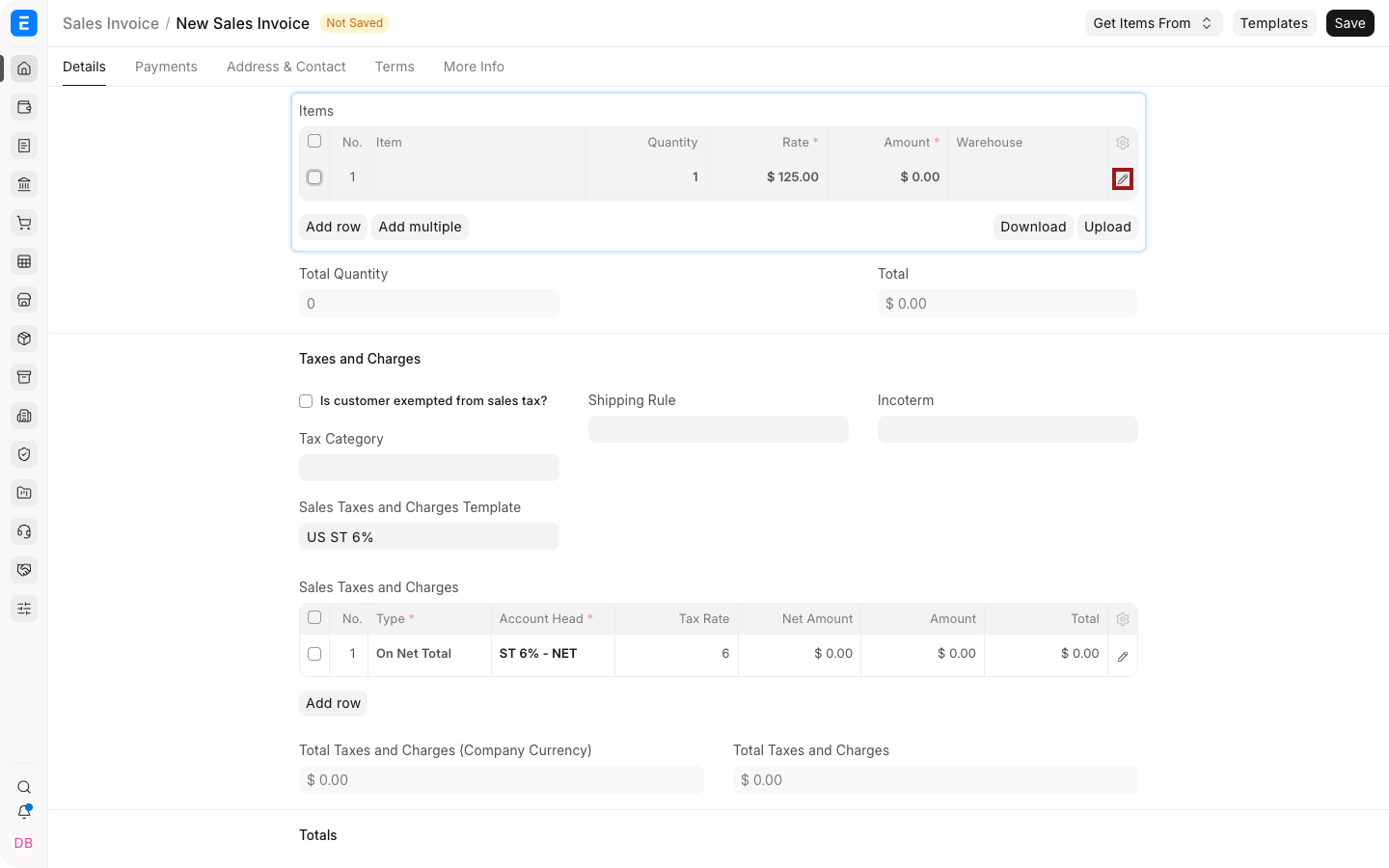
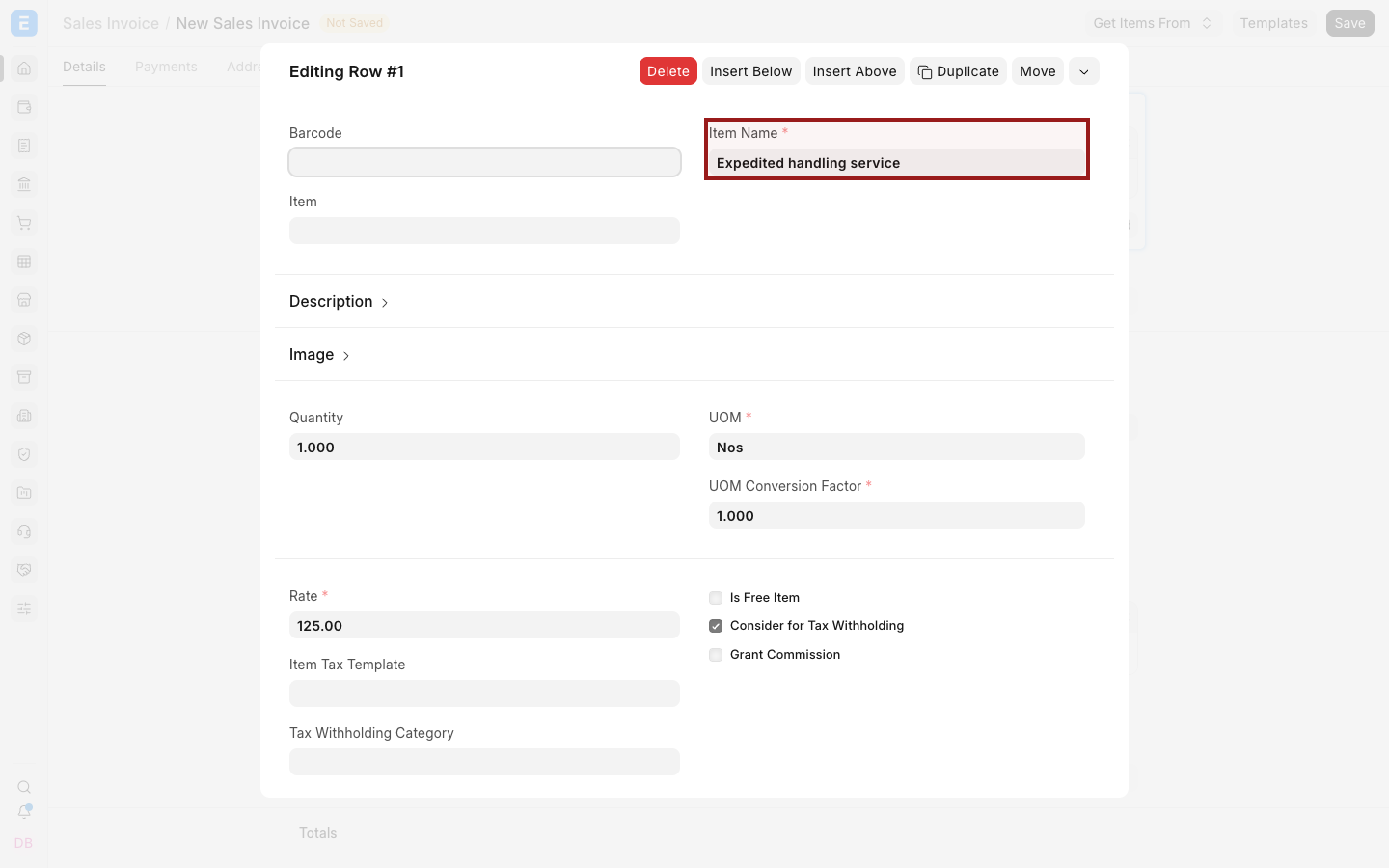
Because there is no Item Code, the stock-availability dot used for normal Item rows does not apply.
Required line information
| Field | Purpose |
|---|---|
| Item Name | Short label printed and reported for the charge |
| Description | Complete explanation shown on the invoice |
| Quantity | Number of units billed |
| UOM | Unit used to interpret Quantity |
| Rate | Price per unit |
| Income Account | Revenue account credited by the invoice |
| Cost Center | Organizational dimension used for reporting |
Additional mandatory fields can appear through accounting dimensions, tax rules, or customization.
Example
Nova Electronics Trading needs to bill a one-time Expedited handling service:
| Field | Value |
|---|---|
| Item Name | Expedited handling service |
| Quantity | 1 |
| UOM | Nos |
| Rate | $125 |
| Income Account | Service Revenue |
After submission, the Sales Invoice creates the normal receivable and income accounting entries. It does not create a stock movement.
Create a Credit Note without an Item Code
Create a return against the original invoice where possible so the audit link is retained.
- Open the submitted Sales Invoice.
- Create a Return or Credit Note.
- Confirm Is Return and the reference invoice.
- Enter the one-time line with a negative quantity or mapped return values.
- Review accounts and submit.
Do not create an unrelated negative invoice when a linked return is available.
When to create an Item instead
Create a non-stock Item when:
- The charge will be used repeatedly.
- It requires consistent taxes or income accounts.
- Users need Item-wise reporting.
- It has a standard Item Price.
- It appears in Quotations or Sales Orders.
Troubleshooting
| Problem | What to check |
|---|---|
| Invoice cannot be saved | Complete Item Name, Quantity, UOM, Rate, Income Account, Cost Center, and other mandatory dimensions |
| Stock validation appears | Confirm the row has no stock Item and no stock-update requirement |
| Tax is incorrect | Review tax templates, Item Tax Template behavior, and charge classification |
| Reporting is inconsistent | Create a reusable non-stock Item instead |
| Credit Note does not reverse the original | Create it from the submitted invoice and verify the return reference |
Frequently asked questions
Can I update stock for a row without an Item Code?
No meaningful stock ledger entry can be created without a stock Item. Use an Item when inventory is involved.
Can I use this method for services?
Yes, but a reusable non-stock service Item is better when the service is sold regularly.
Does the invoice create accounting entries?
Yes. The configured Income Account and receivable account are used on submission.
Can a Sales Order contain a line without an Item Code?
This page covers Sales Invoice. Use a proper Item for a controlled multi-step sales cycle.