


















Introduction to Selling Module
The Selling module in ERPNext brings your customer records, quotations, orders, invoices, pricing, and sales reports into one connected workflow. It helps a sales team move from an enquiry to confirmed revenue while operations and finance work from the same information.
Use the module to prepare professional offers, confirm what a customer has ordered, monitor fulfilment, enforce commercial rules, and understand sales performance. Because each transaction can flow into the next, teams spend less time entering the same data repeatedly and gain a clearer audit trail.
Before you begin
Complete the following setup before processing live sales:
- Create your customers with their billing and shipping addresses.
- Add the products and services you sell as items.
- Configure a selling Price List and item prices.
- Review Selling Settings for transaction defaults and validations.
- Set up taxes, payment terms, warehouses, and user permissions for your process.
You can begin with a small set of masters and add more controls as your sales process matures. For example, credit limits, sales partners, territories, and promotional schemes are useful but are not required for every implementation.
Understand the sales cycle
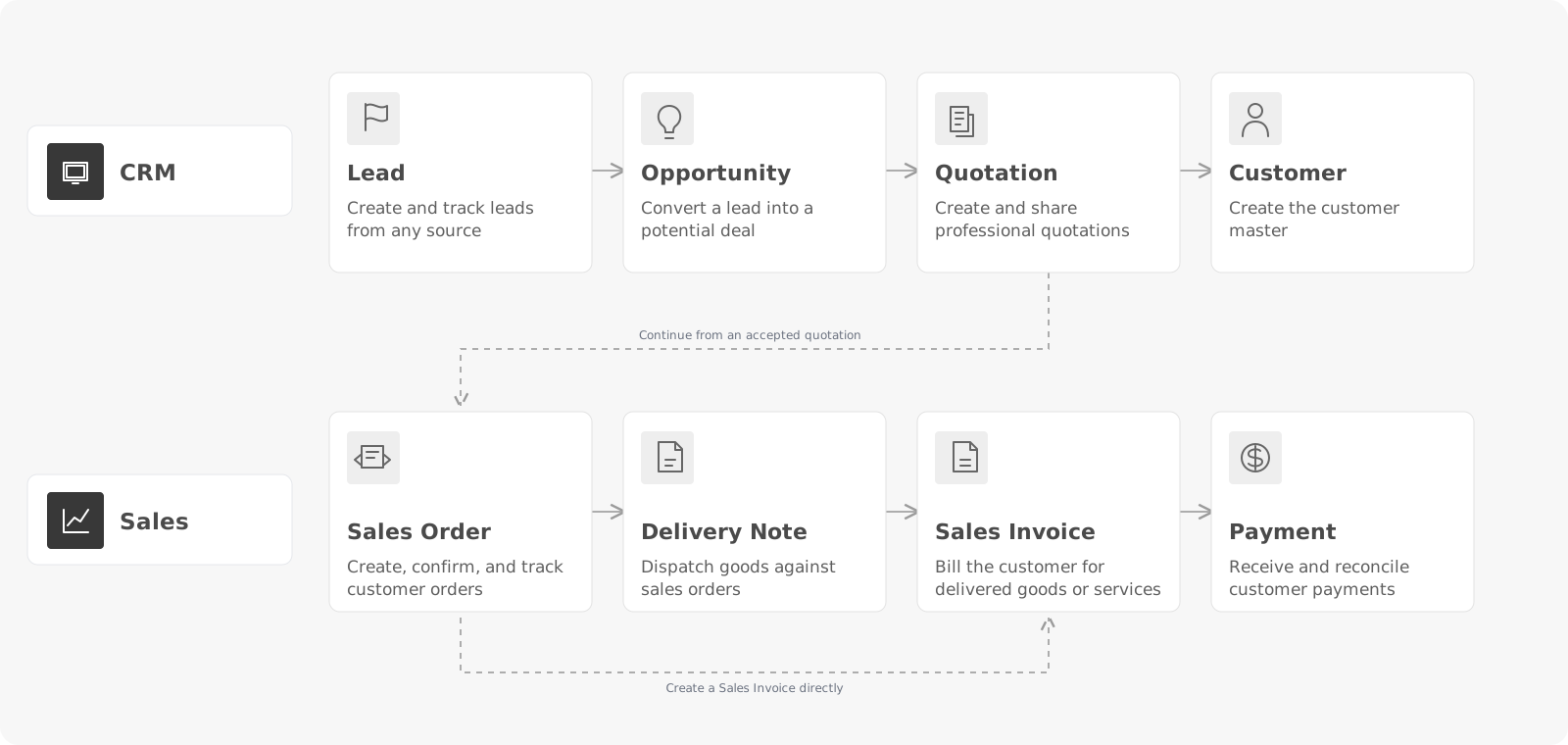
The diagram above is the main ERPNext sales cycle. It provides a common reference for this page and for the detailed documentation of Quotation, Sales Order, Delivery Note, Sales Invoice, and Payment Entry.
ERPNext supports four common variations of this cycle:
- Standard goods sale: confirm an order, dispatch stocked goods, invoice the customer, and record payment.
- Direct invoice with stock update: use one Sales Invoice to dispatch and bill an immediate stock sale.
- Service sale without stock delivery: confirm and bill non-stock work without a Delivery Note.
- Drop-shipped sale: ask a Supplier to deliver directly to the Customer while you record the sale and purchase.
Choose the shortest variation that still gives your team the control and audit trail it needs. A Quotation proposes terms. A Sales Order records the commitment. Delivery, invoice, and payment documents record the operational and financial result.
Standard goods sale

Best for: distributors, wholesalers, manufacturers, and businesses that pick and dispatch stocked goods.
The Sales Order confirms what the customer bought. The Delivery Note records goods leaving the Warehouse. The Sales Invoice bills the customer, and the Payment Entry records payment.
- Set up: stock Items, Warehouses, prices, taxes, accounts, and payment terms. Use Selling Settings to decide whether Sales Order and Delivery Note are mandatory.
- Optional: Quotation can be skipped when the order is already confirmed.
- Benefit: clear order, delivery, billing, and payment tracking, including partial fulfilment.
- Tradeoff: more documents and approvals than a direct sale.
Sales Order is the commitment. Delivery Note updates stock. Sales Invoice and Payment Entry affect the general ledger. If a Delivery Note or Sales Invoice is created directly, it will not update the Sales Order’s delivered or billed percentage unless it is linked correctly.
Direct invoice with stock update
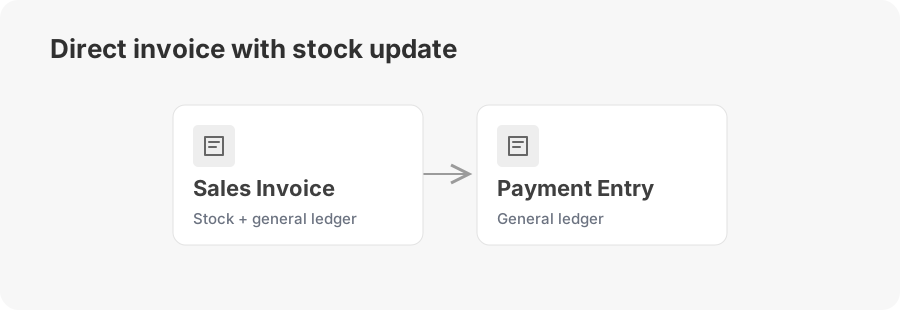
Best for: retail counters, small showrooms, spare-parts desks, and simple cash-and-carry sales where goods are handed over immediately.
Create a Sales Invoice and enable Update Stock. The same document reduces stock and bills the customer.
- Set up: stock Items, a source Warehouse, prices, taxes, stock and income accounts, and permission in Selling Settings to invoice without a Sales Order or Delivery Note.
- Optional: Quotation, Sales Order, and Delivery Note are normally skipped.
- Benefit: the fastest stock-sale workflow, with one document for delivery and billing.
- Tradeoff: no order commitment, reservation, pending-delivery queue, or fulfilment percentage.
The submitted invoice affects both the stock ledger and general ledger. Because it is created directly, users must verify the Warehouse, available stock, rates, taxes, address, and payment terms on the invoice itself. See Sales Invoice for the complete invoicing workflow.
Service sale without stock delivery
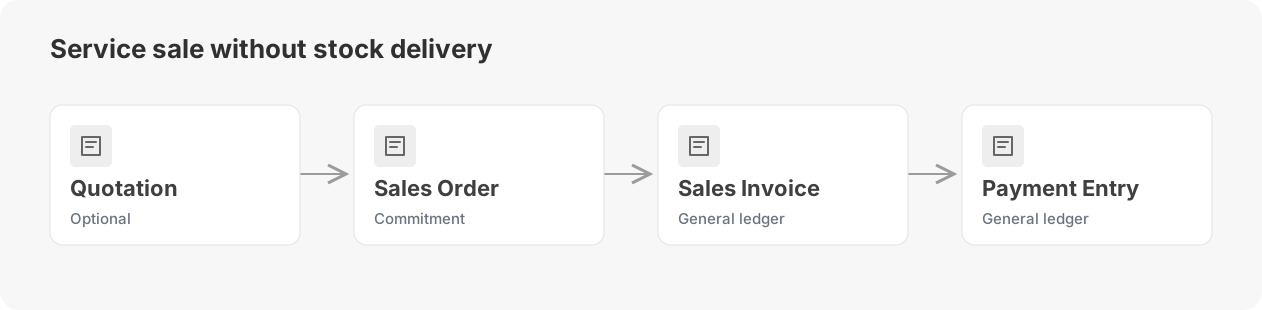
Best for: consulting firms, agencies, software companies, maintenance providers, training businesses, and project-based teams.
Use non-stock service Items. The Sales Order records the agreed scope and value, and the Sales Invoice bills the customer without a stock delivery.
- Set up: disable Maintain Stock on service Items, configure income and receivable accounts, and add Projects or Timesheets when work is tracked by milestone or time. Use Skip Delivery Note when the Sales Order should complete through billing.
- Optional: Quotation and Sales Order can be skipped for simple recurring or immediately billable work. Delivery Note is normally not required.
- Benefit: tracks scope, milestones, and partial billing without unnecessary Warehouse transactions.
- Tradeoff: a direct invoice gives less visibility into committed scope and remaining billable quantity.
Sales Order is the commitment. Sales Invoice and Payment Entry affect the general ledger, but no stock-ledger entry is created. If the invoice is created directly, link it to the relevant Project when project reporting matters. See ERPNext for Service Organizations and Maintenance Sales Orders.
Drop-shipped sale
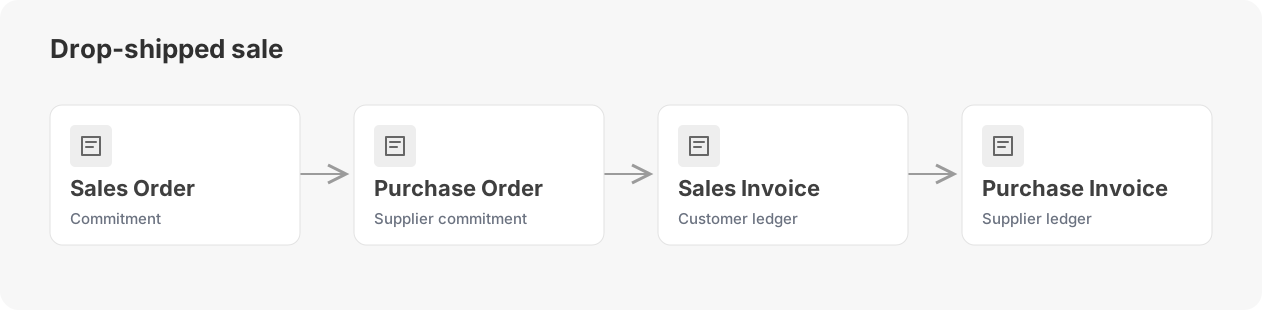
Best for: online sellers, trading companies, distributors with supplier-direct fulfilment, and businesses selling bulky or special-order goods they do not store.
The Sales Order records the customer commitment. A linked Purchase Order instructs the Supplier to deliver directly to the Customer. Customer and supplier invoices record the two financial sides.
- Set up: Customer, Supplier, Item, shipping address, buying and selling prices, taxes, and accounts. On the Sales Order item row, enable Supplier delivers to Customer and select the Supplier.
- Optional: Quotation is optional. Delivery Note and Purchase Receipt are normally omitted because the goods never enter your Warehouse.
- Benefit: sell a wider range without holding inventory or handling delivery.
- Tradeoff: less control over delivery timing and quality, plus more dependence on correct Supplier and shipping details.
Sales Order and Purchase Order are commitments. Sales Invoice and Purchase Invoice affect the general ledger. A correctly configured drop-shipped row does not affect your stock ledger. Create the Purchase Order from the Sales Order so ERPNext carries the Customer address and source references. See Drop Shipping, Drop Shipping from a Sales Order, and Drop Ship Between Subsidiary Companies.
Creating the next document from its source carries mapped values and updates progress. Creating it directly is valid for a shorter workflow, but it starts a separate transaction chain unless the correct source is linked.
Open the Selling workspace
From the ERPNext home screen, open Selling. The workspace provides shortcuts to common transactions, masters, settings, and reports. It also displays sales indicators such as order count, total sales amount, and average order value.
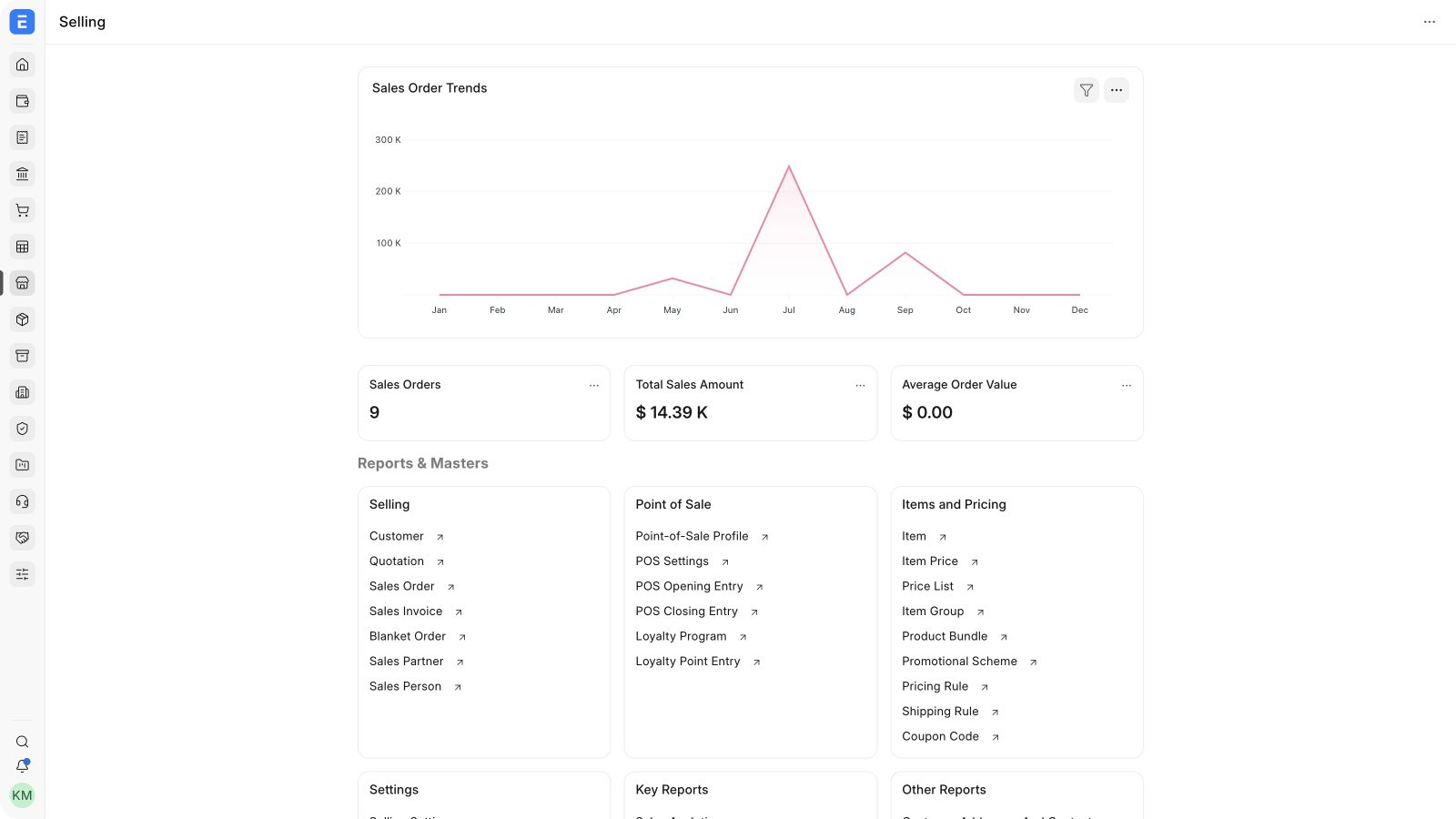
The primary shortcuts at the top help users open Quotations, Sales Orders, and Sales Invoices quickly. Expand the workspace sections to reach pricing tools, settings, and reports.
What you can manage in Selling
Customers and relationships
Maintain customer names, contact details, addresses, tax information, payment terms, and accounting defaults. Customer Groups and Territories help segment customers for reporting and commercial policies. Credit limits can prevent or warn against transactions that would exceed an approved exposure.
Quotations
Prepare offers for leads or customers, add products or services, apply taxes and discounts, and record validity and terms. A submitted quotation can be converted into a Sales Order without re-entering its lines. Use quotation status and reports to follow open proposals.
Sales Orders
A Sales Order records the items, quantities, delivery dates, prices, and terms accepted by the customer. It becomes the central reference for fulfilment and billing. You can create multiple Delivery Notes and Sales Invoices from one order, deliver selected lines, or close an undelivered balance when the customer no longer requires it.
Invoices and receivables
Sales Invoices post income, taxes, and the customer receivable to the accounts. Depending on your workflow, the invoice can be created from a Sales Order or Delivery Note. Finance teams can then allocate receipts, issue credit notes for returns, and monitor outstanding balances.
Pricing, promotions, and loyalty
Use a Pricing Rule to apply discounts, special rates, margins, or product discounts when defined conditions are met. Promotional Schemes help manage offers with multiple price or product slabs. Coupon Codes and the Loyalty Program support customer promotions and repeat purchases.
Sales team performance
Assign a Sales Person or Sales Partner to transactions and distribute contribution percentages when more than one person is involved. Targets can be set by item group, territory, or period, and reports can compare actual sales against those targets.
Reports and analytics
The workspace includes reports for sales trends, order analysis, customer acquisition, inactive customers, item-wise history, target variance, and partner commissions. Start with Sales Reports, then select the report that matches the question you need to answer.
Good practices
- Convert related documents instead of recreating them. This preserves links and reduces data entry.
- Use clear naming and ownership rules for Customer, Address, and Contact records.
- Define who may change prices, discounts, credit limits, and submitted transactions.
- Review pending delivery, pending billing, and outstanding receivable reports regularly.
- Test pricing and tax rules with representative orders before using them in production.
Frequently asked questions
Do I have to create every document in the sales cycle?
ERPNext supports shorter workflows. For example, a service company may create a Sales Order and then a Sales Invoice, while a retail sale may use only a Sales Invoice with stock updated.
Can I sell to a new prospect before creating a Customer?
You can create a Quotation for a Lead. Create the Customer when the prospect is ready to place an order.
Can one Sales Order be delivered or billed in parts?
Y
es. Create multiple Delivery Notes or Sales Invoices for the quantities completed at each stage. ERPNext tracks the remaining quantity and updates the order’s fulfilment percentages.
Where should I configure discounts?
Enter a one-time discount on the transaction. Use Pricing Rules or Promotional Schemes when the discount should be applied consistently under defined conditions.
How do I know which orders still need action?
Use Sales Order statuses and reports for pending delivery and pending billing. The delivered and billed percentages also show progress on each order.