


















Allocating Credit Note and Payment
Allocate a Credit Note or unallocated customer payment when the credit should settle a specific Sales Invoice. Allocation updates the outstanding amounts without creating another sale or payment.
Before you begin
Confirm that the Sales Invoice, Credit Note, and Payment Entry are submitted for the same Customer, Company, currency, and receivable account. The credit or payment must still have an unallocated amount.
Allocate with Payment Reconciliation
- Search for Payment Reconciliation.
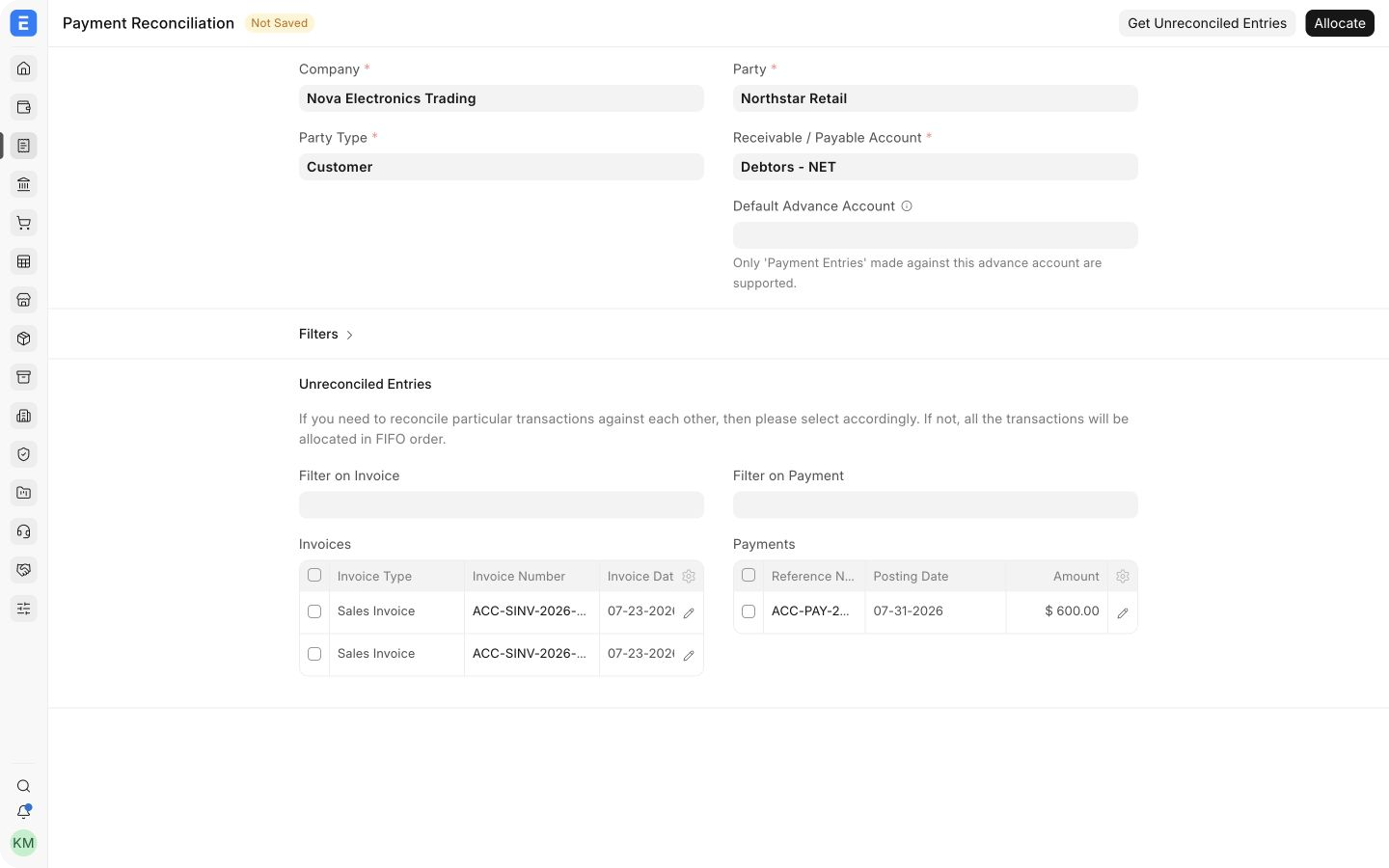
- Select the Company, Party Type Customer, Customer, and receivable account.
- Fetch unallocated payments and invoices.
- Select the Credit Note or Payment Entry in the payments section.
- Select the Sales Invoice in the invoices section.
- Enter the amount to allocate.
- Review the remaining unallocated and outstanding amounts.
- Select Reconcile.
The Payment Reconciliation tool places open invoices and available payments or Credit Notes side by side. Select only the entries that should be matched before allocating the amount.
You may allocate one payment across several invoices or combine several credits against one invoice, provided the allocation does not exceed the available or outstanding amount.
Verify the result
Open the Accounts Receivable report and confirm:
- the Sales Invoice outstanding amount has reduced;
- the Credit Note or Payment Entry unallocated amount has reduced;
- the Customer's total balance is unchanged by the allocation itself.
Allocation matches existing debit and credit entries. It does not post new income, tax, stock, or cash movement.
When to use a Journal Entry
Use a Journal Entry only when the accounting adjustment cannot be represented by Payment Reconciliation. Add the Customer as Party and select the correct Sales Invoice or Credit Note in Reference Type and Reference Name. Missing references leave the vouchers open even when the account balance appears correct.
Troubleshooting
The credit or invoice does not appear
Check submission status, Customer, Company, currency, receivable account, and remaining unallocated or outstanding amount.
The ledger balances but the invoice stays unpaid
The entry probably lacks the invoice reference. Reconcile the payment or correct the referenced Journal Entry.
The wrong allocation was made
Use the supported unreconcile action where available, then reconcile the correct vouchers. Do not cancel unrelated sales documents.