


















Calculate Incentive For Sales Team
ERPNext can calculate incentives for an internal sales team directly from the Sales Team child table on supported transactions. Each Sales Person receives a contribution percentage, contribution amount, commission rate, and calculated incentive.
The earlier documentation relied on an obsolete client script and legacy APIs. For standard percentage-based incentives, use the native Sales Person and Sales Team fields. Create custom logic only when the incentive policy cannot be represented by the standard calculation.
Before you begin
Set up:
- An enabled Sales Person for every eligible team member.
- A Commission Rate on each Sales Person.
- A written incentive policy that defines the qualifying transaction, contribution rules, approval point, returns, cancellations, and payment timing.
- User permissions to edit the Sales Team table on sales transactions.
Decide whether incentives are earned from a Quotation, Sales Order, Delivery Note, or Sales Invoice. Use the same event consistently so the same sale is not rewarded more than once.
Set the Sales Person commission rate
- Open the required Sales Person.
- Enter the default Commission Rate.
- Save.
ERPNext fetches this rate into new Sales Team rows. Review the policy before changing a rate because existing submitted transactions should retain their approved incentive basis.
Add the Sales Team to a transaction
- Open a supported sales transaction.
- Select More Info.
- Expand Sales Team.
- Select Add row.
- Choose the Sales Person and enter Contribution (%).
- Add other team members when the sale is shared.
- Use the highlighted pencil icon to open the full child-row editor when needed.
- Confirm that the contribution percentages total 100% when the full net total must be allocated.
- Save.
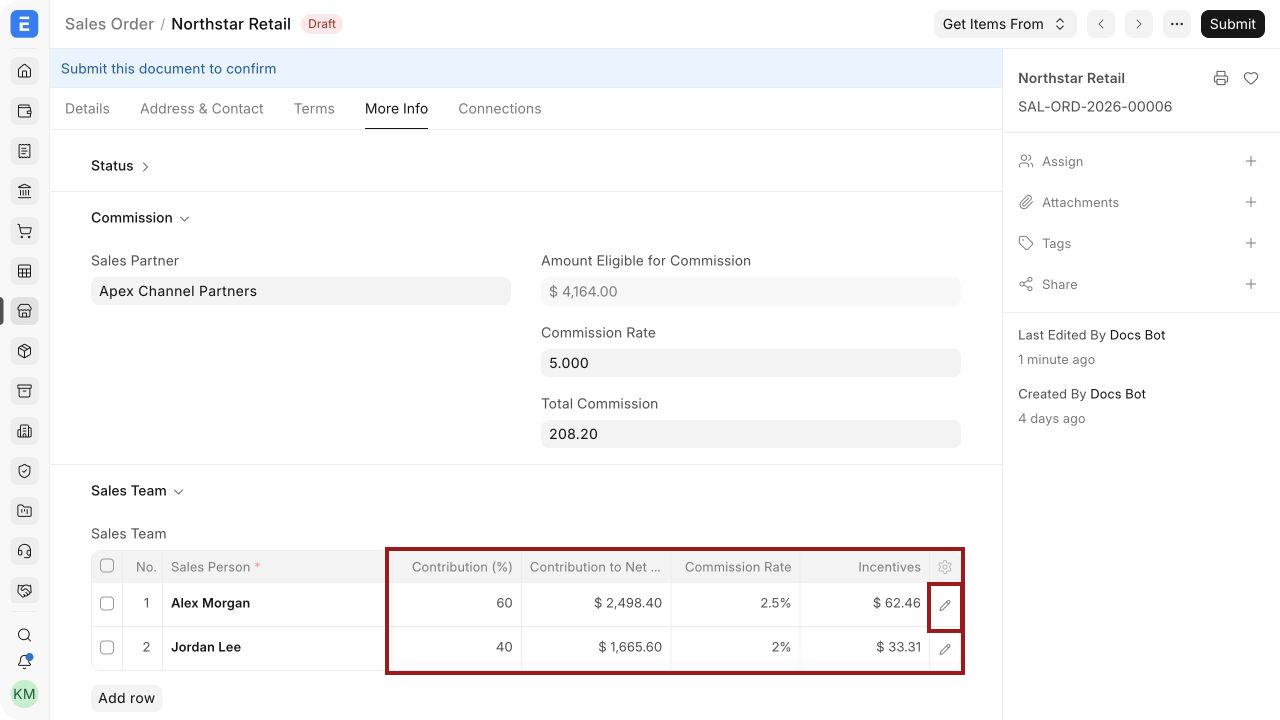
In this example, Alex Morgan receives 60% of the net total and Jordan Lee receives 40%.
How ERPNext calculates incentives
ERPNext calculates the contribution amount from the transaction's net total:
Contribution to Net Total = Net Total × Contribution (%) ÷ 100
It then applies the Sales Person's commission rate:
Incentive = Contribution to Net Total × Commission Rate ÷ 100
For a net total of $4,164:
| Sales Person | Contribution | Contribution amount | Commission rate | Incentive |
|---|---|---|---|---|
| Alex Morgan | 60% | $2,498.40 | 2.5% | $62.46 |
| Jordan Lee | 40% | $1,665.60 | 2% | $33.31 |
The total calculated incentive is $95.77.
Sales Team fields and what they mean
| Field | Meaning |
|---|---|
| Sales Person | Individual receiving sales attribution and possible incentive |
| Contribution (%) | Share of the transaction credited to the Sales Person |
| Contribution to Net Total | Currency value calculated from net total and contribution percentage |
| Commission Rate | Rate fetched from the Sales Person master |
| Incentives | Calculated or approved incentive amount for the row |
The Sales Team table is a child table. Selecting the pencil opens the full row editor for the chosen Sales Person.
Submit and review the transaction
Before submission:
- Verify that the correct people are included.
- Check that contribution percentages match the approved split.
- Confirm the net total and commission rates.
- Review the calculated incentive amounts.
After submission, treat the Sales Team allocation as part of the transaction's audit trail. If the sale is cancelled, amended, returned, or credited, apply the incentive policy before paying or reversing an incentive.
Read Amending Sales Order after Submit before changing a submitted order.
Review team performance and incentives
Use Sales Persons in Sales Transactions and relevant sales reports to verify transaction attribution. Use Sales Person Target Allocation when the organization also tracks quantity or amount targets by Fiscal Year and Item Group.
The incentive field records a transaction-level value. It does not automatically create a payroll component, salary slip, expense, payable, or payment.
For payroll-based settlement, define a controlled process with the HR and finance teams. A common approach is to review approved incentives for the period, then include the approved amount through a configured Additional Salary or another organization-approved payroll process in Frappe HR.
When custom logic is needed
The native calculation suits a fixed commission rate applied to the credited net total. Customization may be needed for policies such as:
- Tiered rates after revenue thresholds.
- Rates based on gross profit or collected payment.
- Different rates by Item Group, territory, or customer segment.
- Incentives paid only after the return period.
- Team bonuses triggered by a common target.
- Caps, floors, clawbacks, or manager approval.
Document the policy before implementation. Prefer a maintained server-side customization or custom app with tests over an unversioned client script. Client-side calculations alone can be bypassed by imports, integrations, background jobs, or API-created transactions.
See Server Script and Custom App Development when technical customization is required.
Accounting and payroll impact
Calculated incentives have no automatic accounting or payroll impact. Do not assume that saving or submitting the sales transaction pays the employee.
The settlement process should define:
- Which submitted documents qualify.
- Who reviews and approves the amounts.
- How returns and cancellations are handled.
- Which payroll or accounting document records the approved expense.
- When payment occurs.
- How paid amounts are reconciled with source transactions.
Troubleshooting
Commission Rate is zero
Open the Sales Person and enter the approved Commission Rate. Re-add or refresh the Sales Team row when the transaction does not fetch the updated value.
Contribution amount is incorrect
Check the transaction net total and Contribution (%). Discounts, pricing rules, and taxes can make net total different from grand total.
Contributions do not total 100%
Review every Sales Team row. Decide whether the unallocated percentage is intentional. For full allocation, correct the rows before submission.
Incentive is not recalculated
Save the transaction after changing contribution or team members. Reopen the row and confirm the commission rate. Avoid manually overriding calculated values without approval.
The incentive was paid before a return
Follow the organization's clawback or adjustment policy. Link the review to the Sales Return and the original transaction.
Frequently asked questions
Is this the same as Sales Partner commission?
No. Sales Team incentives apply to Sales Persons. Sales Commission covers external Sales Partners.
Can several people share one sale?
Yes. Add several Sales Team rows and divide contribution among them.
Does ERPNext pay the incentive automatically?
No. It calculates the transaction-level value only.
Can the incentive be based on collected payment?
Not with the standard net-total calculation. Use a verified customization and finance-approved policy.
Should incentives be calculated on Sales Orders or Sales Invoices?
Choose one qualifying event and apply it consistently. Sales Invoices are generally closer to recognized billing, while Sales Orders represent confirmed bookings.