


















Stock Entry or Stock Reconciliation timed out with many items
When you submit a Stock Entry or Stock Reconciliation with many rows, ERPNext can show Request Timed Out or a 504 Gateway Time-out error. Sometimes the document stays in Draft. This page explains why this happens and how to post large stock documents without a timeout.
The error
You click Submit, the screen waits for a long time, and then you see this message:
Request Timed Out
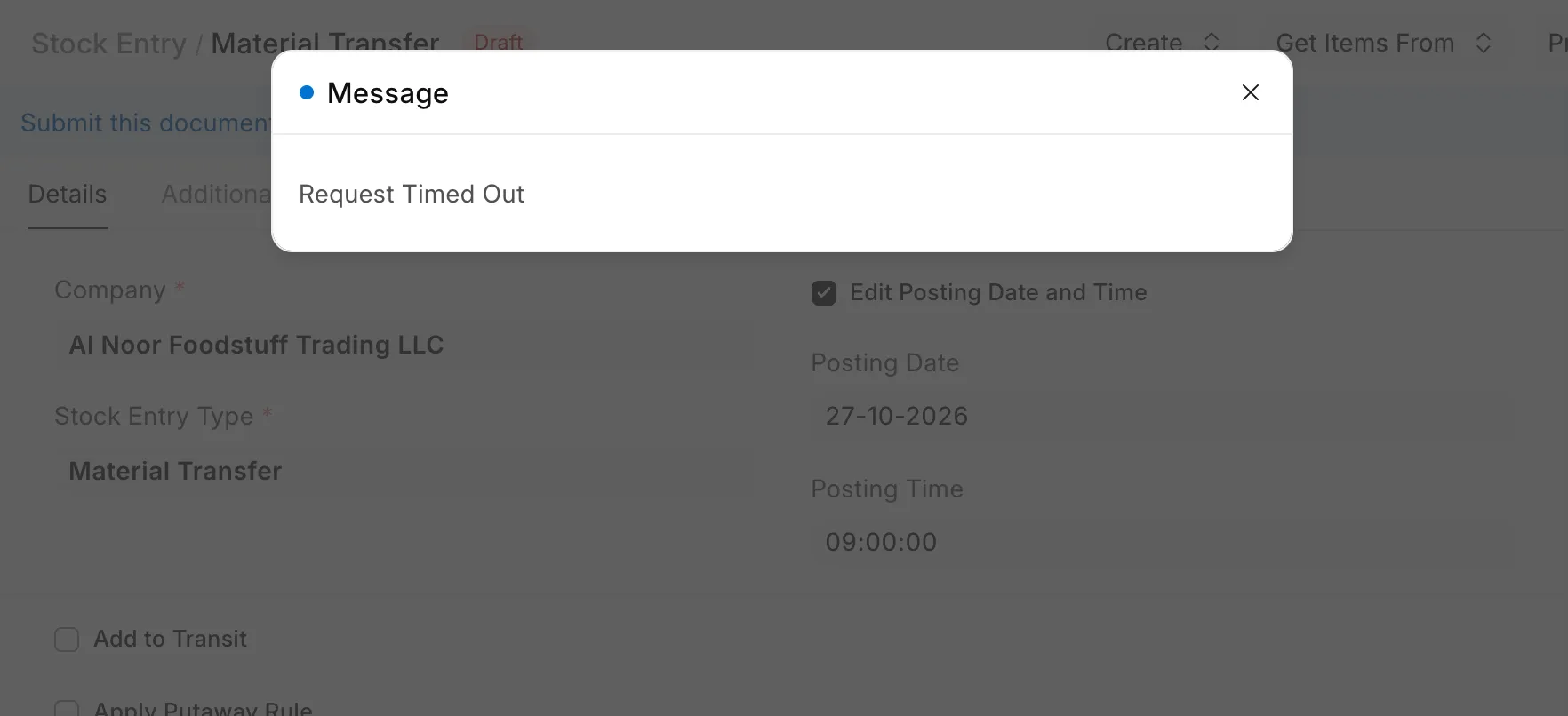
The same problem can show other messages:
504 Gateway Time-out
502 Bad Gateway
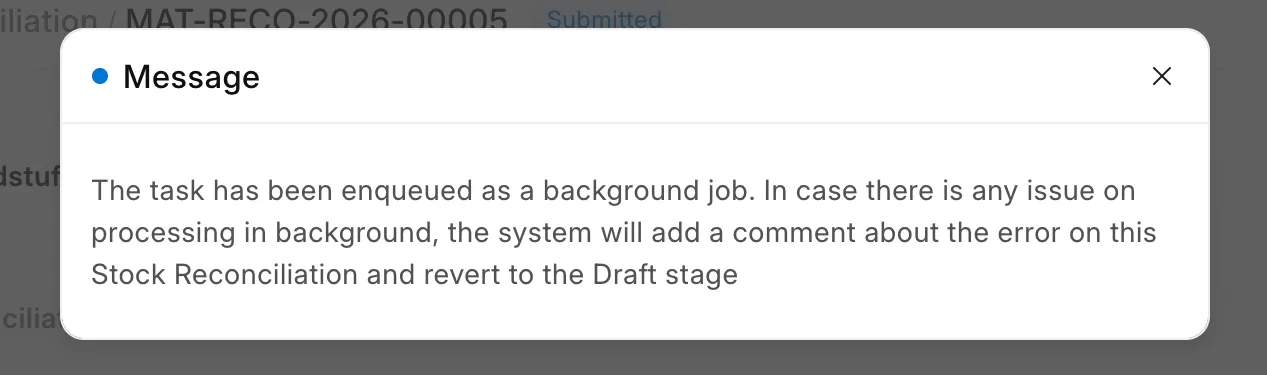
The task has been enqueued as a background job. In case there is any issue on processing in background, the system will add a comment about the error on this Stock Reconciliation and revert to the Draft stage
Why this happens
A Stock Entry or Stock Reconciliation is one document, but ERPNext does a lot of work for each row when you submit it:
- It makes a Stock Ledger Entry for each item and warehouse, and calculates the new valuation rate and stock value.
- It makes the General Ledger entries for the stock value change.
- For serial or batch items, it makes or checks a Serial and Batch Bundle (the record that holds the serial numbers or batches of a row) for each row.
- If the posting date is in the past, it must also change the stock value of every later transaction for the same items. This work is called reposting. ERPNext queues it as a Repost Item Valuation entry.
All this work happens in one web request. The web server gives each request a fixed time to finish. On Frappe Cloud and most self-hosted setups this is 120 seconds by default (the http_timeout setting). If the work takes longer, the proxy stops waiting and the browser shows Request Timed Out or 504.
Stock Reconciliation with more than 100 rows works differently. ERPNext does not submit it in the web request. It sends the submit to a background job and shows the "enqueued as a background job" message. If the job fails, the document goes back to Draft and ERPNext adds the error as a comment on the document.
Stock Entry has no such limit. ERPNext always submits it in the web request, so a large Stock Entry is the most common cause of a timeout.
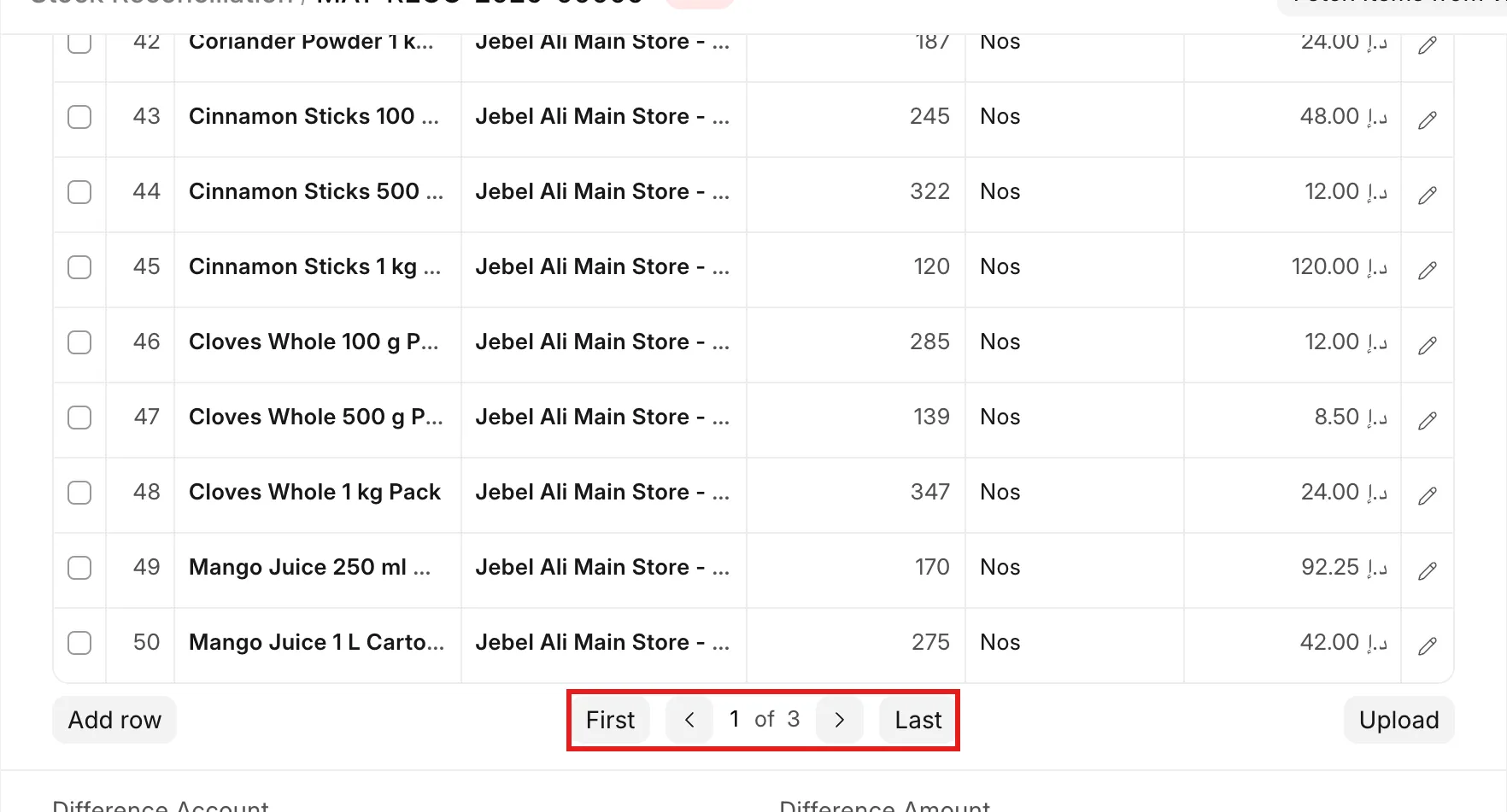
For example, Al Noor Foodstuff Trading LLC counts all 120 SKUs in Jebel Ali Main Store - ANF and enters the counts in one Stock Reconciliation. The Items table shows 3 pages of 50 rows.
How to fix it
1. Check if the document was saved before you try again
A timeout does not always mean that the submit failed. The browser stopped waiting, but the server can still finish the work.
- Reload the page with the document.
- Look at the status next to the document name.
- If the status is Submitted, the work is done. Do not submit again.
- If the status is Draft, continue with the steps below.
2. For a Stock Reconciliation: let the background job finish
- Click Submit, and then click Yes.
- If the reconciliation has more than 100 rows, ERPNext shows this message. Close it.
- Wait a few minutes, and then reload the page.
- If the status is still Draft, scroll down to Activity. Read the Action Failed comment. It tells you which row has the problem.
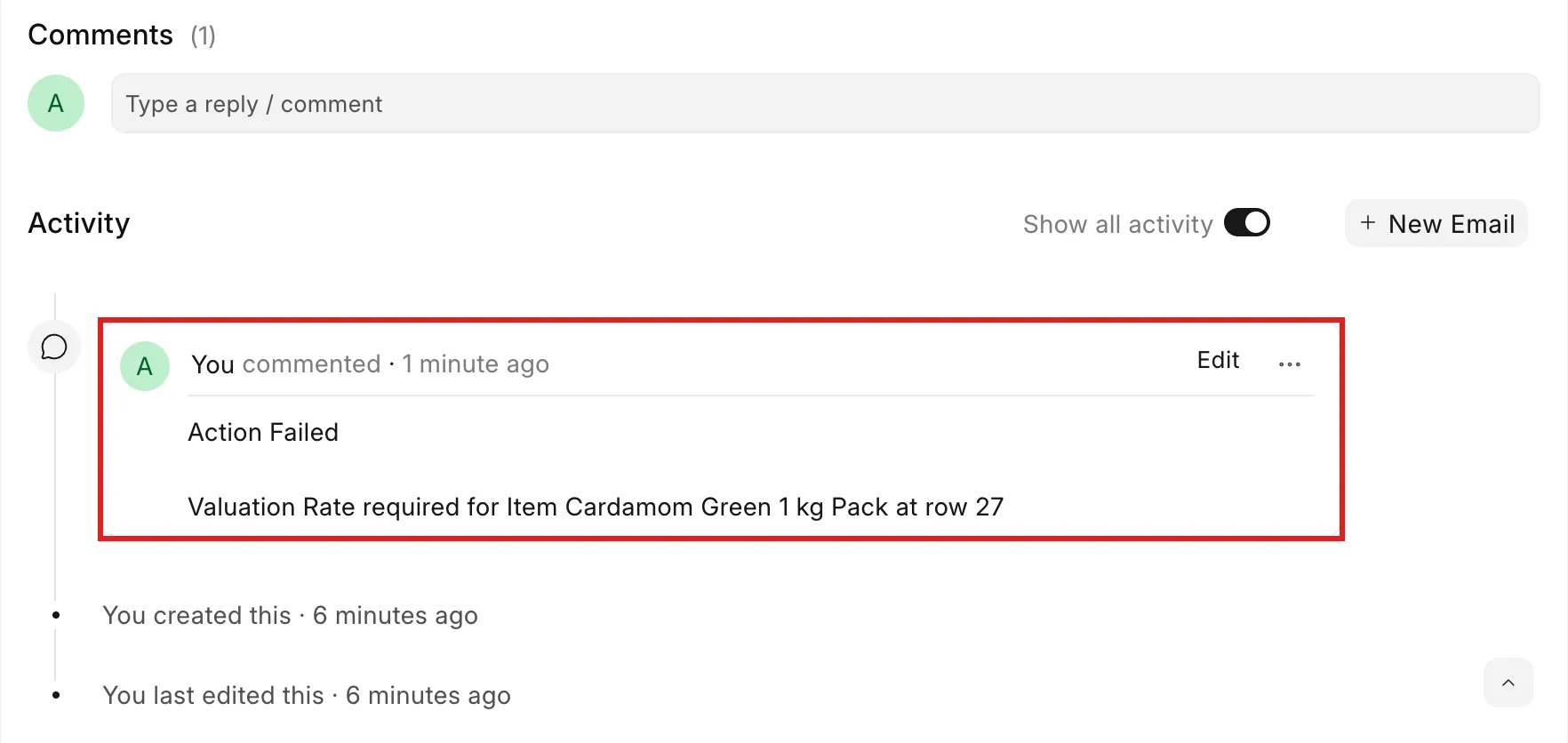
- Correct that row. In this example, enter the Valuation Rate for row 27.
- Click Save, and then click Submit again.
- Reload the page after a few minutes. The status changes to Submitted.
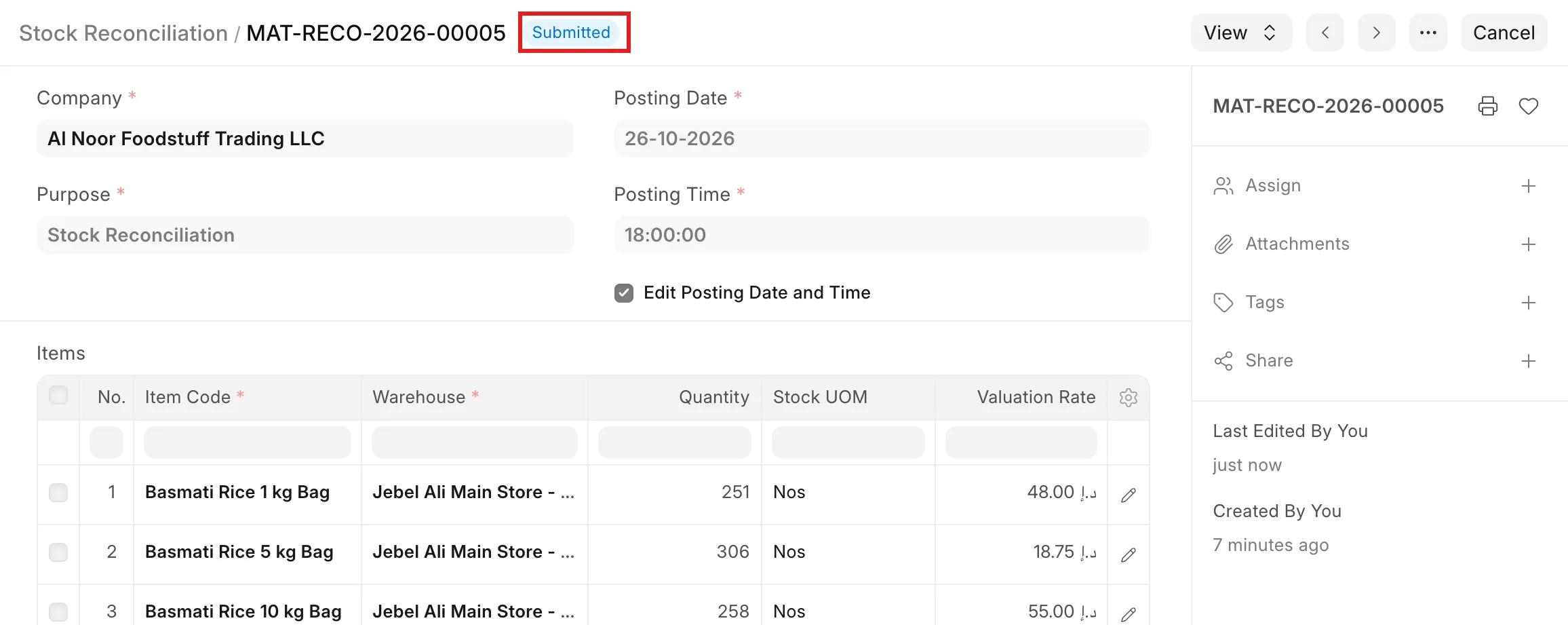
Do not click Submit many times while the job runs. The document is locked until the job finishes.
3. Split large entries into smaller documents
If one document is too large, make several smaller ones. Each smaller document finishes in less time.
- Keep each Stock Entry below about 50 to 100 rows. If it has serial or batch items, use fewer rows.
- Split a Stock Reconciliation by warehouse, or by item group. For example, make one for Rice and Grains and one for Spices.
- Give all parts the same posting date and time, so the stock count is for the same moment.
To split an existing draft, use Duplicate from the ··· menu, then delete the rows that belong in the other document.
4. Use Data Import for large Stock Entries
Data Import creates and submits the documents in a background job. A background job can run much longer than a web request, so it does not time out at 120 seconds.
- Go to Data Import → New.
- In Document Type, select Stock Entry.
- In Import Type, select Insert New Records.
- Select Submit After Import.
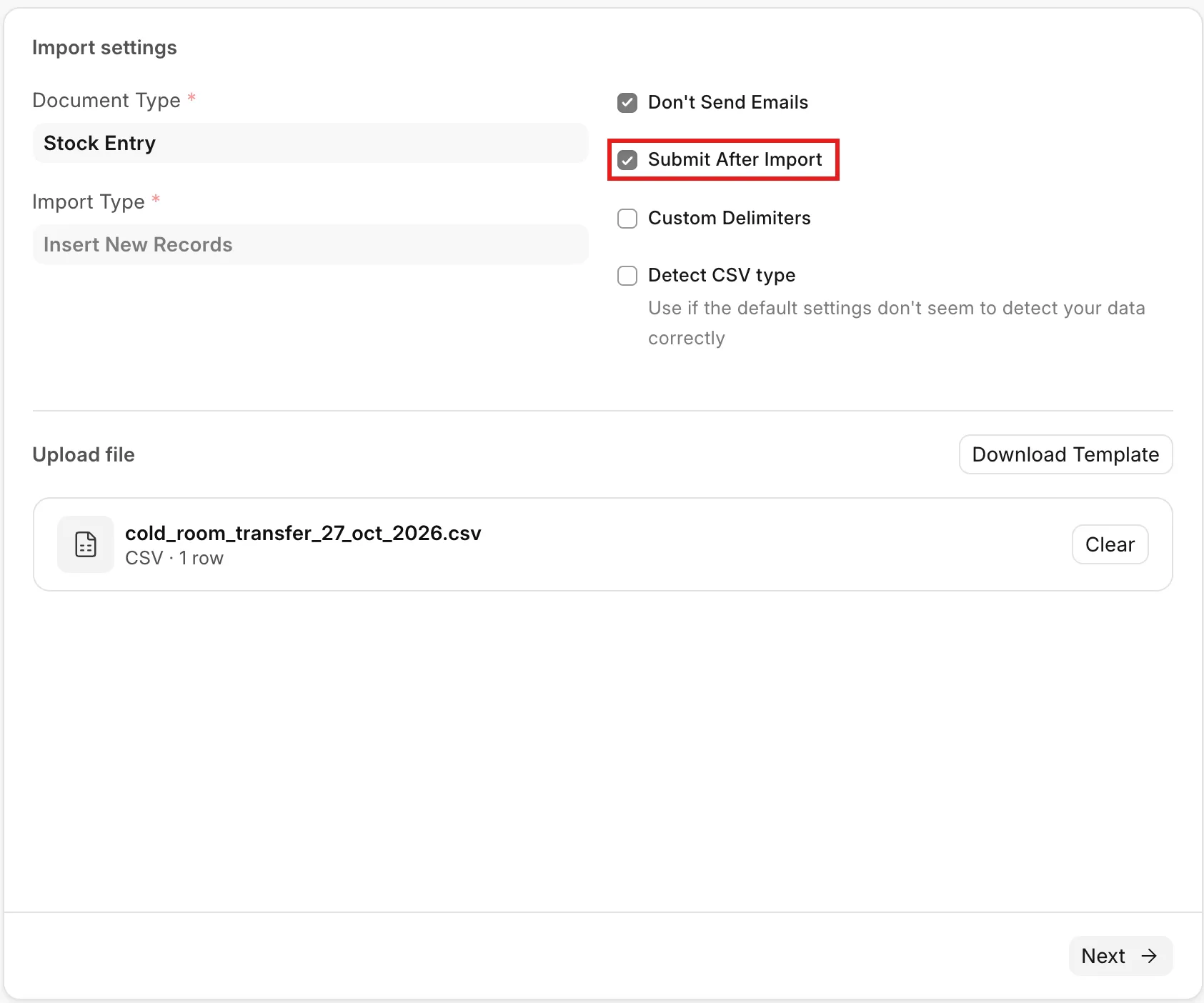
- Click Download Template. Fill in the parent fields (Stock Entry Type, Company, Posting Date) on the first row only. Fill one item per row in the Items columns.
- Upload the file, then click Next until you reach Fix issues.
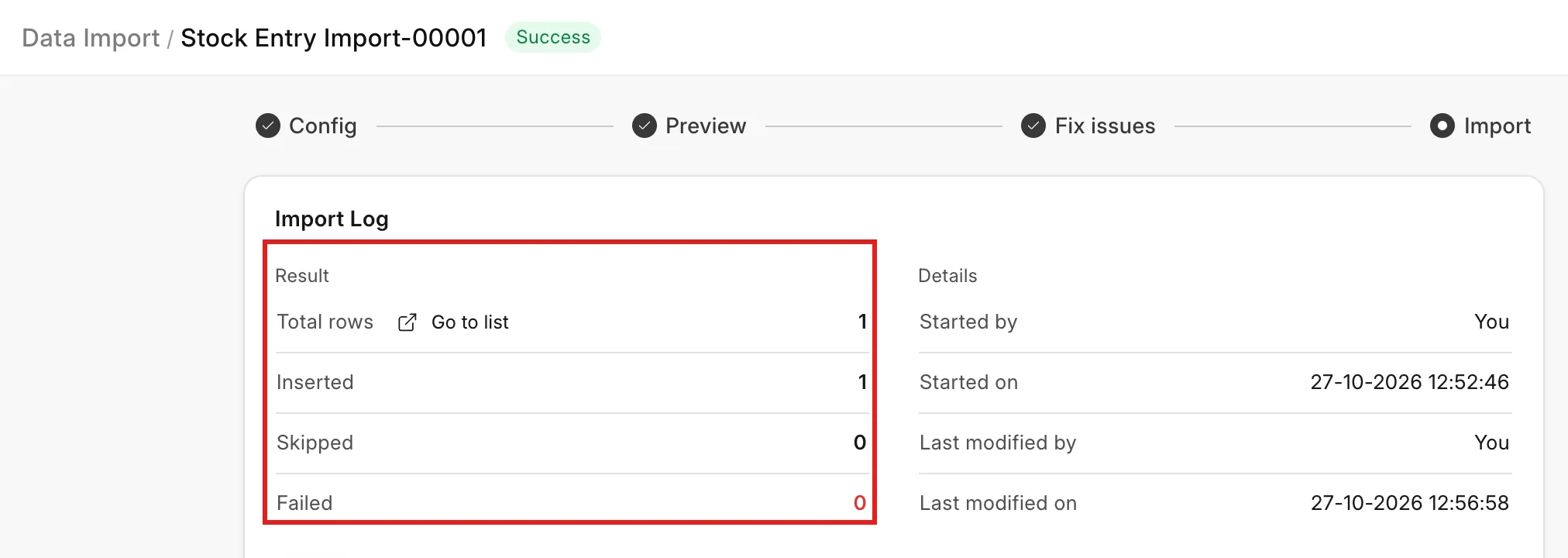
- Click Import. When the import finishes, the Import Log shows the Stock Entry as inserted.
Stock Reconciliation does not allow Data Import by default. For a large Stock Reconciliation, use the Upload button below the Items table to add the rows from a file, and then submit. More than 100 rows go to a background job, as in step 2.
5. Check that background jobs run
Large Stock Reconciliations, Data Import and Repost Item Valuation all need background workers. If the workers stop, these jobs stay queued and the documents stay in Draft.
- Go to the RQ Job list.
- Check that the label next to the title shows Scheduler: Active.
- Find the job
frappe.model.document.execute_action(the submit of the Stock Reconciliation). Its status must be finished.
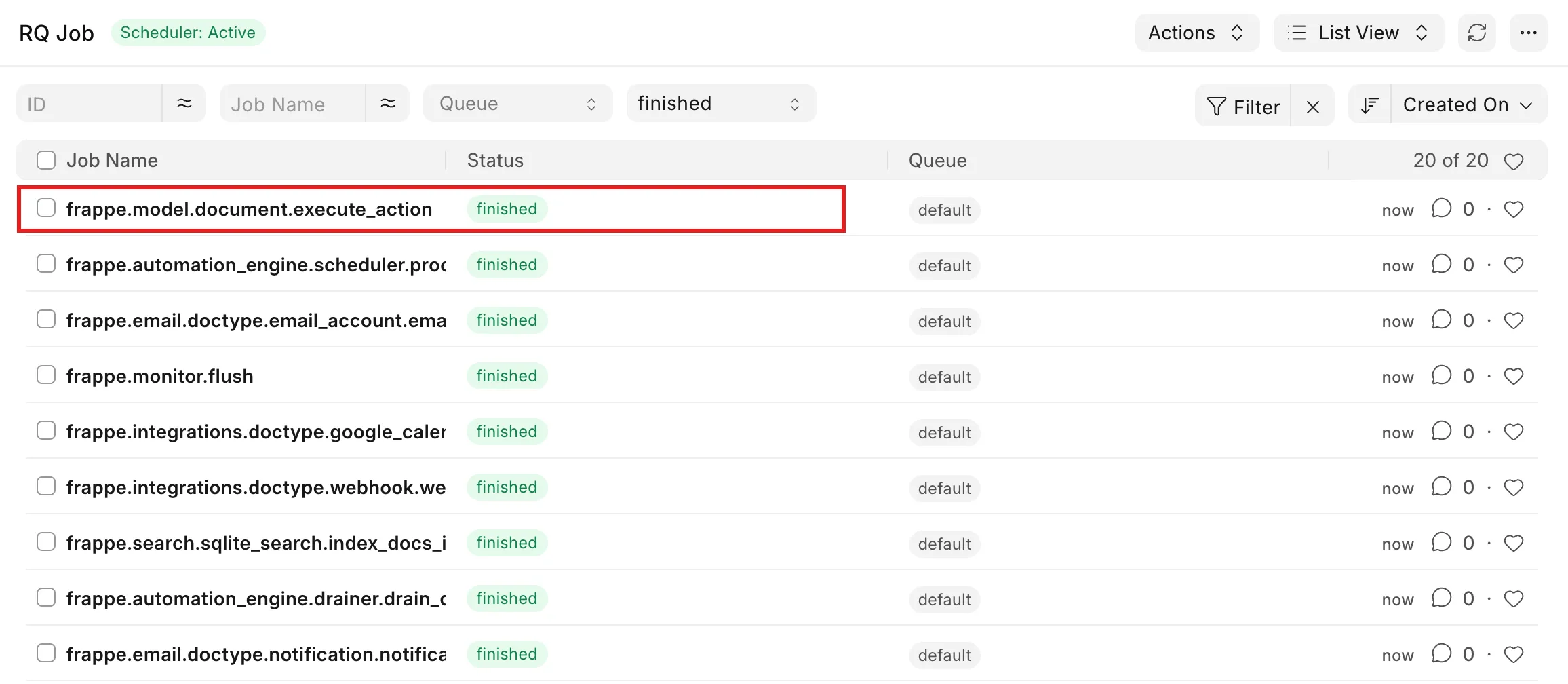
- If jobs stay queued for a long time, the workers are busy or stopped. Also open Repost Item Valuation and check for many entries in Queued status.
On Frappe Cloud, if the scheduler is not active or jobs do not start, raise a support ticket.
6. Self-hosted: check the timeout settings
If you host ERPNext on your own server, the timeout comes from gunicorn and from the proxy (nginx) in front of it.
- Check
http_timeoutin sites/common_site_config.json. The default is 120 seconds. - To change it, run:
bench config http_timeout 300
bench setup supervisor
bench setup nginx
3. Reload supervisor and nginx.
4. Check that you have enough gunicorn and background workers (gunicorn_workers, background_workers) for your users.
A longer timeout is a short-term fix. A request that runs for many minutes blocks a worker and slows the site for other users. Split the document or use a background method instead.
Tips for entries with many serial or batch numbers
- Use the Serial and Batch Bundle. In each row, click Add Serial / Batch No and upload or scan the numbers into the bundle. Do not type long lists of serial numbers into the row.
- Keep serial-heavy entries small. A row with 500 serial numbers takes much longer than a row with one item.
- Avoid backdated postings. A posting date in the past makes ERPNext repost every later transaction for those items. Post on today's date if you can. If you must backdate, post the entries in date order.
- Do the stock count when there are few transactions, for example after business hours. Then the reposting has less work to do.
How to prevent it
- Plan stock counts per warehouse or per item group, not one document for the whole company.
- Use Data Import with Submit After Import for Stock Entries with many rows.
- Check the RQ Job list and Repost Item Valuation list each week for stuck jobs.
If this does not fix it
If a small document (fewer than 20 rows) also times out, the cause is not the size. Check the Repost Item Valuation list for a large queue, and the Error Log list for errors at the same time.
On Frappe Cloud, raise a support ticket. Attach the document name, the time you clicked Submit, and a screenshot of the error.