

















Deleting all transactions for the Company while retaining masters
Use Delete Transactions on the Company form when you want to remove transactions for a company while keeping the company setup and master data. This is useful after testing, demo data entry, or sample imports when you want to start entering live transactions without recreating all masters.
This action clears transactional data for the selected company. It does not delete masters such as Company, Customer, Supplier, Item, Account, Warehouse, Cost Center, or other setup records.
Before You Begin
- Take a full backup before deleting transactions. This action is destructive and should be treated as irreversible unless you restore from backup.
- Use this only when you are sure the selected company's transactions are no longer required.
- Check that users are not creating or submitting new transactions for the company while the deletion is running.
- If the company has been used for live accounting, export the required ledgers and reports before deleting data.
- Make sure you are logged in as a user with permission to delete company transactions.
What Gets Deleted
ERPNext deletes transactional records linked to the selected company. This can include accounting, stock, buying, selling, payment, manufacturing, and other transaction documents that belong to that company.
The exact records depend on the modules used in your site and the transactions created for the company.
What Is Not Deleted
Master and setup records are retained. For example, the following records are not deleted just because company transactions are deleted:
- Company
- Customer
- Supplier
- Item
- Account
- Warehouse
- Cost Center
- Territory, Customer Group, Supplier Group, and Item Group
This lets you keep the structure of the company and reuse the same masters after the transactions are cleared.
Delete Transactions for a Company
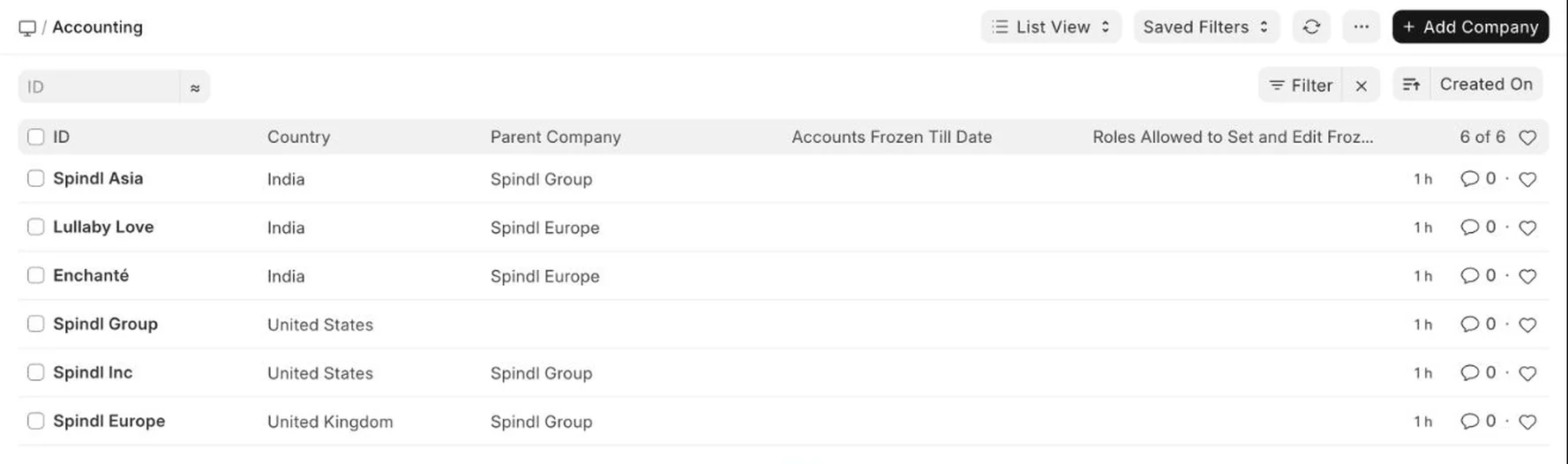
Step 1: Open the Company list
Search for Company from the Desk search bar, or open the Company list from the Accounting workspace.
Step 2: Open the company record
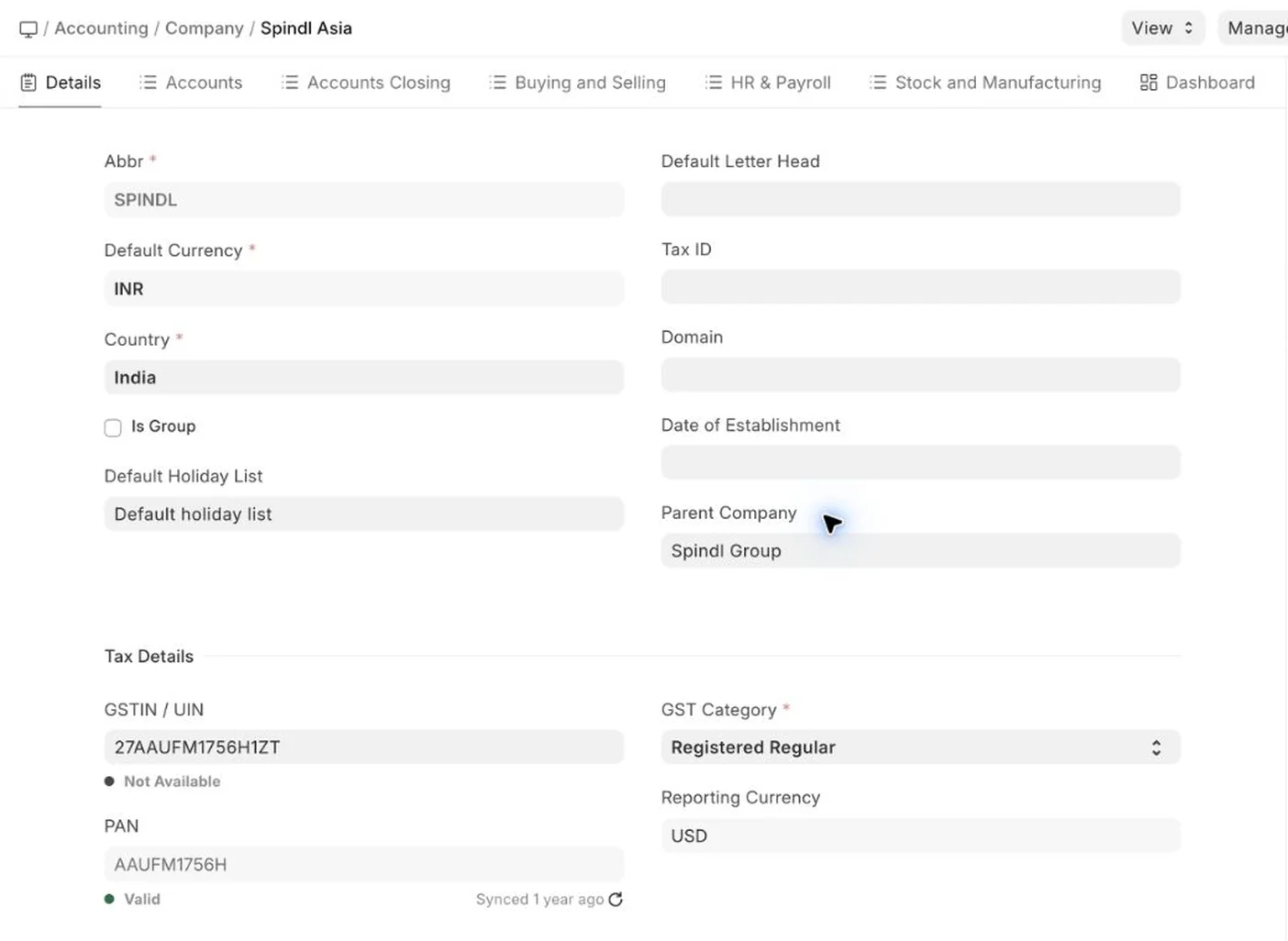
Select the company whose transactions you want to delete. Check the company name carefully before continuing.
Step 3: Choose Delete Transactions
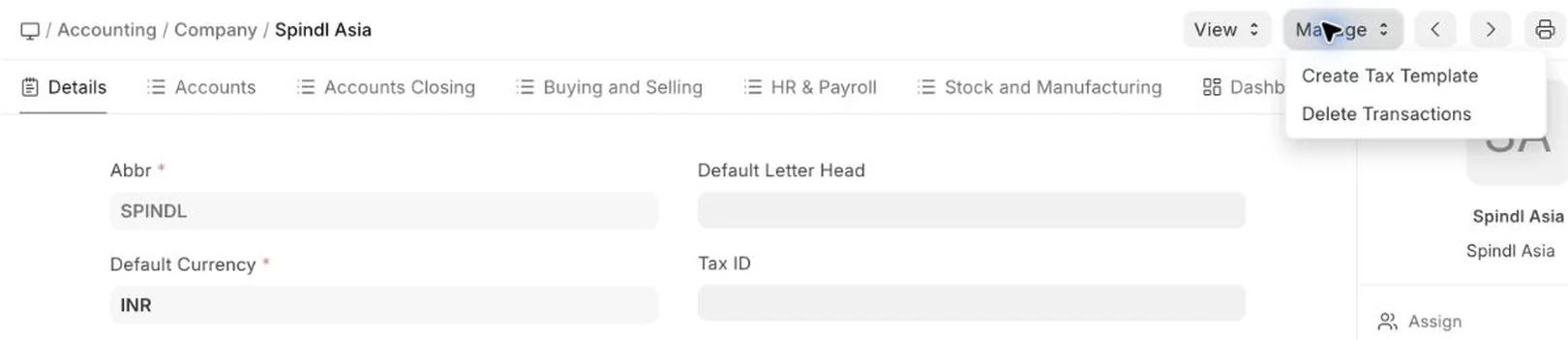
On the Company form, open Manage and click Delete Transactions.
Step 4: Verify your password
ERPNext asks you to verify your password before continuing. Enter your password and click Verify only when you are certain you have selected the correct company and have a backup.
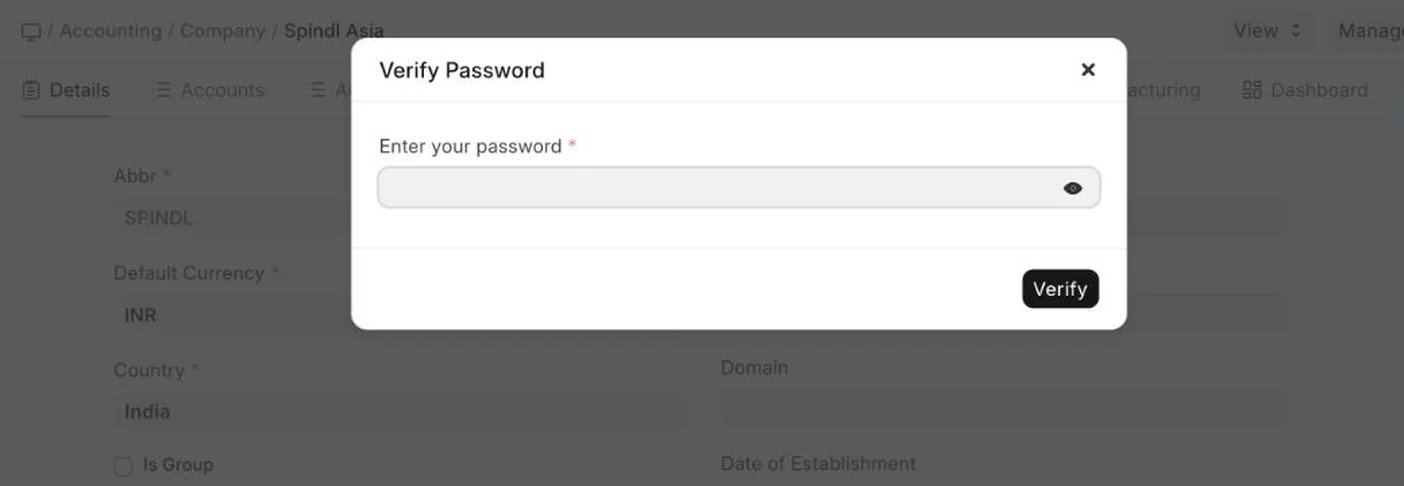
After verification, ERPNext starts deleting the selected company's transactions. Do not close the site or create new transactions for the company while the deletion is in progress.
After Deletion
- Open key transaction lists, such as Sales Invoice, Purchase Invoice, Payment Entry, Journal Entry, Stock Entry, and Sales Order, and confirm that the company's transactions are removed.
- Check accounting and stock reports for the company to make sure balances are cleared as expected.
- Review retained masters such as Customers, Suppliers, Items, Accounts, and Warehouses before creating new transactions.
- If you plan to start fresh accounting, verify opening balances, stock balances, and fiscal year settings before entering new documents.
When To Use This
Use this tool when you want to preserve setup and masters but remove transaction history for one company. Common examples include demo data cleanup, testing cleanup, and preparing a configured company for live use.
When Not To Use This
- Do not use this as a routine data cleanup tool for live companies.
- Do not use it when you only need to cancel or reverse a few specific transactions.
- Do not use it if you need an audit trail of the deleted transactions inside the same site.
- Do not use it without a backup that you know can be restored.
Common Issues
- Transactions are still visible: Check whether those records belong to another company, or whether they are master records rather than transactions.
- Balances are not cleared: Recheck linked transactions and reports for the selected company. Also verify whether opening balances or stock balances were entered separately.
- Permission error: Your user may not have permission to run the deletion tool. Ask a System Manager or Administrator to review your access.
- Wrong company selected: Stop immediately and restore from backup if transactions were deleted for the wrong company.
Recommended Practice
Before using this on an important site, restore a recent backup on a test site and run the deletion there first. Review the result, confirm that the required masters remain, and then repeat the process on the main site only when you are confident about the outcome.