


















Sales Partner Commission
A Sales Partner is an external reseller, dealer, agent, affiliate, implementation partner, or other organization that helps generate business. ERPNext can attribute sales, calculate commission, allocate targets, track referrals, and report partner performance.
Use a Sales Person for internal sales-team contribution and incentives. Use a Sales Partner when the relationship is external and may require commission settlement through a Supplier.
Before you begin
Prepare:
- A Sales Partner Type such as Reseller, Dealer, or Affiliate.
- The partner's default Territory.
- The agreed commission rate and eligible sales basis.
- Address and contact information.
- A Fiscal Year and Monthly Distribution when partner targets will be used.
- A Supplier when commission must be recorded and paid through Accounts Payable.
Create a Sales Partner
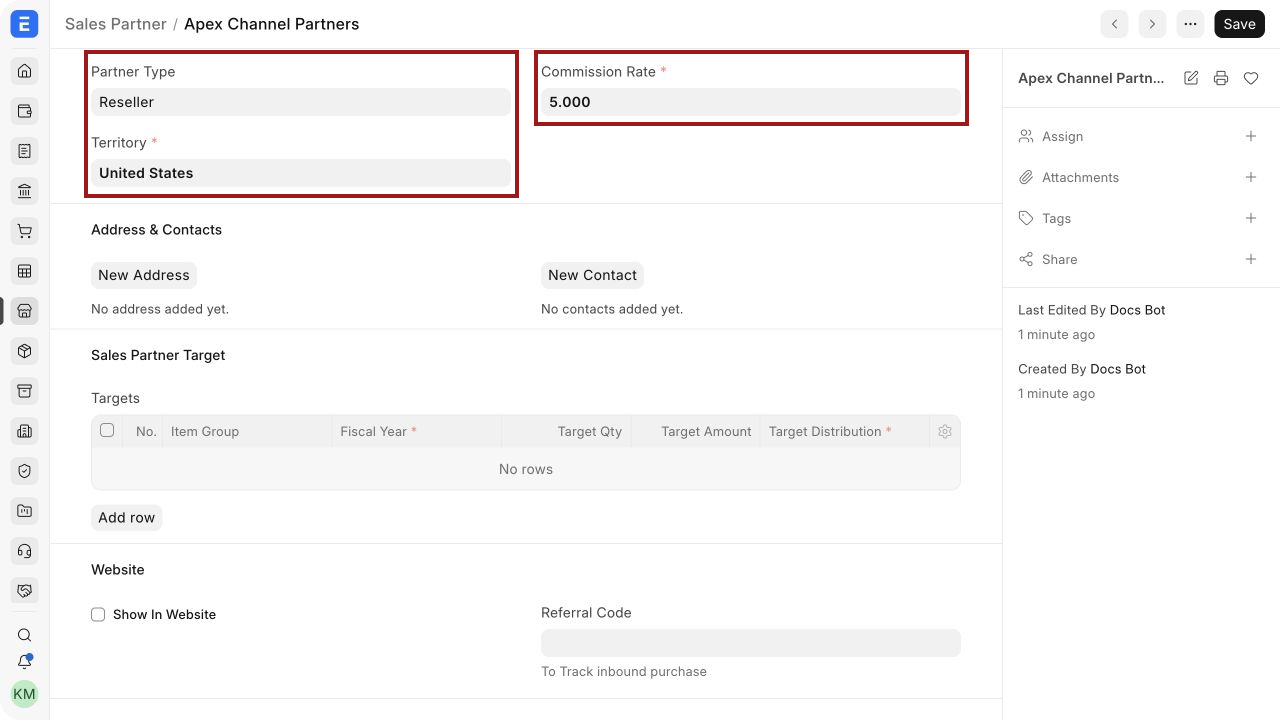
- Open Sales Partner and select New.
- Enter the Sales Partner Name.
- Select the Partner Type.
- Select the Territory.
- Enter the default Commission Rate.
- Save.
The highlighted fields define the partner category, geographic association, and default commission percentage.
Important fields and what they mean
| Field | Meaning |
|---|---|
| Sales Partner Name | Partner shown on transactions, targets, and reports |
| Partner Type | Classification used to organize partners |
| Territory | Default market area associated with the partner |
| Commission Rate | Default percentage copied to supported sales transactions |
| Targets | Item Group-wise quantity or amount targets for a Fiscal Year |
| Show in Website | Exposes website-related partner fields when website publishing is used |
| Referral Code | Code used to attribute supported website traffic or orders to the partner |
| Partner Website | External website maintained by the partner |
| Route | Website route generated for the partner page when applicable |
Add addresses and contacts
After saving the Sales Partner, use New Address and New Contact in Address & Contacts.
Create an Address for the partner's business or payment location and a Contact for the person responsible for sales, statements, or commission queries. A partner can have more than one address or contact when different teams handle commercial and finance activities.
Keep legal payment details on the Supplier record when the partner is also paid through Accounts Payable.
Record Sales Partner commission
Sales Partner fields are available on supported transactions such as a Sales Order, Delivery Note, and Sales Invoice.
- Open the sales transaction and select More Info.
- Expand Commission.
- Select the Sales Partner.
- Review the amount eligible for commission.
- Confirm the commission rate and calculated total.
- Save and submit the transaction through the normal approval process.
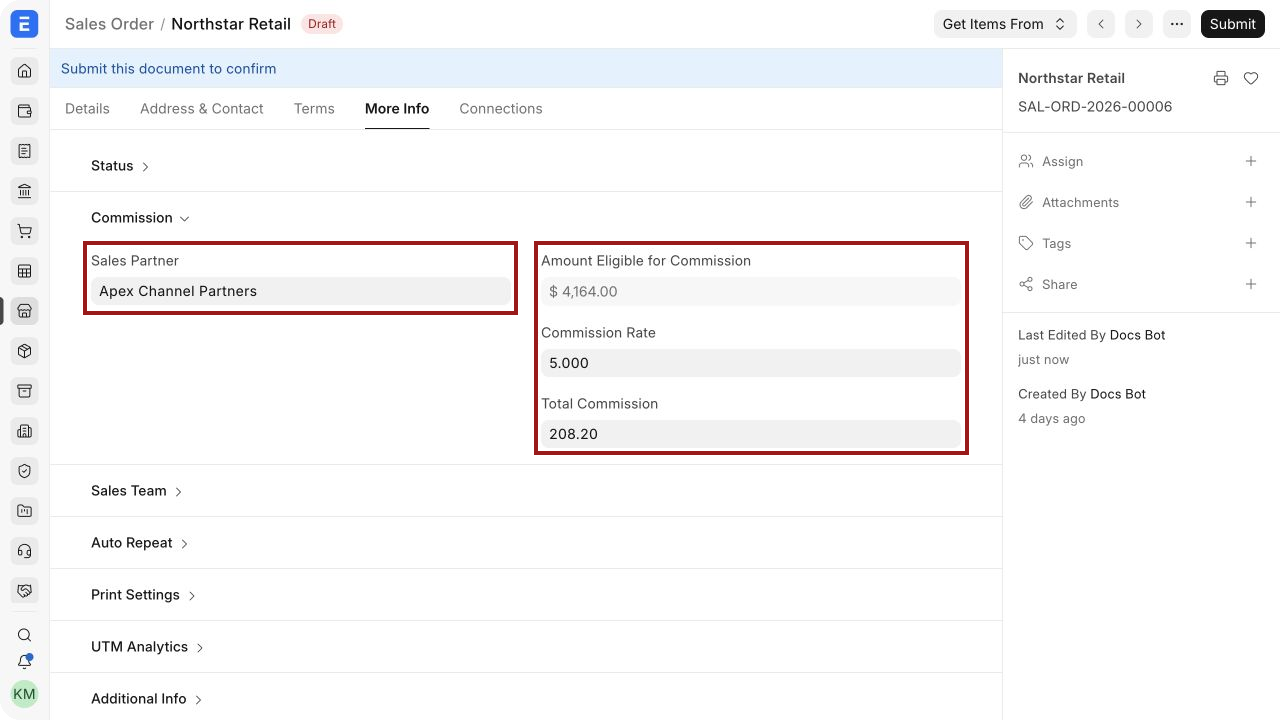
The commission value is operational data. It does not automatically create an expense, payable, or payment. See Sales Commission for the accounting handoff.
Allocate a Sales Partner target
Targets help compare planned partner performance with actual submitted sales.
- Open the Sales Partner.
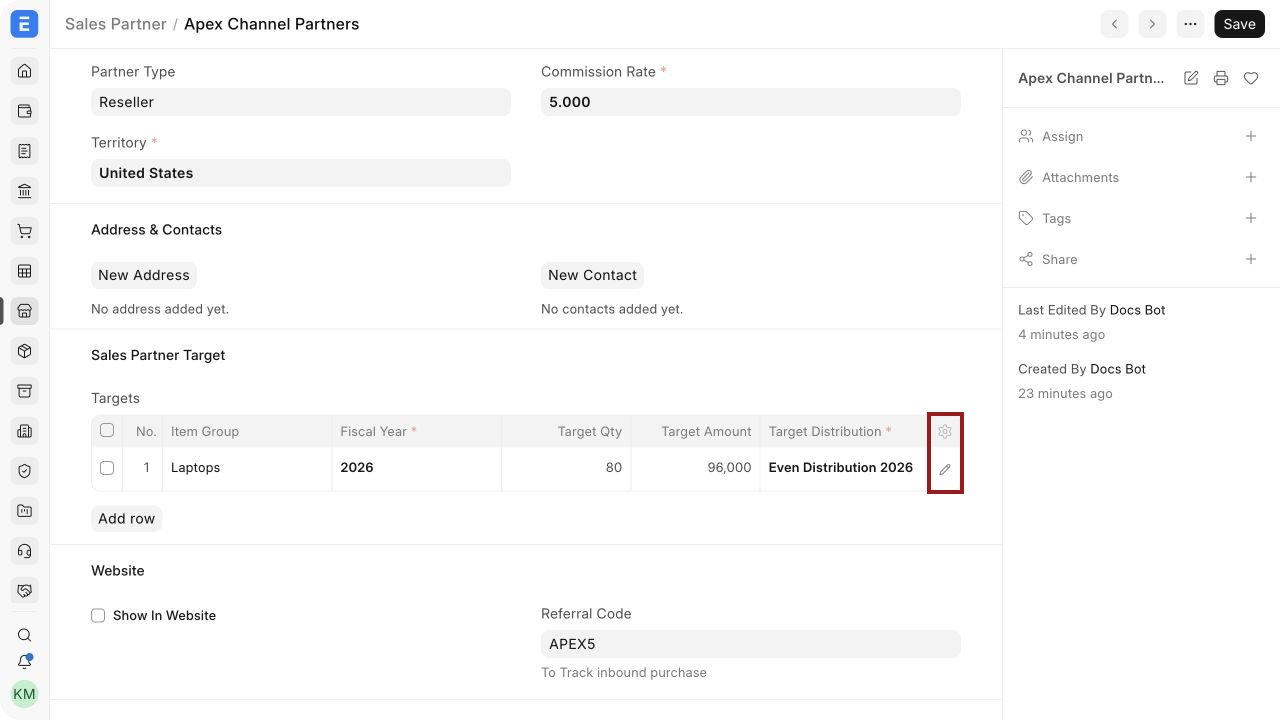
- In Sales Partner Target, select Add row.
- Enter the Item Group, Fiscal Year, Target Qty, Target Amount, and Target Distribution.
- Use the highlighted pencil icon to open the complete child-row editor when needed.
- Save.
| Target field | Meaning |
|---|---|
| Item Group | Product category measured by the target |
| Fiscal Year | Year in which planned and actual performance are compared |
| Target Qty | Planned unit volume |
| Target Amount | Planned sales value |
| Target Distribution | Monthly percentage distribution for the annual target |
You can set quantity, amount, or both. Avoid overlapping rows unless the reporting design intentionally measures an all-item target and separate Item Group targets.
Track referrals
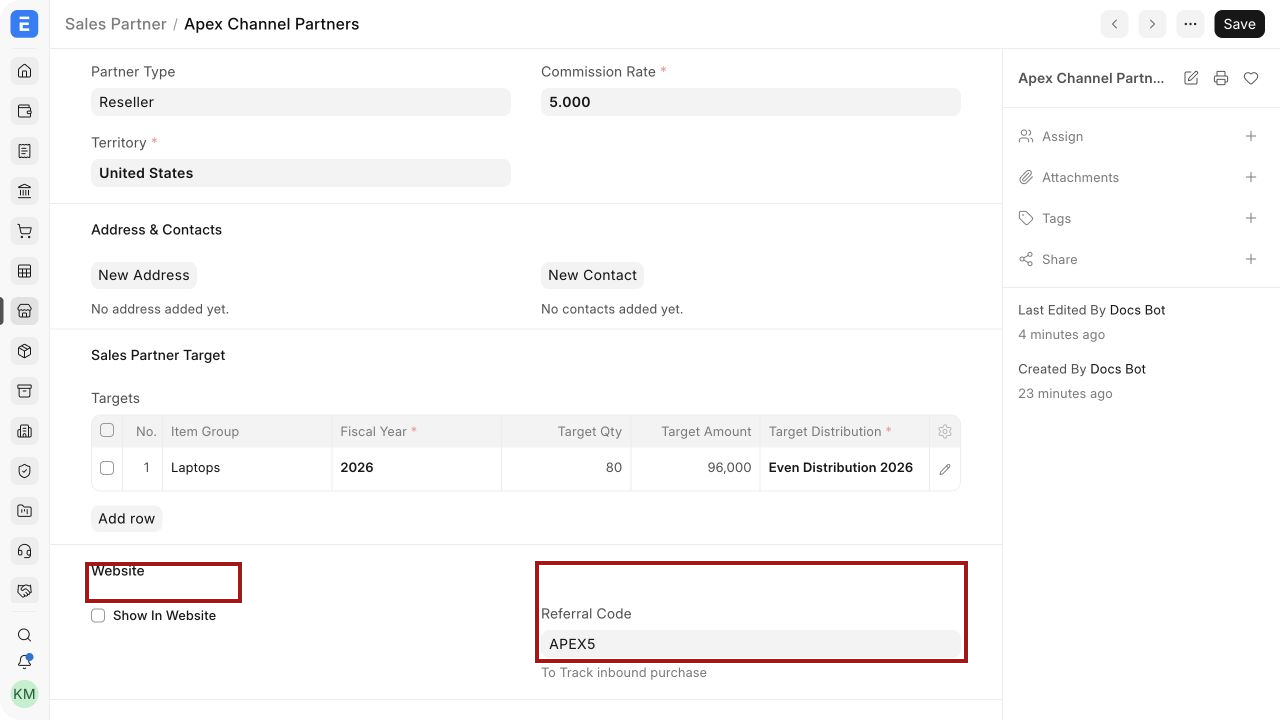
A Referral Code can identify traffic or supported e-commerce orders associated with the partner.
- Enter a unique Referral Code, as highlighted.
- Save the Sales Partner.
- Give the partner an approved campaign URL containing the referral parameter used by your website implementation.
- Test the complete checkout flow before launching the campaign.
A typical parameter uses the partner code, for example:
https://shop.example.com/?sp=APEX5
Referral behavior depends on the installed website and e-commerce configuration. Test attribution on the current site and confirm that the resulting transaction contains the Sales Partner.
Show a Sales Partner on the website
Select Show in Website when the site should publish partner information and the website implementation supports Sales Partner pages. Complete the route, logo, partner website, introduction, and description fields that appear.
Before publishing:
- Obtain permission to use the partner's name and logo.
- Use approved marketing copy.
- Confirm the route and public page in the current website theme.
- Avoid placing private contacts, commission rates, targets, or internal notes on the public page.
The exact listing route and presentation can vary by ERPNext version and website setup. Verify the rendered page instead of assuming an older default partners page is active.
Review Sales Partner Commission Summary
Open Sales Partner Commission Summary and set:
- Company.
- Sales Partner when reviewing one partner.
- Document type, such as Sales Order, Delivery Note, Sales Invoice, or POS Invoice.
- From Date and To Date.
- Optional Customer and Territory filters.
The highlighted result shows the calculated commission for the submitted transaction.
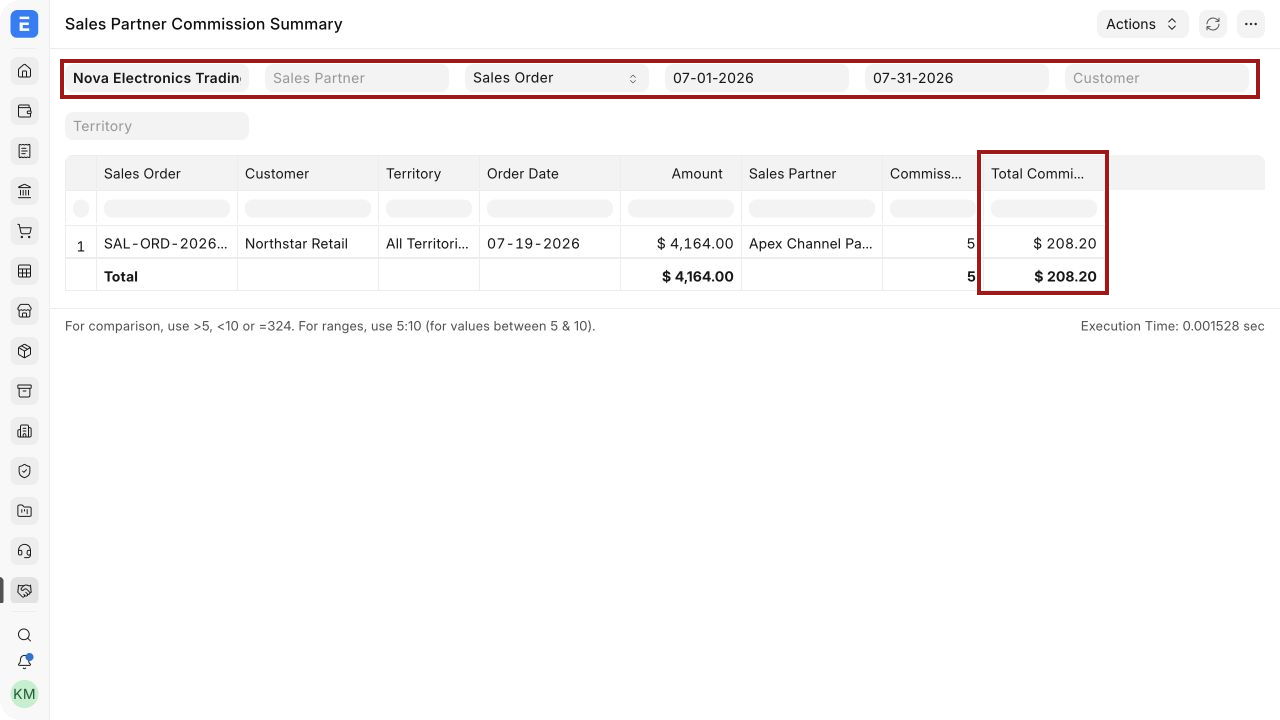
Use this report to review transaction-level commission totals. Reconcile approved totals with Supplier invoices and Payment Entries before marking the partner as paid.
Other Sales Partner reports
| Report | Use |
|---|---|
| Sales Partner Commission Summary | Summarizes commission by sales transaction |
| Sales Partner Transaction Summary | Reviews partner-attributed transaction details, including item-level context where available |
| Sales Partner Target Variance | Compares allocated targets with qualifying actual performance by period |
For target variance, confirm that transactions are submitted, contain the Sales Partner, fall within the correct period, and use the expected Item Group and company.
Pay Sales Partner commission
The report does not create accounting entries. A controlled payment workflow usually requires:
- A Supplier representing the Sales Partner.
- A dedicated Supplier Group when partner payables should be separated.
- A finance-approved Purchase Invoice or other payable document for the commission.
- Applicable tax or withholding treatment.
- A Payment Entry against the approved payable.
- Reconciliation to the Sales Partner commission report.
Follow local accounting and tax advice. The commission field itself is not a tax calculation.
Disable or change a partner relationship
Sales Partner does not have a transactional submission lifecycle. Update master details carefully because defaults affect new transactions.
When a relationship ends:
- Stop selecting the partner on new transactions.
- Remove or deactivate referral campaigns in the website or marketing system.
- Preserve historical transactions and commission records.
- Settle or dispute outstanding commissions through the approved finance process.
- Retain public website content only when the agreement permits it.
Troubleshooting
The partner is missing from a transaction
Confirm that the Sales Partner master exists and that the user has read permission. Check link-field filters and spelling.
The transaction shows zero commission
Review the amount eligible for commission, commission rate, and item eligibility. Save the transaction after correcting the values.
The report shows no transactions
Check Company, Sales Partner, document type, date range, and submission status. Draft transactions do not appear as confirmed commission activity.
The referral code does not populate the order
Verify the URL parameter, website implementation, cookies or session behavior, and checkout workflow. Test with a new browser session and confirm the Sales Partner field on the resulting order.
Target variance is incorrect
Check the target Fiscal Year, Item Group, Monthly Distribution, transaction dates, and Sales Partner attribution.
Frequently asked questions
Can a Sales Partner also be a Customer or Supplier?
Yes, but each party role has a separate purpose. Link and reconcile the records according to your master-data policy.
Can one transaction have both a Sales Partner and Sales Persons?
Yes. The external partner commission and internal Sales Team contribution are separate fields and processes.
Does ERPNext pay commission automatically?
No. It calculates and reports the value. Finance must record and pay the approved amount.
Can different transactions use different commission rates?
Yes, when permissions and commercial policy allow an exception to the default rate.
Can targets be seasonal?
Yes. Link a Monthly Distribution that allocates a larger percentage to peak months.