


















Purchase invoice for Services
Imagine Nova Industries hires a consultant to redesign a warehouse process. Nothing physical enters stock, but Nova still needs to approve the service, record the expense, recognize the supplier payable, and track the cost against the operations team.
Use a Purchase Invoice with a non-stock service Item. A service purchase normally does not require a Purchase Receipt and must not update stock. The important controls are the Supplier, service description, expense account, Cost Center or Project, taxes, due date, and evidence that the work was accepted.
Create a service Item
- Create an Item for the recurring service, such as Warehouse Process Consulting.
- Place it in a suitable service Item Group.
- Leave Maintain Stock disabled.
- Enable purchase use.
- Set an appropriate UOM, such as Hour, Day, or Job.
- Set the default expense account and tax template when consistent.
- Save the Item.
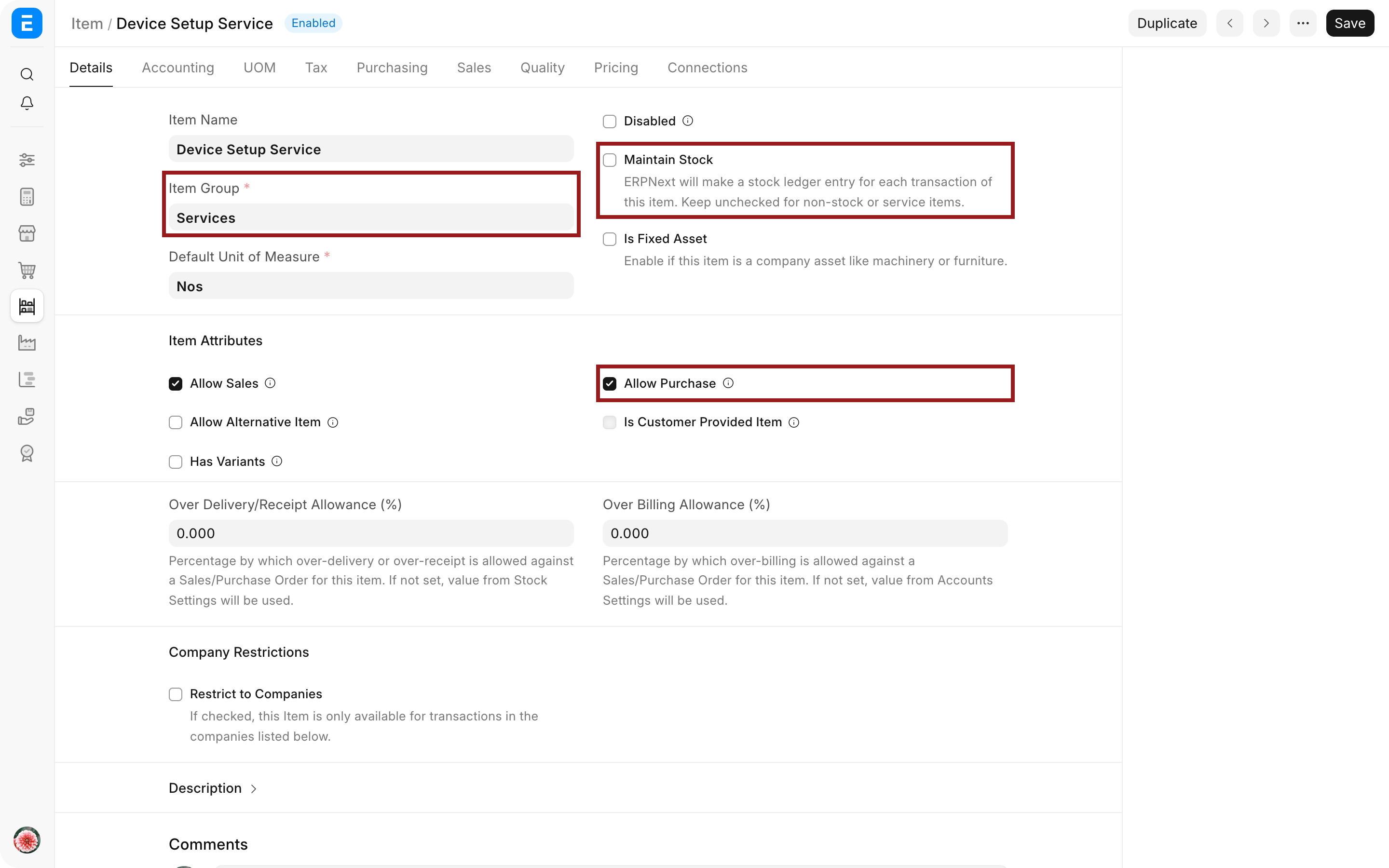
Using an Item is preferable to typing free text because it standardizes the description, account defaults, UOM, taxes, and reporting.
Create the Purchase Invoice
- Open Purchase Invoice and create a new record.
- Select the Company and Supplier.
- Enter the Supplier Invoice Number, posting date, and due date.
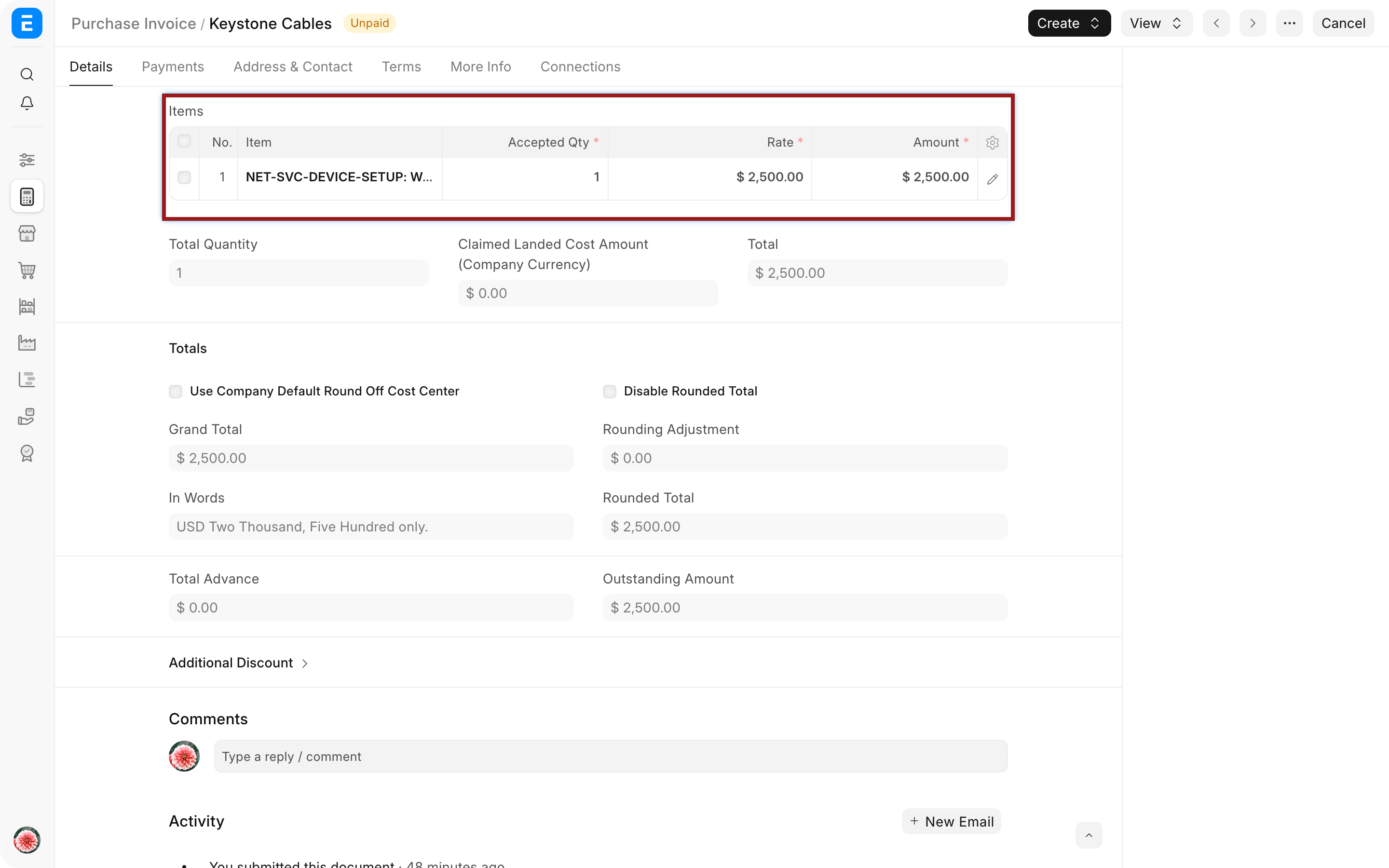
- Add the service Item, quantity, UOM, and rate.
- Open the item row and confirm the Expense Account, Cost Center, Project, and Accounting Dimensions.
- Add taxes and payment terms.
- Leave Update Stock disabled.
- Attach or reference the service acceptance evidence when your process requires it.
- Save and submit.
Understand the accounting effect
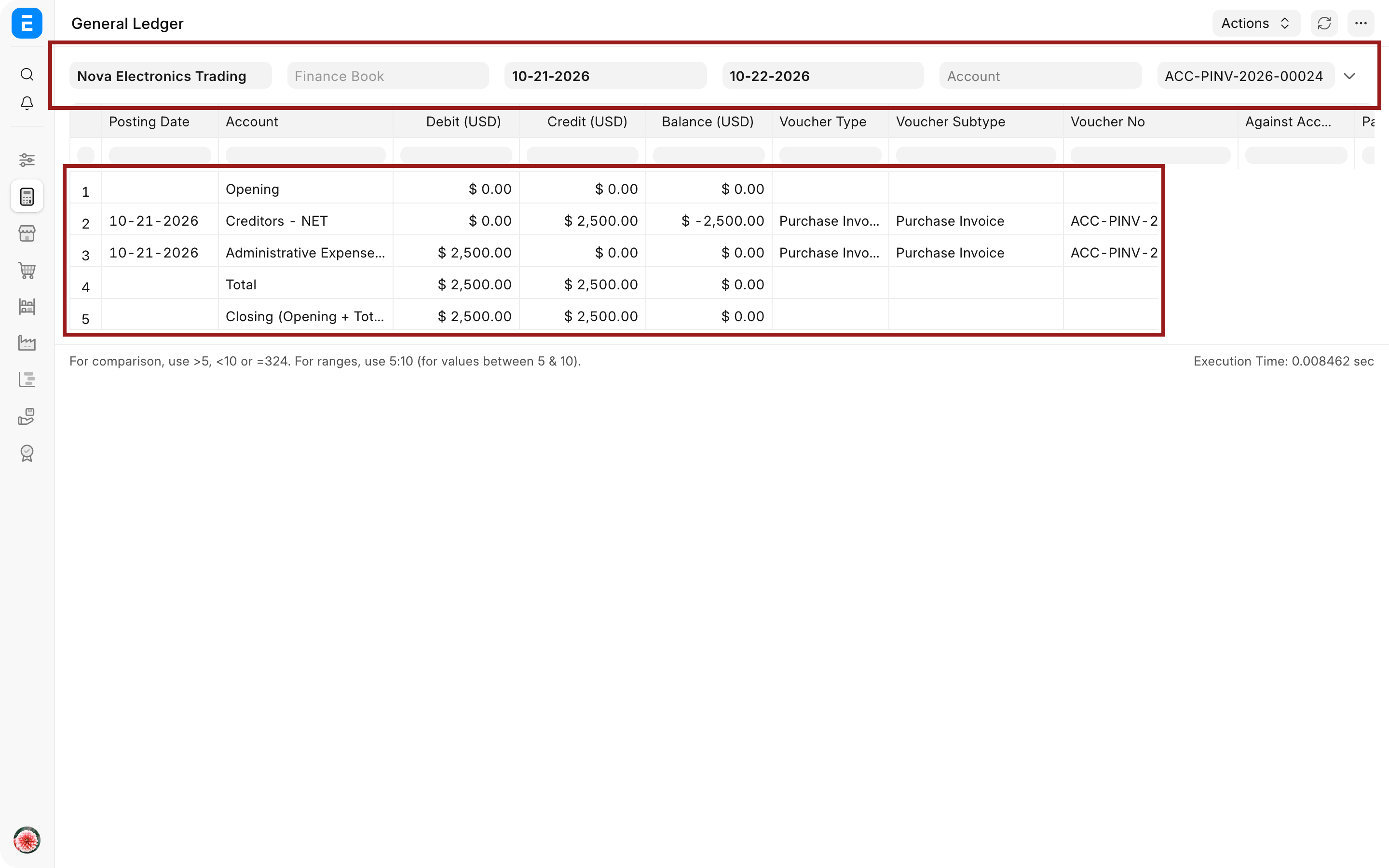
For a $5,000 consulting invoice without tax, a typical submission posts:
| Account | Debit | Credit |
|---|---|---|
| Consulting Expense | $5,000 | |
| Creditors | $5,000 |
The Cost Center, Project, and Accounting Dimensions help Nova see which team or initiative consumed the service. They do not replace the expense account.
Use a Purchase Order when control is needed
A service does not need a Purchase Receipt, but Nova may still use a Purchase Order to approve scope, price, milestones, and terms before the work begins. Create the Purchase Invoice from that order so billed quantity and amount can be matched to the commitment.
For milestone billing, use partial invoices against the service order. For time-based work, choose a UOM and supporting evidence that makes quantity meaningful.
Troubleshooting
ERPNext asks for a Purchase Receipt
Check Buying Settings and Supplier transaction controls. If your policy permits service invoices without receipt, configure a controlled exception rather than enabling Update Stock.
The service appears in stock reports
Review the Item's Maintain Stock setting and the invoice's Update Stock setting. A pure service should not create Stock Ledger entries.
The expense posts to the wrong account
Check Company-specific defaults on the Item, Item Group, and invoice row. Correct the account before submission or use an approved adjustment for a submitted invoice.
Project or Cost Center reporting is missing the expense
Confirm that the values are present on the item row and that the selected expense account supports the required dimensions.
Frequently asked questions
Can I create a service invoice without an Item?
Use a non-stock service Item for consistent accounting and reporting. It avoids uncontrolled descriptions and account selection on every invoice.
Do services require a Purchase Order?
Not technically in every setup. Many companies require one for approval and contract control. Buying Settings and Supplier-level rules determine the system requirement.
Should Update Stock ever be enabled for a service?
A pure service should not use Update Stock. That option is for physical Items whose quantity and value belong in inventory.
How do I record prepaid or multi-period services?
Use deferred expense settings when the benefit spans future periods, then process the expense according to the configured schedule and accounting policy.
Define the service through Item, approve it with Purchase Order, and record the liability in Purchase Invoice. Allocate the expense through Cost Center, Project, and Accounting Dimensions, then settle it through Payment Entry. Use Deferred Expense for multi-period benefits, Buying Settings for document requirements, and Accounts Payable for outstanding supplier balances.