


















A Pricing Rule tells ERPNext when to replace a standard rate, apply a discount or margin, or add a free product. The rule can be limited by item, party, quantity, value, date, warehouse, company, currency, or another condition. ERPNext evaluates eligible rules when an item is added or the transaction is recalculated.
Use Pricing Rules for repeatable exceptions. For a one-time adjustment, enter a discount directly on the transaction. For tiered campaigns with several slabs, consider a Promotional Scheme.
Before you begin
- Create the relevant Items, Item Groups, Brands, Customers, Suppliers, and Price Lists.
- Confirm whether the rule is for selling, buying, or both.
- Decide whether the outcome should be a new rate, a percentage or fixed discount, a margin, or a free product.
- Check for overlapping Pricing Rules. If more than one rule can match, define the intended priority and stacking behavior before using the rule in live transactions.
To open Pricing Rule, use the search bar or go to Selling > Items and Pricing > Pricing Rule.
Create a Pricing Rule
- Click Add Pricing Rule.
- Enter a clear Title that identifies the audience and offer.
- In Apply On, select Item Code, Item Group, Brand, or Transaction.
- Select Price for a rate, discount, or margin. Select Product for a free-item offer.
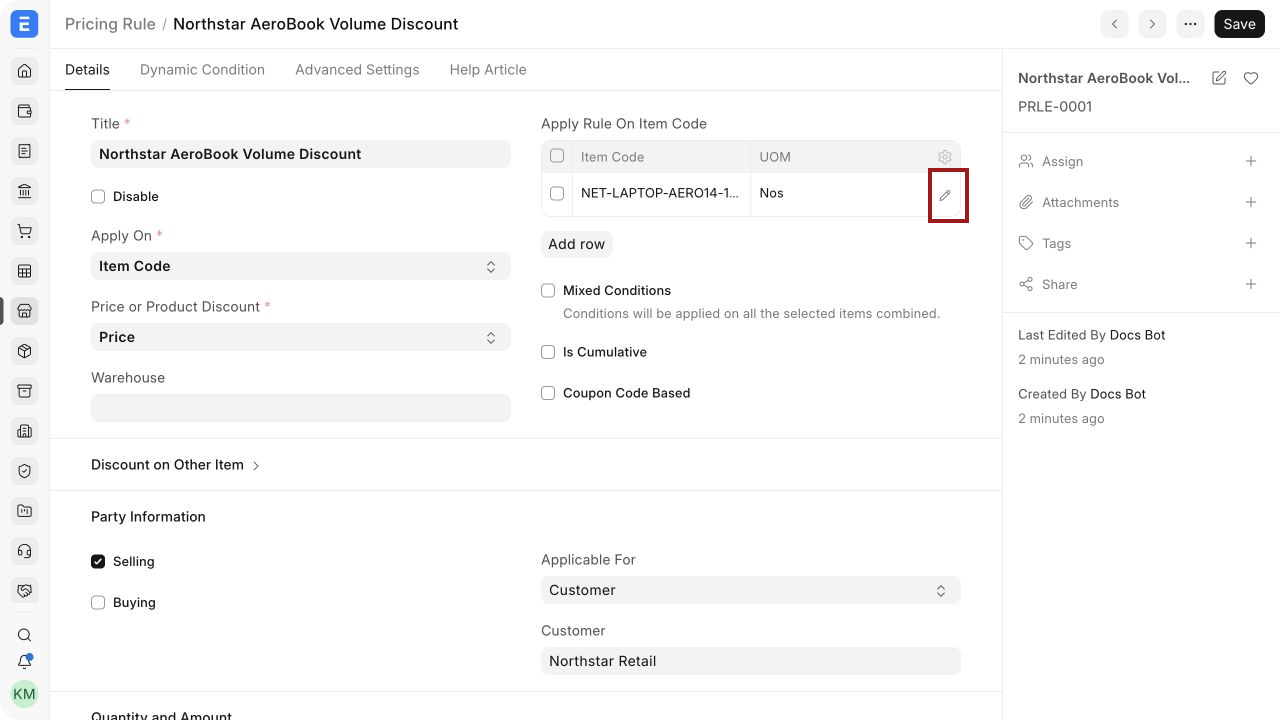
- Add the Item Codes, Item Groups, or Brands covered by the rule. Select the highlighted pencil icon to edit all fields in a child-table row.
- Under Party Information, enable Selling or Buying and, if required, limit the rule to a Customer, Customer Group, Territory, Sales Partner, Campaign, Supplier, or Supplier Group.
- Set quantity, amount, validity, company, and currency conditions.
- Enter the rate, discount, margin, or free-product result.
- Save the Pricing Rule.
Important fields and what they mean
| Field | What it controls |
|---|---|
| Disable | Stops ERPNext from applying the rule without deleting its configuration or history. |
| Apply On | Chooses whether eligibility is evaluated by Item Code, Item Group, Brand, or the complete transaction. |
| Price or Product Discount | Price changes the commercial value. Product adds a free item according to the configured quantity. |
| Warehouse | Restricts the rule to items supplied from a specific Warehouse. |
| Mixed Conditions | Combines quantities or values across the selected items before checking the threshold. |
| Is Cumulative | Checks eligible transactions cumulatively across the defined period. The rule is applied to the transaction that crosses the threshold. |
| Coupon Code Based | Requires a matching Coupon Code before the rule is applied. |
| Applicable For | Limits the rule to a selected sales or purchase party dimension, such as Customer, Customer Group, Territory, Sales Partner, Supplier, or Supplier Group. |
| Min and Max Qty | Sets the eligible quantity range in the Item's Stock UOM. Leave Max Qty at zero when no upper limit is required. |
| Min and Max Amt | Sets the eligible value range. Transaction-level rules can apply the discount to Grand Total or Net Total. |
| Valid From and Valid Up To | Defines the active date range. Blank dates leave that side of the range open. |
| Company and Currency | Restricts the rule to the selected Company and currency. |
| For Price List | Limits the result to transactions using a specific Price List. Leave it blank only when the rule should work with every eligible Price List. |
| Priority | Resolves overlapping rules when ERPNext needs one rule to take precedence. |
Set quantity, value, and validity conditions
Quantity and amount fields define the threshold for the rule. In this example, Northstar Retail must order at least two AeroBook 14 laptops. The rule is restricted to Nova Electronics Trading, USD, and the 2026 validity period.
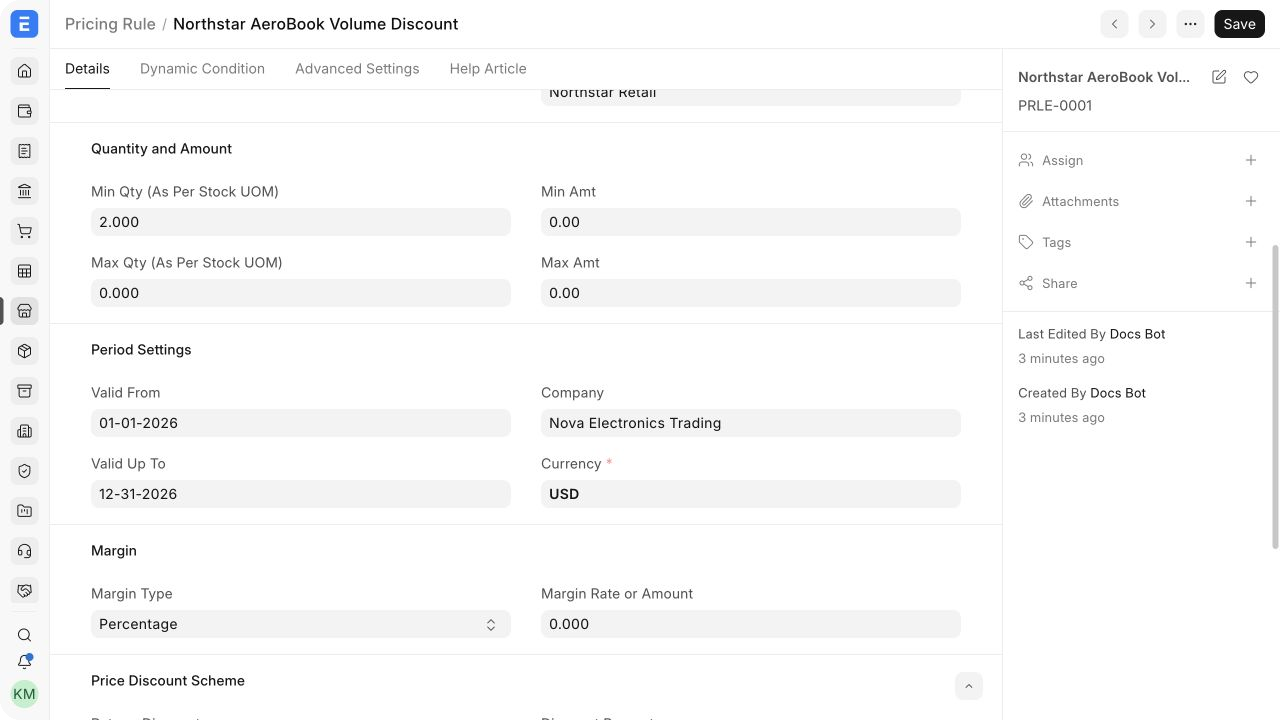
If the order falls below Min Qty or Min Amt, or exceeds a non-zero maximum, ERPNext does not apply the rule. When Mixed Conditions is enabled, ERPNext checks the combined quantity or amount of the selected items. When Is Cumulative is enabled, it checks qualifying transactions across the configured period.
Choose the pricing result
For a price-based rule, select one of these outcomes:
- Rate: replaces the normal Item Price with the rate entered in the rule.
- Discount Percentage: reduces the eligible price by a percentage.
- Discount Amount: subtracts a fixed amount in the rule currency.
- Margin: adds a percentage or amount over the fetched rate. See Adding Margin.
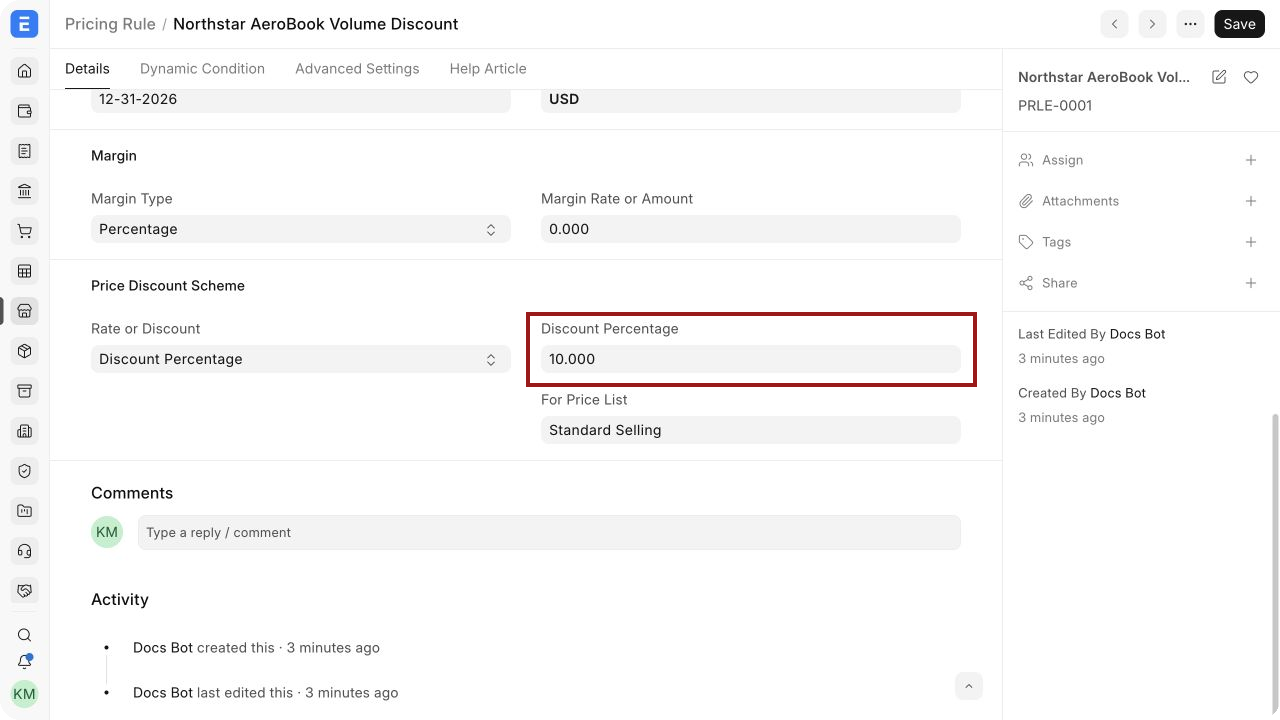
A Rate defined in a Pricing Rule takes precedence over the normal Item Price rate when the rule is eligible. Restrict the rule with For Price List when the result should not apply to every sales or purchase price list.
Create a product discount
Select Product when the promotion adds a free item.
- Enable Same Item for an offer such as buy two of an item and receive one more of the same item.
- Leave Same Item cleared and select Free Item when the free product is different.
- Enter the free quantity, UOM, and rate. Use Round Free Qty when a fractional calculated quantity is not appropriate.
- Enable Don't Enforce Free Item Qty when users may reduce or remove the initially fetched free quantity. This is useful when stock is limited or the seller can vary the giveaway.
For a focused example, see Setting up a Buy 1 Get 1 Free Pricing Rule.
Apply and verify the Pricing Rule
- Create or open a supported sales or purchase transaction, such as a Quotation, Sales Order, Purchase Order, or Sales Invoice.
- Select the party, company, currency, price list, and transaction date required by the rule.
- Add an eligible item and meet the configured quantity or amount threshold.
- Check the item's rate, discount, or free-product row. Recalculate the transaction after changing a condition.
If the transaction must deliberately bypass all matching rules, use Ignore Pricing Rule where that option is available. Use it only for an approved exception.
Overlapping and advanced rules
Test overlapping rules before activating them. Use Has Priority and Priority when a more specific rule must win. Enable Apply Multiple Pricing Rules only when eligible discounts are intended to stack. With Apply Discount on Discounted Rate, ERPNext compounds successive discounts instead of adding their percentages.
Threshold for Suggestion can prompt users when the entered quantity or amount is close to the minimum. Validate Applied Rule can show the configured Rule Description when a manually entered value does not match the expected rule.
The Dynamic Condition tab accepts a single-line Python expression based on fields in the target transaction. Use it only when standard fields cannot express the requirement. Keep the condition simple, test it in a non-production company, and document who maintains it.
Troubleshooting
| Issue | What to check |
|---|---|
| The rule is not applied | Check Disable, Selling or Buying, item scope, party scope, quantity, amount, validity dates, company, currency, warehouse, and price list. Then remove and re-add the item or recalculate the transaction. |
| An unexpected rule is applied | Search for other active rules matching the same item and party. Review priority and multiple-rule settings. |
| The discount disappears after changing the order | The updated quantity, value, party, date, or price list may no longer meet the rule. Recheck the eligibility fields. |
| A free item returns after removal | Enable Don't Enforce Free Item Qty if users are allowed to change or remove the fetched giveaway. |
| A cumulative rule does not trigger | Confirm Min Amt, Max Amt, validity period, party, item, and transaction status. The discount is applied to the qualifying transaction that crosses the threshold, not retroactively to earlier transactions. |
FAQs
Can one Pricing Rule cover every item?
Yes. Apply the rule to an appropriate parent Item Group, such as All Item Groups, or use a transaction-level rule. Broad rules should have clear party, period, or value limits to avoid unintended discounts.
Can a rule be limited to one Customer?
Yes. Select Selling, set Applicable For to Customer, and choose the Customer.
Does a Pricing Rule change the Item Price record?
No. It changes the result on eligible transactions. The underlying Item Price remains available for transactions that do not meet the rule.
Can I pause a rule and reuse it later?
Yes. Enable Disable. Update its validity dates and review its conditions before reactivating it.
Should I use a Pricing Rule or a Promotional Scheme?
Use a Pricing Rule for a direct conditional result. Use a Promotional Scheme when a campaign needs several quantity or amount slabs that generate multiple Pricing Rules.