


















A BOM Creator builds a multi-level Bill of Materials (BOM) in one document. You can read the part tree from a 3D design file, or build the tree by hand. You map each part to an item and submit the document. Then the system creates all the BOMs of the product.
Engineers make the product design in a CAD tool. Without a design file, a user types the BOM into ERPNext again by hand. With a design file, the BOM Creator reads the assemblies, the parts and their quantities from the file. This removes the manual entry and keeps the BOM the same as the design.
You can make the BOMs in two ways:
- Without Produce an Item at Each Operation: the part tree is the BOM. Each assembly in the tree gets its own BOM.
- With Produce an Item at Each Operation: you add the operations that make the product. Each operation makes an item, and the last operation makes the finished good. The system makes one BOM with Track Semi Finished Goods turned on.
Why use the BOM Creator?
Users often question why a separate BOM Creator is needed to create BOMs. The answer lies in eliminating the need for unnecessary back and forth. With the standard BOM screen, users are required to create all sub-assembly BOMs first and then create the BOM for the final product. This process often involves a lot of back and forth. Additionally, sometimes it's challenging to visualize the complete hierarchy using the standard BOM.
To open the list, go to:
Home > Manufacturing > BOM Creator
1. Prerequisites
Before you create a BOM Creator, prepare these:
- Optional: a design file of the product. Use a STEP file (
.stepor.stp) or a CSV file. Most CAD tools can export an assembly as a STEP file. - Operation and Workstation Type records. You need these only for Produce an Item at Each Operation.
Items are not necessary before you start. The system can create the items from the parts.
2. How to create a BOM Creator
- Go to the BOM Creator list and click Add BOM Creator.
- In Finished Good, select the item that the design makes. This field is mandatory.
- Make sure that Company is correct. The system fills it with your default company.
- Attach the design file in the Design File field.
- The system saves the document and reads the file.
If the STEP file is not complete or is damaged, the system shows the message "The STEP file is incomplete or damaged." Export the file from the CAD tool again.
If Design Name is empty, the system fills it with the item name of the finished good. You can change it. If you change the Finished Good, the Design Name changes with it, unless you typed a different name.
After you save, the form has three tabs:
- Design: the main fields, the 3D model and the part tree.
- Costing: how the system calculates the cost of the materials.
- Details: the other fields. See Other fields below.
After the system reads the file, the Design tab shows two panels with the same height:
- 3D model (left): turn the model with the mouse. Zoom with the scroll wheel.
- Part tree (right): the top row is the finished good. Under it are the assemblies and the parts, with the quantity from the design file. The Amount column shows the cost of each row.
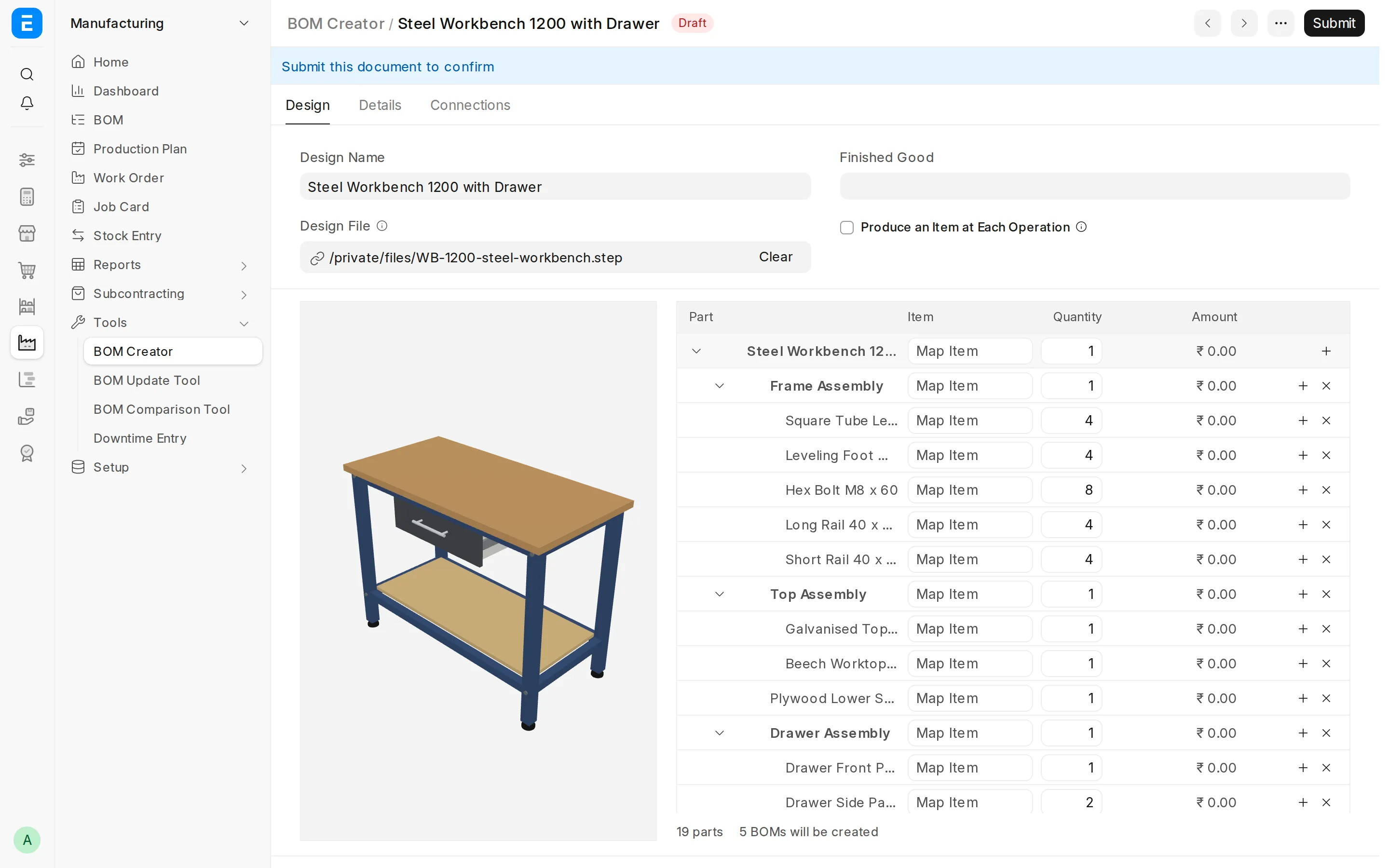
Click a row in the tree to highlight the part in the model. Click a part in the model to select its row in the tree.
2.1 Use a CSV file
If your CAD tool cannot export a STEP file, export the BOM as a CSV file. The CSV file must have these columns:
| Column | Necessary | Content |
|---|---|---|
| Level or Item Number | Yes | The position of the part in the tree. Level 1 is a part directly under the finished good. An item number such as 1.2 means the second part under part 1. |
| Part Number or Part Name | Yes | The part. If only one of the two columns is in the file, the system uses it for both. |
| Quantity | Yes | The quantity of the part in one unit of its parent. |
| Description | No | The description of the part. |
Example:
Level,Part Number,Part Name,Quantity
1,WB-FRM-ASM,Frame Assembly,1
2,WB-LEG-01,Square Tube Leg 50 x 50,4
2,WB-RAIL-L,Long Rail 40 x 40 x 1050,4
1,WB-SHELF-01,Plywood Lower Shelf 18 mm,1
A CSV file has no geometry. Thus the 3D model does not show. Enter the Design Name yourself.
2.2 Build the tree without a file
Leave the Design File empty and select the Finished Good. Click + on the finished good row and add the materials. Click + on a material to add materials under it. A material with materials under it becomes a sub-assembly, and it gets its own BOM.
If you leave the Design Name empty, the system uses the item name of the finished good.
3. Map the parts to items
Each part in the tree needs an item before the system can create the BOMs. A part without an item shows Map Item.
3.1 Select an item
- Click Map Item in the Item column. The field is a standard Item link field.
- Type the item code or the item name.
- Select the item from the list.
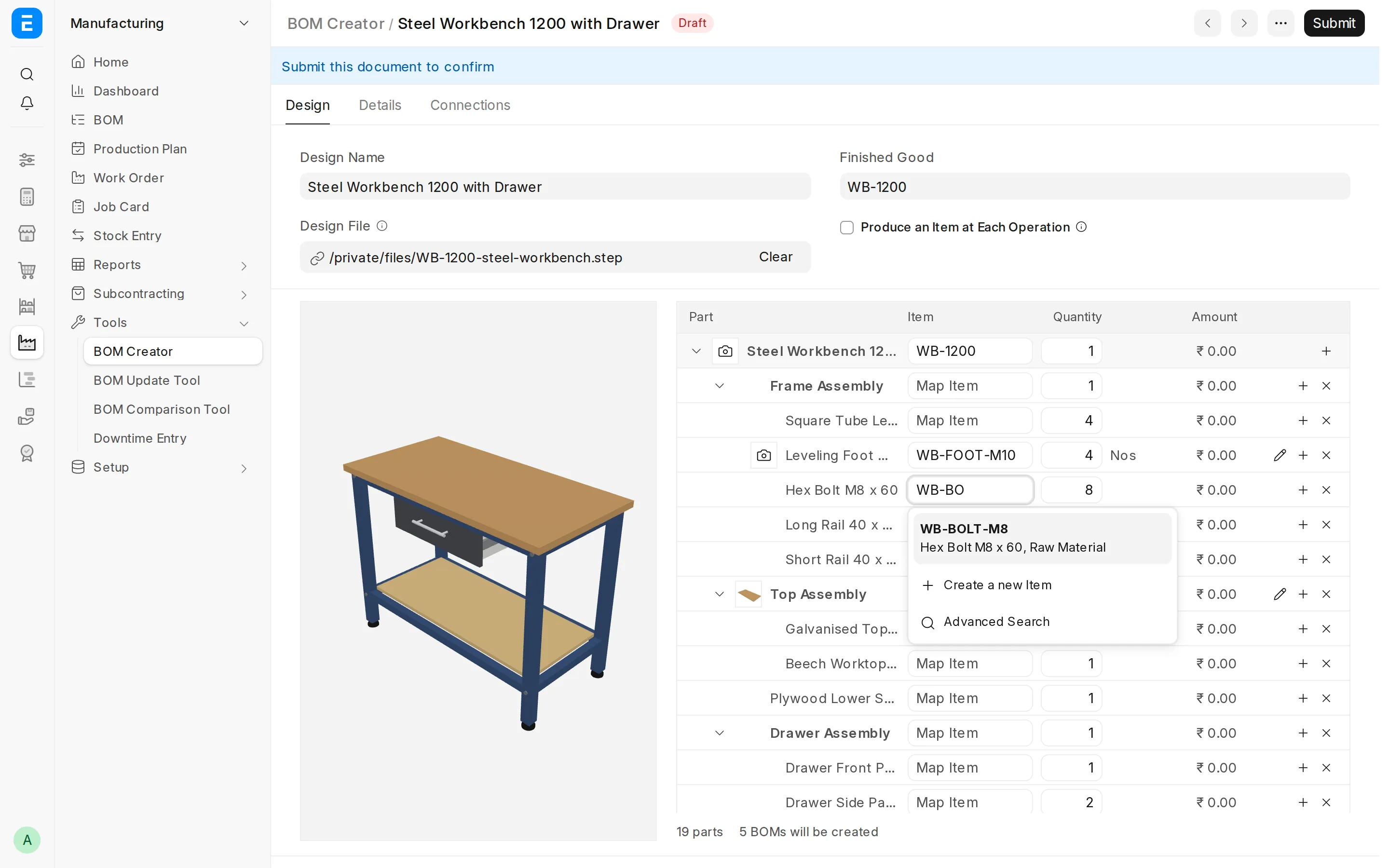
Use the up and down arrow keys to go to the previous or the next row. The item list of that row opens. This lets you map a long tree with the keyboard only.
3.2 Create a new item
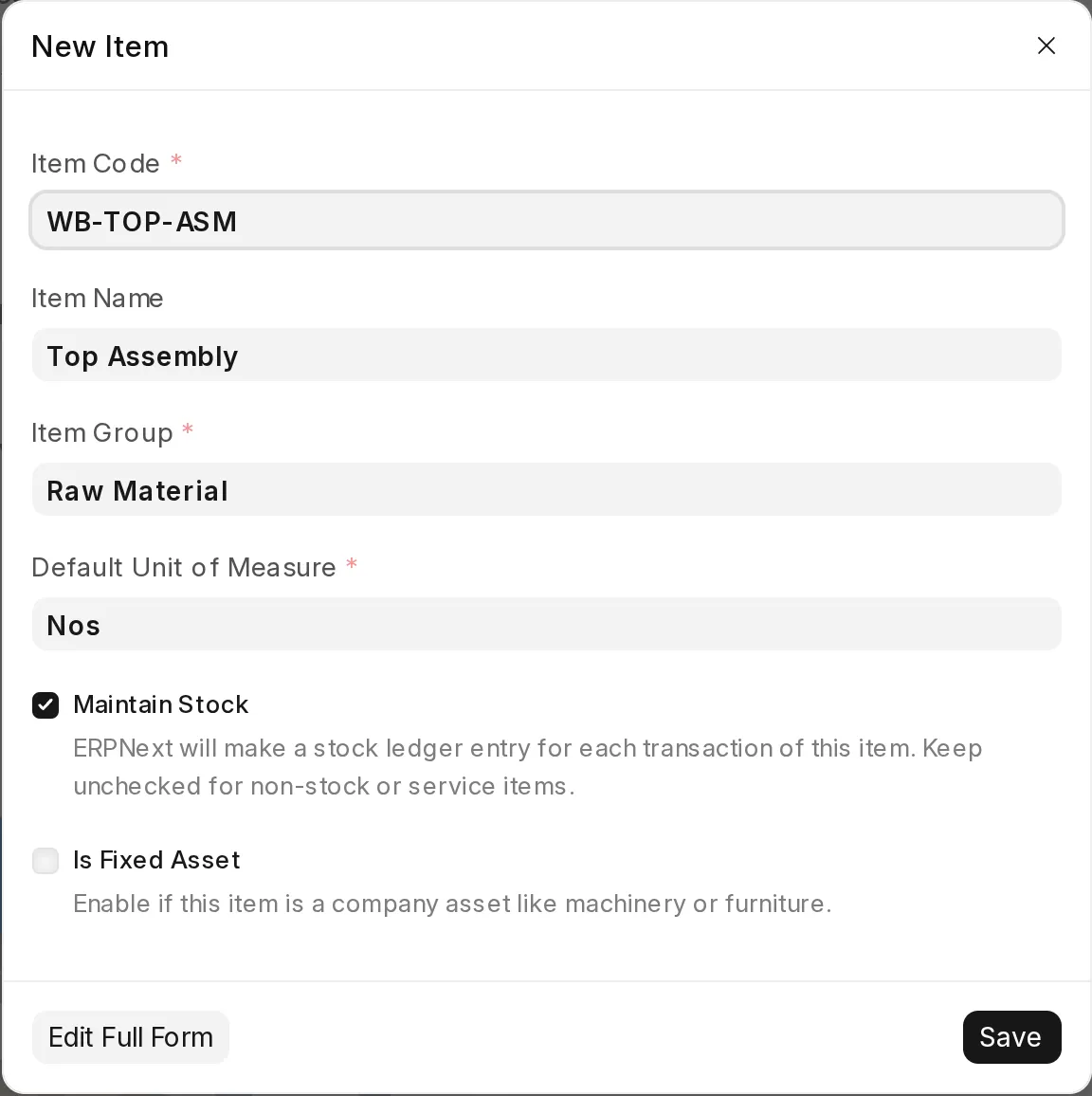
If the item does not exist, select Create a new Item in the item list. The New Item dialog opens with the part number in Item Code and the part name in Item Name. Click Save. The system maps the new item to the part.
3.3 Map many parts at a time
After you submit the document, the Map Items menu shows two options:
- Suggest Items: maps each part to an item that has the same item code as the part number, or the same item name as the part name.
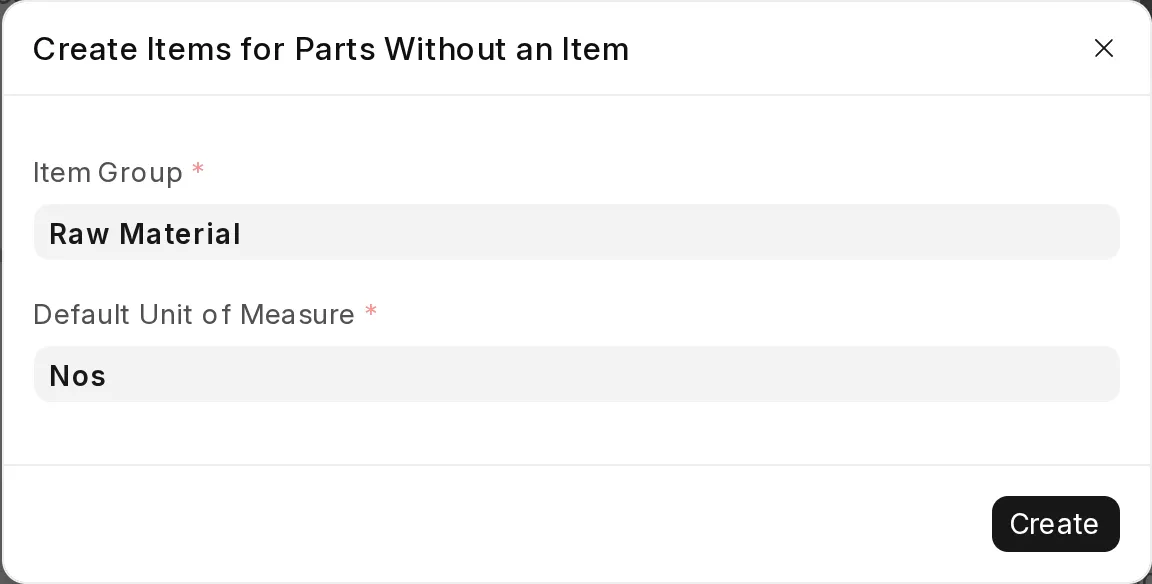
- Create Missing Items: creates an item for each part that has no item. Select the Item Group and the Default Unit of Measure in the dialog.
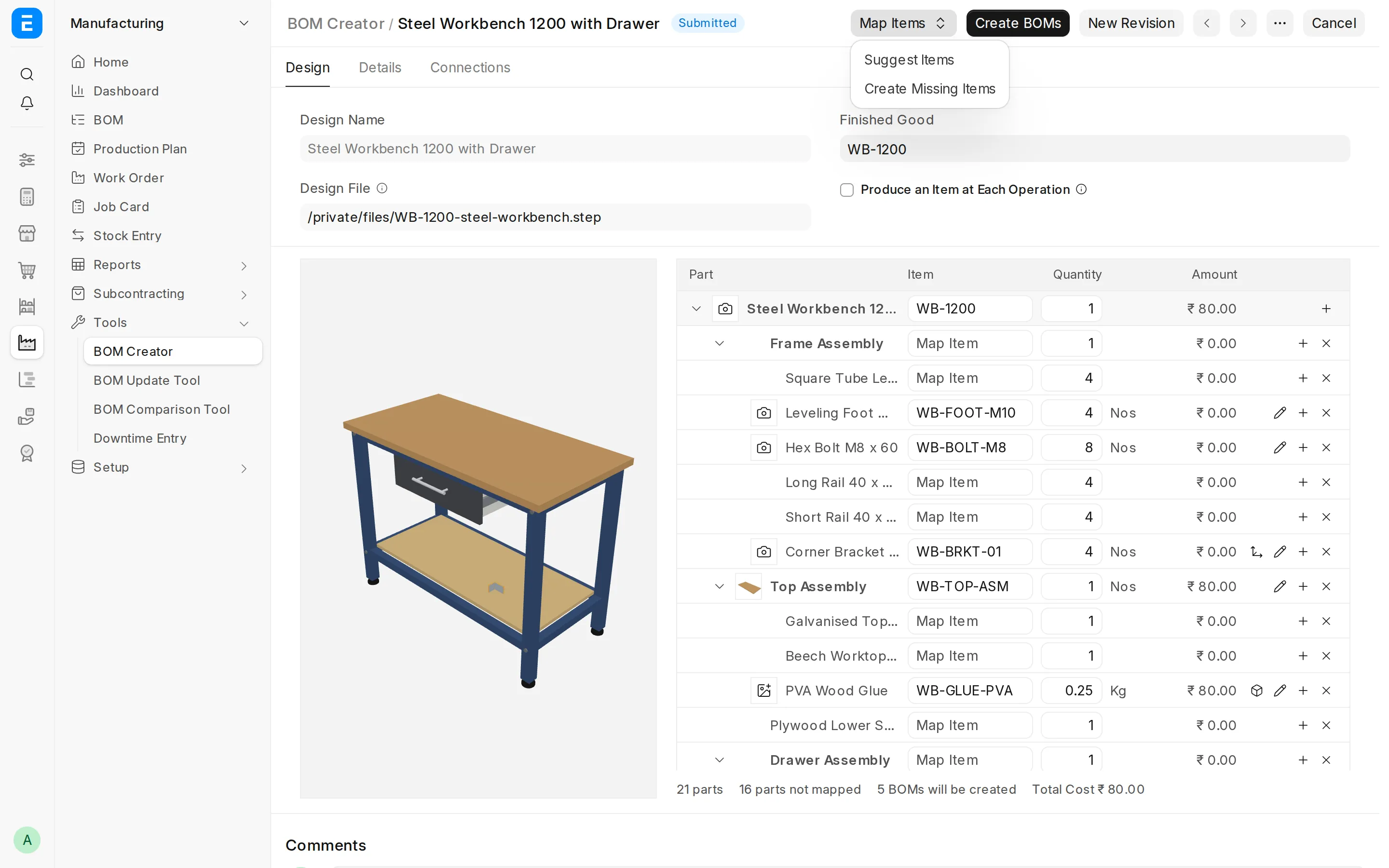 Suggest Items
 Create Missing Items
3.4 Item images
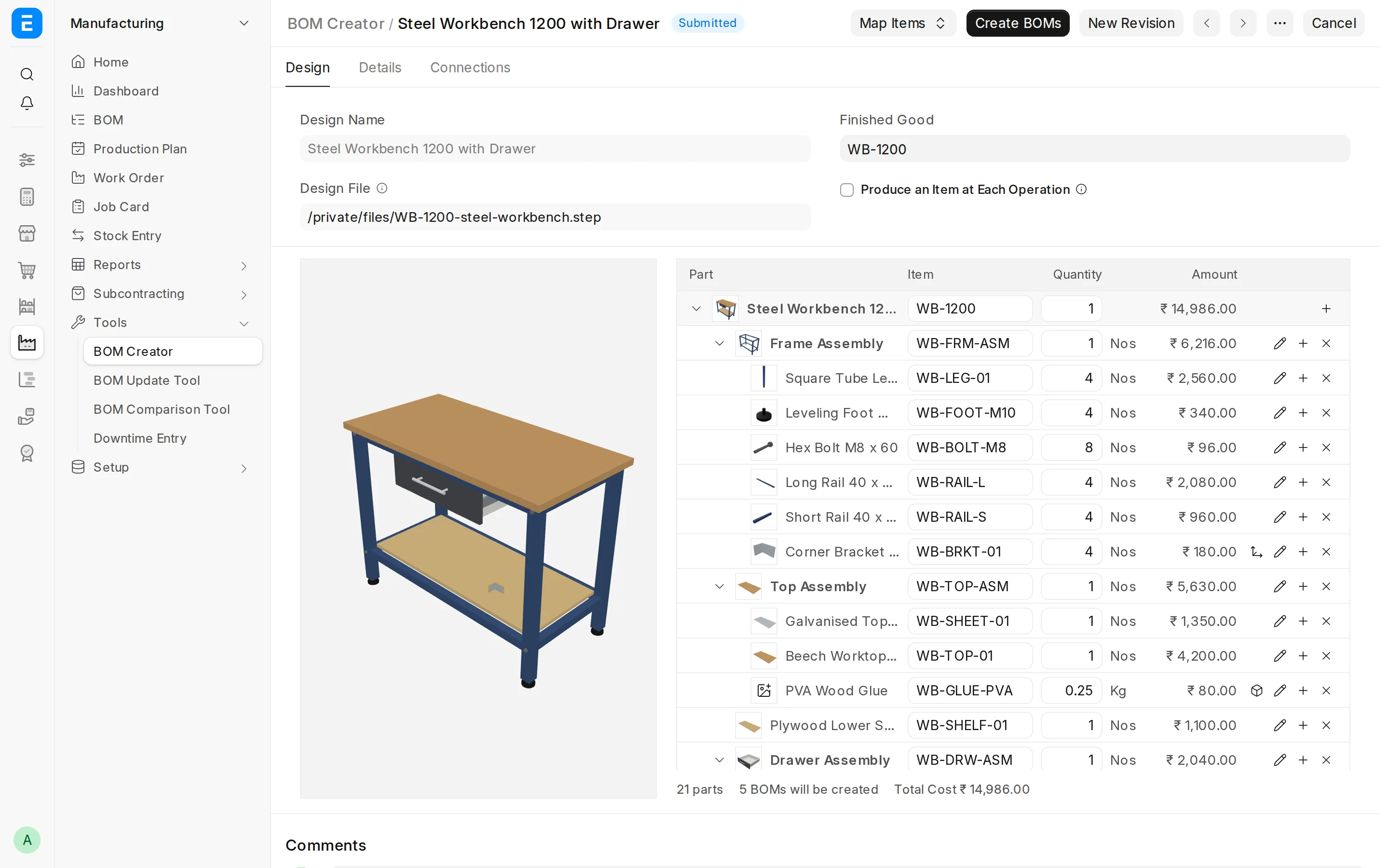
When the system creates an item from a part, it takes a picture of that part from the 3D model. The picture becomes the item image. Each mapped row shows the image as a small picture.
To take the picture again, click ⋯ on the row and select Set Item Image. For a material that is not in the 3D model, select Upload Item Image. You can also click the small picture in the row.
4. Change the tree
You can change the tree before you create the BOMs. The changes apply to the BOMs only. The design file does not change.
Each row has three buttons at the end: + adds a material under the row, × removes the row from the BOM, and click on ⋯ (3 dots icon) opens more options. The buttons show while you can change the document.
4.1 Change a quantity
Click the quantity of a row and type the new quantity. A quantity is always for one unit of the parent row. A dot before the quantity shows that the quantity is different from the design file. Hold the pointer on the dot to see the quantity from the design file.
To make the finished good BOM for more than one unit, change the quantity on the top row. With Produce an Item at Each Operation, the tree does not show. Then use the Finished Good Quantity field on the Design tab.
4.2 Add a material
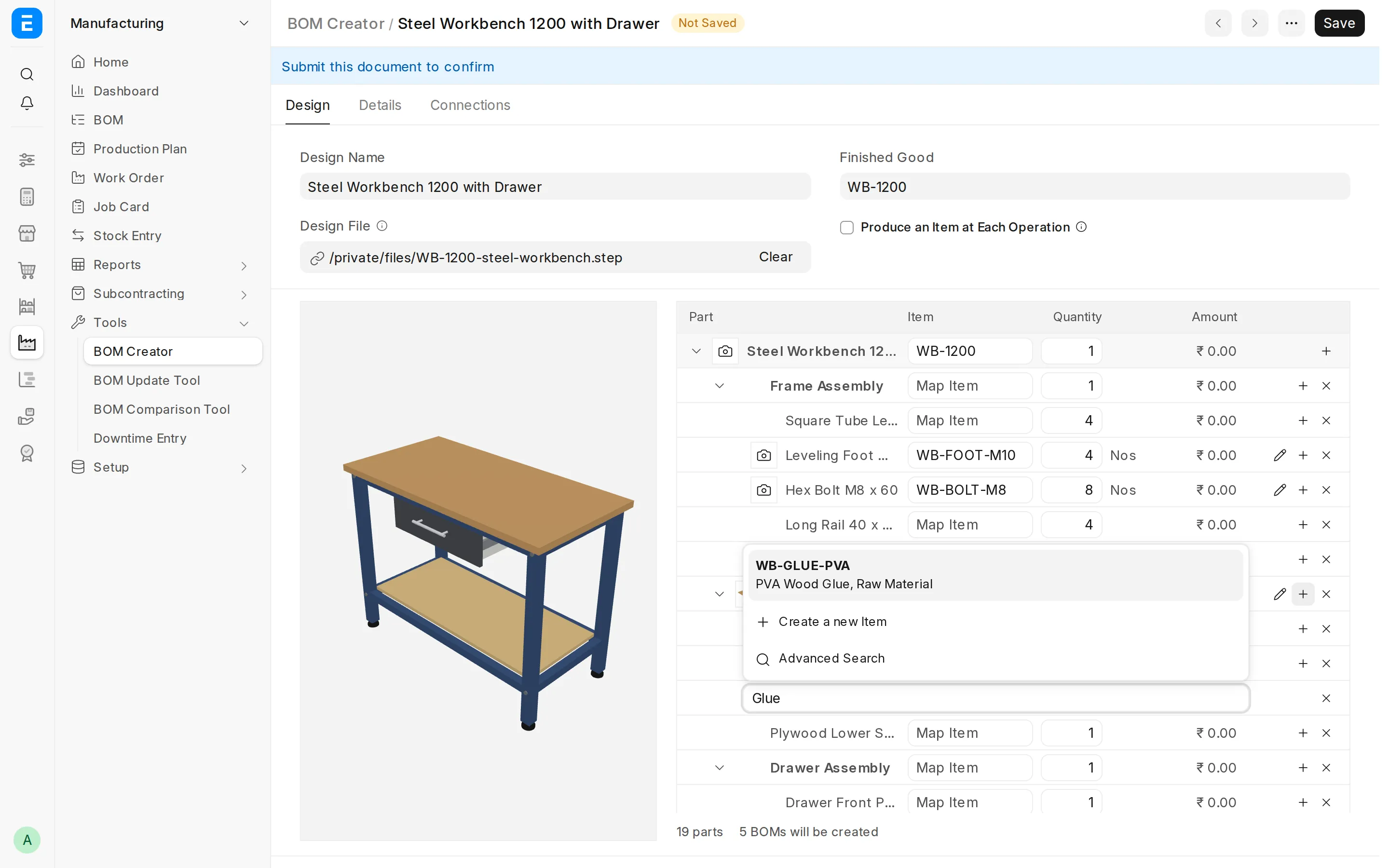
Some materials are not in the design file, for example glue, paint or packing. To add one:
- Click + on the row of the assembly.
- Type the item in the new row and select it. The new row stays open, so you can add the next material.
- Click × at the end of the row to close it.
4.3 Remove a part from the BOM
Click × on a row to remove the part from the BOM. A part from the design file stays in the tree with a line through it, because it is in the design. Click the Add Back to BOM button on the row to add it back. A material that you added by hand is deleted.
In this example, the Galvanised Top Cover Sheet is removed from the BOM. The PVA Wood Glue is a material added by hand, with a quantity of 0.25 Kg.
4.4 Change the unit of measure
Click the unit in the UOM column and select another unit of the item. The system takes the conversion factor from the item and calculates the stock quantity and the amount again when you save.
If two parts of one assembly have the same item but different units, the BOM gets one row for each unit.
4.5 Get items from an existing BOM
You can copy the items of an existing BOM of an item into the tree, and then change them. For example, use the BOM of a sub-assembly that you already make, and remove the items that the new product does not need.
- Click ⋯ on the row of the finished good or of a part, and select Get Items from BOM.
- In BOM, select a submitted BOM of the item. The default is the default BOM of the item.
- To copy the items of the sub-assemblies too, select Include Items of Sub-Assemblies. Otherwise, each sub-assembly uses its own BOM, the same as with Include Existing BOM. See Include an existing BOM below.
- Click Get Items.
With this feature user can remove items fetched from different BOMs, change the qty
4.6 Include an existing BOM
You can use the BOM of a sub-assembly that you already make. The system then does not make a new BOM for the sub-assembly. The BOM of the parent row uses the existing BOM.
- Click ⋯ on the row of the part and select Include Existing BOM.
- In BOM, select an active, submitted BOM of the item of the part. The default is the default BOM of the item.
- Click Include.
With this feature user can not remove items fetched from different BOMs, also will not be able to change the qty
5. Costing
The Amount column shows the cost of each row. The amount of an assembly is the cost of its raw materials. The line under the tree shows the Total Cost of the finished good. The system calculates the cost again when you save.
Set the costing fields on the Costing tab:
| Field | Use |
|---|---|
| Rate Of Materials Based On | Valuation Rate, Last Purchase Rate or Price List. The default is Valuation Rate. |
| Price List | Shows when the rate is based on a price list. |
| Set Valuation Rate Based on Source Warehouse | Takes the valuation rate of the Default Source Warehouse. |
| Default Source Warehouse | Shows when the rate is based on Valuation Rate. The system sets it on the BOMs as their default source warehouse. |
| Currency and Conversion Rate | The currency of the costs. The default is the company currency. |
| Total Cost | The cost of the materials of the finished good. |
Other fields
The Details tab has these fields:
- Is Phantom BOM: makes the finished good BOM a phantom BOM. The finished good must then be a non-stock item.
- Item Group for New Items: the item group of the items that the system creates from the parts.
- Part Number: shows when a design file is attached. It is the part number of the top assembly in the file.
- Project: the system sets it on the BOMs.
- Routing: shows when Produce an Item at Each Operation is off. The finished good BOM gets its operations from this routing.
- Remarks: your notes about the design.
- More Information: a collapsed section with Status, Revision, Previous Revision and Error Log. Click the section title to open it. The section opens automatically when the BOM creation fails. For revisions, see Revisions below.
6. Submit the document
When the tree is correct, click Submit. The status changes to Submitted.
After you submit the document, you can still map items, change quantities and units, and add or remove materials. You cannot change the design file. To use a new design file, make a new revision. See Revisions below.
7. Create BOMs without Produce an Item at Each Operation
Keep Produce an Item at Each Operation off when the part tree is the structure that you make. This is the default.
When you click Create BOMs, the system:
- Checks the tree and shows a list of all the problems. For example, a part without an item.
- Sets the status to In Progress and creates the BOMs in the background.
- Creates one BOM for each assembly in the tree. It starts with the lowest assemblies. A part that uses an existing BOM does not get a new BOM.
- Uses the BOM of each sub-assembly in the BOM of its parent.
- Creates the BOM of the finished good last.
- Submits all the BOMs and sets the status to Completed.
The system does not add removed parts to the BOMs.
To click Create BOMs, you need the permission to submit a BOM Creator and a BOM.
Example
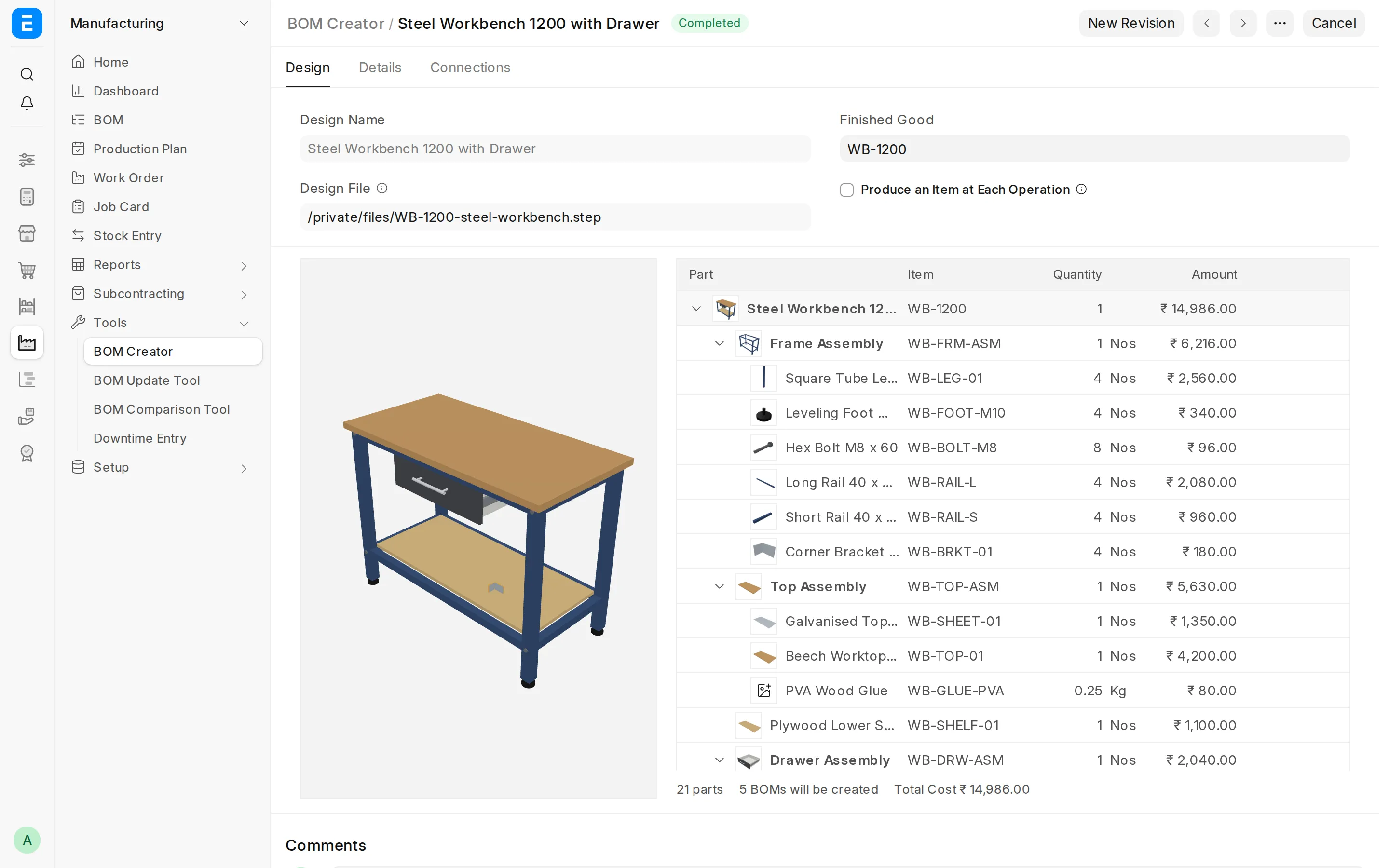
The design file of the Steel Workbench 1200 with Drawer has four assemblies. The Drawer Handle Assembly is inside the Drawer Assembly. The user adds the Corner Bracket and the PVA Wood Glue by hand.
The line under the tree shows 5 BOMs will be created. Click Create BOMs. When the BOMs are ready, the status changes to Completed.
| BOM for | Raw materials |
|---|---|
| WB-FRM-ASM Frame Assembly | Square Tube Leg × 4, Leveling Foot × 4, Hex Bolt × 8, Long Rail × 4, Short Rail × 4, Corner Bracket × 4 |
| WB-TOP-ASM Top Assembly | Galvanised Top Cover Sheet × 1, Beech Worktop × 1, PVA Wood Glue × 0.25 Kg |
| WB-HANDLE-ASM Drawer Handle Assembly | Handle Bar × 1, Handle Post × 2 |
| WB-DRW-ASM Drawer Assembly | Front Panel × 1, Side Panel × 2, Back Panel × 1, Bottom Panel × 1, Drawer Slide × 2, Drawer Handle Assembly × 1 |
| WB-1200 Steel Workbench 1200 with Drawer | Frame Assembly × 1, Top Assembly × 1, Plywood Lower Shelf × 1, Drawer Assembly × 1 |
The Connections tab shows the BOMs that the system created.
The BOM of the finished good uses the four assembly items. Each assembly item links to its own BOM.
If the BOMs are not created
If the system cannot create a BOM, the status changes to Failed. The page shows a message, and the Error Log field on the Details tab shows the error. The system keeps no BOM from the failed run. Correct the problem and click Create BOMs again.
If the background job stops without a result, for example because the worker restarted, the status stays In Progress. Create BOMs shows for this status too. Click it again after the job is no longer in the queue. If you cancel a BOMs that the system created, the status changes back to Submitted.
8. Create BOMs with Produce an Item at Each Operation
Turn on Produce an Item at Each Operation when the product goes through a sequence of operations, and each operation makes an item that you track in stock. Examples are welding, painting and assembly.
In this mode:
- Each operation has raw materials and one output item.
- A later operation can use the output of an earlier operation as a raw material.
- The last operation makes the finished good.
The system makes one BOM for the finished good, with Track Semi Finished Goods turned on.
8.1 Turn on the option
Select the Produce an Item at Each Operation check box on the Design tab. The right panel changes and shows two tabs:
- Operations: the steps that make the finished good.
- Parts: the part tree, with the operation that uses each part.
Before you add operations, the Operations tab shows one Raw Materials card. The output of this card is the finished good. The Parts Not Used in Any BOM list shows the parts that no operation uses yet.
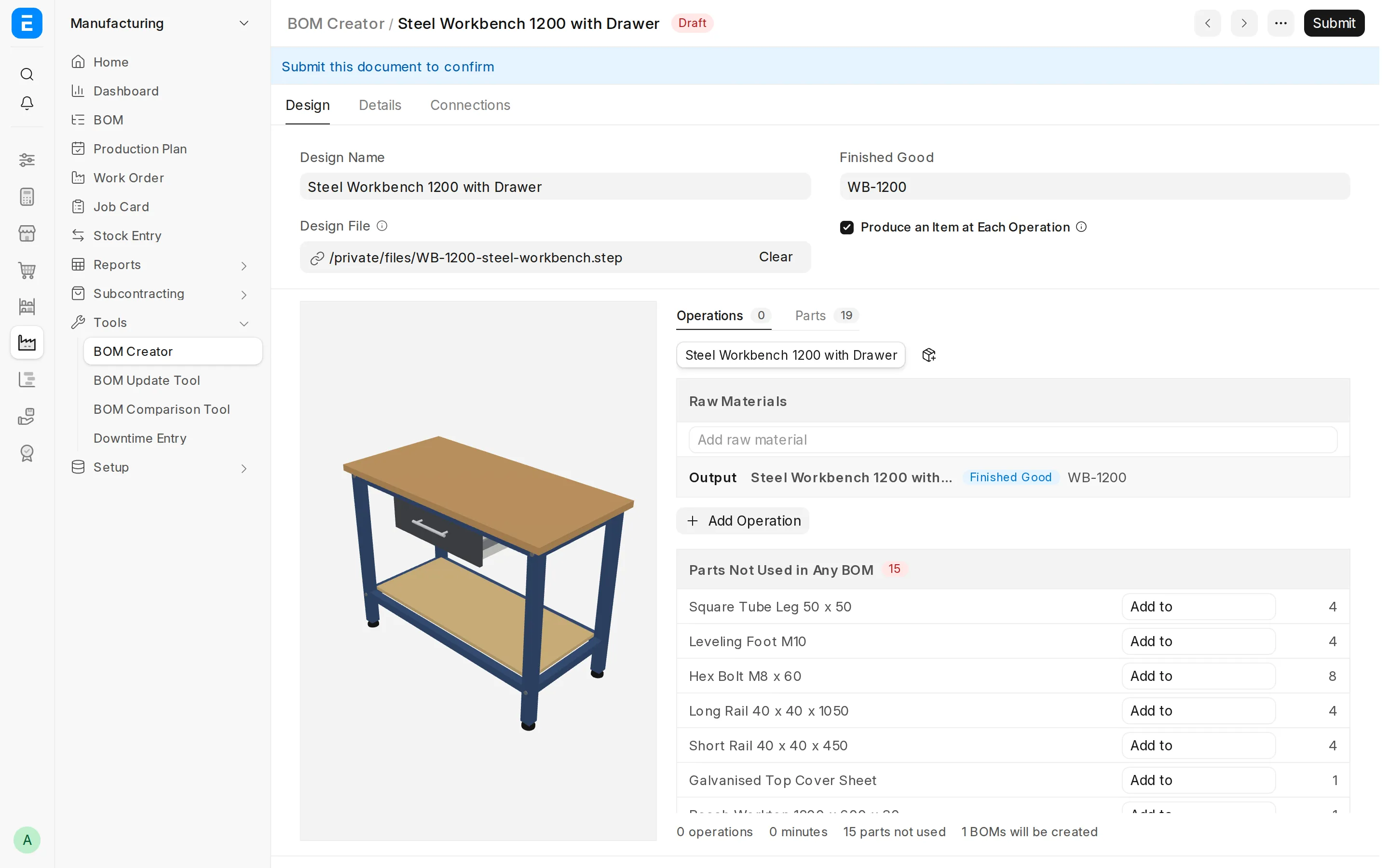
If you clear the check box, the panel shows the part tree again.
8.2 Add an operation
- Click Add Operation. A new step card shows at the end.
- In the first field, select the Operation. The system fills the Workstation Type and the time from the Operation, if they are set there.
- Select or change the Workstation Type.
- Type the time in minutes.
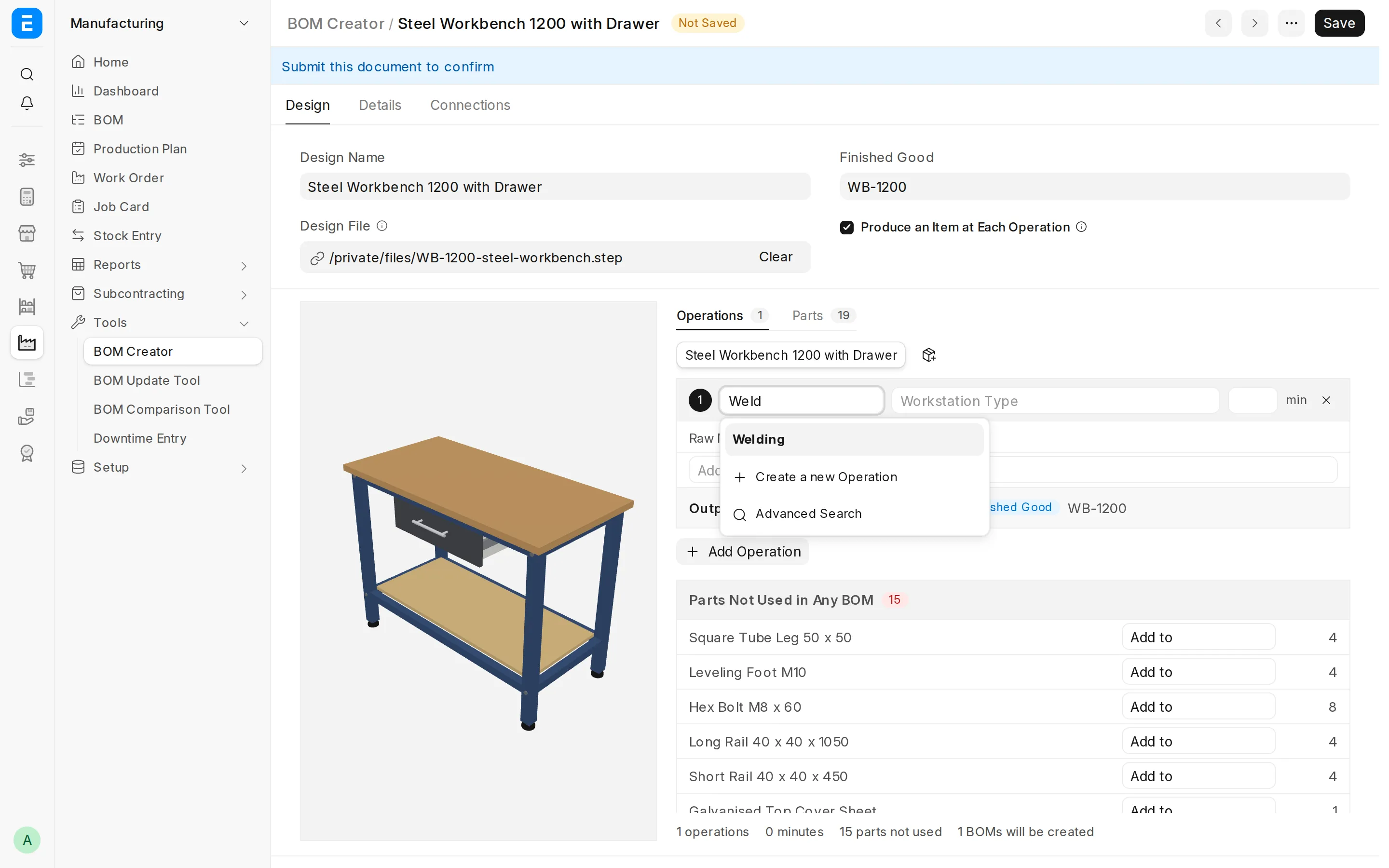
To delete a step, click × at the end of its header.
8.3 Add raw materials to an operation
Use one of these methods:
- Add raw material: type an item in the field at the end of the raw materials and select it. If a part of the design has this item and no step uses the part yet, the system links the row to that part.
- Parts Not Used in Any BOM: in the list under the steps, select the step in the Add to field of a part.
- Step Output: click + Step 1 Output to use the output of step 1 as a raw material. The buttons show the outputs of the earlier steps that this step does not use yet.
Change the quantity in the row, or click × to remove the raw material.
8.4 Set the output item
Each step, except the last, needs an output item. Select it in the Output field. The output shows the Semi-Finished label. You can select an assembly of the design or any other item.
The output of the last step is always the finished good. It shows the Finished Good label.
Click a step card to highlight its raw materials in the 3D model.
8.5 Example
The Steel Workbench 1200 with Drawer is made in five operations:
| Step | Operation | Workstation Type | Time | Raw materials | Output |
|---|---|---|---|---|---|
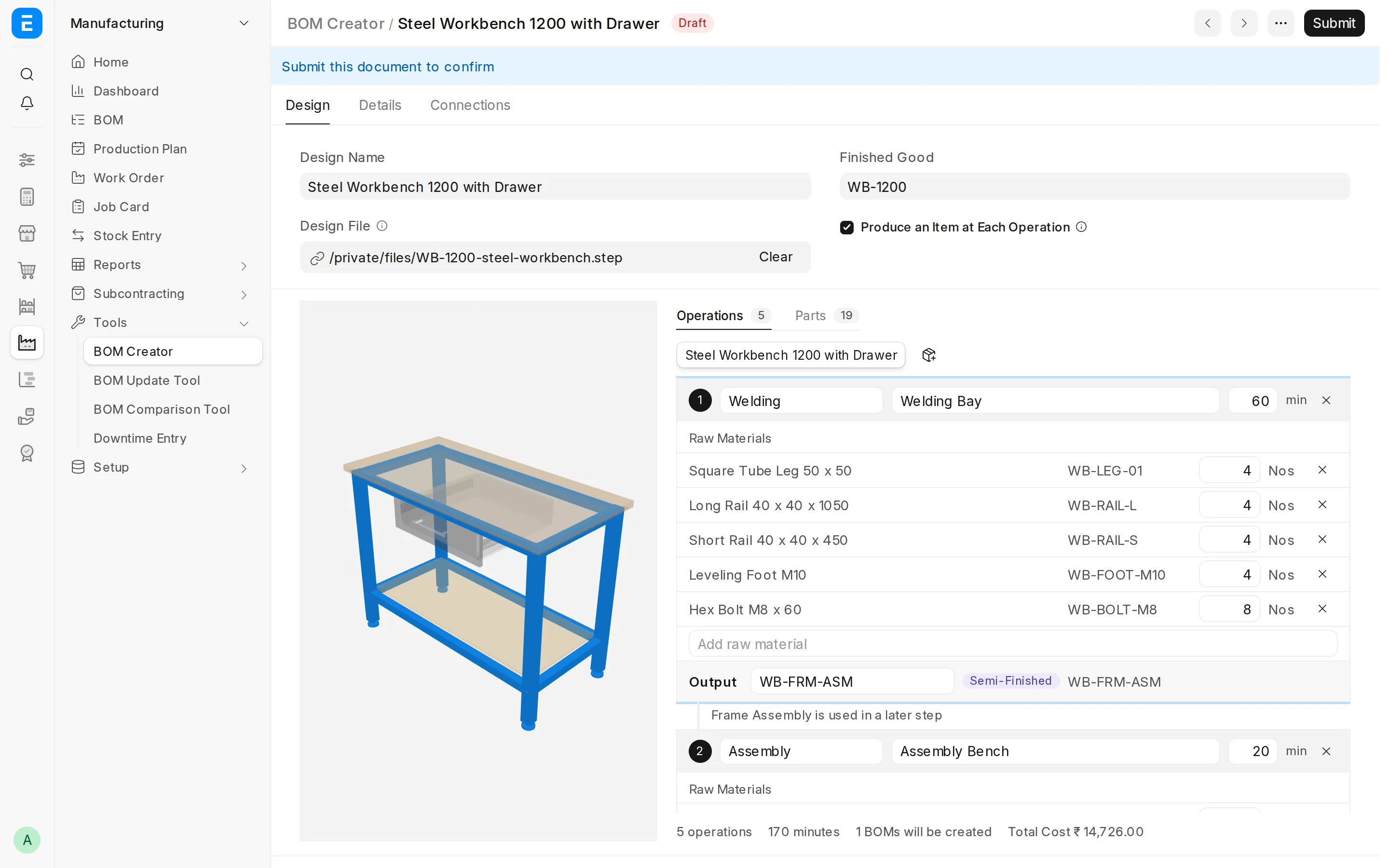
| 1 | Welding | Welding Bay | 60 minutes | Square Tube Leg × 4, Long Rail × 4, Short Rail × 4, Leveling Foot × 4, Hex Bolt × 8 | Frame Assembly |
| 2 | Assembly | Assembly Bench | 20 minutes | Galvanised Top Cover Sheet × 1, Beech Worktop × 1 | Top Assembly |
| 3 | Assembly | Assembly Bench | 10 minutes | Handle Bar × 1, Handle Post × 2 | Drawer Handle Assembly |
| 4 | Drawer Assembly | Assembly Bench | 35 minutes | Front Panel × 1, Side Panel × 2, Back Panel × 1, Bottom Panel × 1, Drawer Slide × 2, Step 3 Output × 1 | Drawer Assembly |
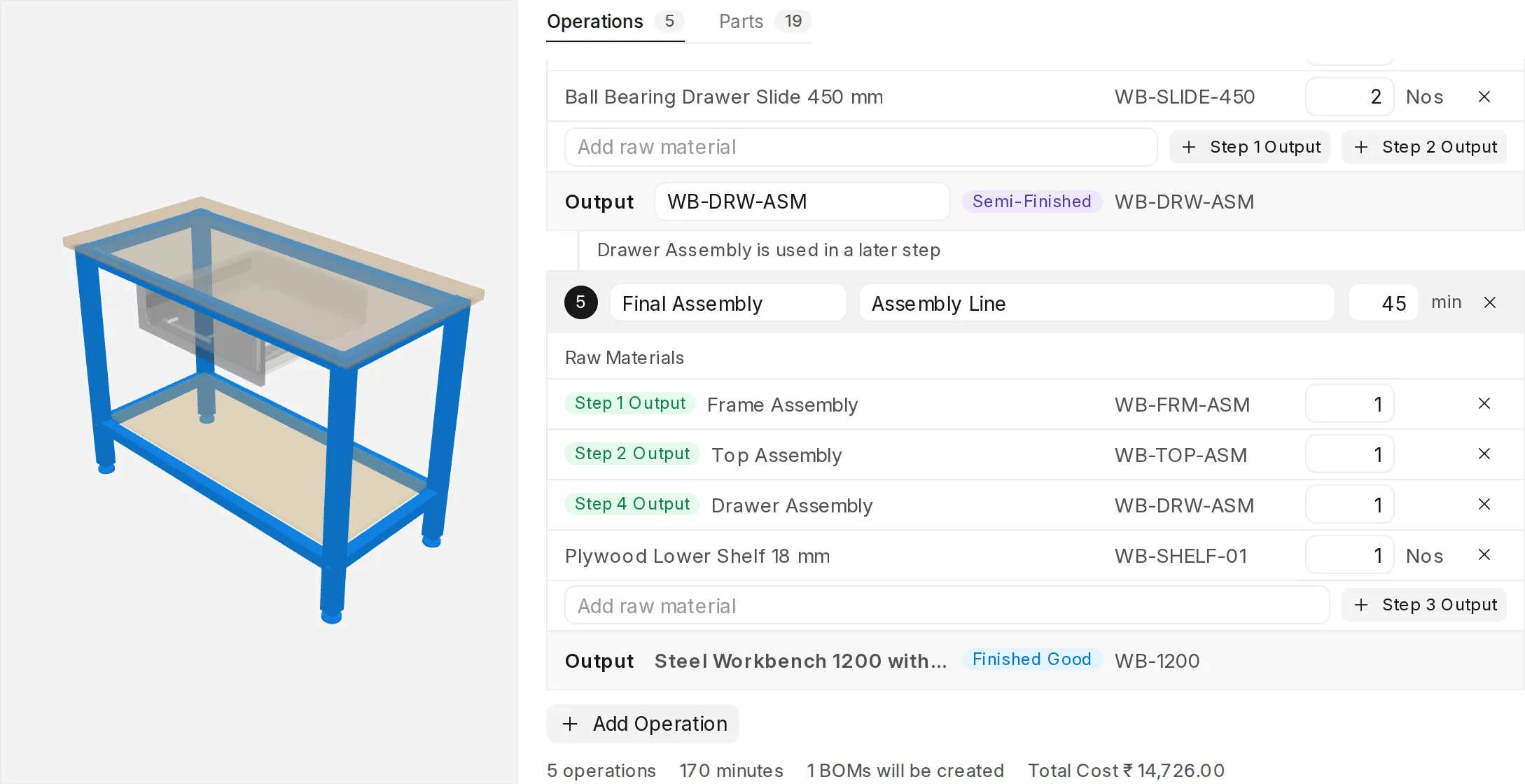
| 5 | Final Assembly | Assembly Line | 45 minutes | Step 1 Output × 1, Step 2 Output × 1, Step 4 Output × 1, Plywood Lower Shelf × 1 | Steel Workbench 1200 with Drawer (finished good) |
Step 1 makes the Frame Assembly. A line under the card shows that a later step uses this output. In the image, step 1 is selected, so the model highlights its raw materials. The line under the steps shows the number of operations, the total time and the Total Cost.
The last step uses the outputs of steps 1, 2 and 4. Its output is the finished good.
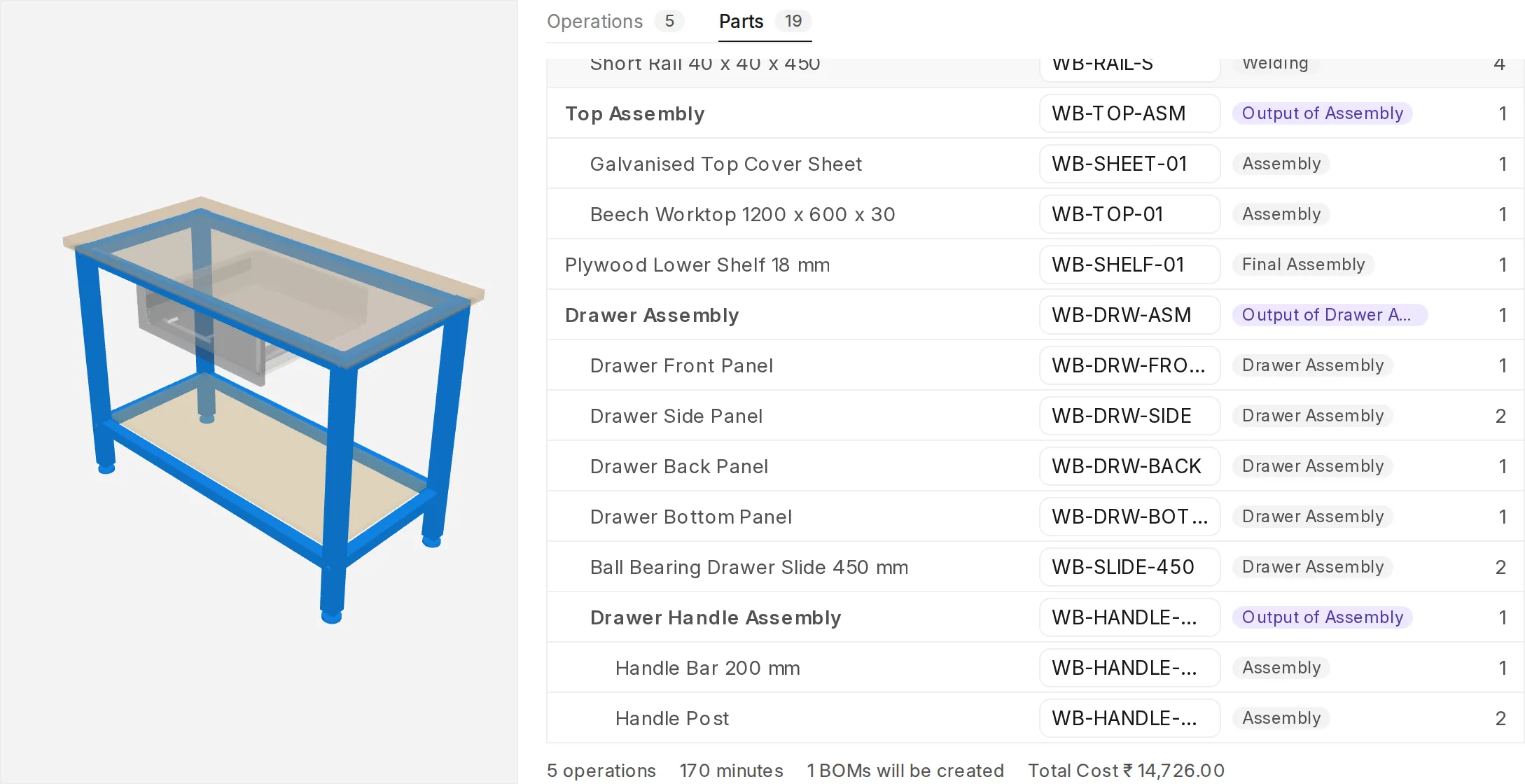
The Parts tab shows the operation that uses each part. Output of Welding means that the Welding step makes this part.
8.6 Give a sub-assembly its own BOM
You can make a sub-assembly in a separate BOM, for example when another work order or a subcontractor makes it.
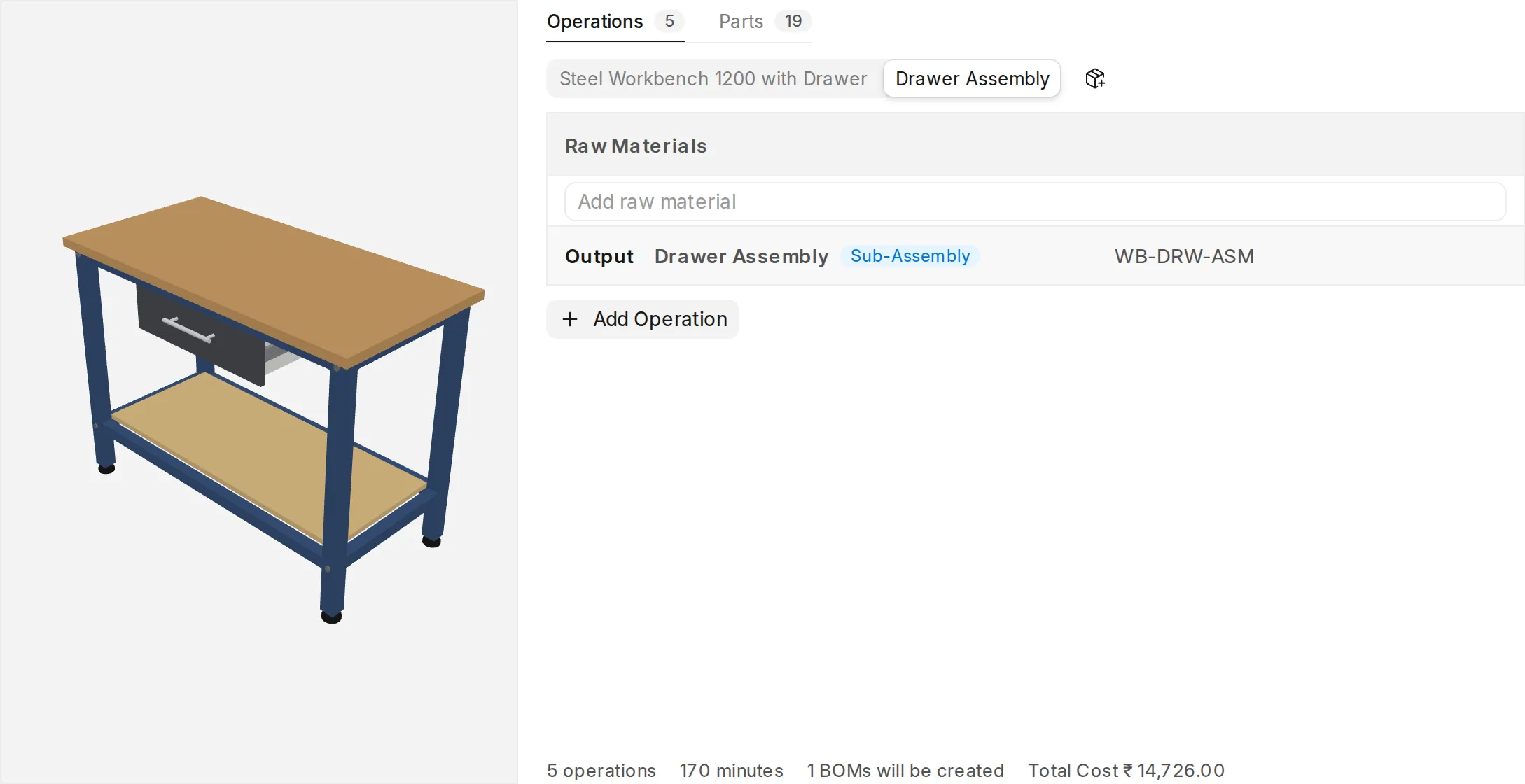
- Click the Add Sub-Assembly BOM button next to the BOM name above the steps.
- Select the sub-assembly.
- A new tab with the name of the sub-assembly shows. Add the operations and the raw materials of this BOM.
The system creates the BOM of the sub-assembly first. The BOM of the finished good uses it.
8.7 Create the BOM
- Submit the document.
- Click Create BOMs.
The system shows a list of the problems if one of these is true:
- A part has no item.
- A step has no workstation type, no time or no output item.
- Two BOMs are for one item. The system can make only one BOM for an item.
Correct the problems and click Create BOMs again.
The system creates one BOM with Track Semi Finished Goods turned on. Each operation row has the Output Item of the step. The last operation makes the finished good. In the BOM, the output of an earlier step has Do Not Explode turned on, so the BOM does not use another BOM of that item.
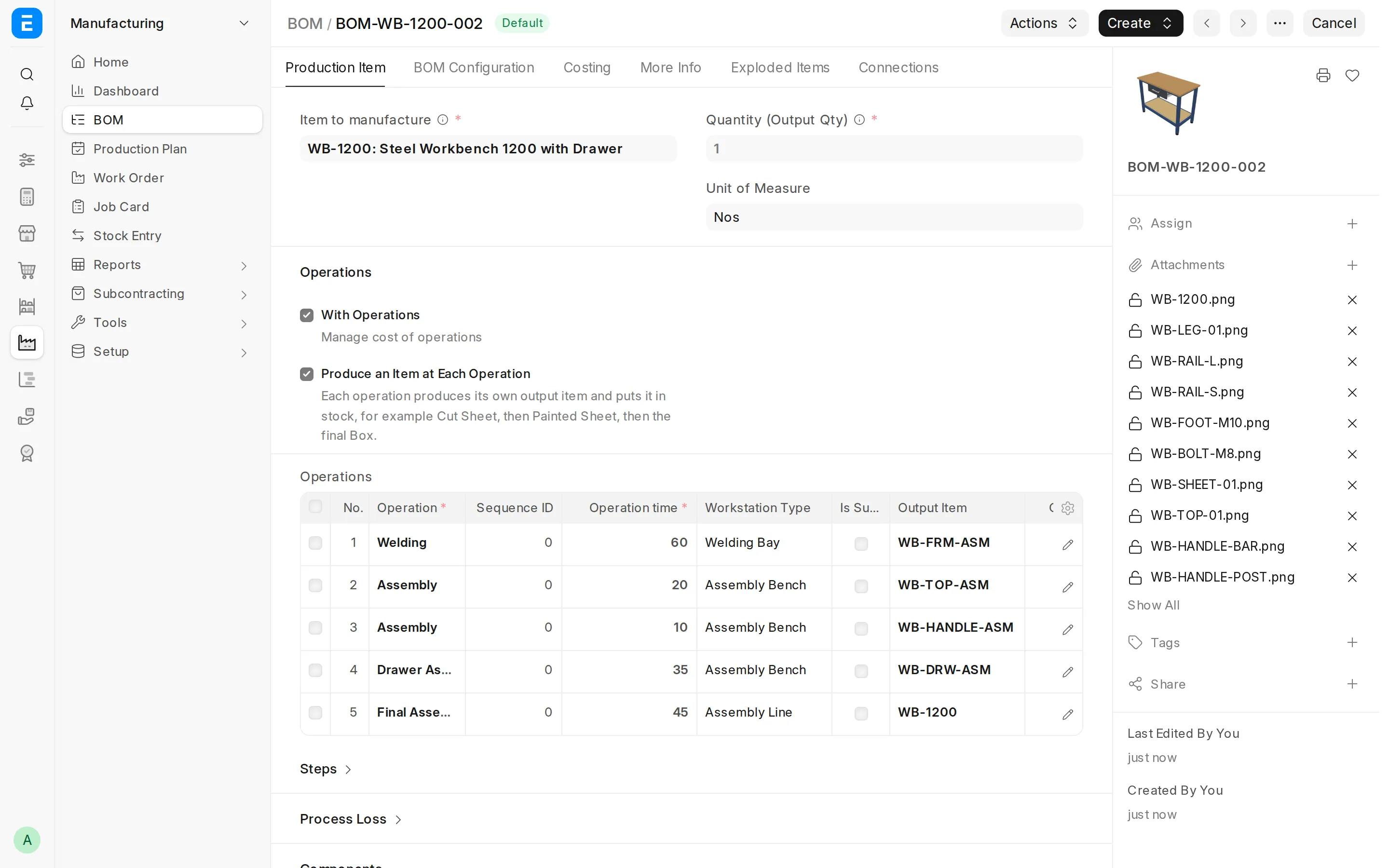
When you make a Work Order from this BOM, each Job Card makes the output item of its operation.
9. Status
| Status | Meaning |
|---|---|
| Draft | The document is not submitted. |
| Submitted | The document is submitted. The BOMs are not created yet. |
| In Progress | The system is creating the BOMs in the background. If the job stopped, click Create BOMs again. |
| Completed | The system created all the BOMs. |
| Failed | The system could not create the BOMs. See the Error Log on the Details tab. |
| Superseded | A newer revision of the document is submitted. |
| Cancelled | The document is cancelled. |