

















Process Payment Reconciliation Tool
Use the Process Payment Reconciliation Tool when you have several submitted payments and invoices that ERPNext can match for the same party and account. You define the scope once, queue the process, and review the completed allocations.
This example uses Northstar Retail. The customer has an unallocated payment of USD 600 and an outstanding sales invoice of USD 3,753.
Before you begin
Confirm that the payments and invoices are submitted, use the same Company and party account, and have an amount available to reconcile.
Open Accounts Settings, select the Payments tab, enable Auto reconcile Payments, and save. The job trigger controls how often queued work is picked up. The queue size controls how many documents are processed in each run.
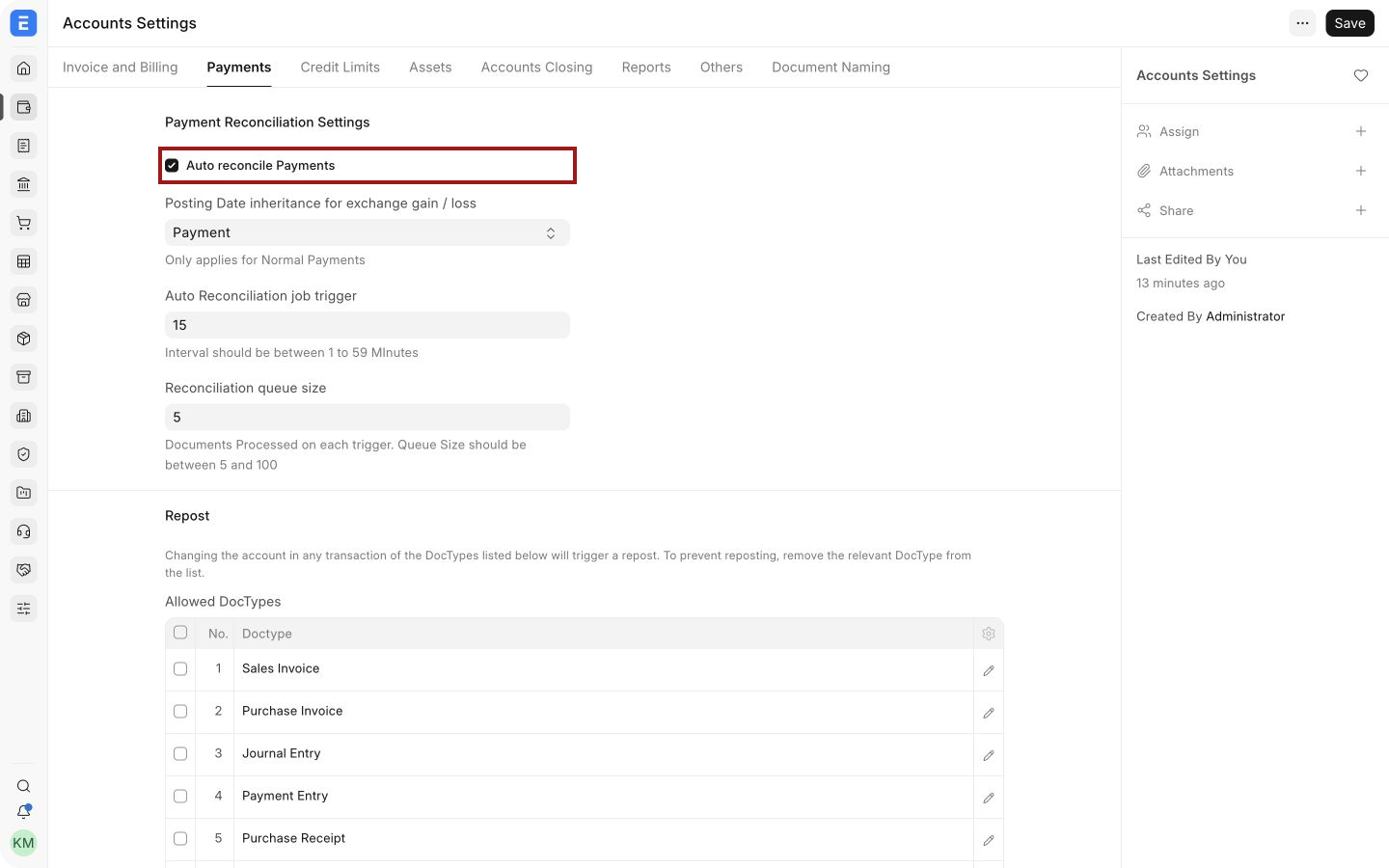
Create and run a reconciliation process
1. Open the tool
Open Process Payment Reconciliation and click Add Process Payment Reconciliation.
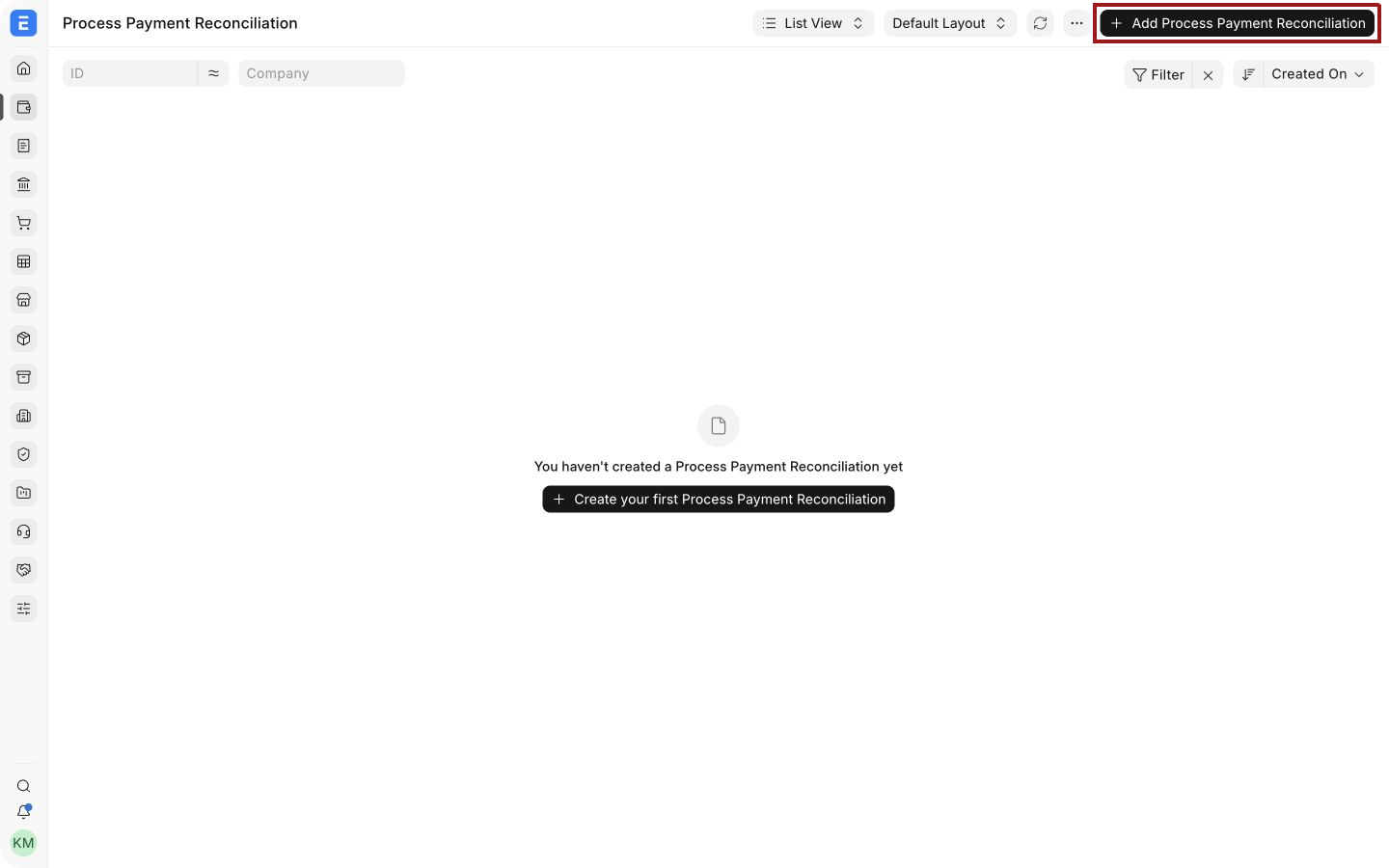
2. Define the scope
Select the Company, Party Type, Party, and Receivable/Payable Account. Add date, Cost Center, or Bank/Cash Account filters when you need to narrow the eligible entries.
In this example, select Nova Electronics Trading, Customer, Northstar Retail, Debtors - NET, and Nova Operating Bank - NET.
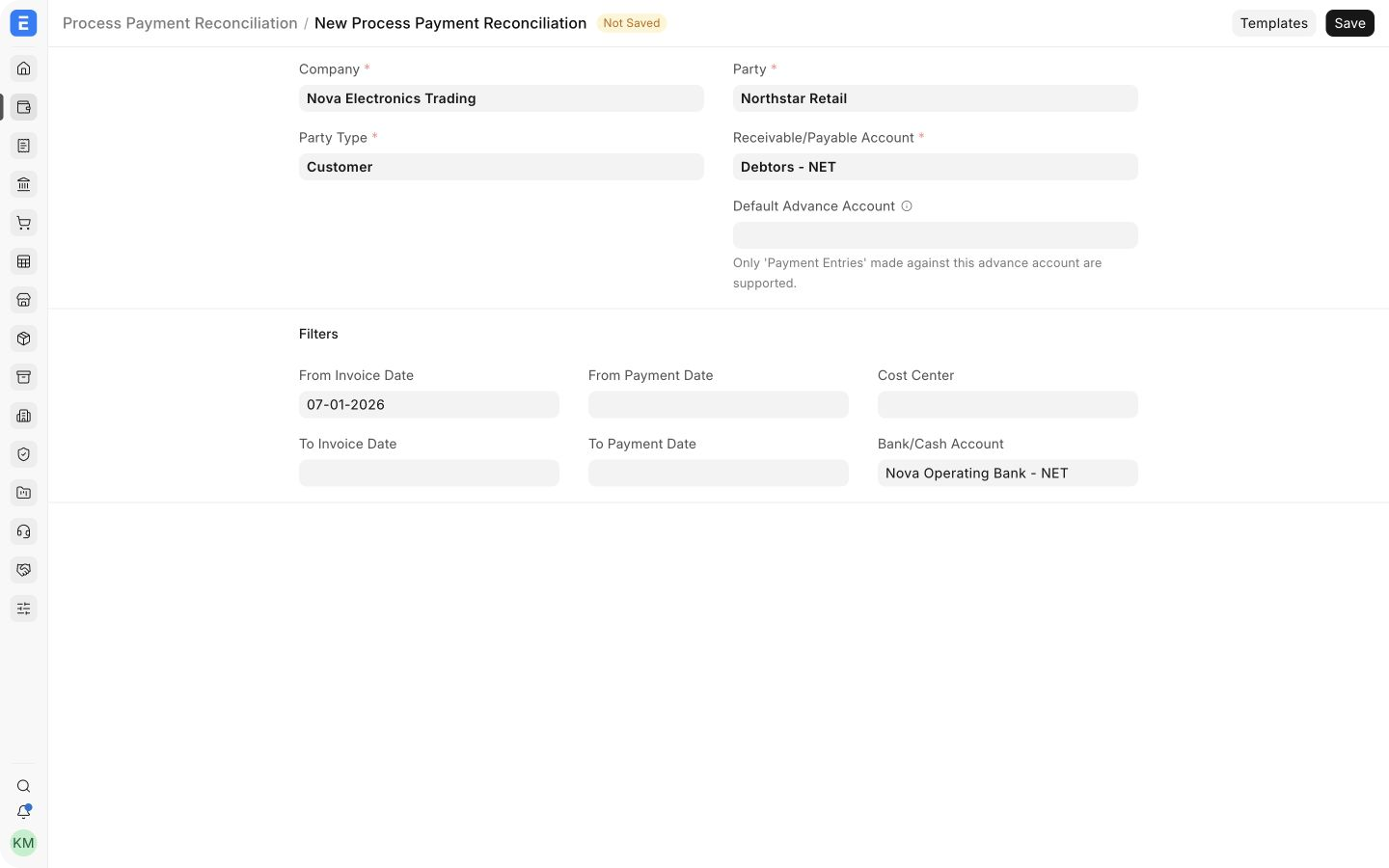
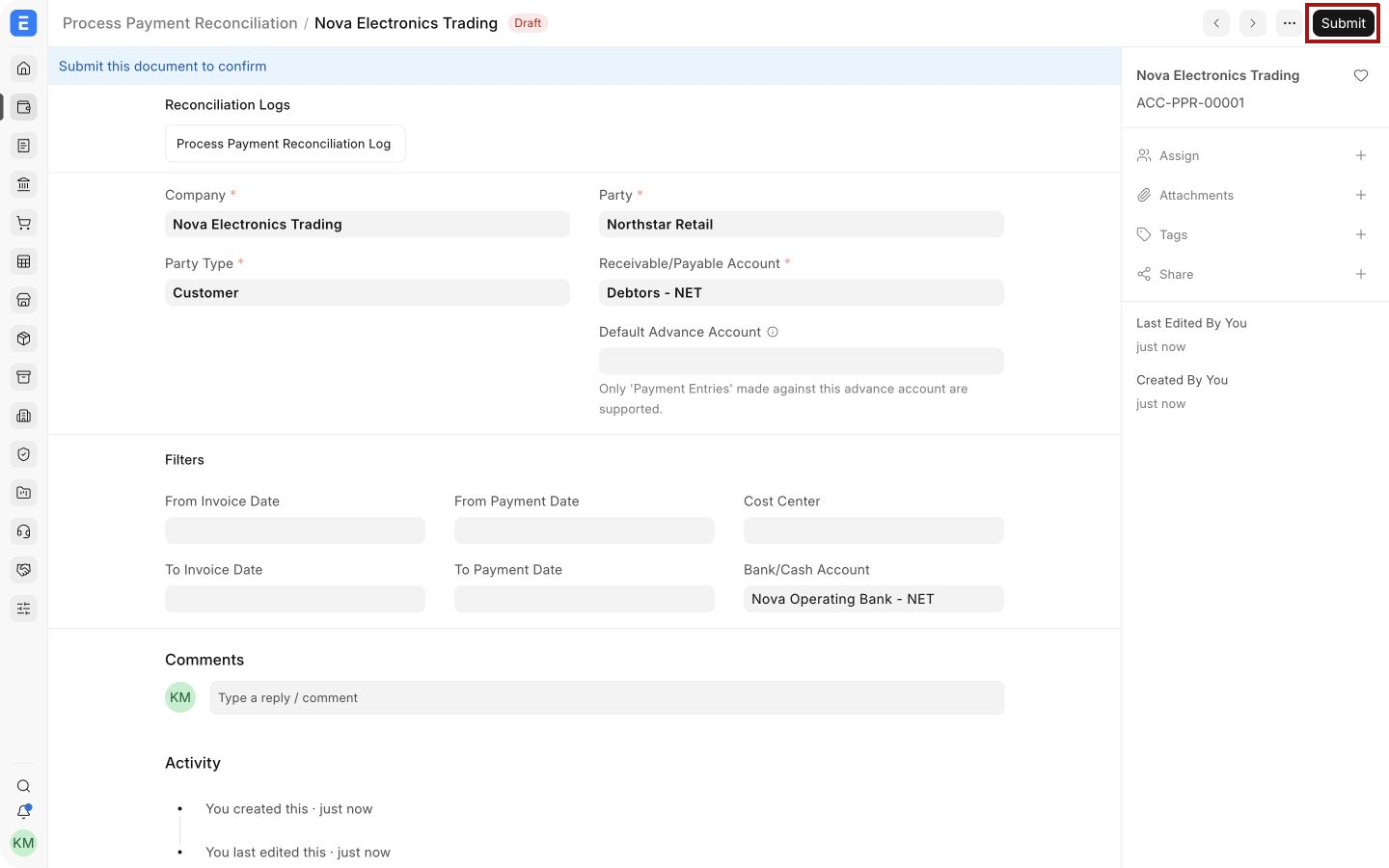
3. Save and submit
Save the record, review the scope, and click Submit. Submitting places the process in the queue. It does not itself confirm that every entry was reconciled.
4. Start the queued process
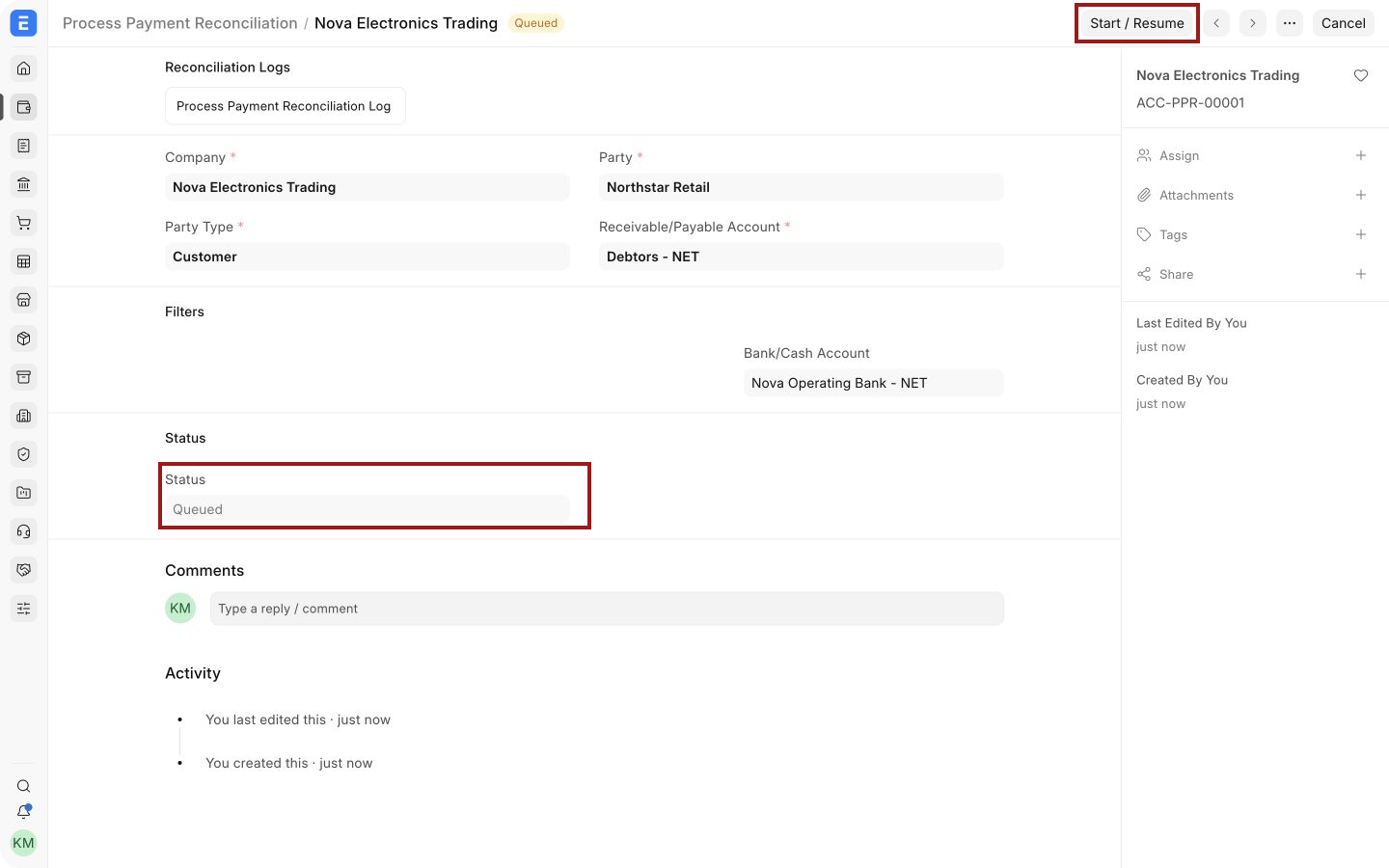
When the status is Queued, click Start / Resume to begin processing immediately.
5. Monitor progress
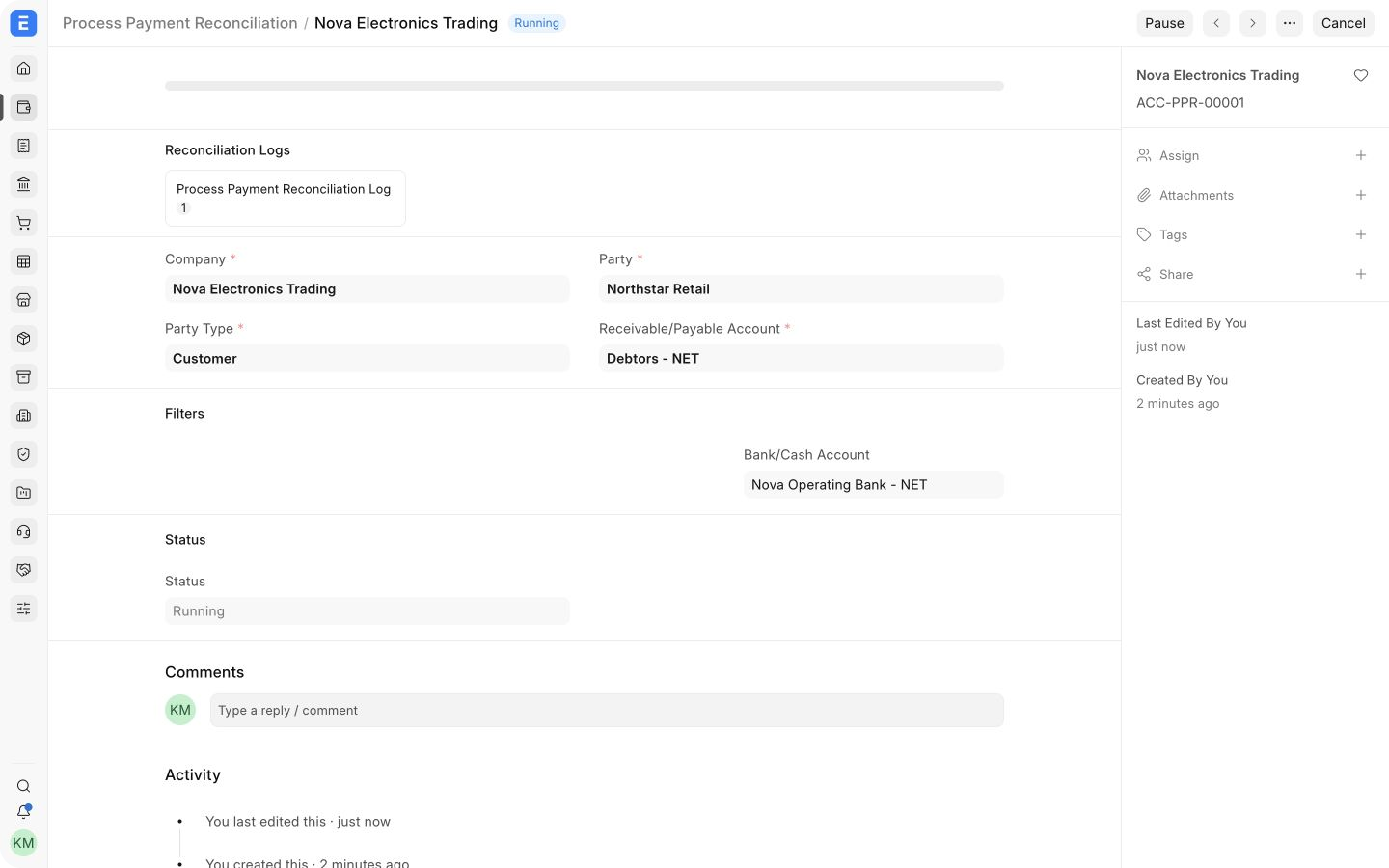
Keep the record open while ERPNext processes the eligible entries. The progress area, reconciliation log count, and Running status show that the job is active.
6. Review the completed process
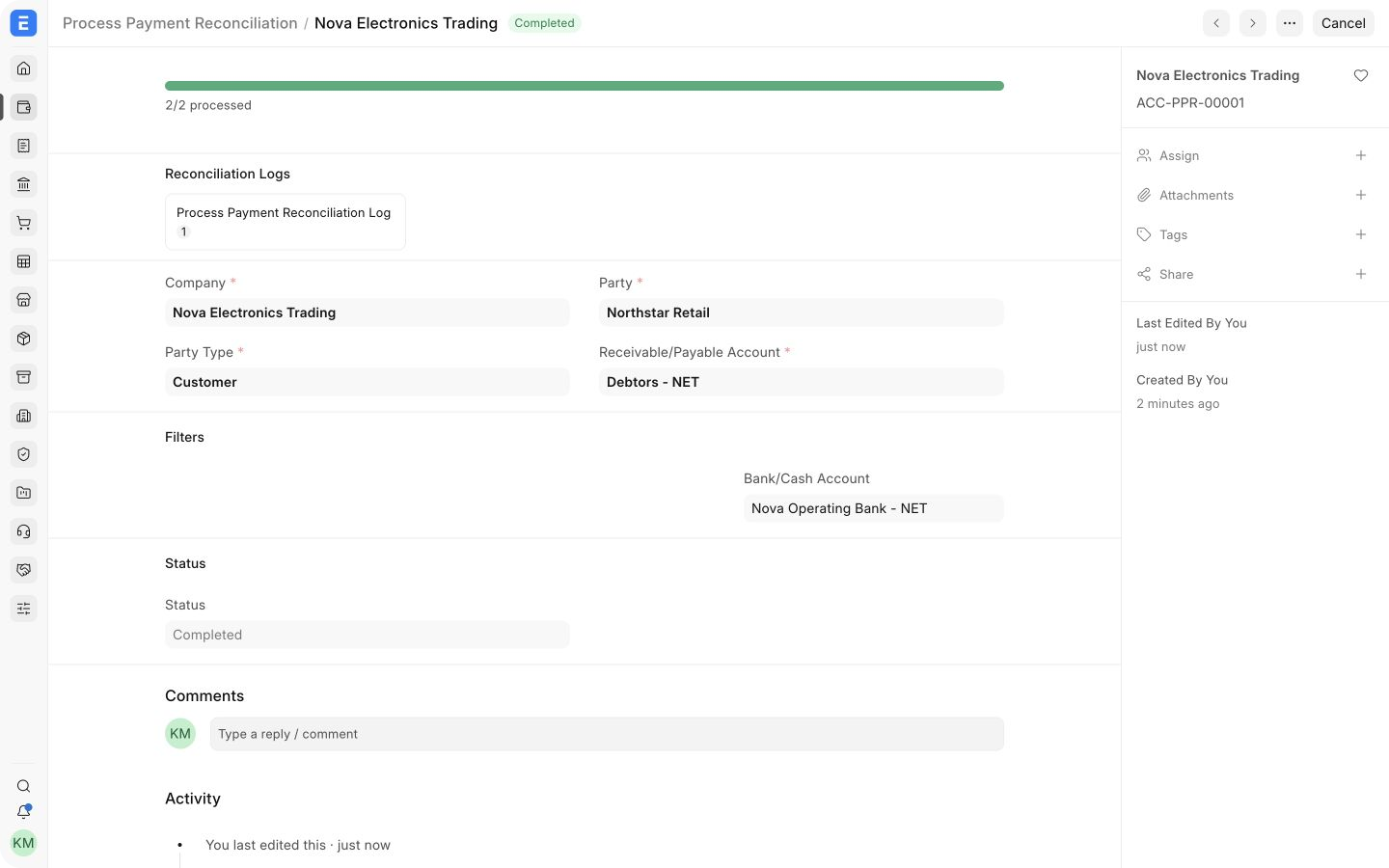
Wait for the status to become Completed. In this example, ERPNext processed 2/2 eligible entries.
7. Verify the accounting result
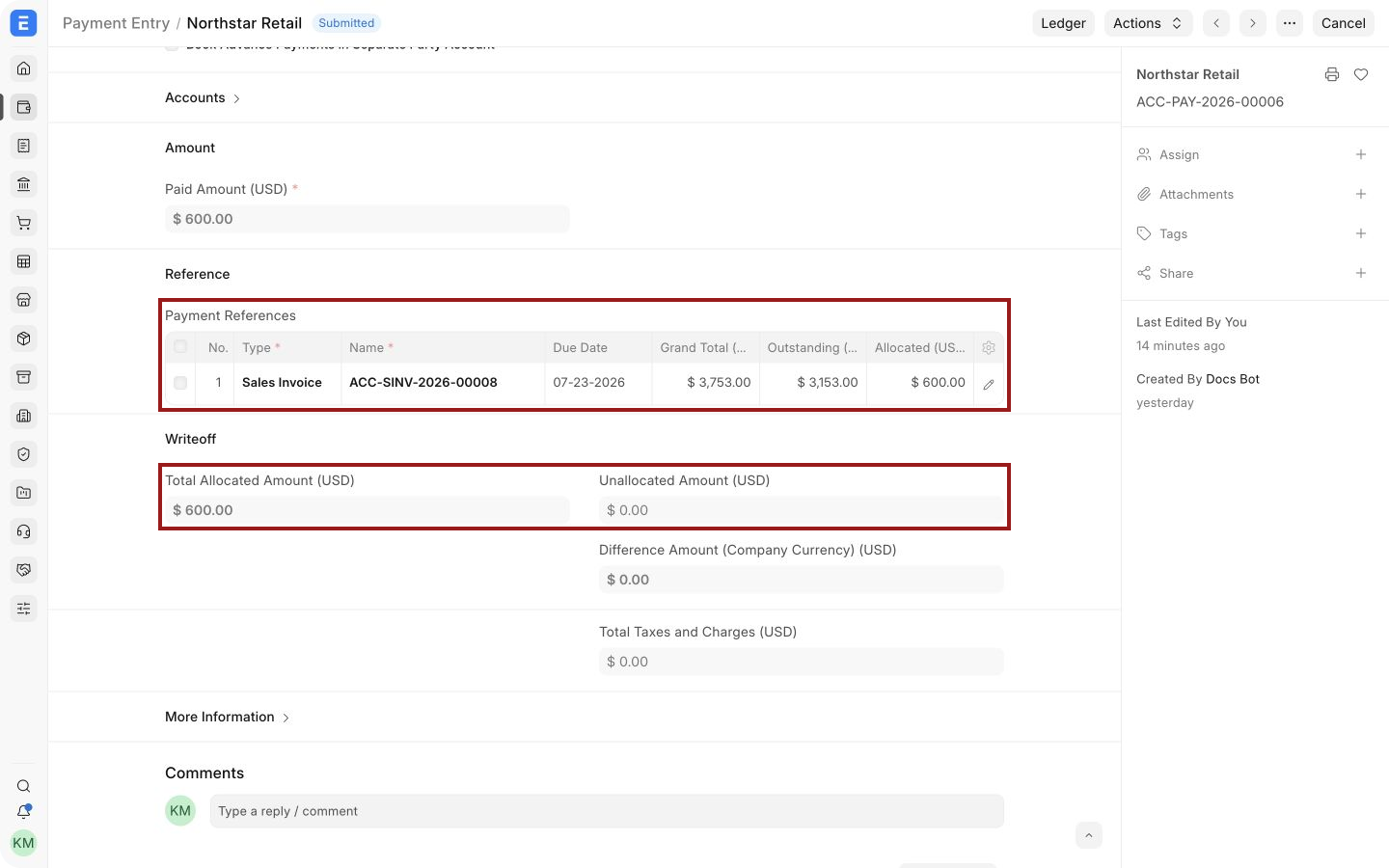
Open the affected Payment Entry or invoice and verify the allocation. Payment Entry ACC-PAY-2026-00006 now contains a USD 600 reference to ACC-SINV-2026-00008. Its Unallocated Amount is USD 0, and the invoice outstanding amount is USD 3,153.
Important fields and what they mean
| Field | What it controls |
|---|---|
| Company | Company whose receivable or payable entries are included. |
| Party Type | Whether the process is for a Customer or Supplier. |
| Party | Customer or Supplier whose entries are evaluated. |
| Receivable/Payable Account | Party account that must match the eligible invoices and payments. |
| Default Advance Account | Limits the process to Payment Entries made against the selected advance account. |
| Invoice Date and Payment Date | Optional ranges that narrow the documents included. |
| Cost Center | Optional filter for entries assigned to a specific Cost Center. |
| Bank/Cash Account | Optional filter for payments made through a specific bank or cash ledger. |
| Status | Shows whether the process is Queued, Running, Paused, Completed, or failed. |
Troubleshooting
The process remains queued
Enable Auto reconcile Payments in the Payments tab of Accounts Settings. Then return to the submitted process and click Start / Resume. Also confirm that background jobs are running on the site.
The process finds no eligible entries
Check the Company, Party Type, Party, receivable or payable account, date range, Cost Center, and Bank/Cash Account. The source invoices and payments must be submitted. The payment must still have an unallocated amount, and the invoice must still have an outstanding amount.
The process completes but an expected payment is unchanged
Open the reconciliation log and compare the payment with the process filters. Check the party, currency, account, posting dates, and remaining amounts. Use Payment Reconciliation when the match needs manual judgment.
A process is paused or interrupted
Correct the underlying data or background-job issue, then use Start / Resume. Review the existing log and current outstanding amounts before rerunning the same scope.
Frequently asked questions
How does this differ from Payment Reconciliation?
Process Payment Reconciliation handles eligible entries automatically for a defined scope. Payment Reconciliation lets you manually select exact payments, invoices, and allocation amounts for one party.
Does submitting the process change the ledger immediately?
Submission queues the process. Review the status, progress, reconciliation logs, Payment Entry references, and outstanding amounts before treating the work as complete.
Can I restrict the process to one bank account or date range?
You can use the Bank/Cash Account and invoice or payment date filters before saving the process.
Does the tool import bank transactions?
The tool does not import bank transactions. It allocates existing accounting entries. Use Bank Transaction and Bank Reconciliation for statement import and bank matching.