


















A submitted Sales Order can be closed when the customer no longer wants the remaining quantity delivered or billed. Closing preserves the order and its completed transactions while removing the outstanding balance from active fulfilment.
Before you begin
Confirm that:
- The Sales Order is submitted.
- Any accepted quantity has already been delivered through a Delivery Note or billed through a Sales Invoice.
- The customer has agreed that the remaining quantity will not be fulfilled.
- You do not need to correct the original order. Use Cancel and Amend when the submitted details themselves are wrong.
Closing is not the same as cancelling. Closing ends only the outstanding fulfilment. Existing deliveries, invoices, payments, and the audit trail remain intact.
Close a Sales Order
- Open the submitted Sales Order.
- Check the % Delivered and % Amount Billed values so you know what remains outstanding.
- Select Status, then select Close, as highlighted.
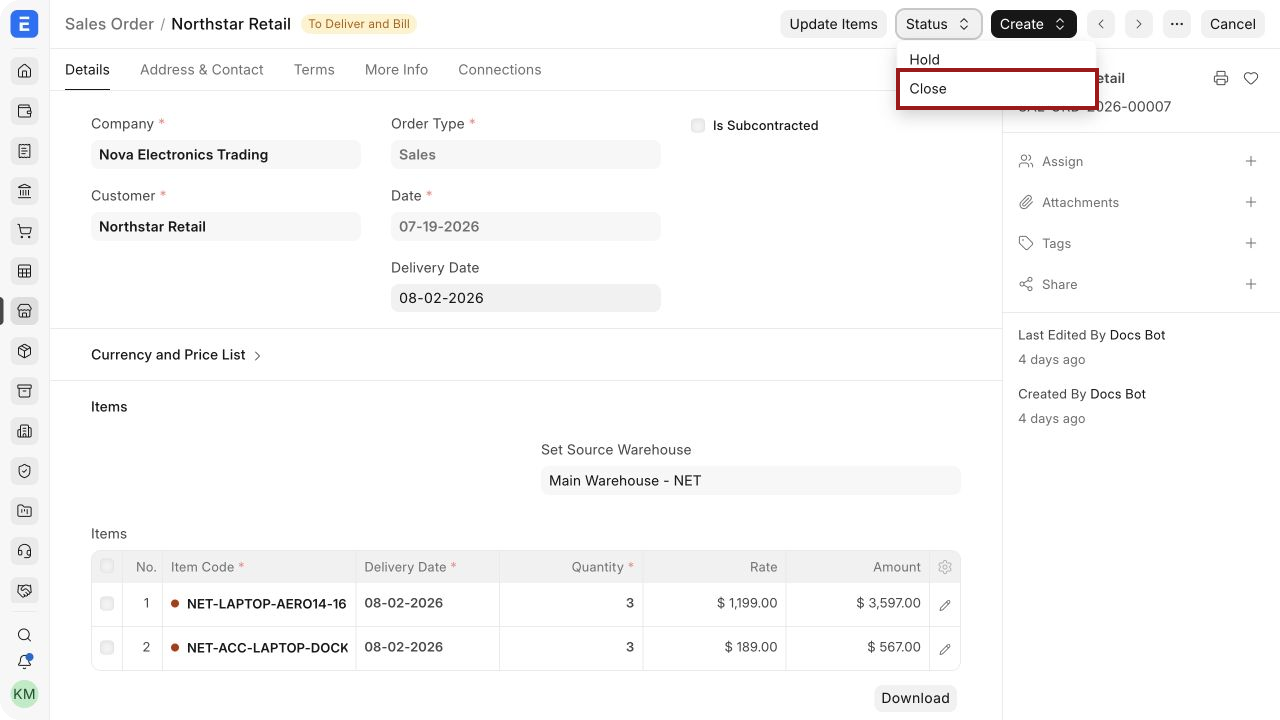
ERPNext changes the order status to Closed. You cannot create new Delivery Notes or Sales Invoices against its remaining quantity while it is closed.
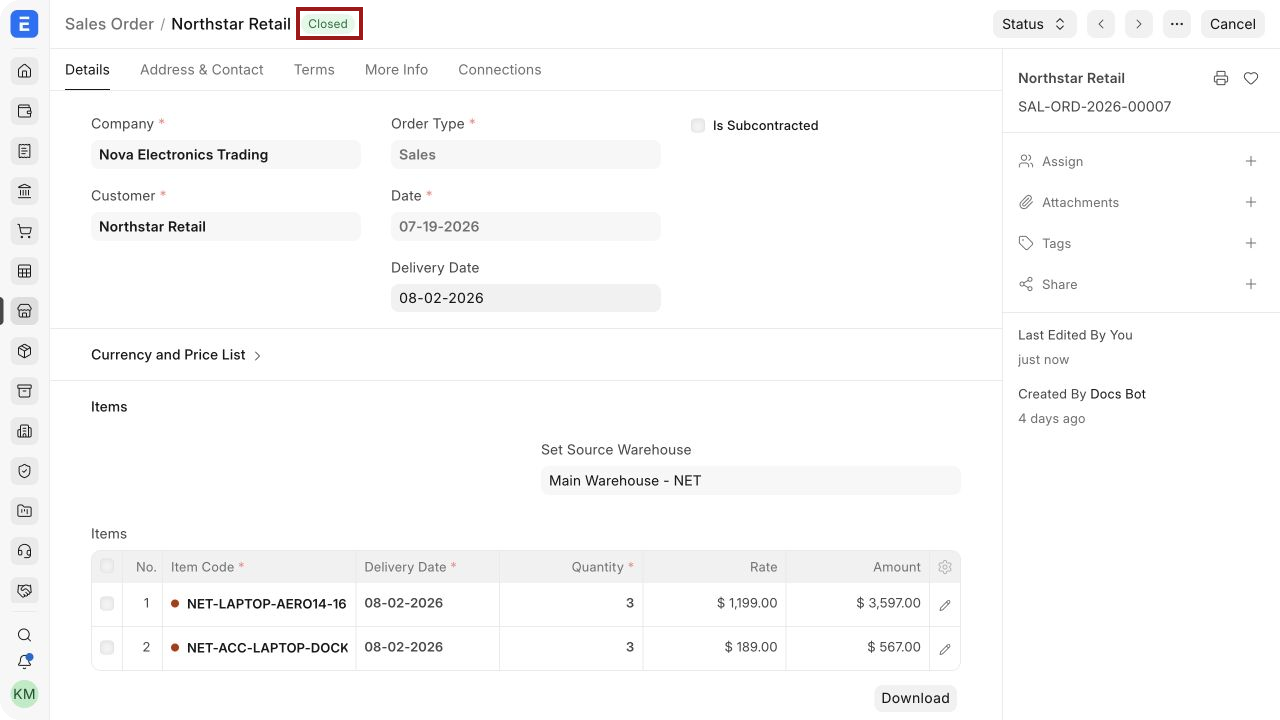
What closing changes
After closing the order:
- The undelivered quantity no longer appears as pending in fulfilment reports.
- The unbilled amount no longer appears as pending in billing reports.
- Completed Delivery Notes, Sales Invoices, and Payment Entries remain linked to the order.
- The order remains available for reporting and audit history.
- ERPNext blocks new downstream transactions for the closed balance.
For example, if a customer orders 10 laptops, accepts delivery and billing for 7, and cancels the remaining 3, complete the documents for 7 first and then close the Sales Order. The three-unit balance will no longer remain open.
Reopen a closed Sales Order
If the customer later asks you to fulfil the balance:
- Open the closed Sales Order.
- Select Status.
- Select Re-open.
- Create the required Delivery Note or Sales Invoice for the remaining quantity.
The available action can depend on your permissions and the current document state. Ask an administrator to check Role-Based Permissions if you cannot see it.
When to use another action
| Situation | Recommended action |
|---|---|
| The customer no longer wants only the outstanding balance | Close the Sales Order |
| The submitted order contains an incorrect customer, item, quantity, rate, or date | Cancel and Amend |
| Several open orders need to be closed together | Short Close Multiple Orders |
| You need to deliver or invoice only part of the order now | Use Partial Fulfilment and leave the order open |
| Goods already delivered are being returned | Create a Sales Return |
| The order should pause temporarily without ending the balance | Put the order on hold |
Frequently asked questions
Does closing delete the Sales Order?
No. The document and all linked transactions remain available.
Can I close a partly delivered or partly billed order?
Yes. Complete the documents the customer accepts, then close the remaining balance.
Can I create another Delivery Note after closing?
Not until you reopen the Sales Order.
Does closing create a credit note or refund?
No. Closing affects only the outstanding order balance. Use a return or credit note when you need to reverse delivered or invoiced quantities.