


















ERPNext calculates taxes on sales and purchase transactions from reusable accounts, templates, categories, rules, and item-specific rates. The system can select the applicable setup automatically, show the calculation before submission, and post the tax amount to the correct General Ledger account.
ERPNext provides the calculation framework. It does not decide the tax rates, recoverability, filing treatment, or legal rules for your business. Confirm those requirements with a qualified tax adviser and use the relevant regional documentation when a localization app changes the standard workflow.
Understand the tax setup
| Record | What it controls | Typical example |
|---|---|---|
| Tax account | Where tax is posted in the ledger | Output Sales Tax Payable or Input Tax Credit |
| Tax Category | The tax treatment that applies to a party or transaction | Standard, exempt, domestic, or export |
| Sales Taxes and Charges Template | Tax rows used on selling transactions | 8% sales tax on Net Total |
| Purchase Taxes and Charges Template | Tax rows used on buying transactions | 5% recoverable purchase tax |
| Tax Rule | Conditions that select a sales or purchase template | Apply Standard Tax to a customer category |
| Item Tax Template | A rate that overrides the transaction tax rate for particular items | A reduced rate or zero-rated item |
| Tax Withholding Category | Tax deducted when paying a supplier or receiving certain payments | Supplier withholding with thresholds |
A simple setup usually starts with one output tax account, one input tax account, one sales template, one purchase template, and a small number of categories and rules. Add more records only when rates or treatments genuinely differ.
Before you begin
Confirm the following for every company and tax treatment you intend to use:
- Which sales taxes you collect and which purchase taxes you can recover
- The correct rates, taxable basis, effective dates, and exemptions
- Whether a charge affects the invoice total, item valuation, or both
- The accounts in which output tax, recoverable input tax, and non-recoverable tax must be posted
- The reports, identifiers, and electronic filing features supplied by your localization
Test the setup in a non-production company with representative invoices, discounts, returns, and mixed-rate items before using it for live transactions.
Create the Tax Accounts
Open the Chart of Accounts and create the accounts required by your accounting policy.
For sales, output tax collected from a customer is normally a liability because it is payable to the tax authority. For purchases, recoverable input tax is normally an asset because it can be claimed or offset. A non-recoverable purchase tax may instead be added to valuation or posted as an expense.
Use separate sales and purchase accounts when you need to report collected and recoverable tax independently. Select the relevant company on each tax account.
Create a Tax Category
A Tax Category gives a name to a tax treatment. It can be assigned to a Customer, Supplier, Address, tax template, or transaction and used by a Tax Rule to select the correct template.
Create categories that describe the treatment, not a single transaction. Examples include Standard Tax, Export, and Exempt.
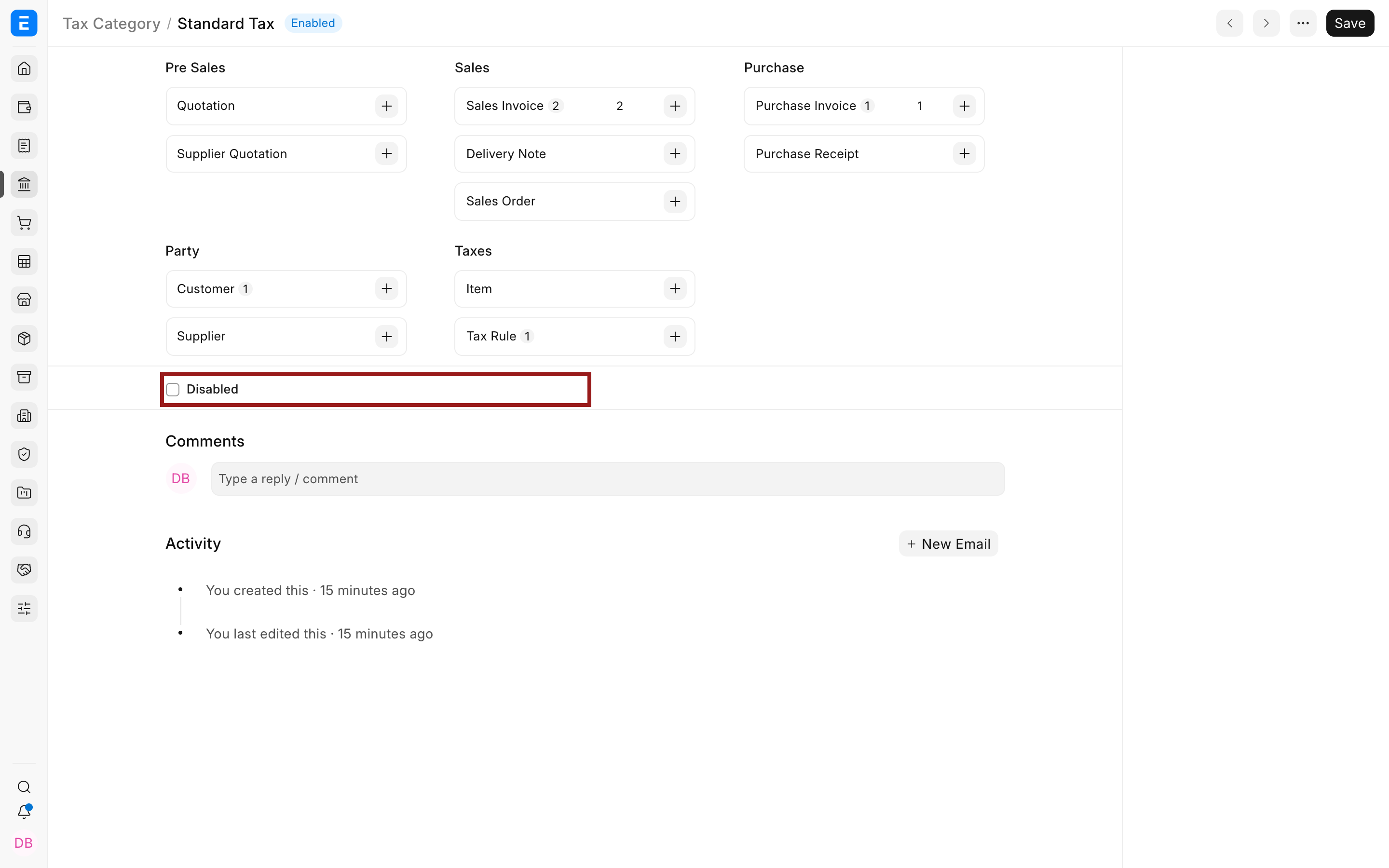
If a category should no longer be selected, enable Disabled instead of deleting a record already referenced by transactions.
Create sales and purchase tax templates
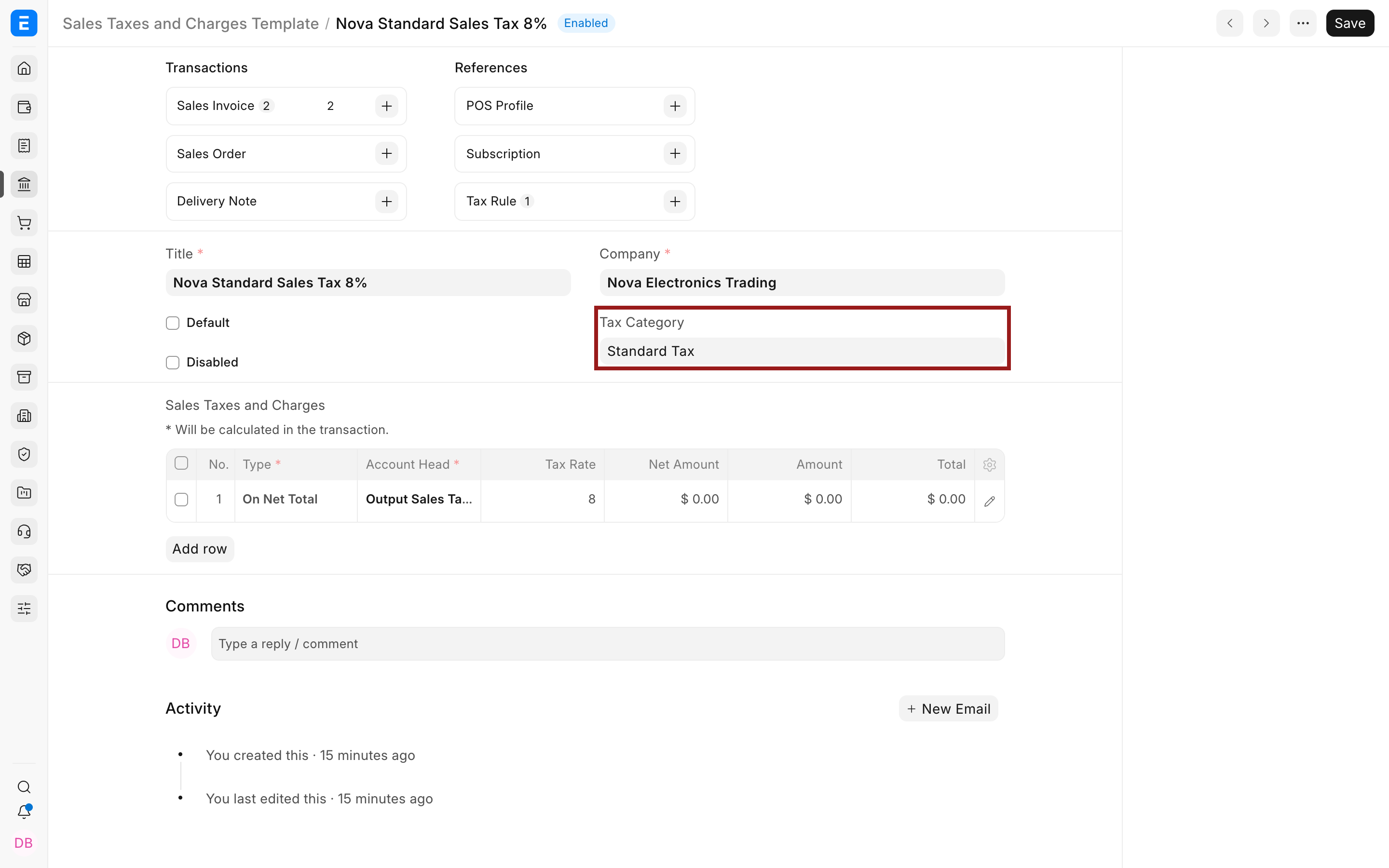
Create a Sales Taxes and Charges Template for taxes collected from customers. Select the company and Tax Category, then add one row for every tax or charge component. In each row, select the calculation type, account, rate, and description.
Create a separate purchase template for taxes charged by suppliers. Use the input tax account when the tax is recoverable. When it is not recoverable, decide with your accountant whether it should affect valuation or an expense account. See Include Tax or Charge in Valuation or Total? for the available treatments.
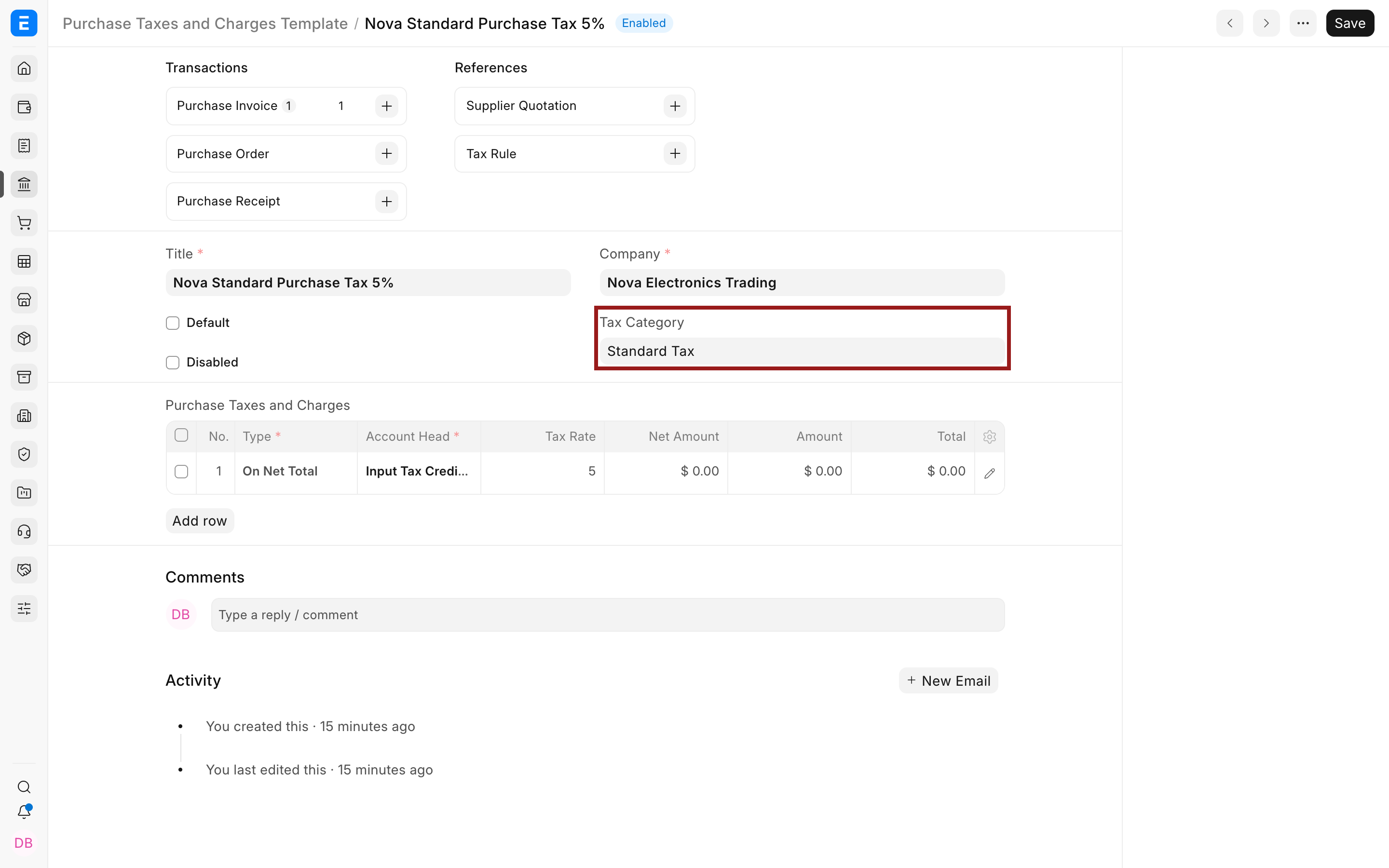
Mark a template as default only if it applies to most transactions for that company. Otherwise, let a Tax Rule select it or choose it manually.
Select a template automatically with a Tax Rule
A Tax Rule matches transaction context to a template. It can consider the company, tax category, customer or supplier, groups, items, locations, dates, and priority.
In this example, a sales rule applies the Nova Standard Sales Tax 8% template to Northstar Retail when Standard Tax is selected.
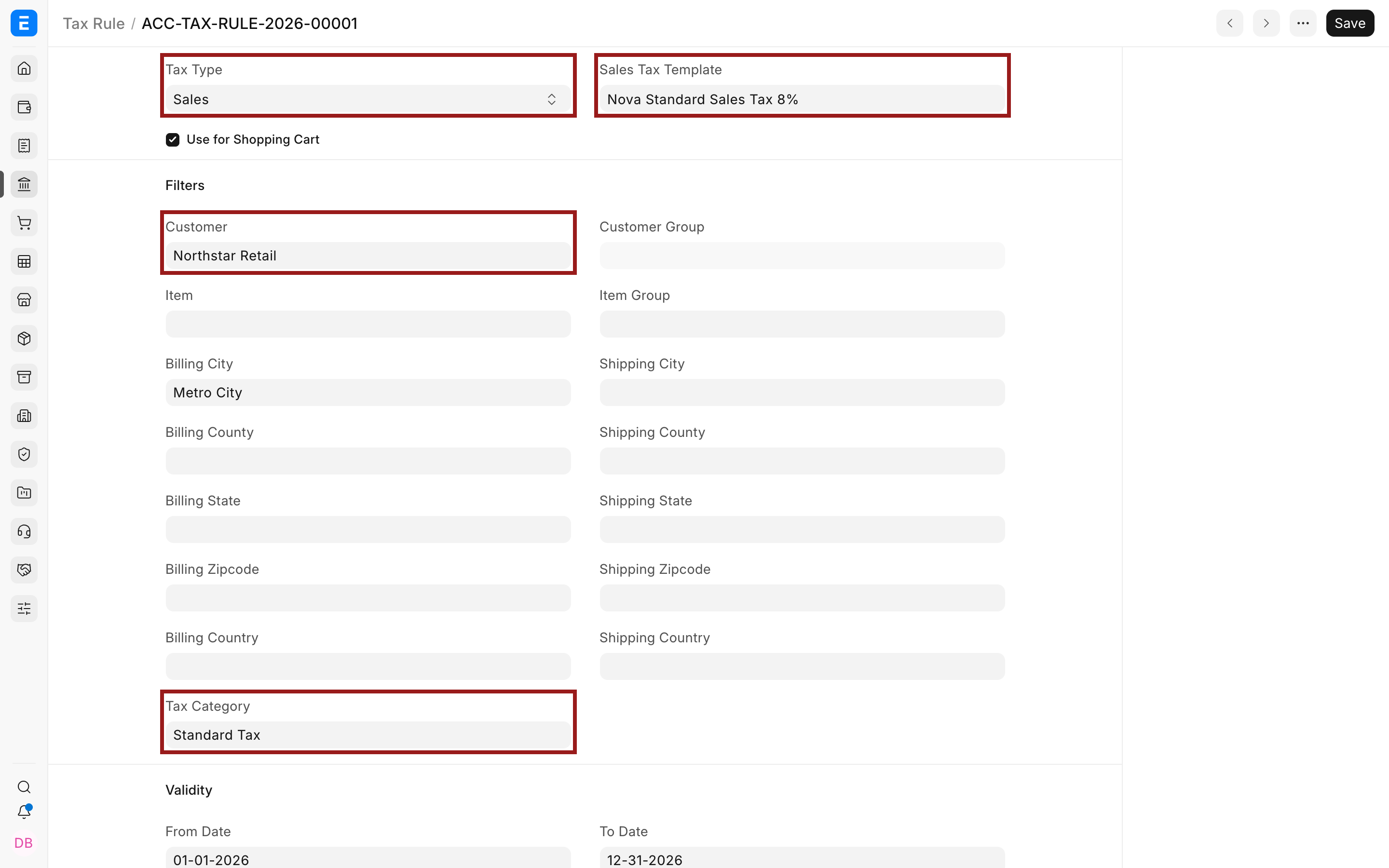
Keep rules mutually exclusive where possible. If more than one rule can match, use a clear priority and non-overlapping conditions. When troubleshooting, check the transaction date and every condition on the rule, not only the Tax Category.
Review tax on a transaction
Create a draft Sales Invoice or Purchase Invoice. Select the party and items, then review the Tax Category, selected template, every row under Taxes and Charges, Total Taxes and Charges, and Grand Total.
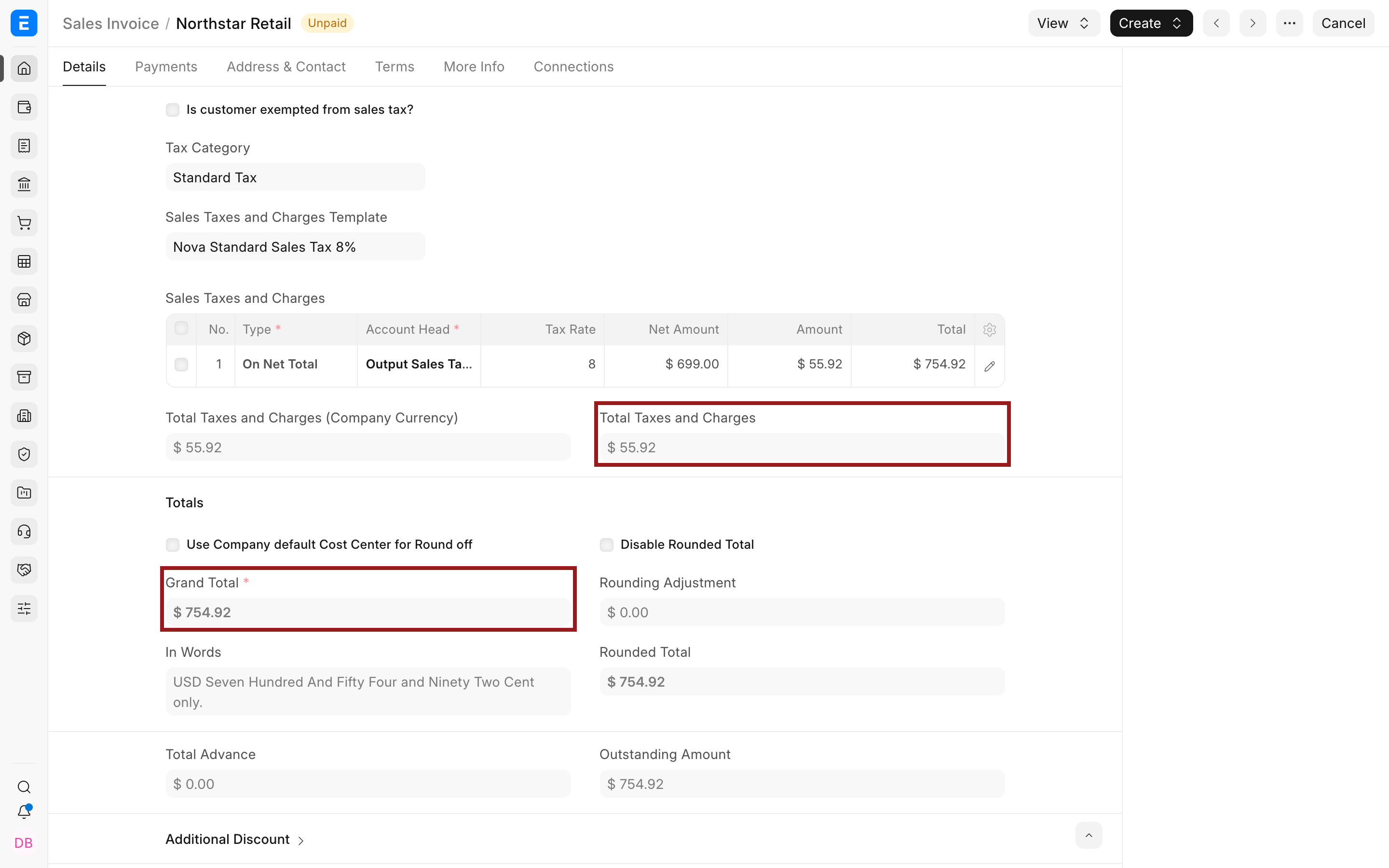
In the example below, an invoice with a net total of $699 uses an 8% output tax row. ERPNext calculates $55.92 of tax and a grand total of $754.92.
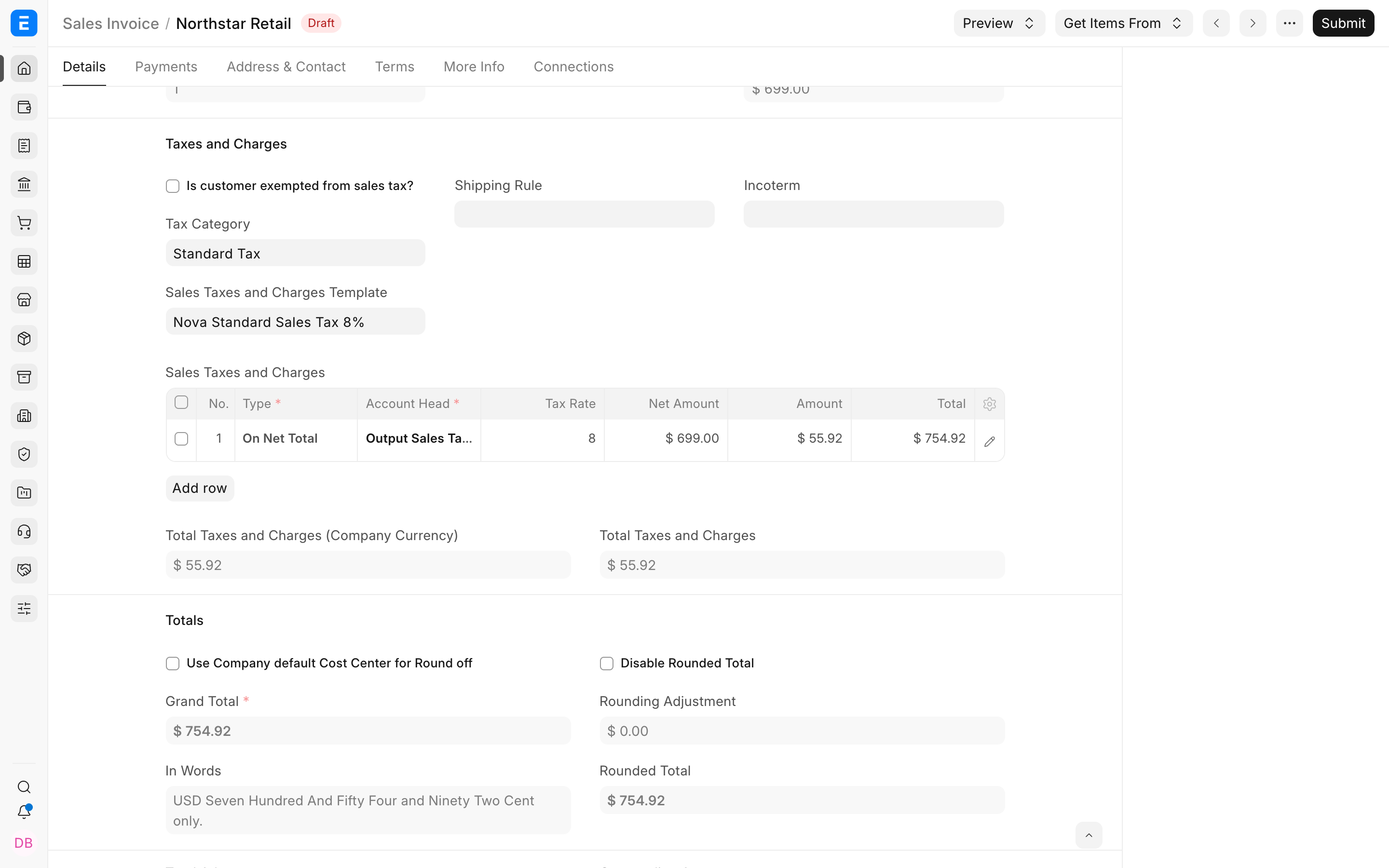
Do not rely only on the template name. Confirm the account, rate, taxable basis, and amount on the transaction. A user can change a draft transaction, and a category or rule can select a different template from the one expected.
After submission, the calculated amount becomes part of the accounting entry.
Understand the General Ledger impact
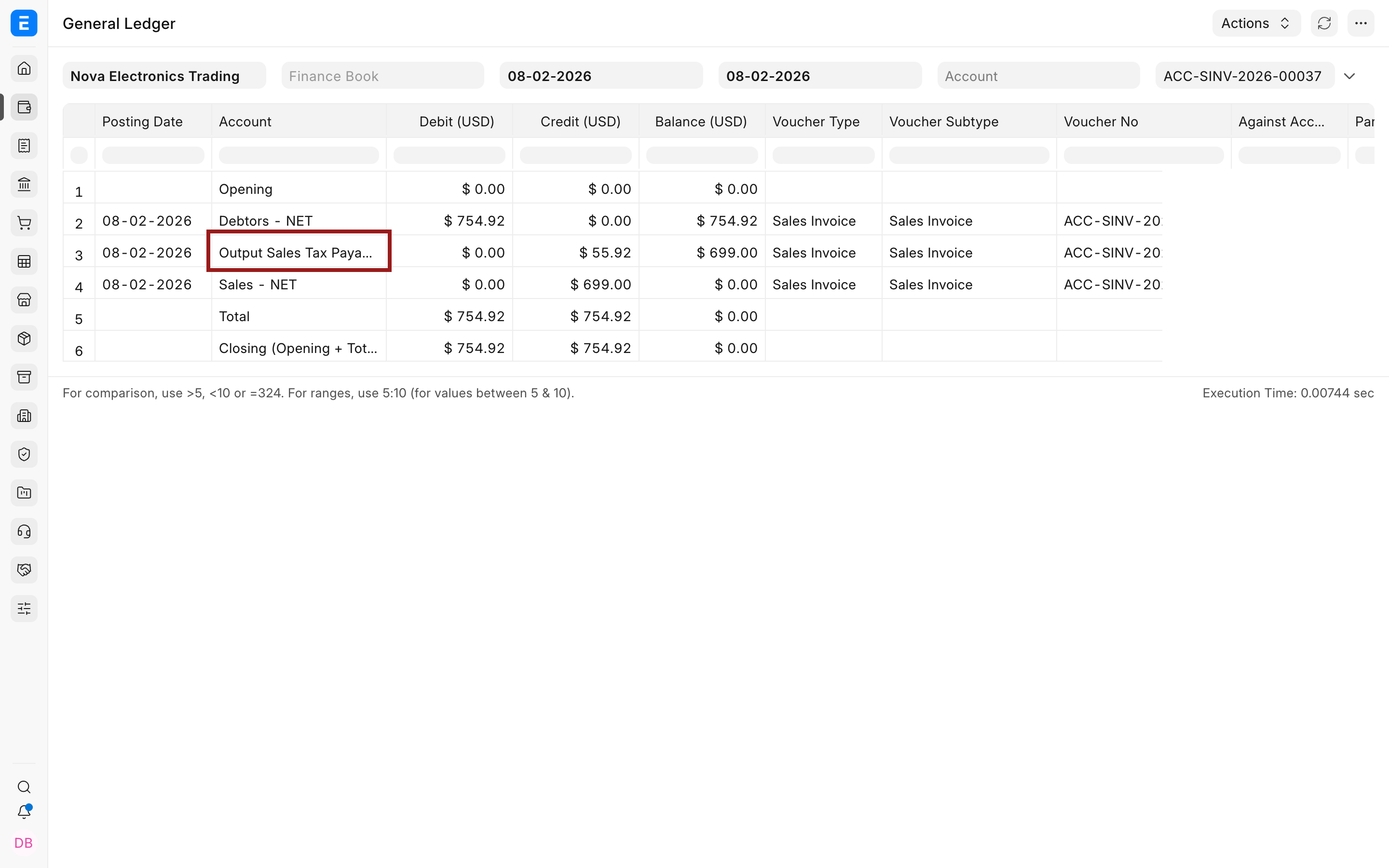
For the example sale, ERPNext posts the following entries:
| Account | Debit | Credit | Meaning |
|---|---|---|---|
| Debtors | $754.92 | Total amount owed by the customer | |
| Sales | $699.00 | Revenue before tax | |
| Output Sales Tax Payable | $55.92 | Tax collected and owed to the tax authority |
On a purchase with recoverable input tax, ERPNext normally debits the input tax asset and credits the supplier for the tax-inclusive total. The exact entries depend on the selected accounts, perpetual inventory, and whether the tax affects valuation.
Handle special tax calculations
Use the calculation type in each template row to control the taxable basis.
On Net Total calculates a rate on the transaction's net item value. On Previous Row Total calculates on the running total after an earlier row. On Previous Row Amount calculates only on the amount produced by an earlier row. See Apply Tax on Another Tax or Charge and Tax on another tax amount for worked examples.
If item rates already include tax, use Tax Inclusive Accounting so ERPNext separates the included tax from income or expense. Use Types in Tax Template to understand the complete list of row calculation options.
For items with different rates or exemptions on the same transaction, configure Item Tax Templates and ensure the matching tax account is present in the transaction's Taxes and Charges table. An item template overrides the rate for its item; it does not replace the transaction tax row or its account.
Use withholding and regional tax features
Withholding is different from transaction tax. It records an amount deducted from a payment according to a category, rate, and threshold. For regional Indian requirements, a Lower Deduction Certificate can apply a reduced or nil withholding rate when the supplier holds a valid certificate.
Local compliance apps can add statutory fields, reports, e-invoicing, withholding behavior, and validations. Follow their documentation where it differs from the generic ERPNext setup.
Troubleshooting
The expected tax template is not selected
Check the company, Tax Category, party, address, transaction date, rule validity, and priority. Confirm that the rule points to a template of the same transaction type. If you changed the category after adding items, re-check the tax template and item rows before saving.
Tax is missing or wrong for one item
Open the item row and verify its Item Tax Template. Confirm that the same tax account exists in the Sales or Purchase Taxes and Charges table. The item template supplies an overriding rate only for matching accounts.
The tax is calculated on the wrong amount
Check the row's calculation type and Reference Row number. On Previous Row Total and On Previous Row Amount produce different results. Also confirm whether discounts are applied before or after the referenced tax row.
The invoice total is correct but the ledger account is wrong
Open the selected tax template and verify the Account Head and company. Then review the submitted transaction's General Ledger. Correct the configuration before cancelling and amending any affected transaction.
Frequently asked questions
Does a Tax Category calculate tax by itself?
A Tax Category identifies the treatment. A template contains the calculation rows, while a Tax Rule can use the category and other conditions to select that template.
Should sales tax and purchase tax use the same account?
That depends on your accounting and reporting requirements. Many businesses use separate output tax liability and input tax asset accounts so collected and recoverable tax remain visible. Confirm the required structure with your accountant.
Why did changing the Tax Category not refresh every item tax?
Item-specific tax is resolved from the transaction context and the item's matching template. If the category changes after items are added, review the item rows and tax table again. Remove and re-add an affected item when necessary, then confirm the calculation before submission.
Can ERPNext determine the legally correct tax rate automatically?
ERPNext applies the rates and rules you configure. A localization or integration may supply additional logic, but your organization remains responsible for configuring, validating, and maintaining the correct statutory treatment.
How do I record a bank fee deducted from a customer payment?
That is a payment difference, not a transaction tax. Record it in the Deductions or Loss section of the Payment Entry as described in Additional Charges in Payment.