


















Production Plan Schedule
The Production Plan Scheduler calculates realistic start and end dates for everything in your Production Plan - finished items, sub-assemblies, and even the purchase of raw materials - based on how much your machines can actually handle. Instead of typing dates in manually and hoping the shop floor can keep up, you get a schedule that respects machine capacity, working shifts, holidays, and work that is already booked.
1. Why use it
Without scheduling, a Production Plan only says what to make and how much. It cannot answer the questions a planner actually has:
- When will this order be finished?
- Which machine will be busy, and when?
- Do we need to order material before we can start?
- Can we take on another order this week, or are the machines full?
The scheduler answers all of these before a single Work Order is created - and when you do create Work Orders, they automatically follow the same dates.
2. What you need to set up first
You don't need all of this, the scheduler uses the best information available for each item. But the more you maintain, the more accurate your dates become.
For machine-level scheduling (most accurate)
| Setup | Where | What it does |
|---|---|---|
| Working Hours | Workstation | Your shifts, e.g. one row for 8 AM–4 PM and another for 4 PM–12 AM means the machine runs two shifts. Work is only scheduled inside these hours. |
| Holiday List | Workstation | Days the machine doesn't run. The schedule skips them. |
| Job Capacity | Workstation | How many jobs can run on the machine at the same time. Capacity 2 = two job cards side by side. |
| Operations with time | BOM | Each operation's time in minutes, with either a specific Workstation or a Workstation Type. |
| Workstation Type | BOM Operation | Leave the specific Workstation blank and set a type (e.g. "Molding"), the scheduler automatically picks whichever machine of that type is free first. With 2 molding machines of capacity 2, four jobs can run at the same time. |
For items without BOM operations (day-level estimate)
| Setup | Where | What it does |
|---|---|---|
| Capacity Per Day | Item Lead Time | How many units you can produce per day. 120 pcs at 60/day = 2 days. |
| Daily Yield % | Item Lead Time | Reduces effective capacity (note: it defaults to 90%). Set 100 if you don't use yield. |
| Buffer Time | Item Lead Time | Extra safety days added to the duration. |
| No of Shifts | Production Plan | If your Item Lead Time capacity was recorded for 1 shift and this plan runs 2, the daily capacity doubles. |
For raw materials
| Setup | Where | What it does |
|---|---|---|
| Purchase Time + Buffer Time | Item Lead Time | How many days it takes to procure the material. Production that consumes it cannot start earlier. |
| Lead Time in Days | Item master | Used as a fallback when there is no Item Lead Time record. |
Supplier Lead Time
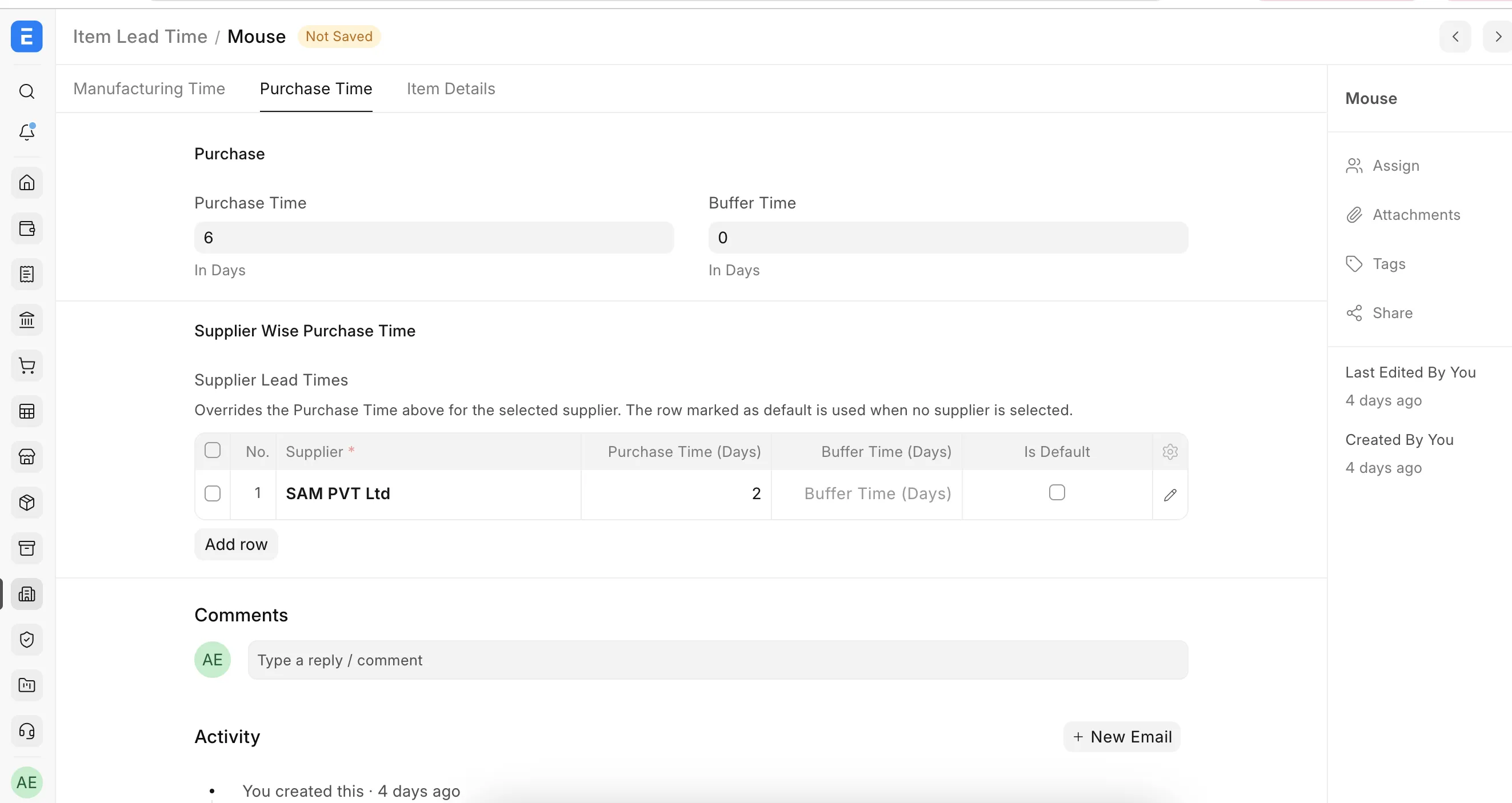
Not every supplier delivers at the same speed - a local dealer may ship in 2 days while an importer needs 15. The Supplier Lead Times table lets the schedule reflect that difference:
- Each row is one supplier with its own purchase and buffer days. The same supplier cannot be added twice, and only one row can be the default.
- When you fetch materials in the Production Plan, each purchase row gets a Supplier filled in automatically - from the default Supplier Lead Times row, or from the item's Default Supplier (Item Defaults) if no lead-time default exists. You can change it per row before scheduling.
- The scheduler then uses that supplier's lead time. If the chosen supplier isn't in the table, it falls back to the default supplier's row, then to the item-level Purchase Time, and finally to the Item master's Lead Time in Days.
If an item has neither operations nor lead-time data, the scheduler assumes 1 day, so the schedule always completes, it just tells you less.
3. Creating a schedule
- Submit your Production Plan as usual.
- Click the Schedule Items button in the toolbar.
- Pick a Start Date - the earliest moment any work may begin.
- (Optional) Tick Use Item Wise Start Dates if different items should start on different dates. A small table appears where you can set a date per item; its sub-assemblies follow the same date.
- Click Preview.
Nothing is saved at this point, the preview is a safe "what-if". You can close it, change the dates, and preview again as many times as you like.
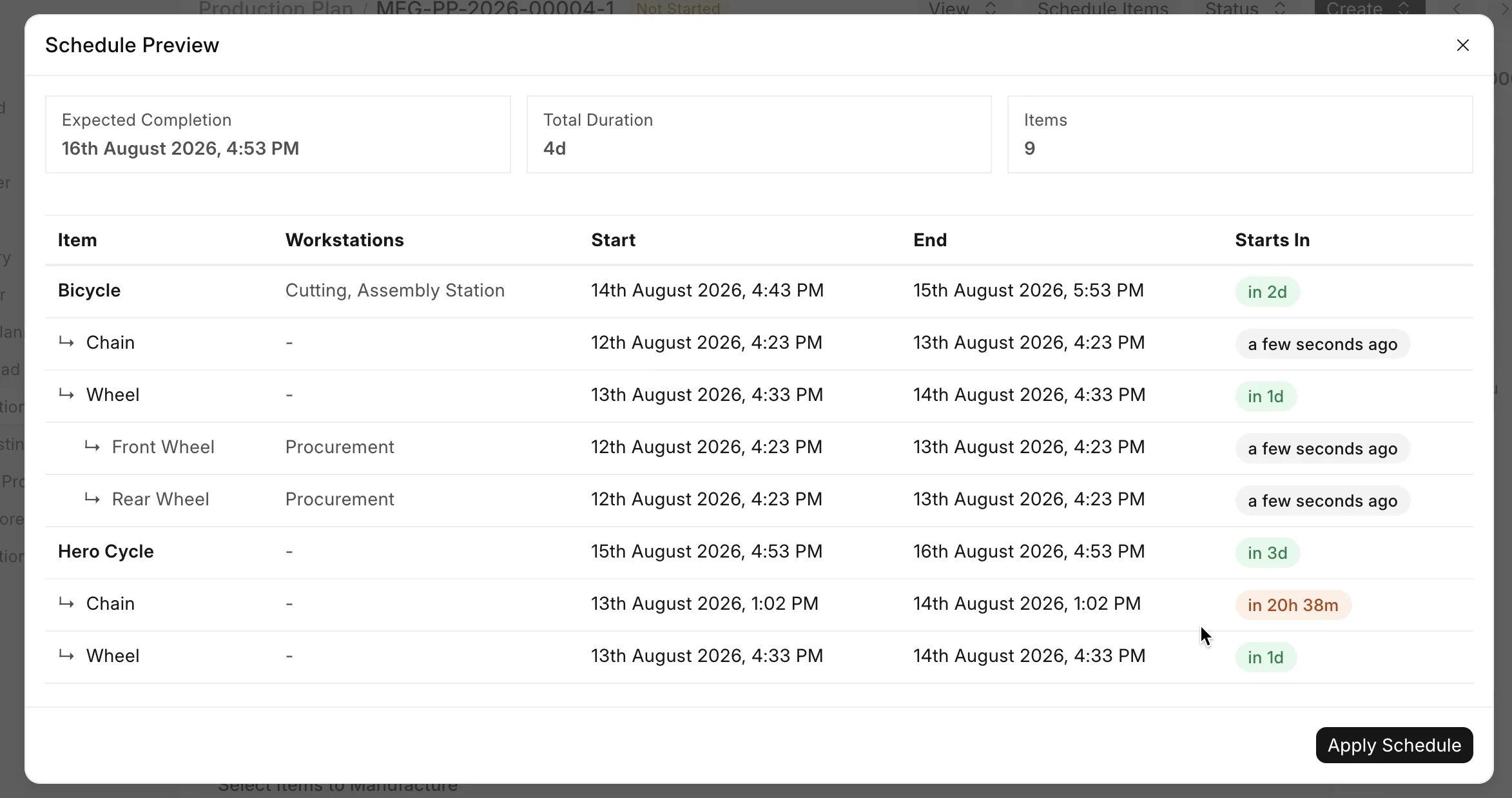
Reading the preview
- The list is a tree: finished items in bold, their sub-assemblies indented below them, and Procurement rows showing when purchased material will be available.
- Start / End show the calculated dates for each item.
- Starts In shows how soon each item begins green when it starts in more than a day, orange when it's less than a day away.
- The tiles at the top show the Expected Completion date, the Total Duration, and the number of items.
- If something could not be scheduled (for example, no machine can fit the work within the planning horizon), a red banner explains why, and the Apply button is hidden until the problem is fixed.
- Click Apply Schedule. Now the dates are saved:
- Every item row in the plan gets its Planned Start / End Date.
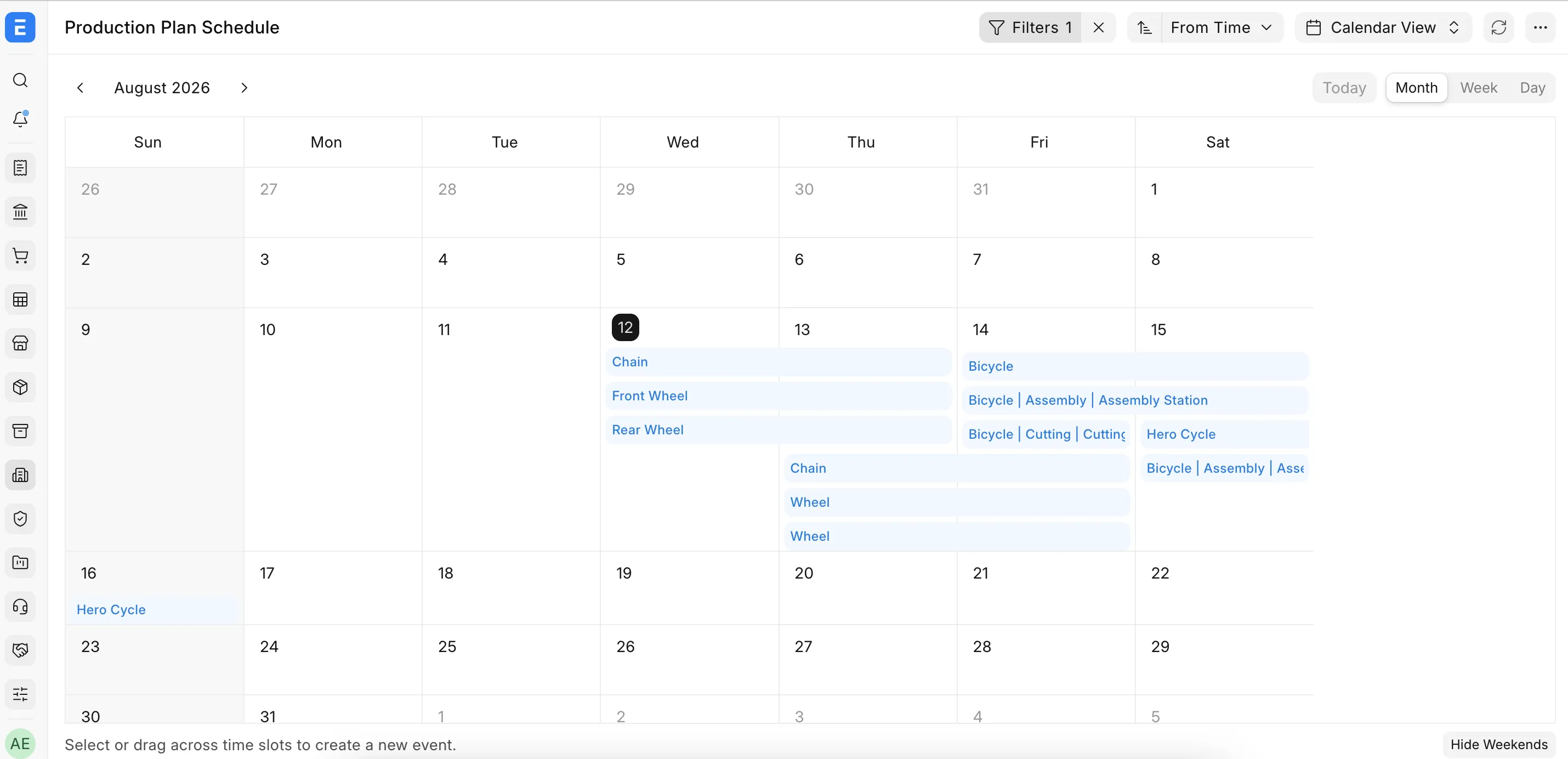
- A Production Plan Schedule entry is created for every block of work, these are what you see on the calendar.
4. The Production Schedule calendar
Open it from the plan via View → Production Schedule, or from the new Schedule section in the plan's connections area. Each entry reads Item · Activity for example "Bicycle · Assembly", "Chain · Production", or "Front Wheel · Procurement". You can filter the calendar by Production Plan, Workstation, or Item filtering by workstation gives you that machine's day/week view, exactly like a booking calendar. A job that spans two shifts appears as two blocks, so shift handovers are visible at a glance.
5. What happens when you create Work Orders
When you create and submit Work Orders from a scheduled plan, the schedule flows with them:
- Each Work Order takes its Planned Start Date from the plan.
- The Job Cards created on submission are placed on the same machines at the same times as the plan's calendar the shop floor sees exactly what the planner promised.
Re-scheduling rules
- Before Work Orders exist: re-run Schedule Items freely. Each Apply replaces the previous schedule completely.
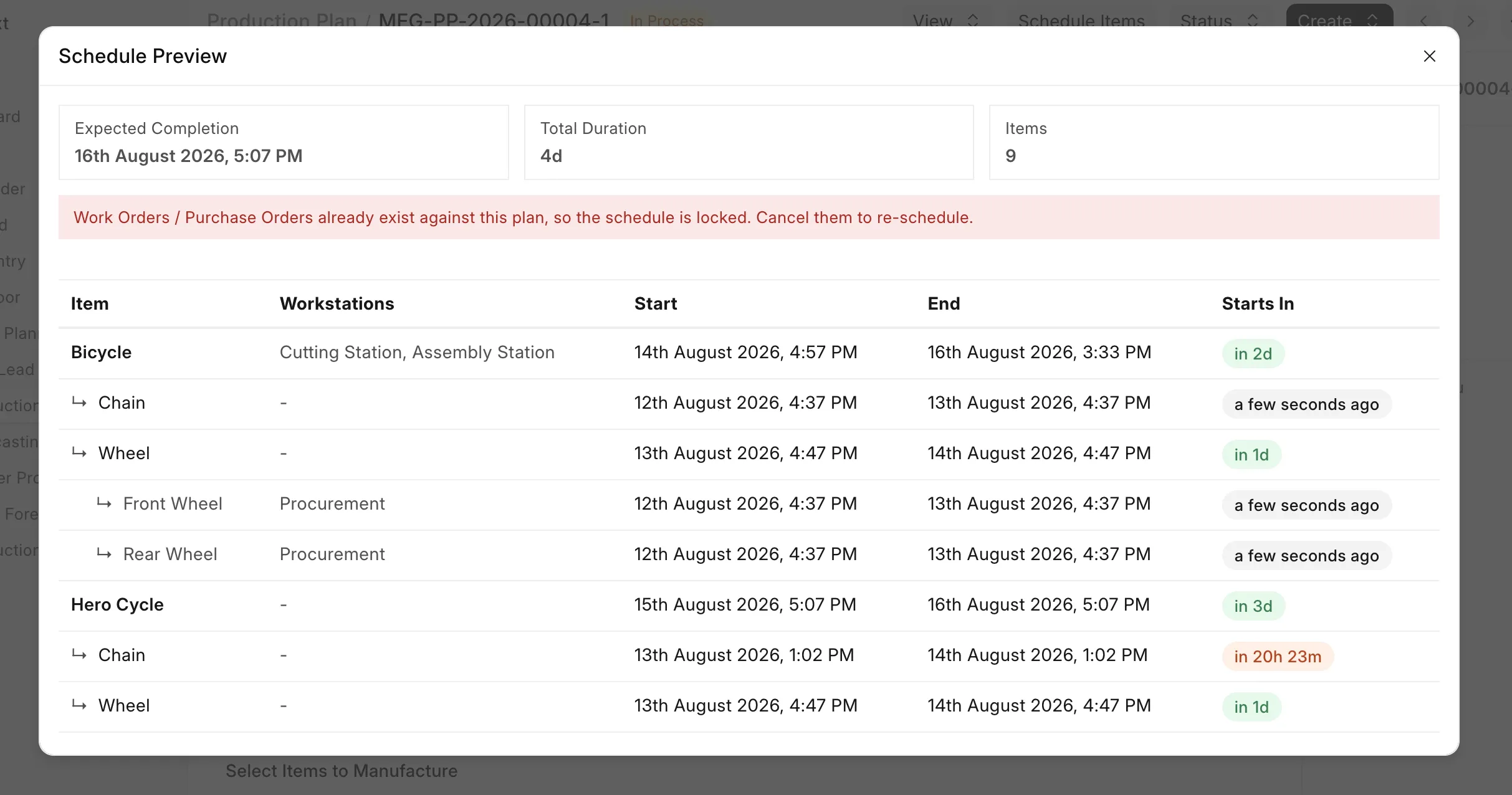
- After Work Orders exist: the schedule is locked. The preview still works for what-if analysis, but it shows a banner explaining that orders already exist, and Apply is disabled because the job cards on the shop floor are already following the old dates. Cancel the Work Orders if you genuinely need to re-plan.
6. How the dates are calculated (in plain words)
For every item in the plan, the scheduler asks, in order:
- Does its BOM have operations? Then each operation's time (multiplied by the quantity) is booked on a machine, inside its working hours, skipping holidays, waiting its turn if the machine is busy with other job cards, and leaving the standard gap between operations.
- No operations? Then the Item Lead Time capacity is used: quantity ÷ capacity per day = number of days, plus buffer.
- Is it subcontracted or purchased? Then it is a waiting period: purchase time + buffer days.
On top of that, three rules connect everything together:
- A parent cannot start before its children finish - the Bicycle waits for the Chain and the Wheel.
- Production cannot start before its raw material arrives - the procurement time pushes everything that depends on it.
- A machine is never double-booked beyond its Job Capacity, if two items need the same machine, the second one waits (or moves to another machine of the same type, if one exists).
The finish date you see on the preview is simply the end of the longest chain.