


















GST API errors: credentials, GSTIN or "API credits exhausted"
e-Invoice, e-Way Bill, GSTR-1, GSTR-2B and the other GST features call government APIs through the India
Compliance app. When a call fails with a credentials, GSTIN, "API credits exhausted" or "Account plan limit
exceeded" error, the cause is one of three things below. This page helps you find which one.
The errors
Please set the relevant credentials for GSTIN 27AABCB1234D1ZK in GST Settings to use the e-Invoice API
Please enable API in GST Settings to use the e-Waybill API
Other messages for the same problems: API credits exhausted, Account plan limit exceeded (GEN5005),
Invalid login credentials, Invalid username or password, GSTIN is not enabled for e-invoicing.
How the GST APIs work
Three separate things must be right for an API call to work:
- API access for the site. The site needs an API key. On Frappe Cloud, this access is included
with your site and you do not buy credits. On a self-hosted site, you buy credits through an
India Compliance Account. - Credentials per GSTIN and service. In GST Settings → Credentials, each GSTIN needs a row for
each service it uses. The services use different logins:- e-Waybill / e-Invoice: the API user you create on the government e-invoice or e-way bill
portal. This is not your normal portal login. - Returns (GSTR-1, GSTR-2A/2B download, Invoice Management System, Purchase Reconciliation): your
normal GST Portal username, with API access turned on in the GST Portal.
- e-Waybill / e-Invoice: the API user you create on the government e-invoice or e-way bill
- The GSTIN is enabled for that service on the government portal, for example e-invoicing.
Find your case
"API credits exhausted" or "Account plan limit exceeded" on Frappe Cloud
Your site is logged in to an India Compliance Account. While it is logged in, every API call uses that
account's credits, even on Frappe Cloud. When the account has no credits left, the calls fail.
- Search for India Compliance Account in the awesome bar and open it.
- Click Logout, and confirm.
- Try the action again. The site now uses the API access included with Frappe Cloud.
Purchased credits are not refundable. If you bought credits by mistake, keep the account for later or
contact the India Compliance team.
"API credits exhausted" on a self-hosted site
API access is not included. Buy credits from the India Compliance Account page. See
India Compliance Account.
"Please set the relevant credentials for GSTIN …"
There is no row for that GSTIN and service in GST Settings → Credentials.
- Go to GST Settings and open the Credentials tab.
- Add a row: Company, GSTIN, Service, Username, Password.
- For Service = e-Waybill / e-Invoice, use the API user from the e-invoice portal. For Service =
Returns, use your GST Portal username. - Save, and try again.
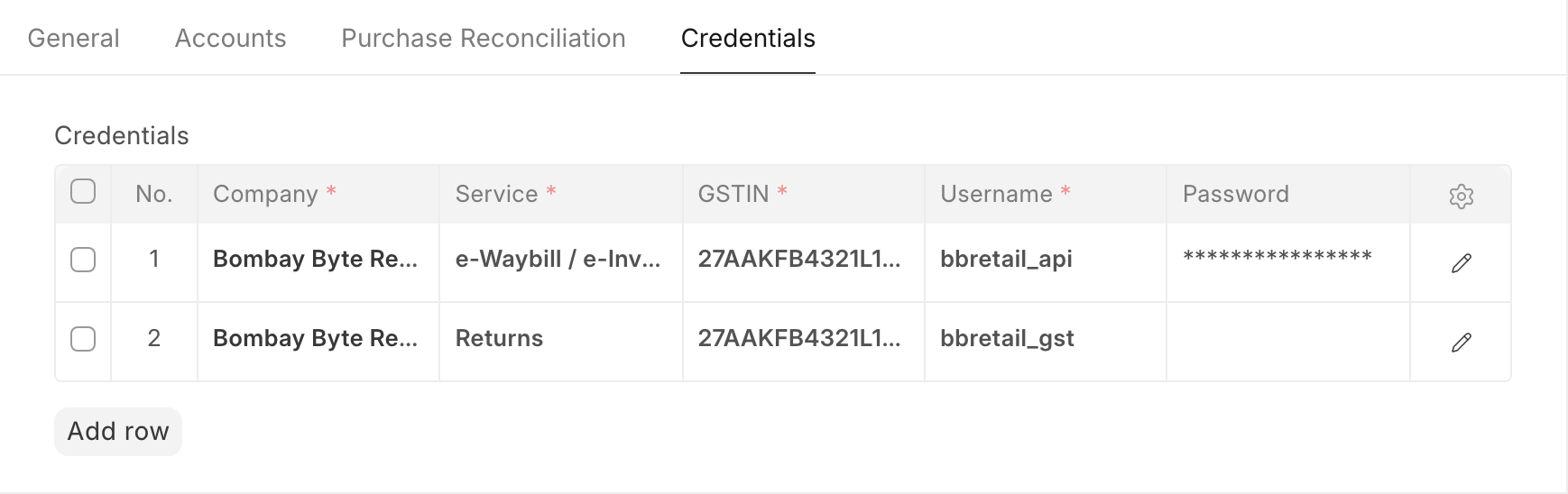
"Invalid login credentials" or "Invalid username or password"
The government portal rejected the username or password. ERPNext only passes them on.
- On the e-invoice or e-way bill portal, check the API user exists for this GSTIN and reset its
password. Use the API user's password, not your normal login. - Update the password in GST Settings → Credentials and save.
- If it still fails, check on the portal that the GSTIN is enabled for e-invoicing.
GSTR-1 upload, GSTR-2B download or IMS fails with a credentials error
These use the Returns service, which needs different credentials from e-invoicing.
- In the GST Portal, turn on API access for your login. See
Purchase Reconciliation setup. - In GST Settings → Credentials, add a row with Service = Returns and your GST Portal
username. - When ERPNext asks for an OTP, enter the one the GST Portal sends to your registered mobile number.
"Please enable API in GST Settings …"
Enable API Features is off in GST Settings → General. Turn it on and save. On a self-hosted site,
also log in to an India Compliance Account with credits.
If this does not fix it
- The site was moved or restored to a new server: stored passwords cannot be read with the new site's
encryption key. Enter the passwords in GST Settings → Credentials again. See Encryption key error
after moving a site. - Testing: with Use API in Sandbox Mode? on, calls go to the government test system, and
documents there are not real. Turn it off for real invoices. - If it still fails, raise a support ticket. Attach the full error message and the integration request log
(search Integration Request in the awesome bar).