


















Accounts Receivables
Nova Industries has submitted invoices to several customers. The sales total shows how much was billed, but the collections team needs a different answer: who still owes money, which invoices are overdue, and where an existing payment or credit has not been allocated correctly?
The Accounts Receivable report brings every open customer receivable into one view. It shows the original invoiced amount, payments and Credit Notes already allocated, the remaining outstanding amount, the due date, and how long the balance has been open.
For example, the report can show that Northstar Retail still owes part of an invoice while another customer has an unallocated advance. Use it to prioritize collection follow-up, investigate mismatched allocations, and estimate incoming cash before opening the exact invoice or payment that needs attention.
Before you begin
Submit your Sales Invoices and record customer receipts through Payment Entries. Draft transactions do not affect the receivable balance. Also confirm that the report date and Company are correct.
Run the report
- Search for Accounts Receivable.
- Select the Company and Posting Date.
- Add filters such as Customer, Receivable Account, Cost Center, Project, Territory, or Customer Group when you need a narrower view.
- Review the invoice rows and the total outstanding amount.
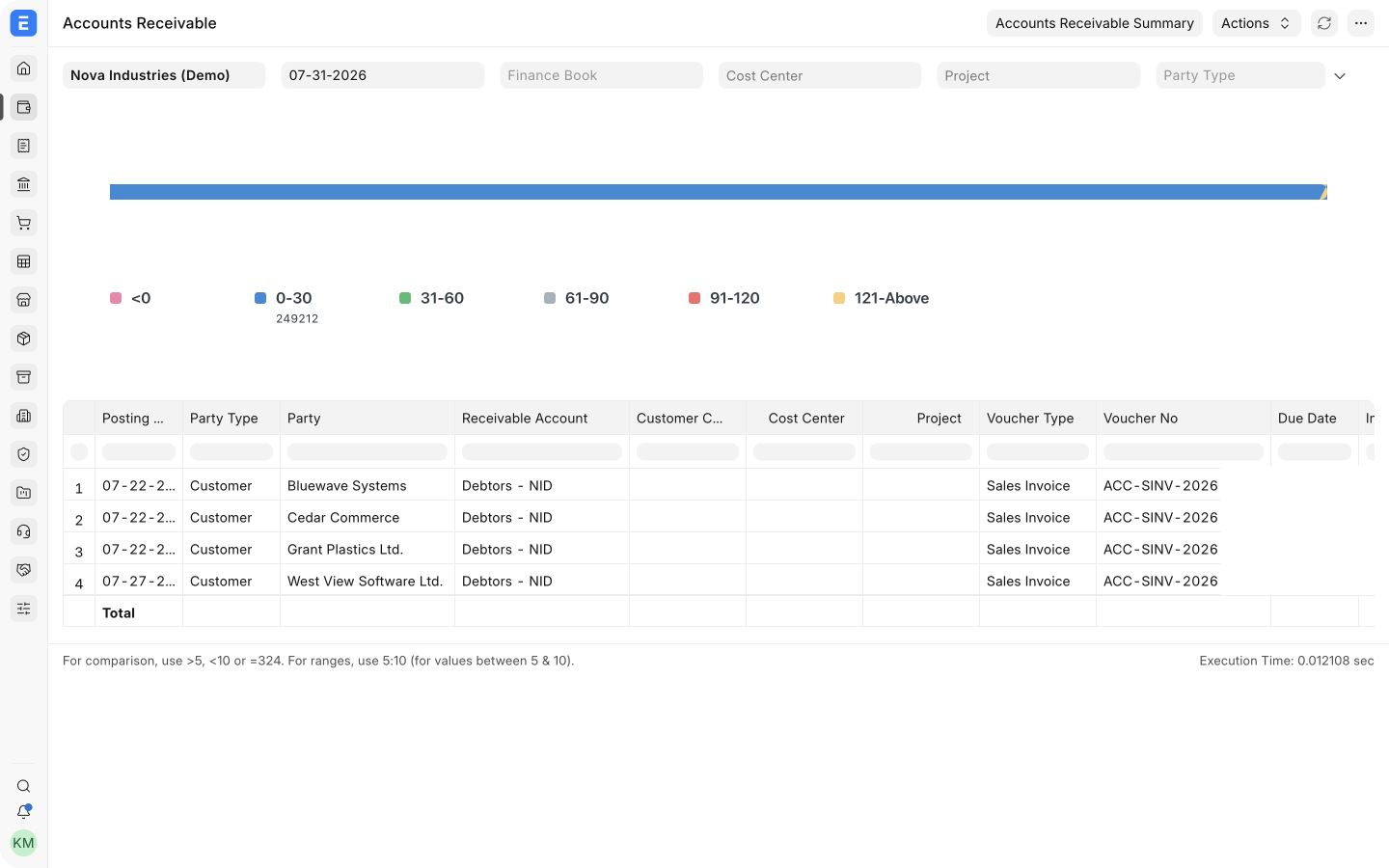
Understand the columns
| Column | What it means |
|---|---|
| Posting Date | Date on which the accounting entry was posted |
| Party | Customer that owes the amount |
| Voucher No | Sales Invoice, Journal Entry, or other source transaction |
| Due Date | Date by which payment was expected |
| Invoiced Amount | Original receivable created by the voucher |
| Paid Amount | Amount already allocated against the voucher |
| Credit Note | Credit already allocated against the voucher |
| Outstanding Amount | Amount still open after payments and credits |
| Age (Days) | Number of days used for ageing |
| Ageing buckets | Outstanding amount grouped into periods such as 0–30 and 31–60 days |
The report can show a negative balance when a customer has an unallocated advance or credit. It can also show an old invoice as outstanding when a payment exists but has not been allocated to that invoice.
Accounts Receivable Summary
Use Accounts Receivable Summary when you need one consolidated line per customer instead of invoice-level detail. It is useful for collection meetings and customer-level exposure checks. Return to the detailed report before taking action so you can identify the exact vouchers involved.
Follow up on overdue balances
- Open the Sales Invoice from Voucher No to review its payment schedule.
- Use Process Statement Of Accounts to send statements to several customers.
- Create a Dunning against an overdue invoice when you need a formal reminder with interest or fees.
- Use Payment Reconciliation when a receipt or credit exists but is not allocated to the correct invoice.
- Create a Credit Note for an approved return or invoice reduction.
Common issues
A submitted payment is not reducing the invoice
Check whether the Payment Entry references that invoice. If it is unallocated, reconcile it against the invoice.
The report does not match the General Ledger
Confirm Company, date, currency, party, and receivable account filters. The Accounts Receivable report is voucher-oriented, while the General Ledger shows individual ledger postings.
An invoice appears in the wrong ageing bucket
Check whether ageing is based on Due Date or Posting Date, then review the invoice payment schedule.