


















Imagine you manage purchasing at Nova Industries. One morning you need to know what still has to be ordered. Later, the warehouse asks which orders are overdue, Finance asks what has been received but not billed, and management asks whether purchase prices are rising. These are different questions, so one report cannot answer all of them well.
ERPNext's Buying reports help you move from a business question to the right operational view. Use the report collection to monitor open requirements, supplier commitments, receipts, invoices, price history, and supplier performance.
Choose the report for your question
| Question | Start with | What to look for |
|---|---|---|
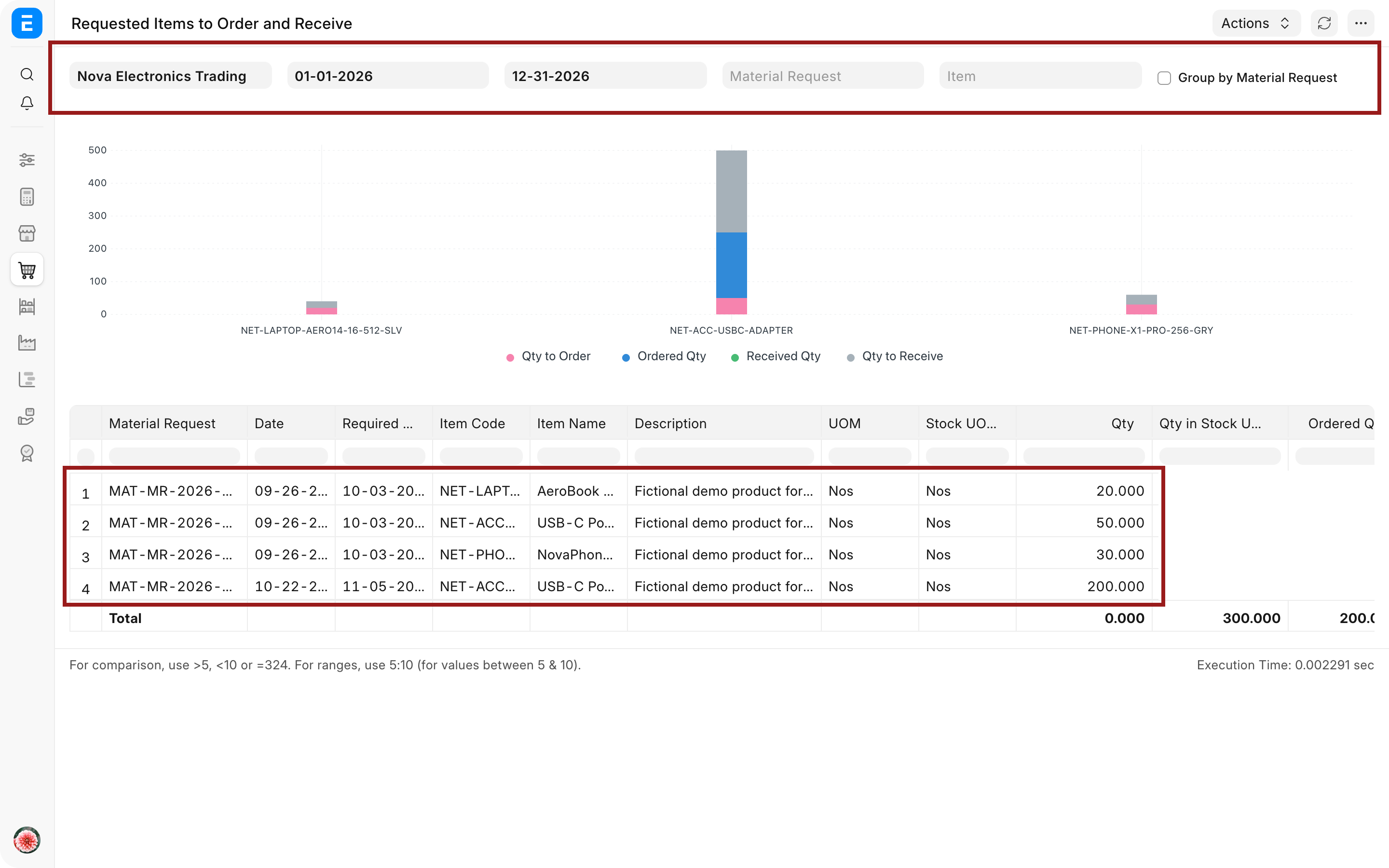
| What still needs to be ordered or received? | Requested Items to Order and Receive | Requested quantity, ordered quantity, received quantity, and pending quantity |
| Which orders are late? | Purchase Order Analysis | Required By date, received quantity, delay |
| What has physically arrived? | Purchase Receipt Trends or Purchase Receipt report | Supplier, Item, warehouse, accepted and rejected quantity |
| What has been received but not billed? | Purchase Order Analysis and Purchase Invoice reports | Received percentage, billed percentage, Stock Received But Not Billed |
| What do we owe suppliers? | Accounts Payable | Outstanding amount, age, due date |
| Are purchase prices changing? | Purchase Analytics or Item-wise Purchase History | Rate, quantity, period, Supplier |
| How is a requirement progressing? | Procurement Tracker | Material Request through receipt and invoice |
| Which suppliers perform reliably? | Supplier Scorecard and Supplier-wise Purchase reports | Delivery, rejection, response, value |
Run a report with useful filters
- Open the Buying workspace and choose the report that matches the question.
- Set the Company and a meaningful date range.
- Add Supplier, Item, Item Group, warehouse, project, or status filters only when they help answer the question.
- Refresh the report and inspect the visible records before exporting.
- Open a linked source document when a number needs explanation.
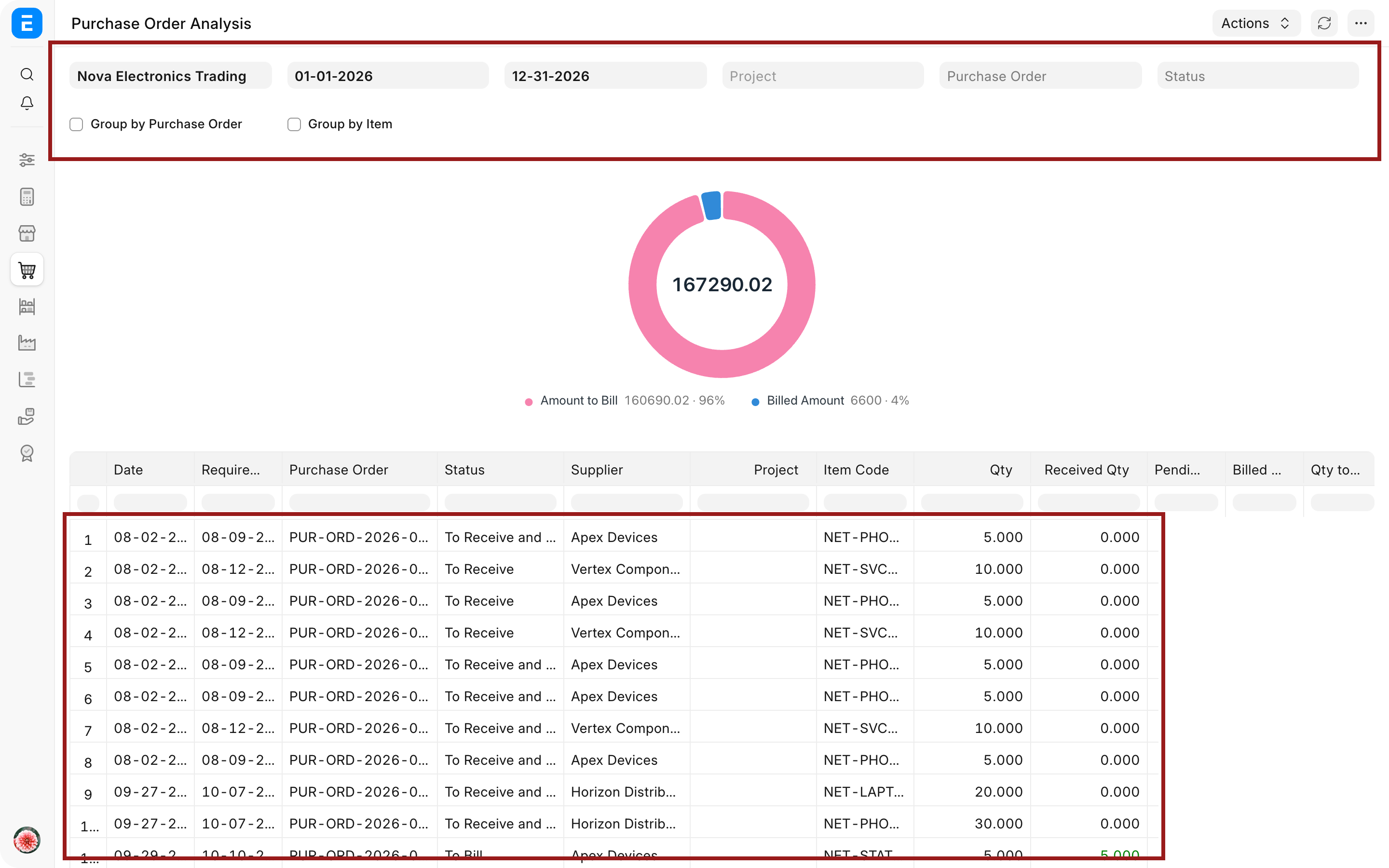
Begin with a broad view, then narrow it. A report that returns no rows may be correctly filtered but still fail to answer the original question.
Monitor requirements and orders
Use Material Request and Purchase Order reports to find quantities that remain unprocessed. Compare requested, ordered, received, and billed values instead of relying only on document status.
For example, Nova's adapter order is partly accepted and partly rejected. Purchase Order Analysis should show that the order has a receipt, the accepted quantity contributes to received progress, and any remaining billable quantity is still open.
Review supplier and item history
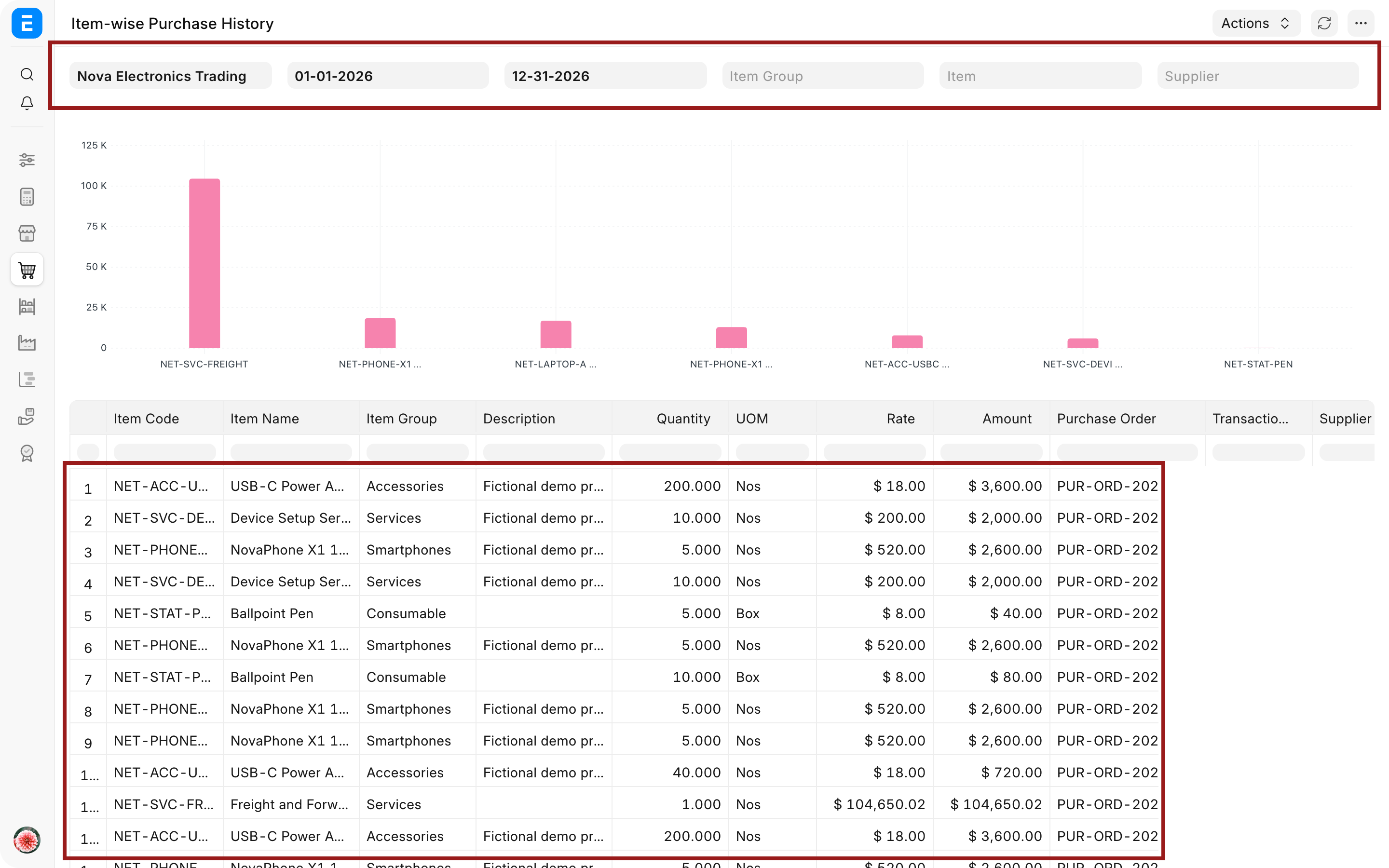
Supplier-wise and Item-wise reports help answer who supplied an Item, at what rate, in what quantity, and during which period. Use them when negotiating a new order or investigating a price change.
Do not compare rates without checking currency, UOM, conversion factor, taxes, discounts, and pack size. A lower-looking rate can represent a different purchase unit or commercial basis.
Interpret receipts, invoices, and payables separately
A receipt confirms goods, an invoice confirms the supplier's bill, and Accounts Payable shows the unsettled liability. These reports can differ legitimately.
When received value is higher than billed value, check Purchase Receipts awaiting invoices. When billed value is higher than received value, review service invoices, direct invoices, advances, or invoices awaiting physical receipt.
Use charts and trends carefully
Trend and analytics reports are useful for direction, seasonality, and concentration. Drill into source rows before concluding that a spike is an error or a supplier problem. A bulk order, currency movement, or UOM change can create a valid jump.
Save commonly used filters as report views when your role supports it. Give each saved view a clear business purpose, such as Orders overdue for receipt, rather than a vague personal name.
Troubleshooting
A submitted transaction does not appear
Check the report date field, Company, document status, Supplier, Item, and warehouse filters. Confirm that the transaction falls within the selected period and that your User Permissions allow the underlying record.
Totals differ between two reports
Identify whether each report uses order date, posting date, received value, billed value, net total, grand total, or base currency. Reports that answer different questions should not be expected to match line for line.
Rates look inconsistent
Compare currency, UOM, conversion factor, taxes, discounts, and free Items. Use source-document links to put the rates on the same basis before comparing suppliers.
The report is too large to review
Start with Company, period, and status. Add Supplier or Item filters after the first result. Export only after the on-screen sample looks correct.
Frequently asked questions
Which report shows unpaid supplier invoices?
Use Accounts Payable. Buying reports explain the procurement and billing flow, while Accounts Payable is the authoritative view of outstanding supplier liabilities.
Which report should a buyer check daily?
Purchase Order Analysis or Requested Items to Order and Receive is a strong operational starting point. The best daily report depends on whether the role is responsible for ordering, expediting, receiving, or invoice matching.
Can a report replace the source document?
A report cannot replace the source document. It summarizes records. Open the linked Purchase Order, Purchase Receipt, or Purchase Invoice when you need the audit trail, row details, comments, or approval history.
Can I export these reports?
Reports can be exported when the user has permission. Apply and verify filters first so the export represents the intended question rather than an unreviewed data dump.
Use Material Request, Request for Quotation, Supplier Quotation, Purchase Order, Purchase Receipt, and Purchase Invoice to investigate the source transactions behind a result. Use the Procurement Tracker, Accounts Payable, Stock Ledger, and Payment Ledger when the question concerns progress, liability, stock, or settlement.