


















Short Close Multiple Orders
Use the Sales Order list to close several submitted orders whose remaining quantities will no longer be delivered or billed. Bulk closing keeps every Sales Order and its linked transactions in the audit trail while removing outstanding balances from active fulfilment.
Closing is not deletion. The orders, completed deliveries, invoices, and payments remain available.
Before you begin
Review the selected orders and confirm that:
- Each order is submitted and still open.
- Any quantity accepted by the customer has already been handled through a Delivery Note or Sales Invoice.
- The customer does not want the remaining quantity fulfilled.
- You are not selecting a draft, completed, cancelled, or already closed order by mistake.
Use Cancel and Amend instead when the original order contains incorrect information.
Close multiple Sales Orders
- Open the Sales Order list.
- Use filters such as Company, Customer, Delivery Status, or Billing Status to narrow the list.
- Select the checkbox beside each order you want to close.
- Select Actions.
- Select Close, as highlighted.
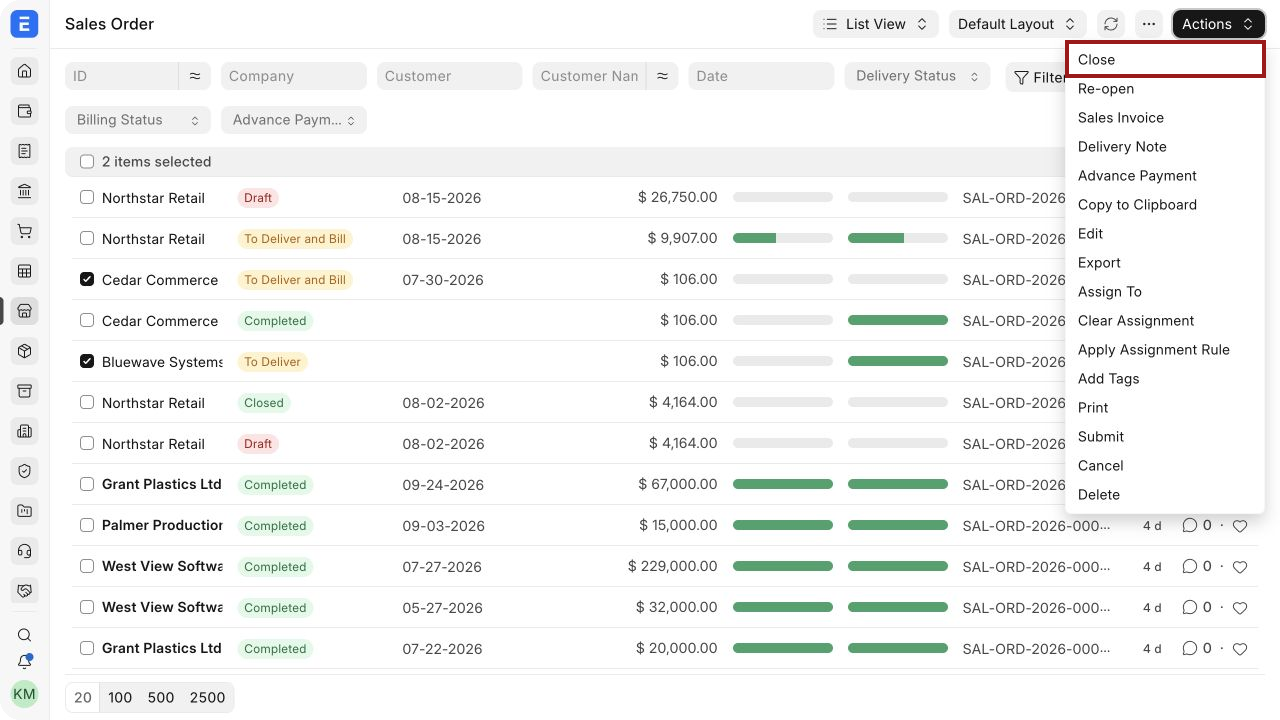
ERPNext changes eligible orders to Closed. Review the list after the operation and confirm that each intended order has the correct status.
A closed order cannot create new Delivery Notes or Sales Invoices against its outstanding quantity. Submitted downstream documents remain linked and unchanged.
Reopen multiple Sales Orders
Reopen orders when fulfilment should continue:
- Filter the Sales Order list to show Closed orders.
- Select the required orders.
- Select Actions.
- Select Re-open, as highlighted.
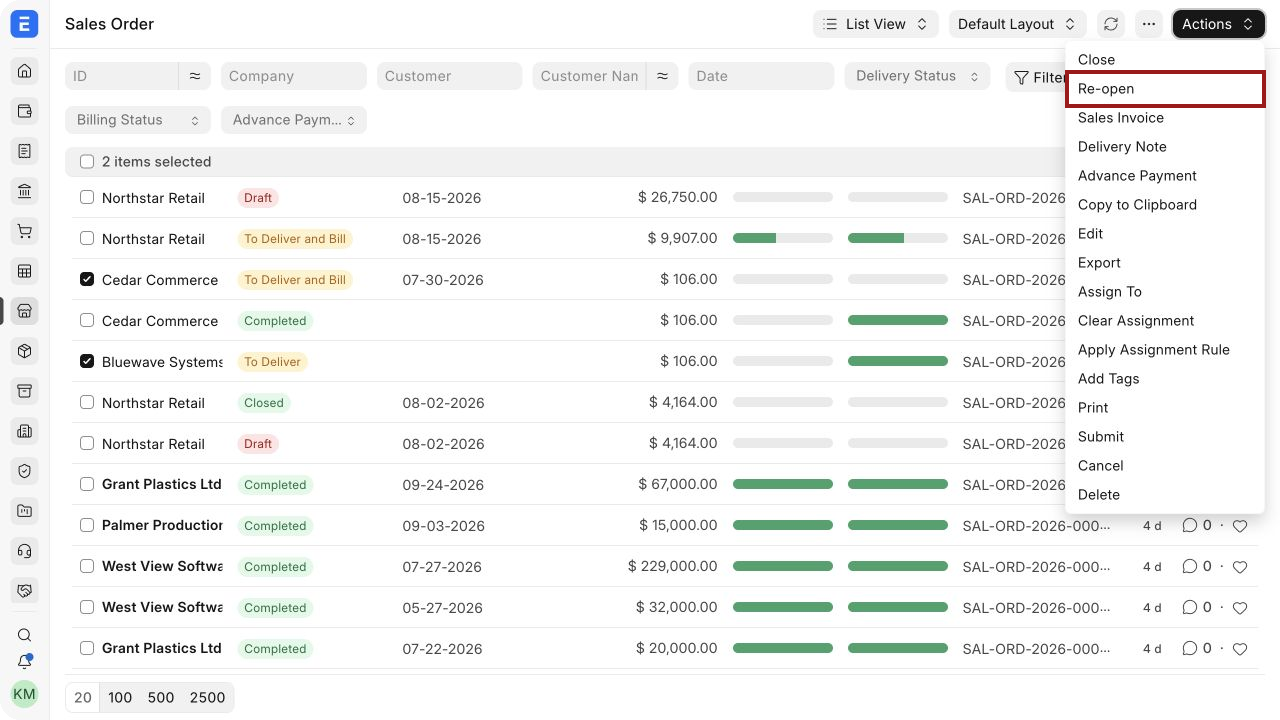
After reopening, verify the outstanding quantities before creating a Pick List, Delivery Note, or Sales Invoice.
What happens to partially fulfilled orders
If an order is partly delivered or partly billed, closing affects only the outstanding balance. Completed transactions remain valid.
For example, if five selected orders each contain 10 units and 8 units have already been delivered, closing the orders removes the remaining 2 units per order from pending fulfilment. It does not reverse the 8 delivered units.
Use Partial Fulfilment of Sales Order when the balance is still expected later. Use Sales Return when delivered goods are coming back.
Troubleshooting
Close is not available under Actions
Confirm that you selected at least one Sales Order and that your role has permission to update submitted orders. An administrator can review Role-Based Permissions.
Some selected orders were not closed
A mixed selection can include ineligible documents, such as drafts, completed orders, cancelled orders, or orders already closed. Filter the list by status and retry only with eligible submitted orders.
The wrong orders were closed
Select the affected orders and use Actions > Re-open. Then review the intended selection before closing again.
Pending quantities still appear in a report
Refresh the report and check its company, date, and status filters. Also confirm that the Sales Order itself shows Closed.
Frequently asked questions
Does bulk close cancel linked Delivery Notes or Sales Invoices?
It closes only the outstanding Sales Order balance.
Can I close orders from different customers together?
Yes, provided every selected order is eligible. Filtering by customer or company reduces selection mistakes.
Can I use the same process for Purchase Orders?
The Purchase Order list provides equivalent bulk close and reopen actions for eligible orders. Review each order type separately before applying a bulk action.
Is there an undo button?
There is no single undo command. Use Re-open for the selected closed orders.