


















Maintaining Supplier's Item Code In the Item master
Imagine Nova Industries calls a product USB-C Power Adapter, while Keystone Cables uses a different catalogue name for the same part. The buyer understands both names, but the supplier's quotation, delivery note, and carton use only its own identifier. Without a mapping, people can order or receive the wrong component.
Use Supplier Items in the Item master to store the Supplier and its Supplier Part Number. ERPNext can then show the supplier-facing identifier in purchase transactions and print formats while Nova keeps one internal Item Code for stock, valuation, and reporting.
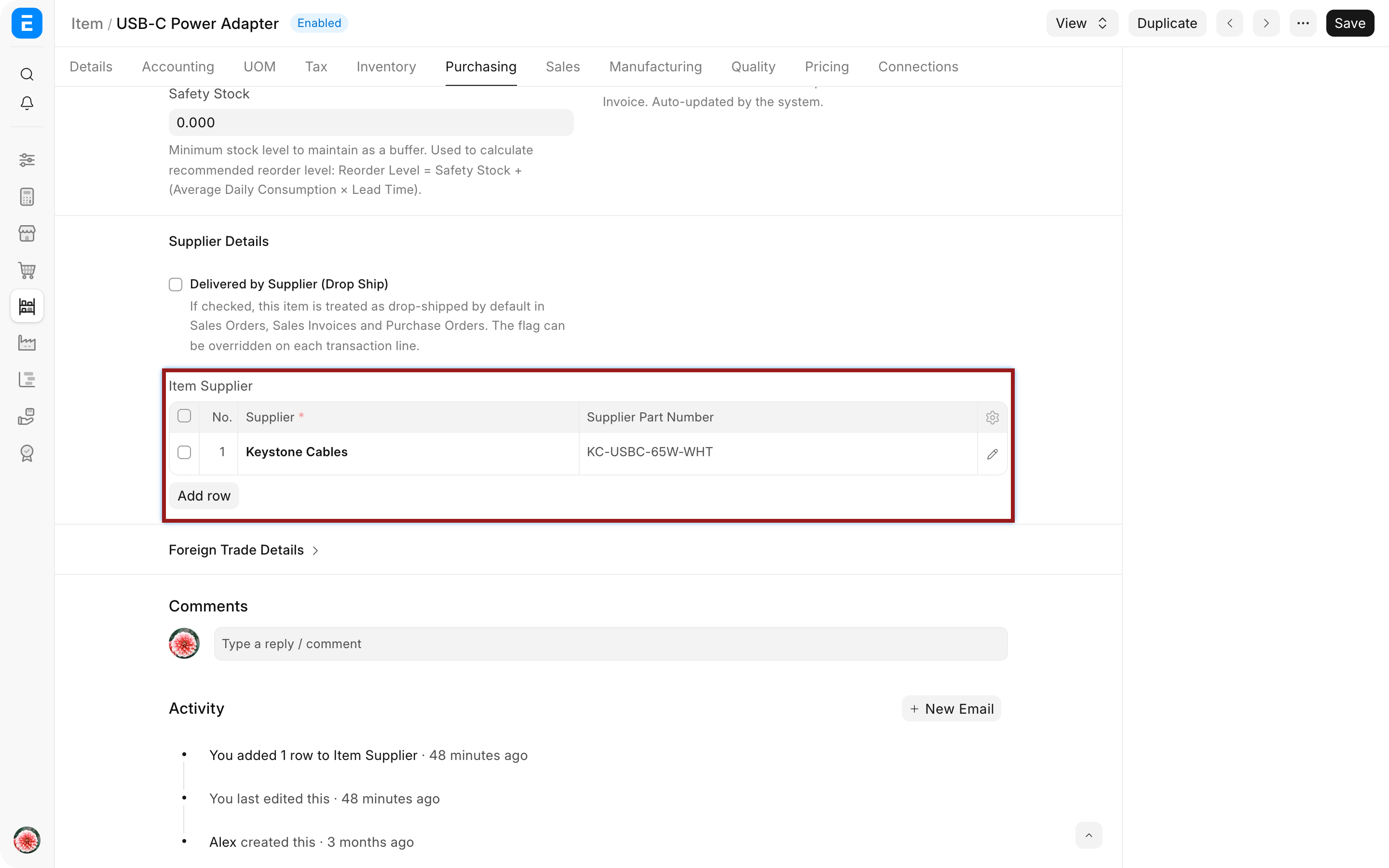
Add the supplier's Item code
- Open the Item used by your company.
- Find Supplier Details or Supplier Items.
- Add the Supplier.
- Enter the Supplier Part Number exactly as the supplier uses it.
- Save the Item.
Add one row for each supplier that uses a different identifier for the same Item. Do not create duplicate internal Items merely because suppliers use different codes.
Use the mapping in purchase transactions
Create or open a Supplier Quotation, Purchase Order, Purchase Receipt, or Purchase Invoice for the mapped Supplier. When the Item is selected, ERPNext can carry the Supplier Part Number into the transaction row.
Include the supplier part number in the print format when suppliers need their own reference. Keep Nova's Item Code visible as well so internal users can identify the stock record.
Use the mapping safely
Supplier Part Number is an alternate identifier, not a replacement for Item Code. Stock Ledger, valuation, reorder rules, and accounting continue to use Nova's Item.
Review mappings when a supplier changes its catalogue or packaging. If the new part is materially different, create or choose the correct Item instead of overwriting the mapping.
Troubleshooting
The supplier part number does not appear
Confirm that the transaction Supplier matches the Supplier Items row and that the selected Item is the mapped internal Item. Check whether the field is hidden from the transaction or print format.
The wrong supplier code is printed
Review duplicate Supplier Items rows and verify the Supplier on the purchase document. A custom print format may be reading the wrong field or ignoring the Supplier relationship.
The supplier has several codes for one Item
Use separate mappings only when your process and version support a clear selection. When codes represent different specifications, pack sizes, or compliance, use separate Items so stock remains unambiguous.
Frequently asked questions
Does this change Nova's Item Code?
The mapping does not change Nova's Item Code. It adds the supplier's alternate identifier while retaining the internal code.
Can the same Item have codes for several suppliers?
The same Item can have codes for several suppliers. Add a Supplier Items row for each Supplier and its part number.
Should the supplier code be used for barcode scanning?
Use the Item's barcode setup for scanning. A supplier part number is primarily a purchasing reference unless your implementation deliberately maps it into a barcode workflow.
Maintain the internal identity in Item and the external relationship in Supplier. The mapping can support Request for Quotation, Supplier Quotation, Purchase Order, Purchase Receipt, and Purchase Invoice. Use Item Price for rates, UOM for pack conversions, and Buying Settings for purchasing controls.