


















Northstar Retail returns one phone after Nova Industries has already submitted the Sales Invoice. Nova must reduce what the customer owes and, if the phone physically comes back, return it to stock. Editing or deleting the original invoice would hide what actually happened.
A Credit Note records the correction while preserving the original sale and its audit trail. It can reduce the Customer's outstanding balance, reverse the related income and tax, and optionally bring returned goods back into the Warehouse.
In ERPNext, a Credit Note is a Sales Invoice marked as a return, with negative quantities and amounts. Use it for a full or partial return, an agreed price reduction, or another post-invoice correction. This guide explains how to create it from the original invoice and decide whether to refund, allocate, or retain the resulting credit.
Before you begin
Identify the original submitted Sales Invoice. If stock is being returned, confirm the receiving Warehouse. If the customer has already paid, decide whether the credit will be refunded or allocated against another invoice.
Create a Credit Note from a Sales Invoice
- Open the original Sales Invoice.
- Select Create > Return / Credit Note.
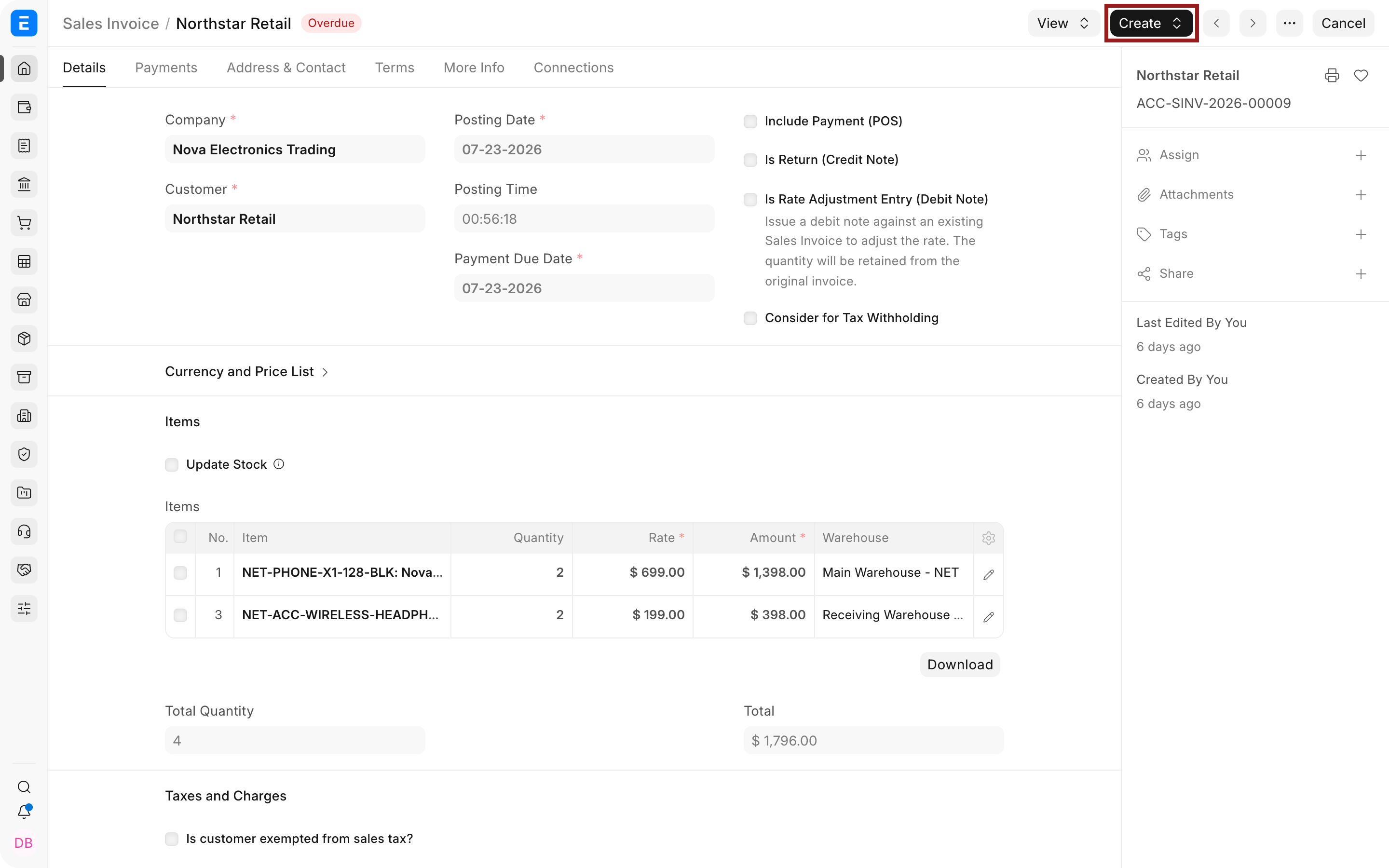
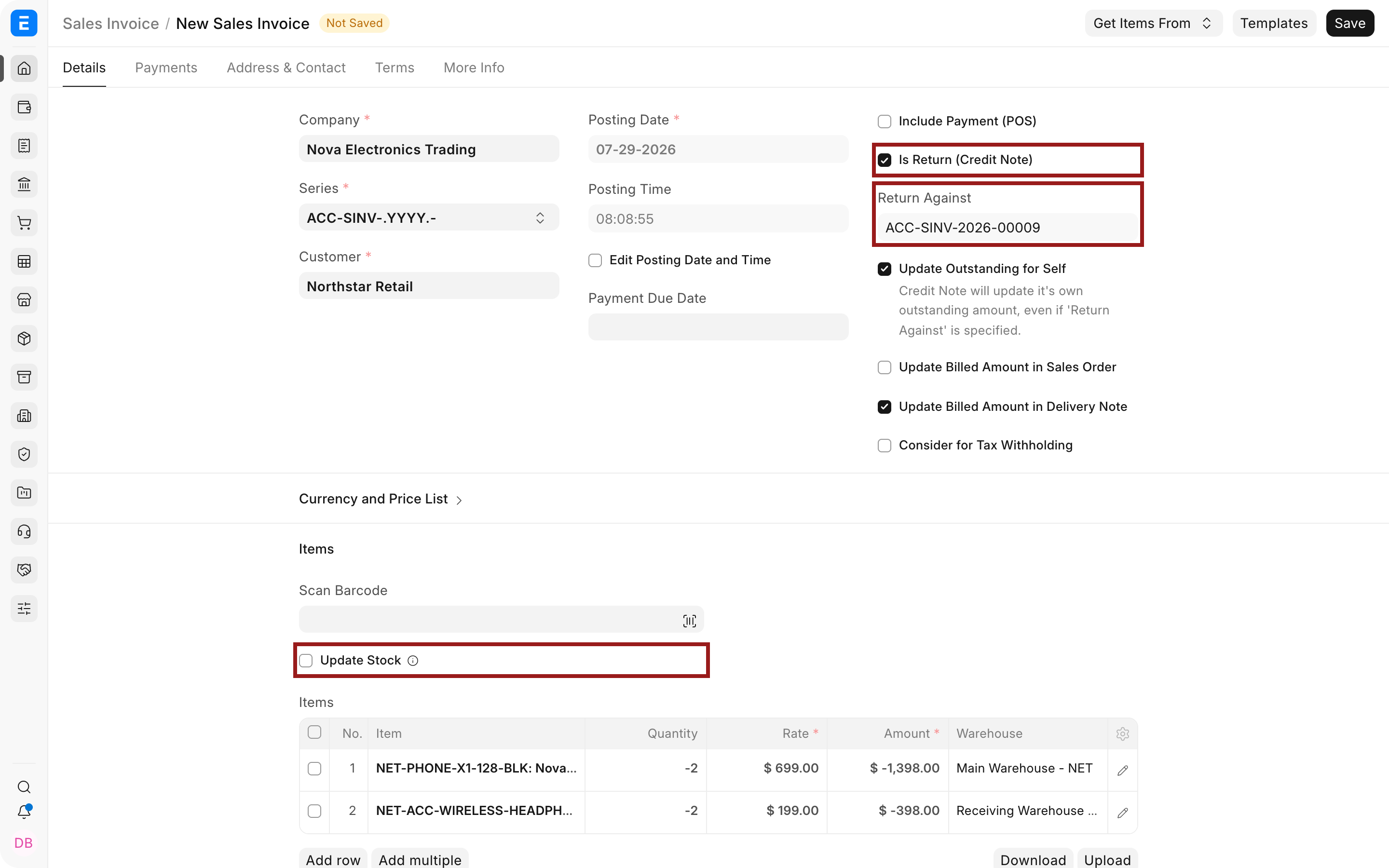
- Review the Customer, Company, posting date, return Warehouse, and reference invoice.
- Keep only the returned lines and enter the returned quantity. ERPNext displays return quantities and amounts as negative values.
- Enable Update Stock when the goods physically return to inventory.
- Review taxes and totals, then save and submit.
Creating the Credit Note from the original invoice preserves the reference and copies the original items, rates, taxes, and accounts. This is safer than creating an unreferenced return when the original invoice is known.
Full and partial credits
For a full return, return the complete invoiced quantity. For a partial return, remove unaffected lines or reduce the returned quantity. ERPNext prevents the cumulative returned quantity from exceeding the original invoiced quantity.
For price-only corrections where no goods move, leave Update Stock off. The Credit Note will reverse the receivable and income or tax effect without changing the Stock Ledger.
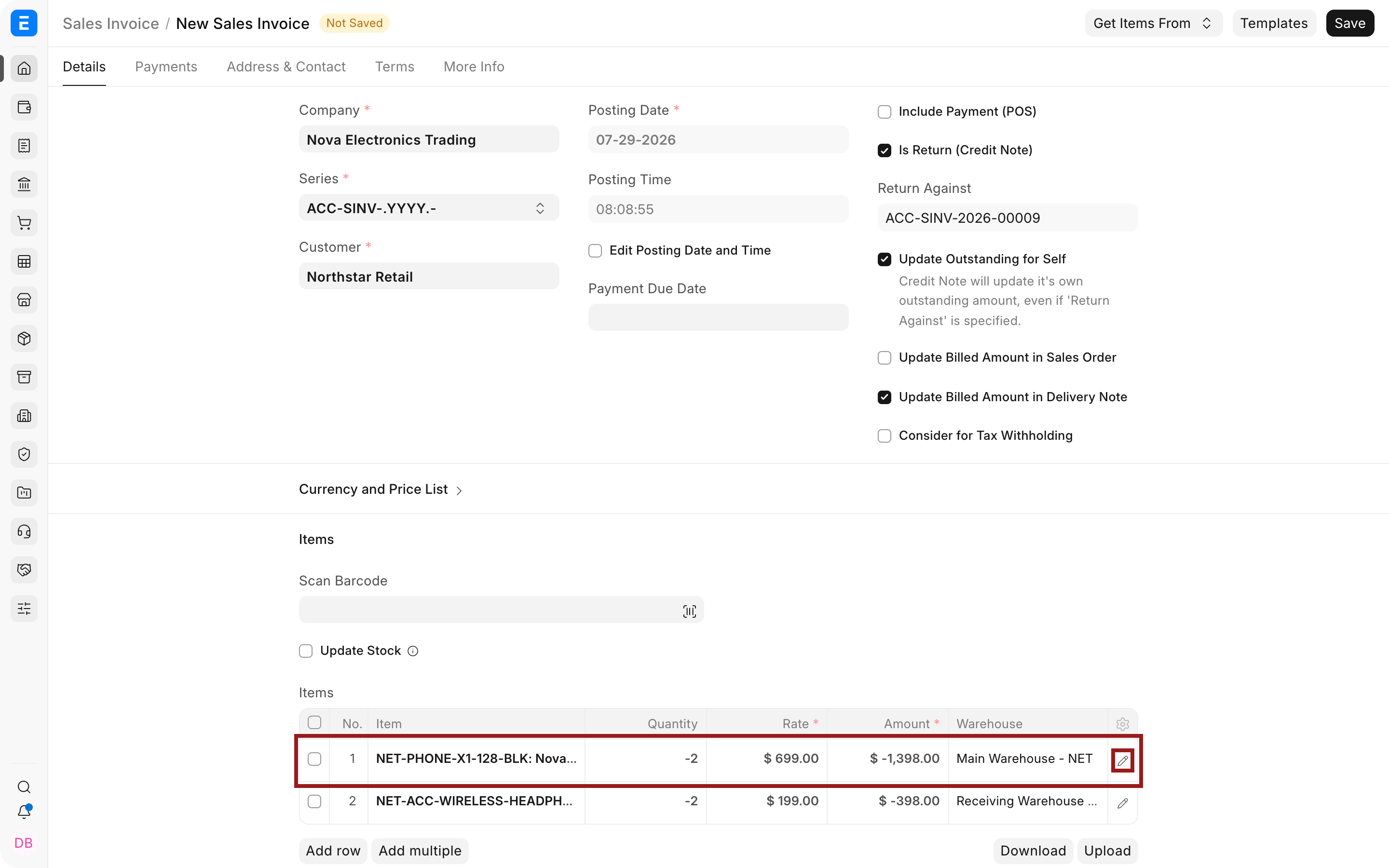
When stock is returning, confirm the receiving Warehouse shown for each item row before submission. Use the highlighted row edit action when you need to change it.
Refund or allocate the credit
After submission, the Credit Note creates a negative receivable against the Customer.
- To refund the customer, create a Payment Entry against the Credit Note.
- To use the credit against another Sales Invoice, allocate it through Payment Reconciliation or a correctly referenced Journal Entry.
- To leave it available for a future purchase, keep the credit unallocated until the next invoice is ready.
Always reference both the Credit Note and the invoice being settled. A general Customer ledger entry without voucher references will not close the individual outstanding documents.
Ledger and stock effect
| Action | Receivable | Income and tax | Stock |
|---|---|---|---|
| Credit Note without Update Stock | Reduced | Reversed for credited amount | No change |
| Credit Note with Update Stock | Reduced | Reversed for credited amount | Returned quantity and stock value posted |
| Refund Payment Entry | Credit is settled | No new sales reversal | No change |
| Allocate against new invoice | Both open vouchers are reduced | No new sales reversal | No change |
When to cancel instead
If an unpaid invoice was created by mistake and the entire transaction should not exist, cancellation may be simpler. Use a Credit Note when you need to keep the original invoice and record a partial return, a post-invoice adjustment, or a refund after payment.
Troubleshooting
The return quantity is rejected
Check previous Credit Notes against the same invoice. The total returned quantity cannot exceed the invoiced quantity.
Stock should not move
Turn off Update Stock before submitting. Do not use a stock return for a price-only adjustment.
The Customer still has an outstanding balance
Open the Accounts Receivable report and check whether the Credit Note or refund has been allocated to the correct voucher.