


















Northstar Retail, a customer of Nova Industries, buys a monthly device-care plan for the phones it resells. Creating each Sales Invoice by hand would be repetitive and makes it easy to miss a billing date.
A Subscription turns that continuing customer relationship into scheduled billing. ERPNext uses the selected Subscription Plan to create recurring Sales Invoices for Northstar Retail, while a supplier subscription would instead create recurring Purchase Invoices for services Nova Industries buys.
Use a Subscription when the same product or service is billed on a regular schedule, such as maintenance, software access, rentals, retainers, or support plans.
Before you begin
Create an Item for the recurring charge, then create a Subscription Plan that defines its price and billing interval. Confirm the Company's income, receivable, tax, and Cost Center defaults before generating invoices.
Create a Subscription Plan
In the Subscription Plan, select the Item and currency, then choose how ERPNext determines the price:
| Price basis | Use it when |
|---|---|
| Fixed Rate | Every subscriber pays the same rate |
| Based On Price List | The rate should come from an Item Price |
| Monthly Rate | The charge should be prorated from a monthly rate |
Set the billing interval and interval count. For example, Month with a count of 1 bills monthly, while a count of 3 bills every three months.
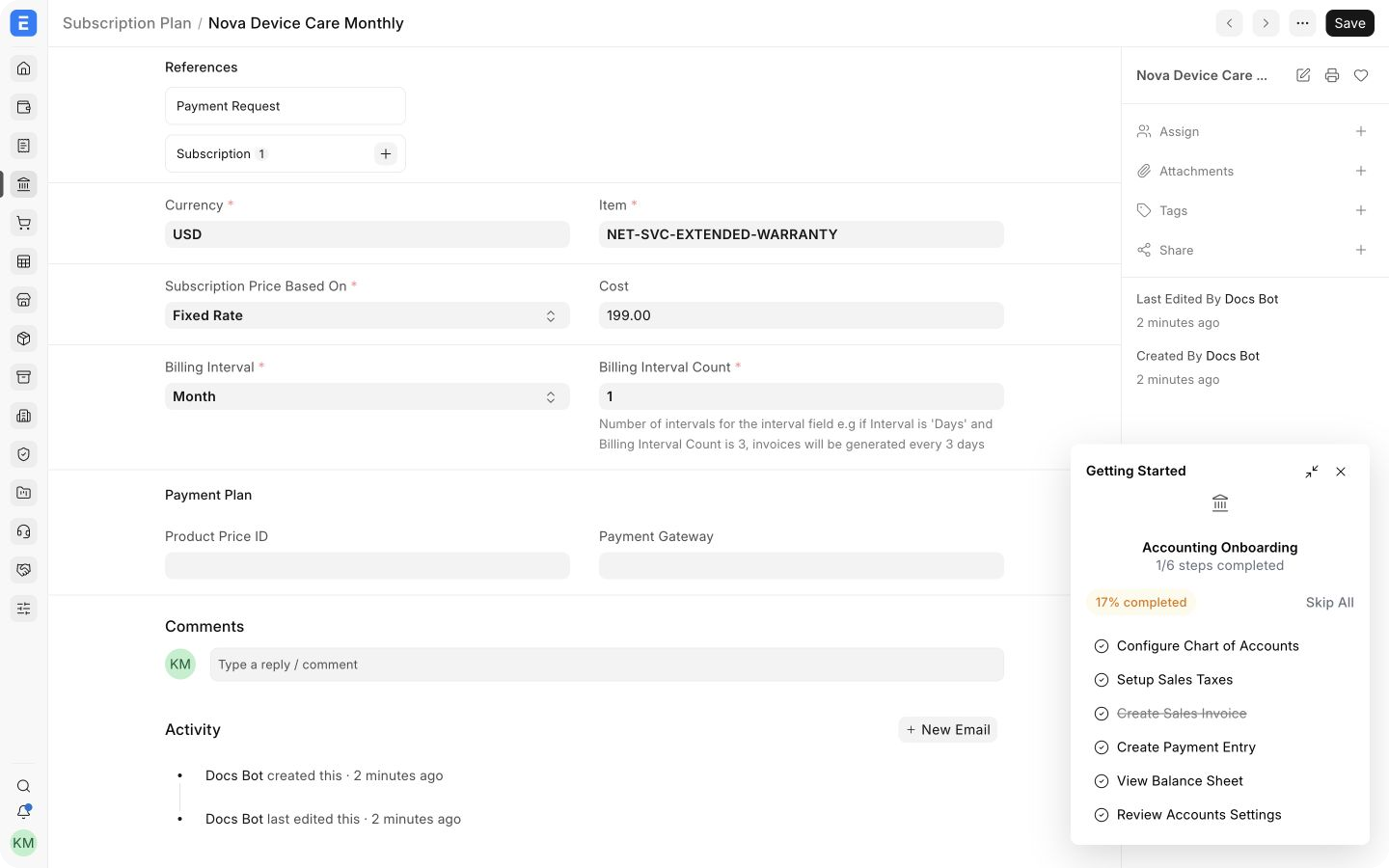
Create a Subscription
- Search for Subscription and select Add Subscription.
- Select Customer or Supplier, then choose the Party and Company.
- Enter the subscription start date and, if applicable, the end date.
- Configure when invoices should be generated.
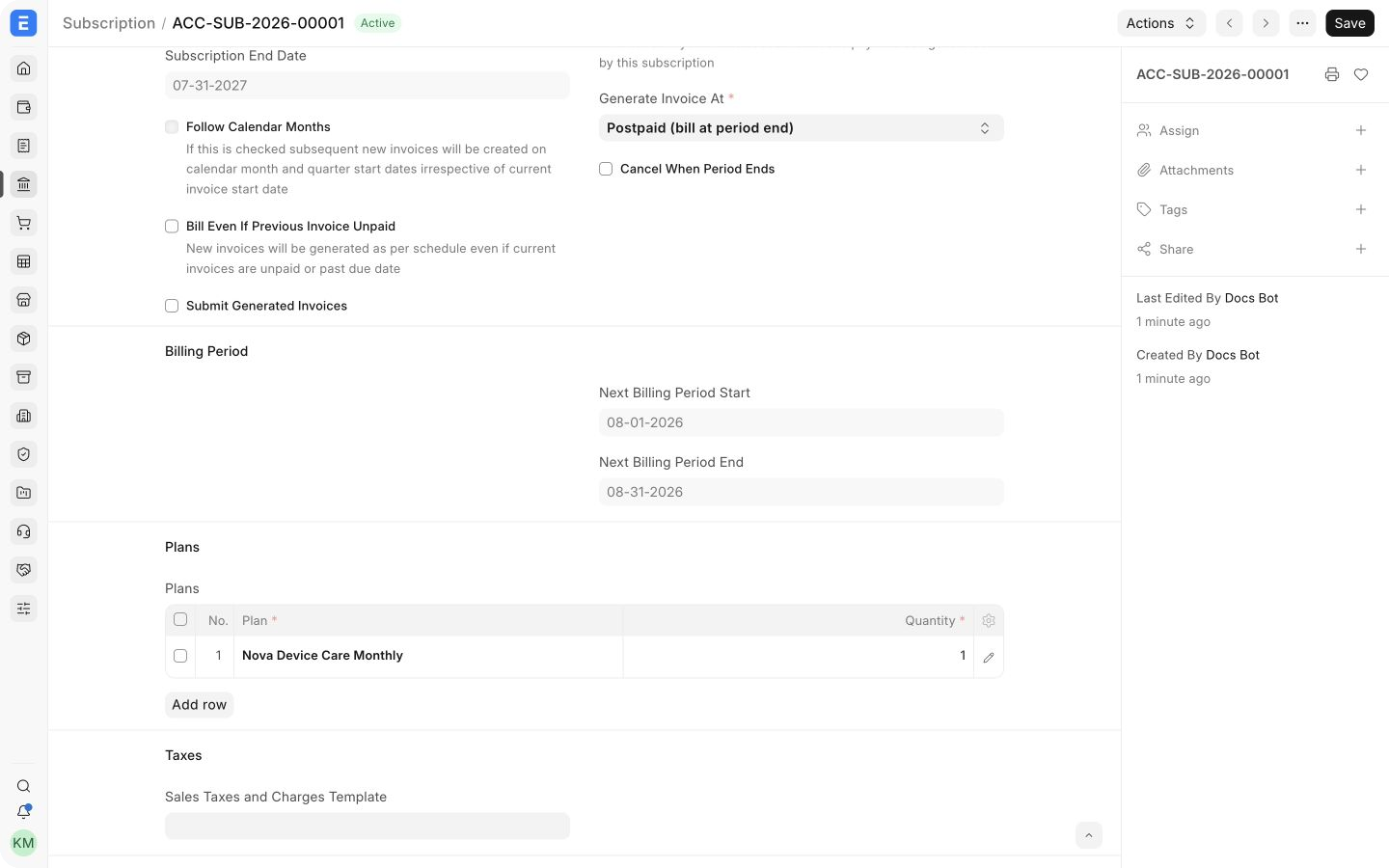
- Add one or more Subscription Plans.
- Add taxes, a Cost Center, or an additional discount when needed.
- Save.
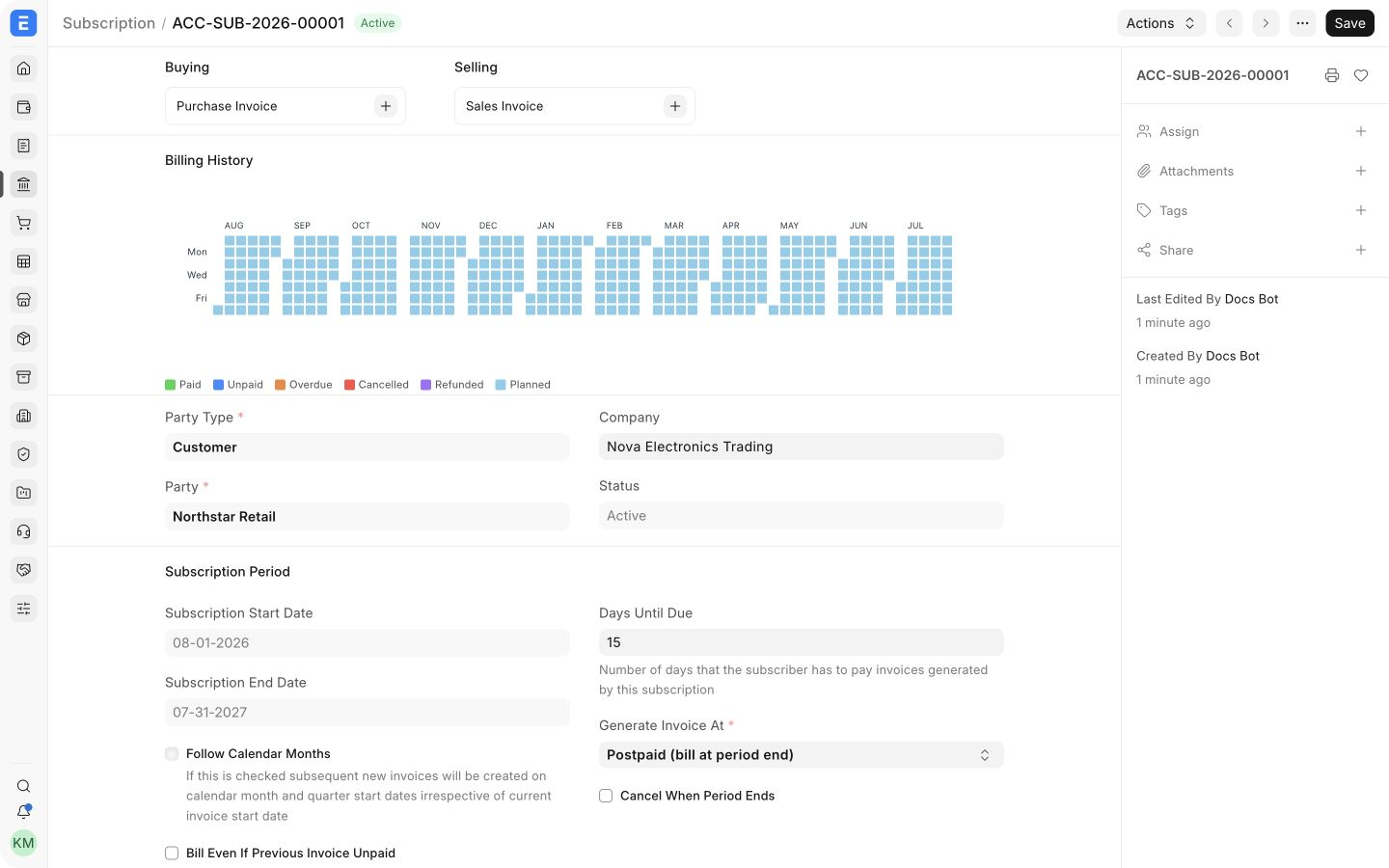
Choose when invoices are generated
| Generate Invoice At | Result |
|---|---|
| Postpaid (bill at period end) | Invoice is created after the service period |
| Prepaid (bill at period start) | Invoice is created at the beginning of the period |
| Bill N days before period start | Invoice is created the specified number of days before the period |
Days Until Due controls the invoice due date. Submit Generated Invoices submits generated invoices automatically; leave it off if someone should review each invoice first. Bill Even If Previous Invoice Unpaid keeps generating invoices even when an earlier invoice is unpaid. Use that option deliberately because it can increase the customer's outstanding balance.
Enable Follow Calendar Months when billing should align to calendar boundaries rather than the original start date. Enable Cancel When Period Ends when the subscription must stop at the end of its current billing period.
Plans, taxes, and discounts
Add every recurring component as a row in Plans. You can combine a base plan and add-ons in one subscription. The generated invoice uses the plan quantity, tax template, and any additional discount saved on the Subscription.
Billing history and status
The billing history shows planned and generated periods. Subscription status moves through states such as Trialing, Active, Grace Period, Unpaid, Completed, Cancelled, and Refunded based on dates and payment conditions.
Review generated Sales Invoices from the Subscription dashboard. Cancelling a Subscription stops future billing but does not cancel invoices that already exist.
Troubleshooting
No invoice is generated
Check the start date, next billing period, invoice timing, scheduler, and whether an earlier invoice is unpaid. Also confirm that the plan Item and Company accounting defaults are valid.
The invoice amount is unexpected
Open the linked Subscription Plan and confirm its price basis, rate, interval, quantity, taxes, and discount.
A subscription should stop after the current term
Enable Cancel When Period Ends instead of cancelling immediately.