


















A Credit Limit in ERPNext is the maximum credit exposure your business allows for a Customer. When the applicable limit is reached, ERPNext can stop users from submitting a new Sales Order or Sales Invoice until the exposure is reduced or an authorized role approves the exception.
Credit limits help sales and finance teams apply a consistent credit policy without checking each customer balance manually. ERPNext supports limits at the Customer, Customer Group, and Company levels, so you can define a specific limit for an important account and use broader defaults for everyone else.
Before you begin
- Agree on a credit policy with the finance team, including who can approve exceptions.
- Confirm that opening receivables, Sales Invoices, Payment Entries, and credit notes are current. The control is only as reliable as the outstanding balance.
- Create the relevant Customer, Customer Group, and Company records.
- Assign the appropriate Company to each limit when your ERPNext site contains more than one company.
- Decide whether Sales Orders should reserve credit or whether the check should rely mainly on outstanding invoices.
How ERPNext chooses the credit limit
ERPNext checks the available limits in this order:
- Customer: A company-specific limit on the Customer record has the highest priority.
- Customer Group: If the Customer has no applicable limit, ERPNext checks the Customer Group.
- Company: If neither the Customer nor its group provides a limit, ERPNext uses the Company limit.
| Level | When to use it | Example |
|---|---|---|
| Customer | Use for an account with an individually approved facility. | Summit Digital Stores receives a USD 50,000 limit. |
| Customer Group | Use as a shared policy for a class of customers when individual limits are not required. | Nova Commercial Customers receive a USD 100,000 default limit. |
| Company | Use as the final fallback for customers without a more specific limit. | Nova Electronics Trading uses USD 250,000. |
A value of 0 does not create an effective limit at that level. ERPNext continues to the next applicable level. Set an explicit positive amount wherever you want the control to apply.
Set a Credit Limit for a Customer
- Open the Customer.
- Select the Accounting tab.
- In Credit & Overdue Limits, select Add row.
- Select the Company.
- Enter the approved Credit Limit.
- Choose whether to enable Bypass credit limit check at sales order.
- Save the Customer.
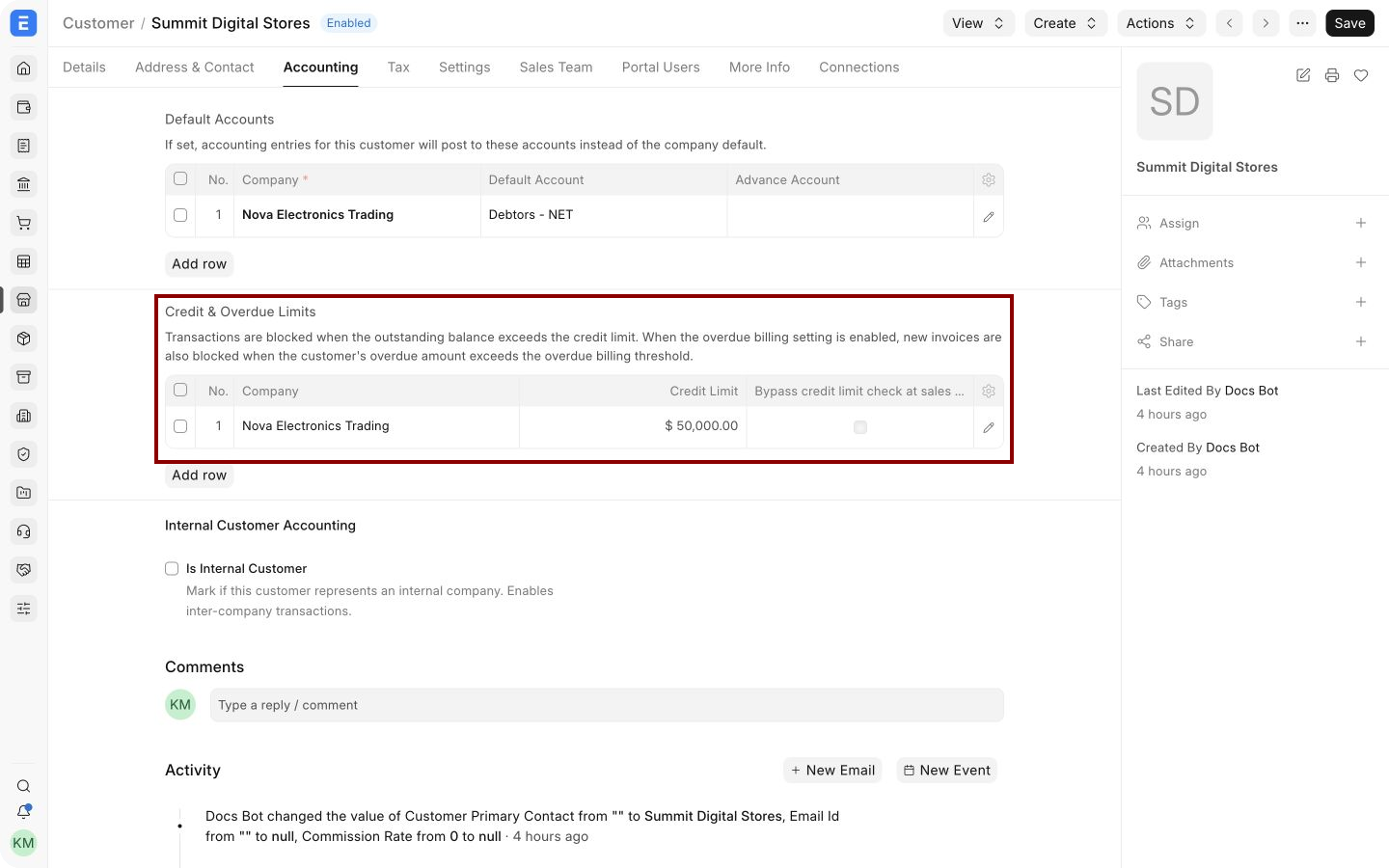
The highlighted row gives Summit Digital Stores a USD 50,000 limit for Nova Electronics Trading. A Customer can have a different row for each Company.
Alternative ways to set a Credit Limit
Set a limit for a Customer Group
- Go to Selling > Settings > Customer Group.
- Open the required group.
- In Credit & Overdue Limits, select Add row.
- Select the Company and enter the Credit Limit.
- Save the Customer Group.
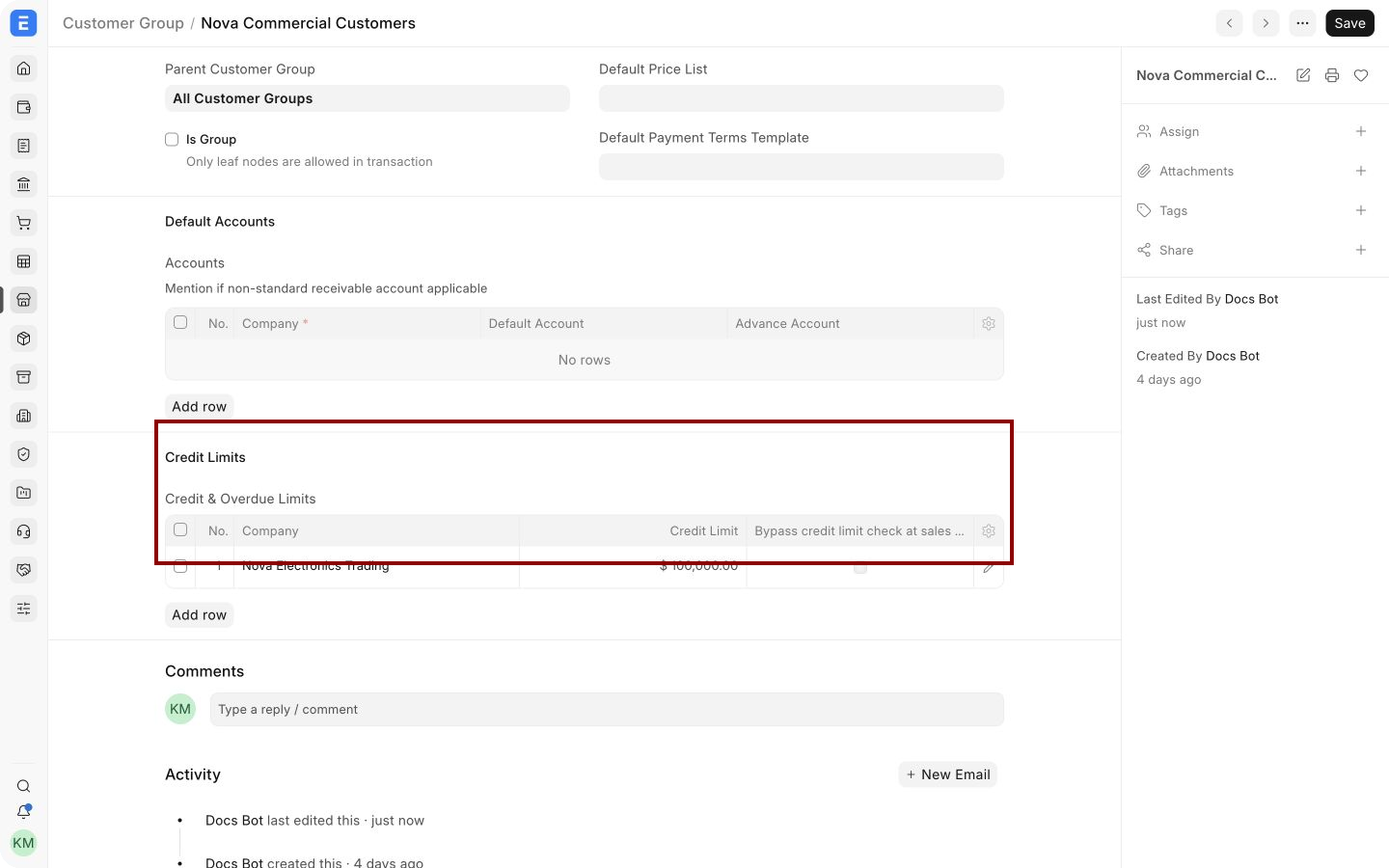
Use a group limit to apply the same policy to customers in that group that do not have a customer-specific limit. It is not a combined pool shared by every customer in the group. The limit is evaluated for each customer.
Set the Company fallback limit
- Open the Company record.
- Select the Buying and Selling tab.
- Enter the fallback value in Credit Limit.
- Save the Company.
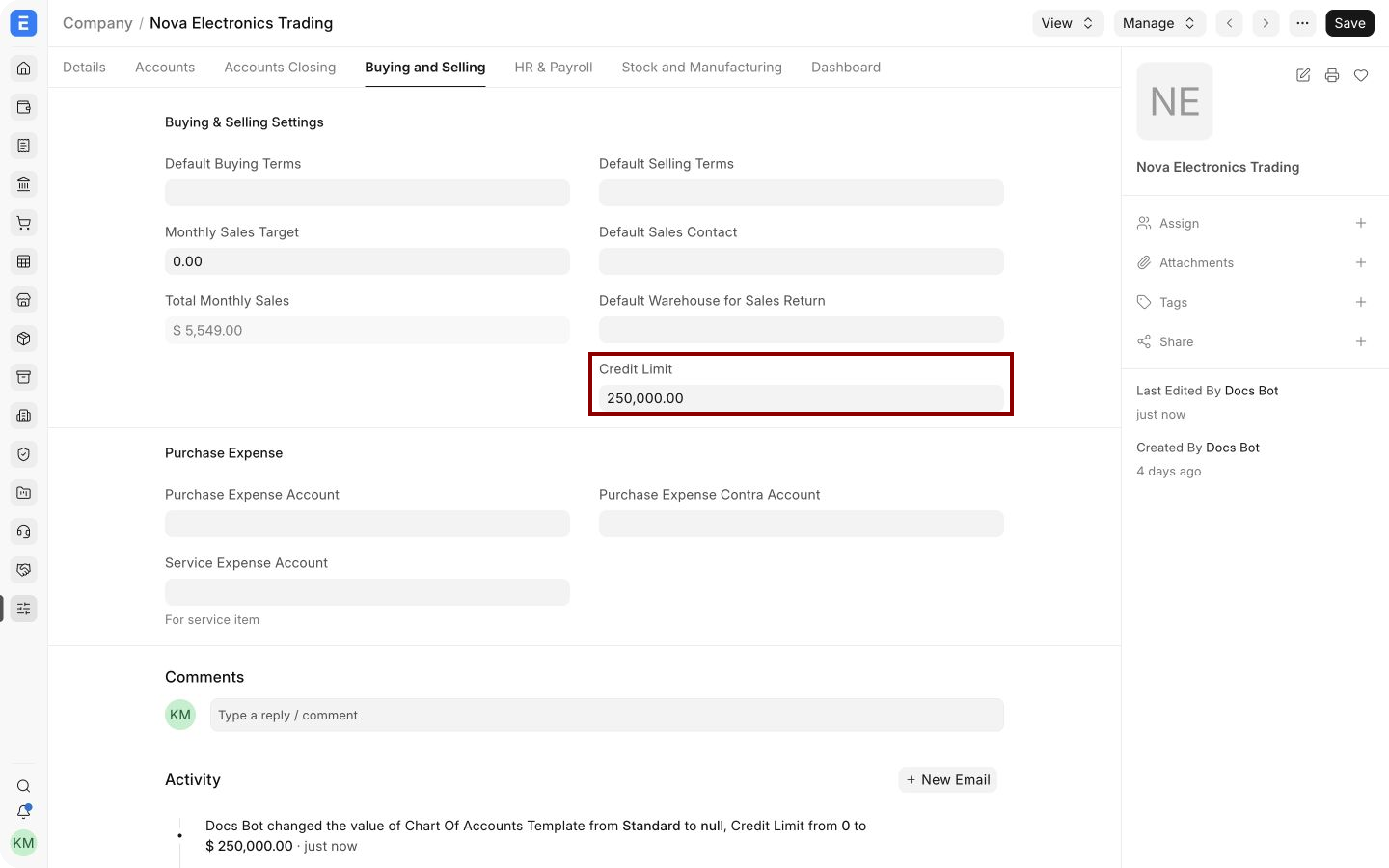
The Company limit is useful as a safety net, but it is usually broader than an individually approved customer facility. Review it together with the more specific limits before changing your credit policy.
Important fields and what they mean
| Field | What it means |
|---|---|
| Company | The legal entity for which the limit applies. Add separate rows when the same Customer trades with multiple companies. |
| Credit Limit | The maximum credit exposure permitted for that Customer and Company before ERPNext blocks a controlled transaction. |
| Bypass credit limit check at sales order | Stops Sales Orders from reserving or validating against the credit limit for that Customer. Outstanding invoices can still affect the Sales Invoice check. |
| Credit Manager | The role allowed to approve and submit a transaction after the credit-limit validation is triggered. |
| Enable Overdue Billing Threshold | Activates an additional Sales Invoice check based on the Customer’s overdue amount and configured overdue threshold. |
| Overdue Billing Threshold | The overdue amount permitted before a new Sales Invoice is blocked when the Accounts Setting is enabled. |
Understand what uses the limit
ERPNext performs the credit check when a controlled sales transaction is submitted. The result depends on the Customer configuration and the current exposure for the selected Company.
- Sales Order: By default, open order value can use available credit. This helps prevent the business from accepting more commitments than the approved facility supports.
- Sales Invoice: Outstanding receivables are checked before a new invoice is submitted.
- Payments and credit notes: A submitted Payment Entry or Sales Return can reduce the outstanding balance and restore available credit after ledgers are updated.
For example, if a Customer has a USD 50,000 limit and applicable exposure of USD 42,000, only USD 8,000 remains available. A new controlled transaction for USD 10,000 is blocked unless exposure is reduced or the authorized role approves the exception.
Bypass the Sales Order check
Enable Bypass credit limit check at sales order when your policy should allow Sales Orders without reserving the customer’s credit facility. This can suit businesses that treat an order as a forecast or commitment but apply firm control only when billing.
Use this option carefully. It does not mean the Customer has unlimited credit. A later Sales Invoice may still be blocked when the outstanding exposure exceeds the applicable limit. Explain the policy to users so an accepted order does not create an expectation that finance will approve every invoice.
Configure the override role
- Open Accounts Settings.
- Select the Credit Limits tab.
- Select the required role in Credit Manager.
- Save Accounts Settings.
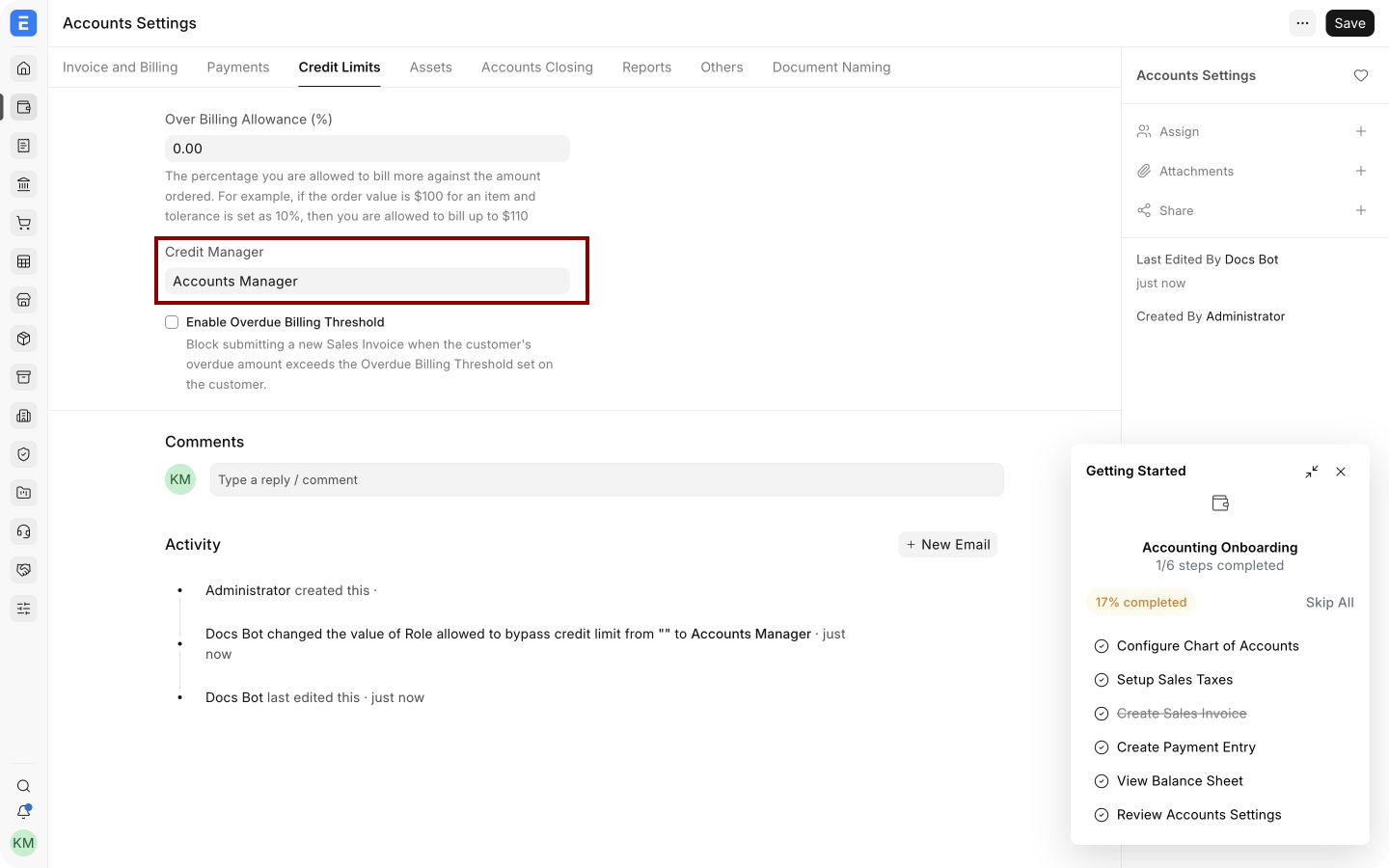
When the validation is triggered, a user with the configured role can approve the exception and submit the transaction. Keep membership of this role limited to people who are authorized to accept credit risk. In older ERPNext documentation this setting may be called Credit Controller. The current field is Credit Manager and it selects a role.
Submit and next steps
After saving the limits, create or open the required Sales Order or Sales Invoice and submit it normally. If the transaction is within available credit, submission continues. If it exceeds the applicable limit, ERPNext displays a validation message and stops submission for users who cannot approve the exception.
When a transaction is blocked:
- Review the Customer’s outstanding invoices using Accounts Receivable or the Customer ledger.
- Check whether payments, returns, or credit notes have been submitted and allocated correctly.
- Confirm which Customer, Customer Group, or Company limit is taking precedence.
- Collect or allocate payment, revise the transaction, change the approved limit, or request an authorized override.
Good practices
- Record the approved amount in the most specific appropriate level.
- Review limits periodically and after material changes in payment behavior.
- Avoid giving every user the Credit Manager role.
- Use Payment Terms together with credit limits. Payment terms define when an amount is due, while the credit limit controls maximum exposure.
- Use Dunning and receivables reports for overdue follow-up rather than relying on the limit alone.
- Document why a limit was raised, lowered, or overridden.
Troubleshooting
The Customer limit is ignored
Confirm that the row uses the same Company as the transaction and contains a positive amount. Also check that the row was saved. If no applicable Customer limit exists, ERPNext uses the Customer Group and then the Company fallback.
A Sales Order is not blocked
Open the Customer’s Accounting tab and check Bypass credit limit check at sales order. If it is enabled, the Sales Order check is intentionally bypassed. The later invoice can still be checked.
A payment has not restored available credit
Confirm that the Payment Entry is submitted, posted to the correct Customer and Company, and allocated against the invoice where required. Review the General Ledger and Accounts Receivable report for the resulting balance.
An authorized user still cannot submit
Check the Credit Manager role in Accounts Settings and confirm that the user has that role. Ask the user to reload ERPNext after a role change so the current session receives the updated permissions.
The wrong fallback limit is applied
Review the Customer Group assigned to the Customer and the Company selected on the transaction. Remember that Customer takes precedence over Customer Group, and Customer Group takes precedence over Company.
Frequently asked questions
Can one Customer have different limits for different companies?
Yes. Add one row per Company on the Customer record. This keeps the credit policy separate for each legal entity.
Is a Customer Group limit shared by all customers?
No. It acts as the default limit evaluated for each customer in that group when a more specific Customer limit is not available.
Does setting 0 mean no credit is allowed?
No. A zero value does not create an effective limit at that level. ERPNext continues to the next applicable level.
Can a user submit a transaction above the limit?
Only a user with the role configured as Credit Manager can approve the exception. Restrict that role according to your credit policy.
Should I bypass the Sales Order check?
Bypass it only when your business intentionally controls credit at invoicing rather than at order acceptance. Keep the default check when accepted orders should reserve available credit.