


















Payment Reconciliation: invoice or payment missing, errors, closed periods
Payment Reconciliation matches payments, credit notes and journals with the invoices they pay. This page explains why an invoice or payment does not appear, why reconciling fails, and what to do for closed periods and large volumes.
For how to reconcile, see Payment Reconciliation.
How it finds entries
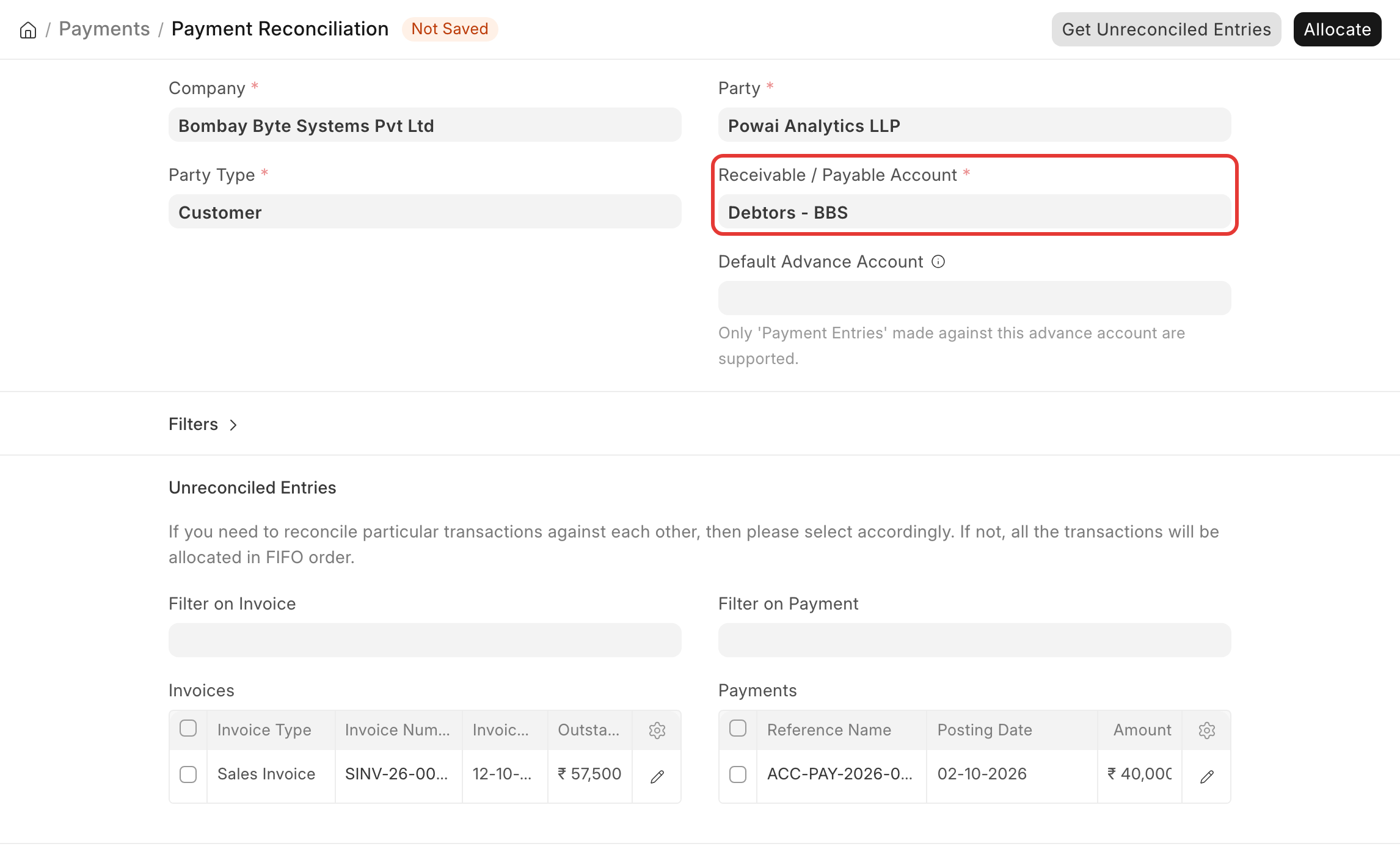
When you click Get Unreconciled Entries, ERPNext lists, for the selected Company, Party and Receivable / Payable Account:
- Invoices: invoices, debit notes and journals with an outstanding amount;
- Payments: payments, credit notes and journals with an unallocated amount.
Both lists use the same receivable or payable account. Only the first 50 entries of each are fetched (Invoice Limit and Payment Limit). Set a limit to 0 to fetch all.
An invoice or payment is missing
Check, in this order:
- Account. The invoice and the payment must use the same Receivable / Payable Account. A payment posted to another account, for example a separate advance account, is not listed with invoices of the debtors account.
- Limits and filters. Raise Invoice Limit or Payment Limit, and clear the date, amount, Cost Center and Project filters. With a cost center or project filter, an entry with a different or empty value is left out.
- Already reconciled. An invoice already settled by a payment or return is not listed. Check its Outstanding Amount.
- Party. A Journal Entry row without the party, or with another party, is not listed for this party. Correct the Journal Entry.
- Payment Ledger. If the entry is in the General Ledger but not in the Accounts Receivable report, its Payment Ledger Entries are missing. Repost them with Repost Payment Ledger. See Accounts Receivable and Payable.
Advances in a separate account
With Book Advance Payments in Separate Party Account on in the Company, advances are posted to the Default Advance Received Account or Default Advance Paid Account. To use them against invoices:
- In Payment Reconciliation, set Default Advance Account to that advance account.
- Click Get Unreconciled Entries. The advances are listed with the invoices of the debtors or creditors account.
Only Payment Entries made against the advance account can be reconciled this way. A payment made before the setting was turned on was posted to the normal account, so it is listed there instead.
Reconciling fails
- "The invoice was modified" or a remaining amount error: someone changed or reconciled the invoice or payment after you fetched the list. Click Get Unreconciled Entries again, then Allocate and Reconcile.
- Allocated amount more than outstanding: the allocated amount of a row cannot be more than the invoice's outstanding or the payment's unallocated amount. Reduce it.
- A Journal Entry cannot be reconciled: the journal must debit (for suppliers) or credit (for customers) the same party and account as the invoice. If it was booked against another party, cancel and amend it.
- The request times out: reconcile fewer rows at a time, or use Process Payment Reconciliation, which reconciles one party in the background.
- Error with a Project filter and returns: fixed in version 16.2.0. Update the site.
Exchange gain or loss
When a foreign-currency invoice and payment have different exchange rates, reconciling creates a Journal Entry for the exchange gain or loss, posted to the company's exchange gain or loss account. Credit notes reconciled with invoices can also create a Journal Entry. This is expected.
The period is closed
Reconciling changes the outstanding of an old invoice on a date. If that date is in a closed Accounting Period, before the Accounts Frozen Till Date, or in a year with a submitted Period Closing Voucher, the reconciliation is blocked.
For advances booked in a separate advance account, the Company setting Reconciliation Takes Effect On decides the date:
| Option | Date used |
|---|---|
| Oldest Of Invoice Or Advance (default) | the invoice date, or the advance's date if the advance is later |
| Advance Payment Date | the advance's date |
| Reconciliation Date | the day you reconcile |
To reconcile old entries without reopening a closed period, set it to Reconciliation Date. For other entries, reconcile with entries in the open period, or ask your accountant whether to reopen the period.
Undo, history and export
- To undo a reconciliation, open the payment and click Unreconcile Transaction.
- The Payment Reconciliation screen keeps no history and has no export. To see what was allocated, use the Payment Ledger report, or the References table of the Payment Entry.
- Process Payment Reconciliation reconciles one party at a time in the background and keeps a log.