


















e-Invoice shows Failed, has no IRN, or cannot be cancelled
After you submit a Sales Invoice, India Compliance generates the e-invoice and stores the IRN and QR code
on it. This page covers what to do when the e-Invoice Status says Failed, when the IRN is missing, and
when an e-invoice cannot be cancelled or changed.
The messages
e-Invoice can only be cancelled upto 24 hours after it is generated
Other signs of the same problems: e-Invoice Status = Failed or Pending, no IRN or QR code on the
printed invoice, or the GST portal shows an e-invoice that ERPNext does not.
How it works
When an e-invoice is generated, the government portal returns an IRN (Invoice Reference Number) and a
signed QR code. India Compliance saves them on the Sales Invoice and in an e-Invoice Log, and sets
e-Invoice Status to Generated.
The government allows you to cancel an e-invoice only within 24 hours of generating it, and an e-invoice can
never be edited. After that, corrections go through a credit or debit note.
e-Invoice Status is Failed, or there is no IRN
- Open the Sales Invoice and read the error in the e-invoice section or the e-Invoice Log.
- If it is a credentials or API error, see GST API errors.
- If it is a data error (GSTIN, PIN code, HSN code, address), correct the master data, then use
e-Invoice → Generate on the invoice to try again. - If the portal says the IRN already exists (duplicate IRN), the e-invoice was created on an earlier try
that ERPNext did not record. Use e-Invoice → Generate again. India Compliance fetches the existing
e-invoice and links it, if its buyer GSTIN and invoice amount match this invoice. With Fetch
e-Invoice details from GST Portal on in GST Settings → General, it also looks on the GST Portal
when the e-invoice portal does not return the details. - If the error is
e-Invoice cannot be generated because the posting date exceeds the reporting time limit of … days as specified in GST Settings, the invoice is older than the government's reporting
limit set in e-Invoice Reporting Time Limit (in Days). The e-invoice can no longer be generated for
it. Issue a new invoice with today's date, or check the limit with your tax adviser.
Older versions set the status to Failed when someone generated an e-invoice a second time from the Sales
Invoice list. This was fixed in India Compliance 15.25.5. Update the app if your version is older.
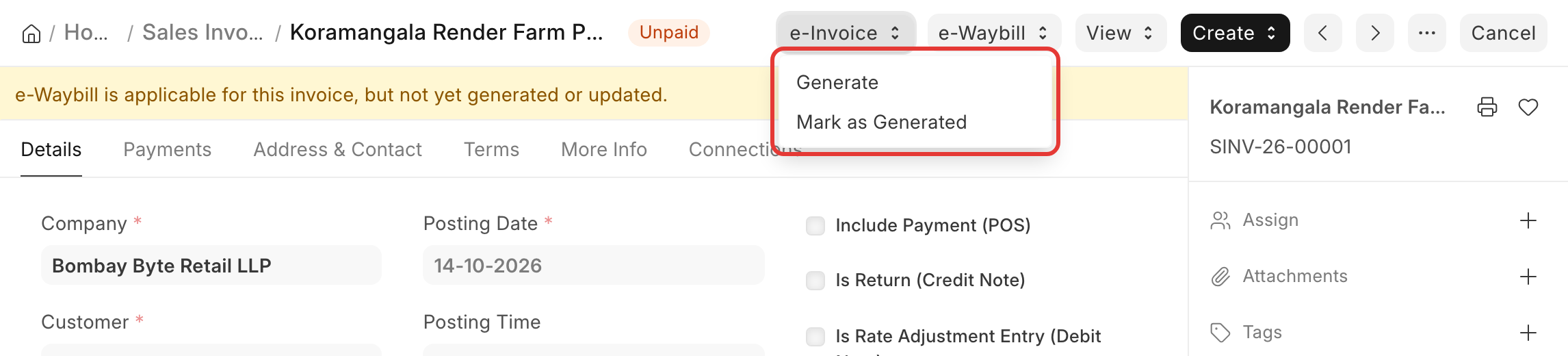
The e-invoice was made directly on the government portal
If you generated or cancelled the e-invoice on the portal instead of from ERPNext, record it on the invoice:
- Generated on the portal: e-Invoice → Mark as Generated, and enter the IRN, acknowledgement number
and date. - Cancelled on the portal: e-Invoice → Mark as Cancelled, and enter the cancellation details.
Cancel an e-invoice
Within 24 hours of generating it:
- Open the Sales Invoice and click Cancel.
- Choose to cancel the IRN with the invoice. With Automatically Cancel e-Invoice on Invoice
Cancellation on in GST Settings, this happens without asking.
After 24 hours, the portal will not cancel the e-invoice:
- To correct the invoice, issue a credit note against it, and a new invoice with the right details.
- If the Sales Invoice must be cancelled in ERPNext anyway (for example it was deleted on the portal), turn
off Restrict Cancellation if e-Invoice not Cancellable in GST Settings → General, cancel the
invoice, and then turn it back on.
An e-invoice cannot be amended. Cancel it and issue a new invoice, or use a credit note.
The invoice has only nil-rated or exempted items
Nil / Exempted / Non-GST Items in e-Invoice in GST Settings → General decides what happens:
Do Not Generate, Generate with Other Charges, or Generate with Taxable Values. If an item shows as
Nil-Rated by mistake, check its Item Tax Template and GST details. See Why is GST wrong or missing on
my invoice?.
Print the e-invoice with IRN and QR code
Print the Sales Invoice with the e-Invoice print format (or a custom format with the QR code). See
e-Invoice QR code in print formats.