


















A Customer Group classifies similar Customers in a hierarchy. Groups make sales analysis easier and can supply common price, payment, credit, and accounting defaults to Customers and transactions.
Use a group for a stable business distinction—such as retail, wholesale, government, or strategic accounts—not for a temporary campaign or an individual sales territory.
Why use Customer Groups?
Customer Groups provide five practical benefits:
- Clearer sales analysis: compare revenue, order value, and sales trends across customer segments.
- Consistent defaults: supply a common price list and payment terms when a Customer does not have more specific settings.
- Less repetitive setup: maintain shared commercial defaults once instead of configuring every Customer individually.
- Group-level controls: apply company-specific credit limits and, when required, receivable or advance accounts.
- A scalable hierarchy: use parent groups for broad categories and leaf groups for the Customers selected in transactions.
For example, Nova Electronics Trading can separate retail, wholesale, government, and marketplace Customers. Management can analyze each segment while sales users receive appropriate defaults when they select a Customer.
Before you begin
Plan the hierarchy before adding groups:
- Choose the parent under which the group belongs.
- Decide whether the new record will contain Customers or only other groups.
- Check whether defaults should be maintained on the group, on each Customer, or on individual transactions.
- Confirm the required Price List, Payment Terms, receivable account, and credit policy.
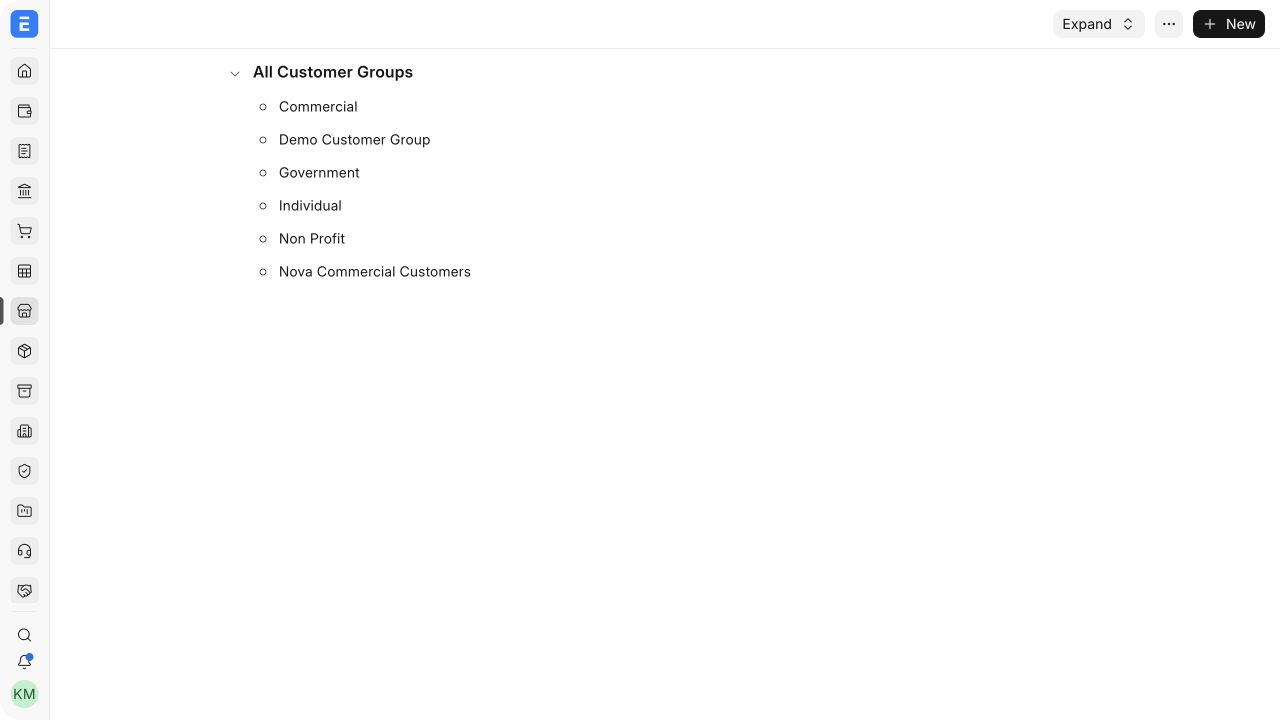
ERPNext includes groups such as Commercial, Government, Individual, and Non Profit. You can keep these, rename them carefully, or add groups that match your reporting needs.
Create a Customer Group
- Open Selling > Customer Group.
- In Tree view, select the parent group.
- Select Add Child or New.
- Enter the Customer Group Name.
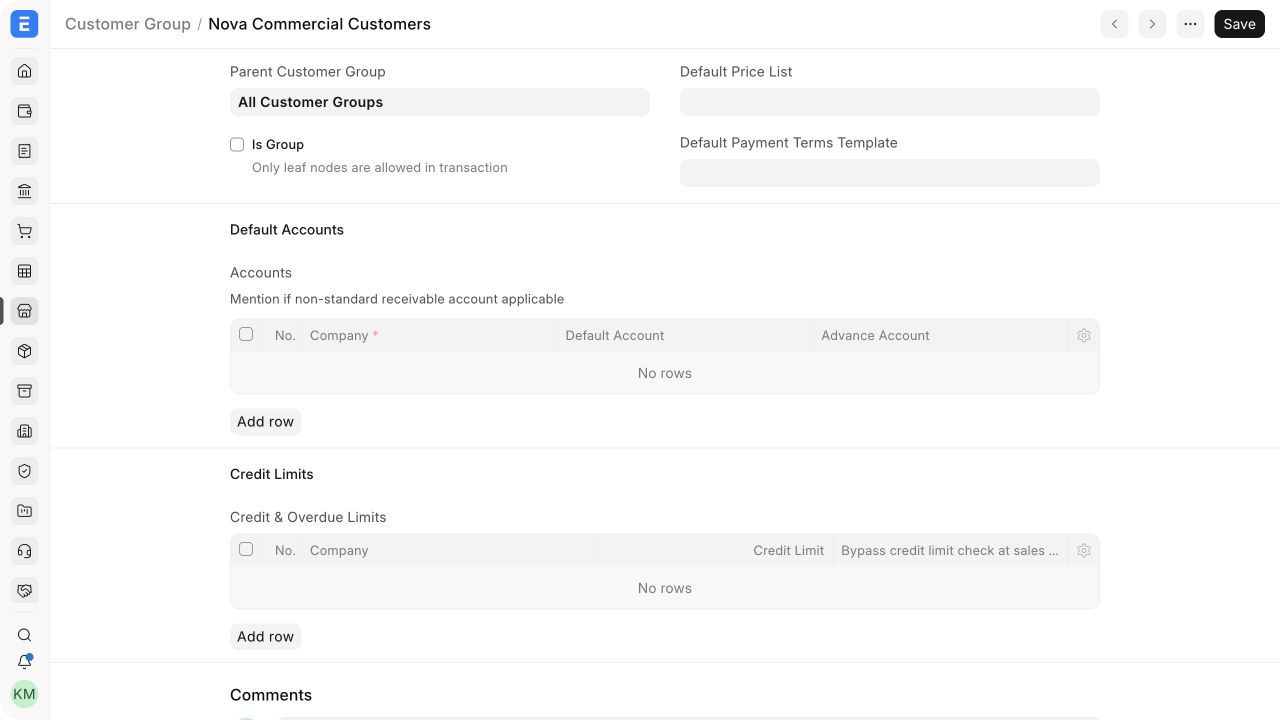
- Select Is Group when this node should contain child groups rather than Customers.
- Save the Customer Group.
Only leaf nodes can be selected on transactions. If Is Group is enabled, create at least one child leaf group before assigning Customers.
Example hierarchy
Nova Electronics Trading can keep Nova Commercial Customers as a leaf below All Customer Groups. If reporting later needs more detail, it can convert the structure into a parent with Retail, Wholesale, and Marketplace child groups, then move Customers to the appropriate leaves.
Alternative ways to create Customer Groups
- Use Data Import for a reviewed hierarchy with many groups.
- Create a group from a Customer Group link field when permissions allow, then return to Tree view to confirm its parent.
- Use an approved integration when another master-data system owns customer segmentation.
Create parents before children during imports. Review the resulting tree instead of assuming spreadsheet order produced the intended hierarchy.
Important fields and what they mean
| Field | What it controls |
|---|---|
| Customer Group Name | The label shown on Customers, transactions, filters, and reports |
| Parent Customer Group | The node immediately above this group in the hierarchy |
| Is Group | Makes the node a parent; group nodes cannot be selected in transactions |
| Default Price List | Supplies the selling price list when no more specific Customer default overrides it |
| Default Payment Terms Template | Supplies the payment schedule for Customers in the group |
| Default Account | Uses a company-specific receivable account instead of the normal company default |
| Advance Account | Uses a company-specific account for Customer advances |
| Credit Limit | Applies a company-specific group credit limit according to credit-control behaviour |
| Bypass credit limit check at sales order | Defers the credit-limit check beyond Sales Order for the configured row |
Defaults cascade only when a more specific value is not set. Verify the resulting values on a new Quotation, Sales Order, or Sales Invoice before relying on a new group configuration.
Configure defaults and credit controls
Use group defaults when most members share the same policy:
- Set a price list for a common pricing segment.
- Set a payment-terms template for a standard due-date schedule.
- Add company-specific accounts only when the group must post differently from the company's default Debtors account in the Chart of Accounts.
- Add a credit-limit row for each company that needs a group-level limit.
Use Credit Limit guidance to define which transactions should be blocked. A payment schedule controls when amounts are due; it does not increase available credit.
Customer-level and transaction-level values can be more specific than the group. Document your precedence policy so users know where to correct an unexpected default.
Save and next steps
Customer Group is saved rather than submitted. After saving:
- assign new or existing Customers to a leaf group;
- create a test sales document and verify fetched defaults;
- review Sales Analytics by Customer Group; and
- keep the tree shallow enough for users to choose the right leaf consistently.
Moving a Customer changes future classification and reporting filters. Existing submitted documents retain their stored values.
Group node types
| Type | Use |
|---|---|
| Group node | Organizes other Customer Groups and cannot be selected on transactions |
| Leaf node | Can be assigned to Customers and sales transactions |
| Default group | The fallback group selected through Selling Settings when a Customer does not require a specialized segment |
Troubleshooting
| Problem | What to check |
|---|---|
| A group cannot be selected on a Customer | It may have Is Group enabled; select or create a leaf |
| A child appears under the wrong parent | Open it and correct Parent Customer Group, then verify Tree view |
| A default price list does not appear | Check Customer-level defaults and transaction-level selections |
| Credit control does not behave as expected | Review group and Customer credit rows, company, outstanding amount, and bypass settings |
| A report combines unexpected Customers | Confirm each Customer's current group and the report's date and company filters |
Frequently asked questions
Should every Customer have its own group?
No. A group should represent a reusable segment. Customer-specific settings belong on the Customer.
Can a Customer Group contain both Customers and child groups?
No. Use a group node for children and leaf nodes for Customers.
Can I change a Customer's group later?
Yes. Review reporting and defaulting effects before moving a heavily used Customer.
Do group defaults change submitted documents?
No. They affect values fetched into new documents; submitted records preserve their stored values.
Do I need a separate receivable account for each group?
Usually not. ERPNext normally uses the company’s common receivable account while tracking balances by Customer.