


















Payment Terms Template
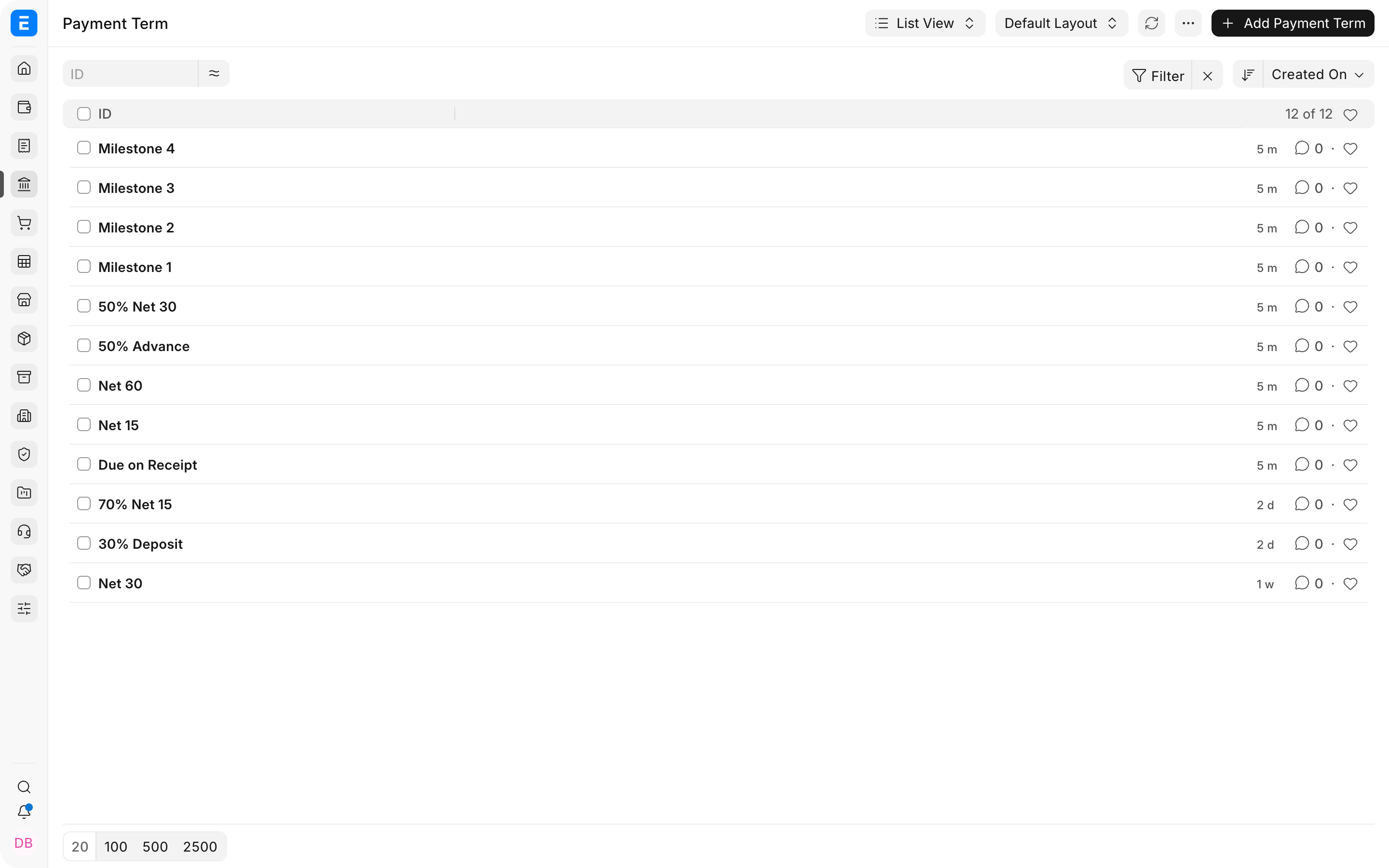
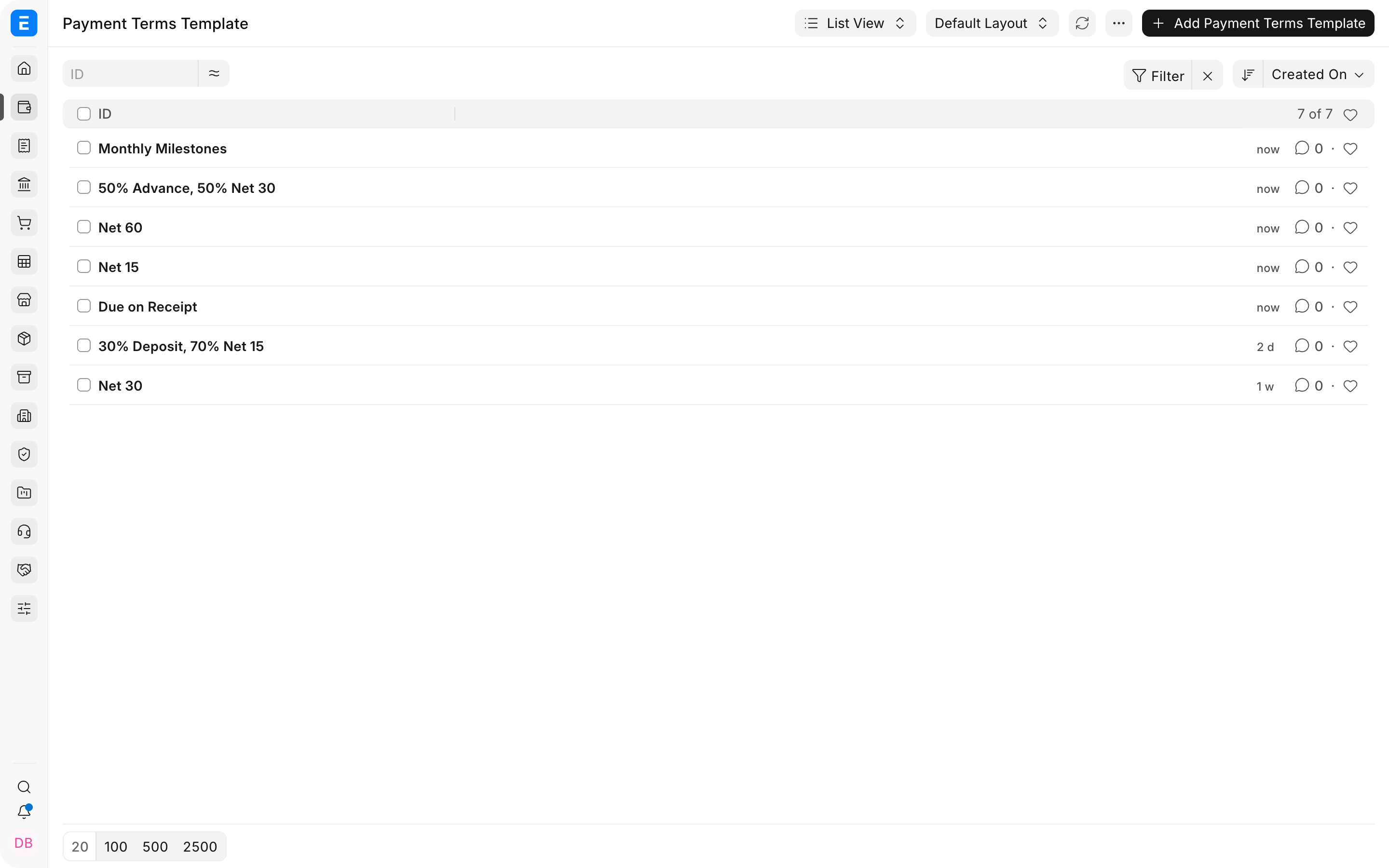
A Payment Terms Template combines reusable Payment Term records into a schedule for sales and purchase transactions. For Nova Industries, an electronics manufacturer and distributor, Net 30 contains one term for 100% due after 30 days. A 50% Advance, 50% Net 30 template contains two installments.
Before you begin
Decide which schedules you offer to Customers or accept from Suppliers. Create the individual Payment Term records first. Each term defines an installment percentage and its due-date rule.
Create a Payment Terms Template
- Create the Payment Term records required by the schedule.
- Open Payment Terms Template and enter a descriptive name.
- Add the terms in sequence and set each Invoice Portion.
- Confirm that the total invoice portion is 100%.
- Enable Allocate Payment Based on Payment Terms only when payments must be tracked against individual installments.
- Save the template and select it in a Sales Order, Sales Invoice, Purchase Order, or Purchase Invoice.
The template list below shows how individual terms can be combined into reusable schedules. These are demonstration records, not a fixed catalogue installed on every ERPNext site.
Important fields and what they mean
| Field | What it controls |
|---|---|
| Template Name | Name shown in transactions. |
| Payment Term | Reusable installment and due-date rule. |
| Invoice Portion | Percentage of the transaction assigned to the row. |
| Credit Days or Months | Time allowed before the installment is due. |
| Due Date Based On | Date from which ERPNext calculates the deadline. |
| Allocate Payment Based on Payment Terms | Tracks allocations against individual schedule rows in a Payment Entry. |
Troubleshooting
The template cannot be saved
Make sure every row has a Payment Term and the Invoice Portions total exactly 100%. If ERPNext reports that a term may be duplicated, review whether two rows use the same term or the same due-date rule. Use distinct terms for genuinely different installments.
The due dates are not what I expected
Open each Payment Term and review Due Date Based On, Credit Days, and Credit Months. When a template is selected, its schedule controls the calculated due dates. If you need a one-off schedule, clear or replace the template before editing the schedule manually.
The template is missing or was not copied to the next document
Confirm that the template is saved and selected on the source transaction. A schedule normally carries through supported mapped flows, such as Sales Order to Sales Invoice. A Delivery Note does not itself hold payment terms, so a Sales Invoice created only from a Delivery Note may need the template selected again.
A payment cannot be allocated to the invoice
If term-based allocation is enabled, ERPNext expects the Payment Entry reference to identify the relevant Payment Term and will not allow an allocation above that term's outstanding amount. Refresh outstanding references before retrying.
Frequently asked questions
Does ERPNext install standard Payment Terms Templates automatically?
ERPNext provides the feature, but the records available on a site depend on its setup and imported data. Create a small catalogue that matches your actual commercial policy, such as Due on Receipt, Net 30, and an advance-plus-balance schedule.
Which date takes priority when a template is selected?
The payment schedule generated from the selected template controls the installment due dates. If you manually change a due date that conflicts with the template, ERPNext may ask you to clear the template or schedule first.
Can one template contain several installments?
Y
es. Add one row for each installment and make sure all Invoice Portions total 100%. ERPNext calculates each payment amount from the transaction total.
Can the first installment be a fixed amount instead of a percentage?
The standard template is percentage-based. For a genuinely variable fixed advance followed by percentages of the remaining balance, adjust the transaction's payment schedule manually or use a controlled customization.
Where should I set a default template?
Set the appropriate default on the relevant Customer, Supplier, or Company where the field is available. A party-specific default is useful when different customers or suppliers follow different schedules. Verify the populated schedule before submitting the transaction.