


















Managing Transactions In Multiple Currency
Nova Industries distributes electronics internationally while keeping its Company accounts in USD.
EuroTech Retail wants to receive and pay a EUR invoice, while Nova must keep its books in USD. Users need to enter, print, collect, and reconcile the sale in EUR without losing the USD value required for accounting.
This guide follows a EUR 1,200 Sales Invoice at 1 EUR = 1.15 USD. The customer sees EUR 1,200 while ERPNext records USD 1,380 in Company currency. You will see where the currencies and rates come from, how payment is converted, and how to verify the result. The same controls apply to purchases through the corresponding Supplier and payable fields.
Before you begin
Complete Multi Currency Setup:
- EUR is enabled in Currency.
- EuroTech Retail has Billing Currency EUR.
- Euro Receivables is a EUR Receivable Account linked to the Customer.
- Nova Europe EUR is an enabled selling Price List.
- A dated EUR to USD rate exists in Currency Exchange, or the configured provider covers it.
- The Company has an Exchange Gain/Loss account.
Test the full invoice and payment cycle in Draft before using imported or live data.
Create a foreign-currency Sales Invoice
- Open Accounting > Sales and Receivables > Sales Invoice.
- Select Add Sales Invoice.
- Choose Nova Electronics Distribution and EuroTech Retail.
- Confirm the Posting Date, Payment Due Date, and EUR Currency.
- Review the Exchange Rate field. Its label states the direction.
- Select Nova Europe EUR and confirm Price List Currency EUR.
- Add the item, quantity, and rate.
- Review taxes, payment terms, and totals.
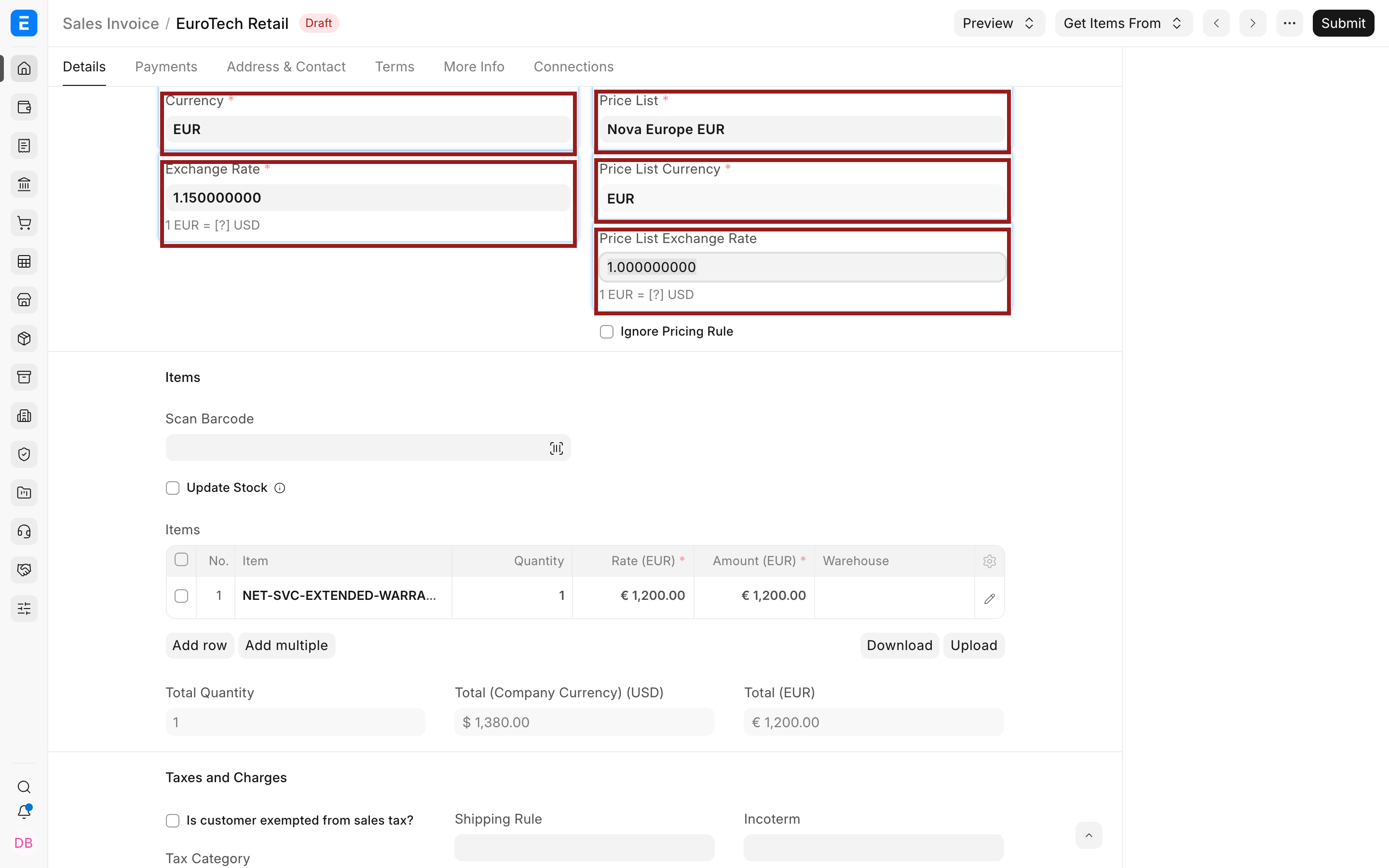
The screenshot shows two rates:
| Field | Purpose in this example |
|---|---|
| Exchange Rate | Converts the EUR transaction total to the USD Company value. 1 EUR = 1.15 USD. |
| Price List Exchange Rate | Converts Price List currency to transaction currency. It is 1 because both are EUR. |
An Actual tax or charge entered directly on the transaction is entered in the transaction currency. Review calculated taxes and Company-currency equivalents according to the tax template and charge type.
Confirm the receivable account
Open the Accounting section and check Debit To. It should be Euro Receivables for this Customer and Company.
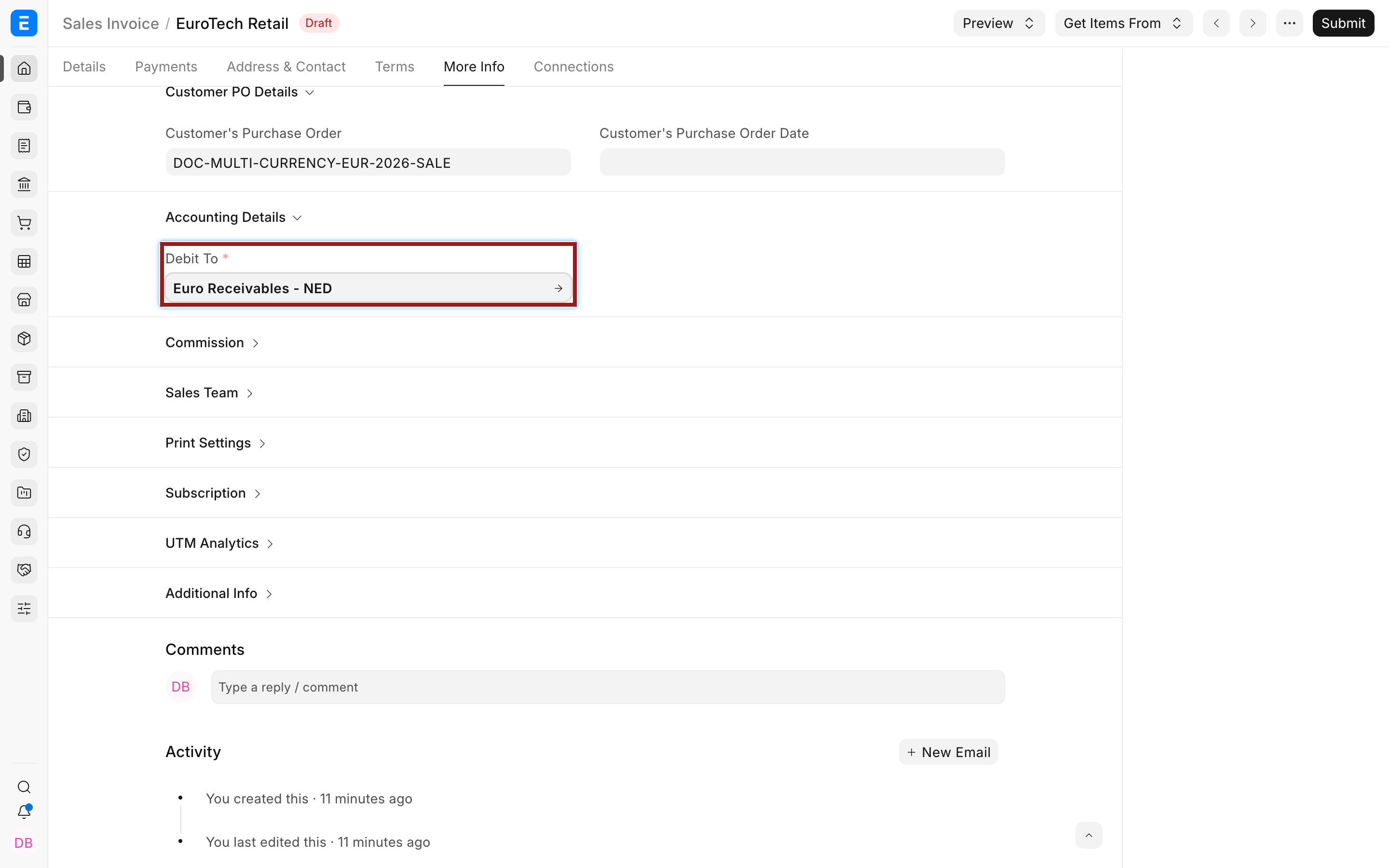
If the selected account is in a foreign currency, the invoice currency must normally match it. Do not switch only the Currency field and ignore Debit To.
Compare transaction and Company totals
Before submission, compare the party-facing total and the Company-currency total.
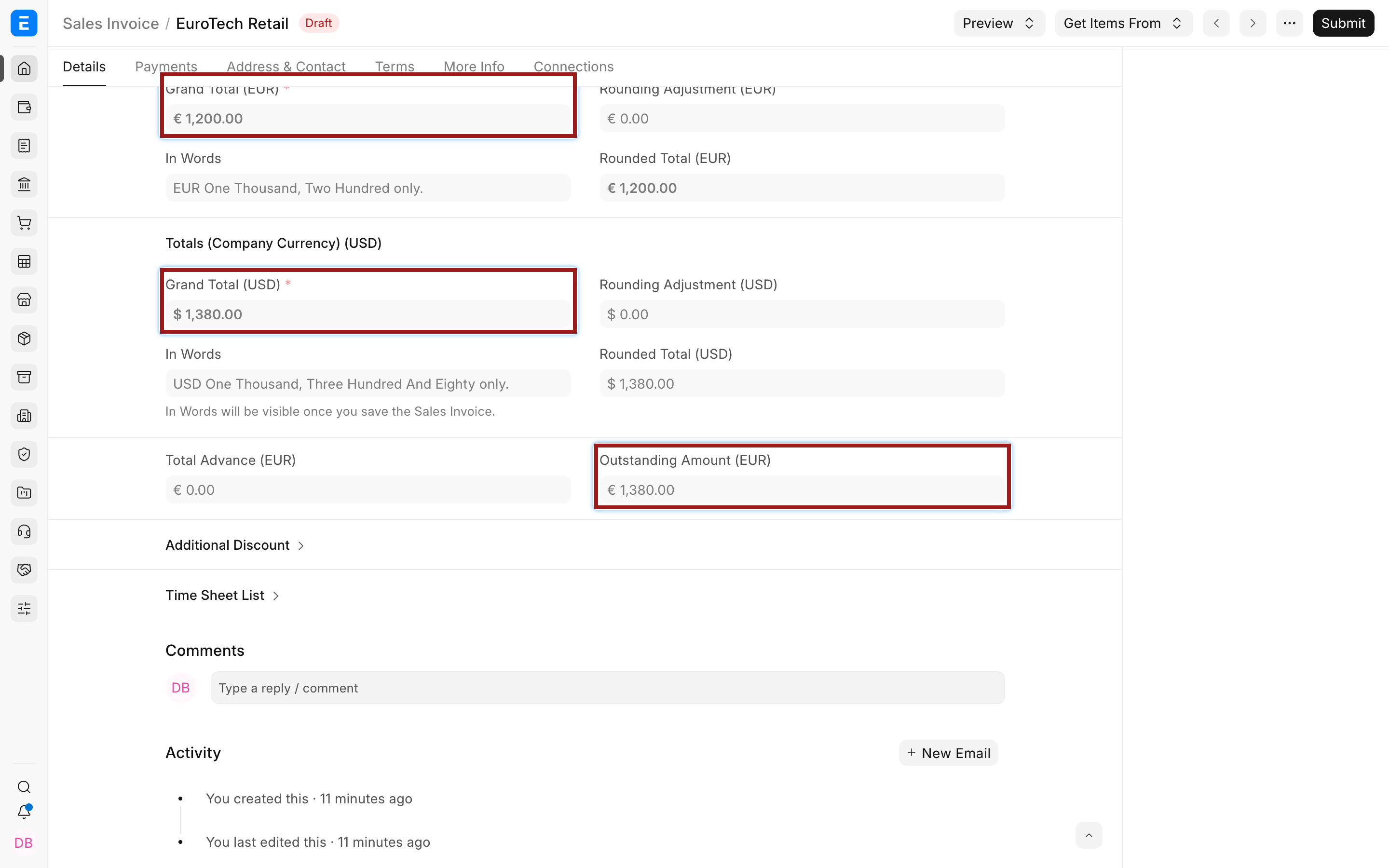
For EUR 1,200 at 1.15:
| View | Amount |
|---|---|
| Customer invoice total | EUR 1,200 |
| Company-currency total | USD 1,380 |
| Receivable account currency | EUR |
Submit only after the rate, account, prices, taxes, and terms are correct. The submitted Sales Invoice retains these values even if a later Currency Exchange record changes.
Print and send the invoice
Open Print or Preview and confirm that rates, amounts, totals, and amount in words use the expected party-facing currency. The print format should show EUR for the invoice values. Company-currency fields are accounting fields and do not normally replace the agreed invoice currency in the customer-facing document.
If the symbol or number separators are wrong, correct the Currency master or site number format rather than hard-coding symbols into every print format.
Create the Payment Entry
Create the Payment Entry from the submitted invoice when possible:
- Open the invoice and select Create > Payment.
- Confirm Payment Type Receive and the Customer.
- Confirm Paid From is the EUR receivable account.
- Select the actual bank account under Paid To.
- Enter the amount received in the bank account currency.
- Review Source Exchange Rate and the Company-currency amount.
- Confirm the invoice reference and allocated amount.
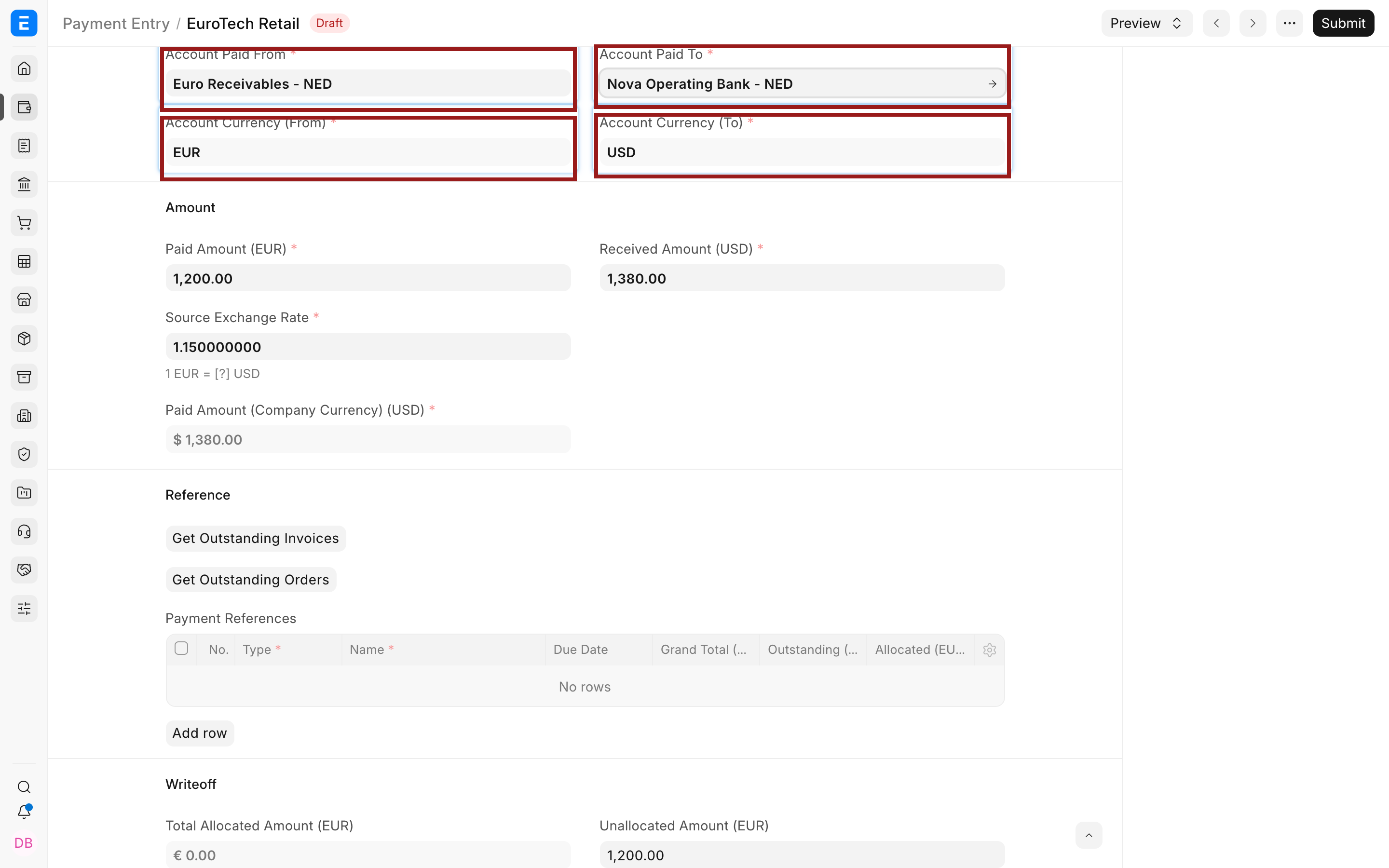
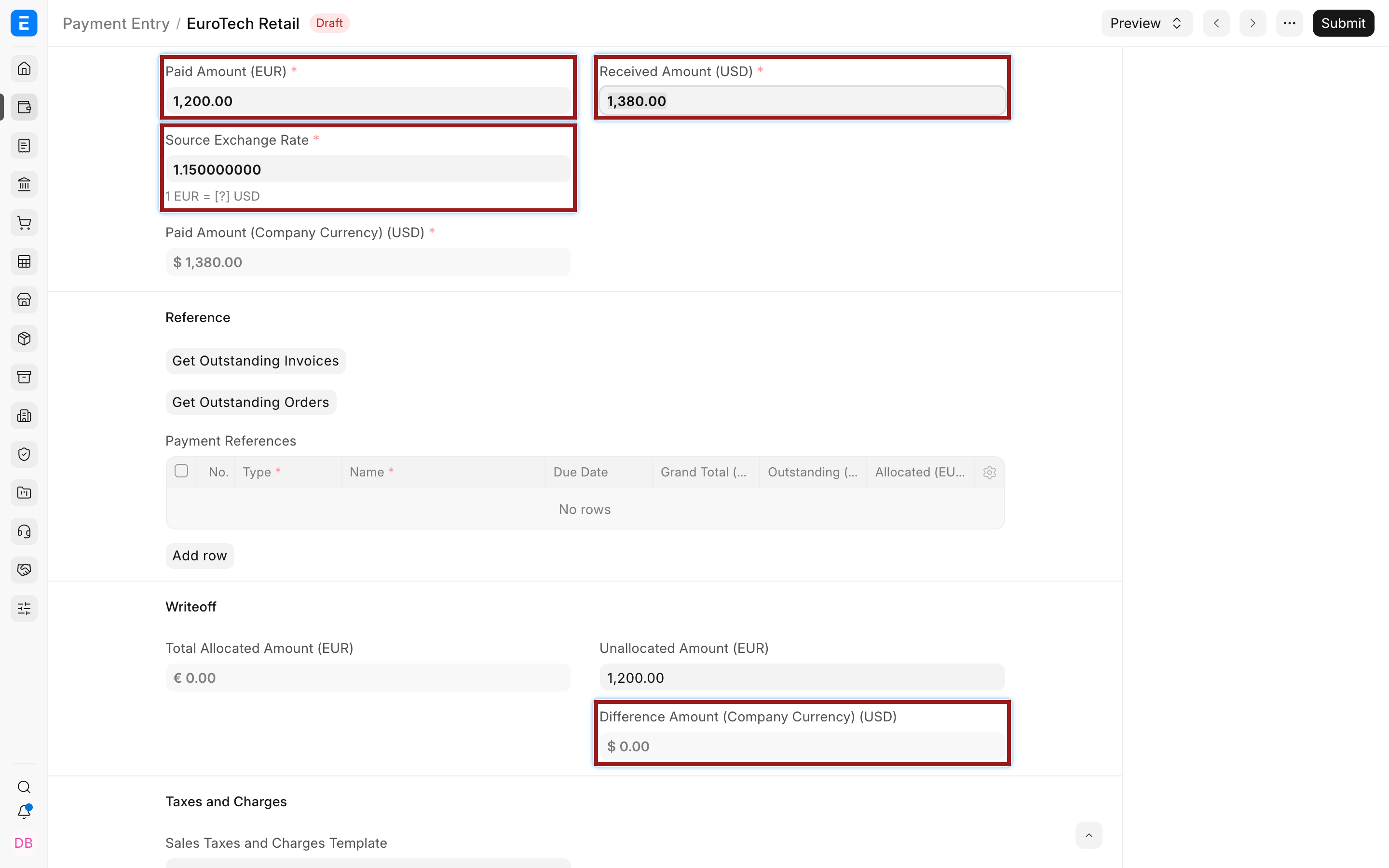
The paid-from and paid-to account currencies control the amount fields. In the example, EUR 1,200 is cleared from the receivable and USD 1,380 is received into the operating bank.
If the payment-date rate differs from the invoice rate, use Manage Foreign Exchange Difference. Keep bank charges, withholding, write-offs, and exchange difference in their appropriate accounts.
Enter a foreign-currency purchase
On a Purchase Invoice, select the Supplier, EUR, the buying Price List, and the EUR payable account. Review the Exchange Rate and Price List Exchange Rate exactly as on the sales side.
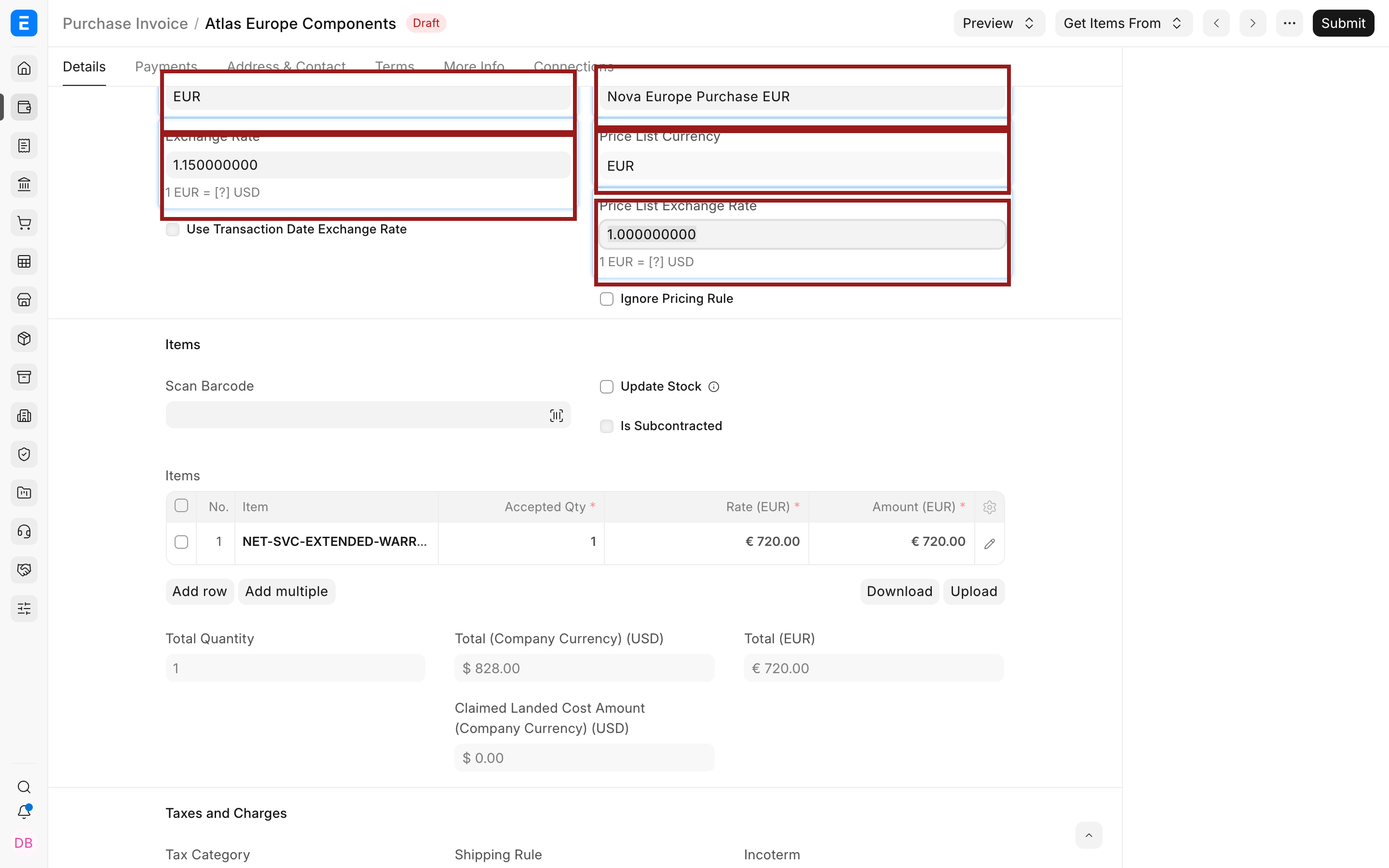
On submission, the payable outstanding is maintained according to the party account currency. Create a Pay-type Payment Entry and verify the amount removed from the bank and the EUR amount cleared from the payable.
Transactions in several currencies for one party
Accounts Settings includes Allow multi-currency invoices against single party account.
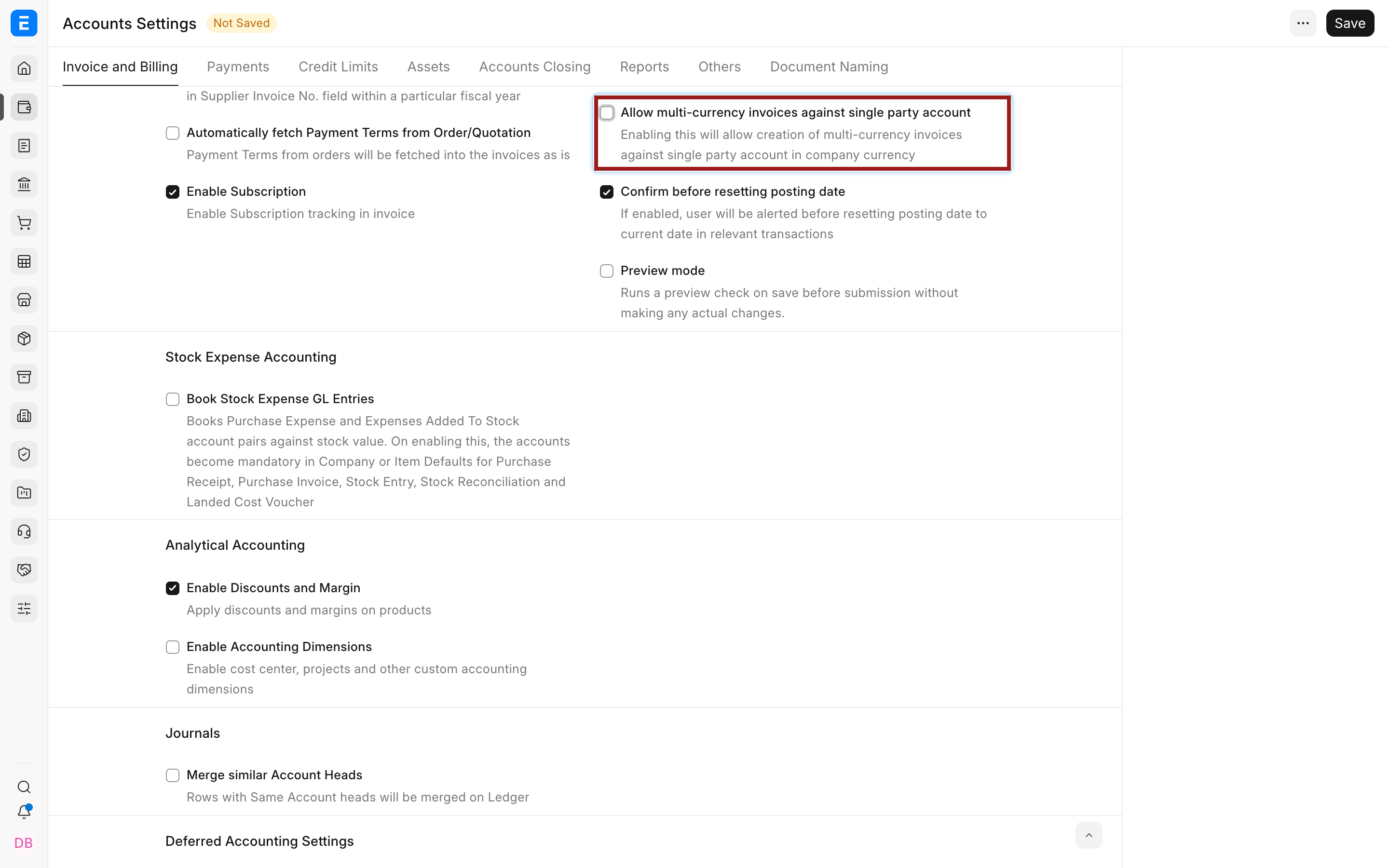
This can support a party invoiced in multiple currencies while using a Company-currency party account. It does not make a bank account multi-currency, and it can make outstanding and payment interpretation harder. Use dedicated currency accounts for currencies that the business regularly holds or reconciles. Test Payment Reconciliation, ageing, credit notes, advances, and returns before enabling the option broadly.
Verify reports
Use the General Ledger filtered by the foreign account. It shows debit, credit, and balance in account currency when appropriate.
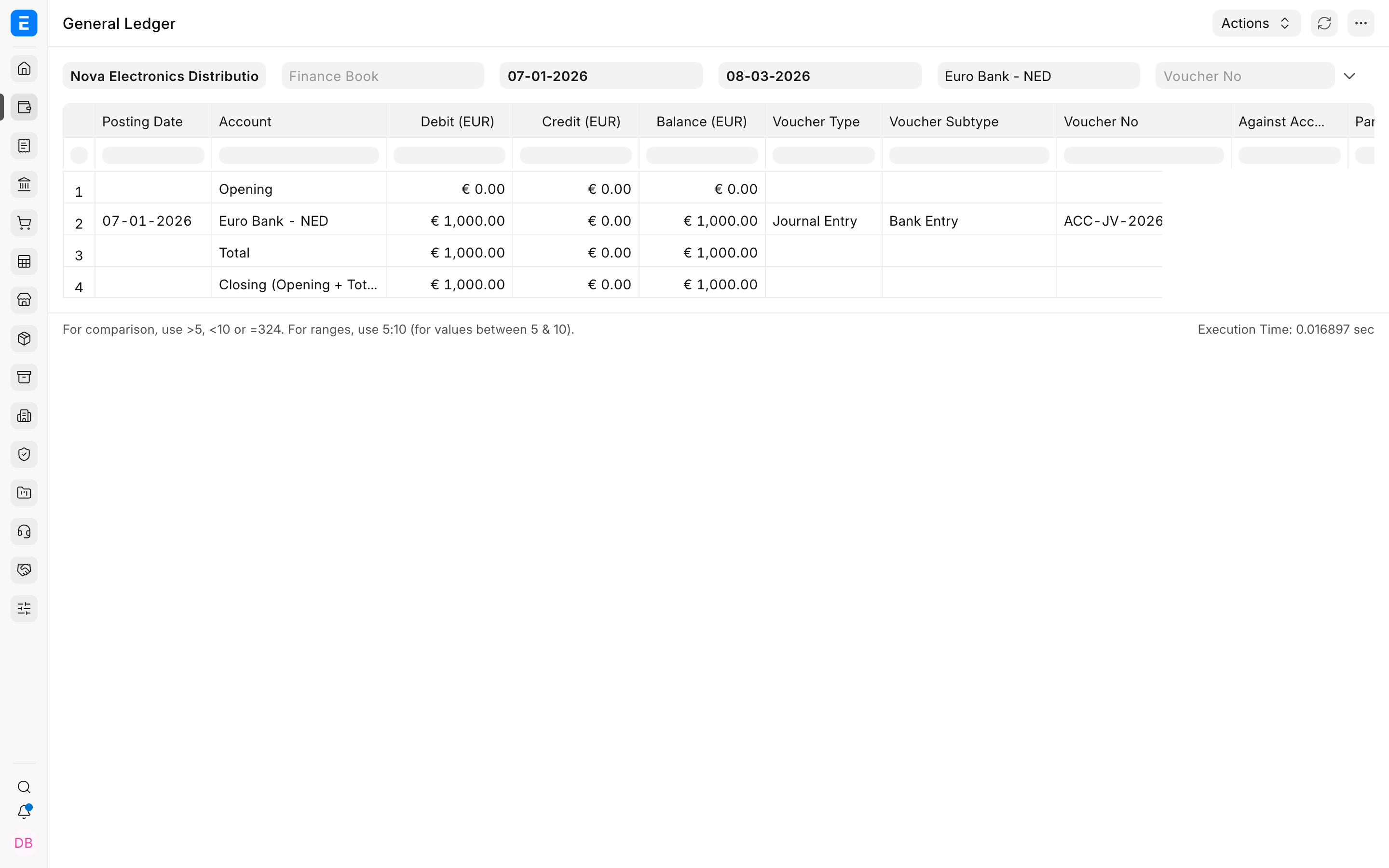
Review Accounts Receivable and Payable in the party or account currency. Financial statements use Company currency. At period end, run Exchange Rate Revaluation for eligible open foreign balances.
Troubleshooting
Currency changes but item rates look wrong
Check Price List, Price List Currency, and Price List Exchange Rate. The transaction Exchange Rate does not necessarily convert the source Item Price.
The invoice cannot be saved because account currency differs
Use the matching receivable or payable account, or correct the party's per-Company default. Do not change an account currency after postings exist.
Payment Entry receives the wrong USD amount
Check the paid-to bank currency, source or target rate, paid amount, received amount, and invoice allocation. Use the actual bank amount and account for legitimate differences separately.
The printed currency differs from the agreement
Verify the submitted transaction Currency and Price List. Then inspect the print format for hard-coded symbols or base-currency fields.
FAQs
Can I omit the invoice exchange rate and convert only at payment?
No, ERPNext needs a Company-currency value when the invoice posts. A later payment can use a different rate and recognize the difference.
Can the invoice and Price List use different currencies?
Yes, Price List Exchange Rate converts item prices, while Exchange Rate converts the transaction to Company currency.
Why does Payment Entry not have a free Currency selector?
Its currencies come from the paid-from and paid-to accounts. Select accounts that represent the actual balances.
Can I show Company currency on the print format too?
Yes, with an appropriate print design, but keep the agreed transaction-currency amount clear and verify custom fields and labels.
What happens when a foreign invoice remains unpaid at month end?
Its foreign amount remains outstanding. Revalue the eligible account to update its Company-currency carrying value according to your closing policy.