


















Sales Person Target Allocation
Sales targets in ERPNext compare planned quantity or revenue with actual performance from submitted sales transactions. Targets can be assigned to a Sales Person or a Territory, then distributed across months for seasonal or uneven sales plans.
Before you begin
Create or confirm:
- The required Sales Person hierarchy.
- The relevant Fiscal Year.
- Item Groups when targets should apply to specific product categories.
- A Monthly Distribution when the target should not be spread evenly by the report logic.
- Sales transactions that identify the responsible Sales Person in the Sales Team table.
Targets are useful only when transaction attribution is consistent. Submitted Sales Orders must contain the correct Sales Person and contribution percentage for Sales Person variance reporting.
Allocate a target to a Sales Person
- Open the required Sales Person.
- Scroll to Sales Person Targets.
- Select Add row, as highlighted.
- Complete the target values. Use the highlighted pencil icon to open the child row when you need the full editor.
- Save the Sales Person.
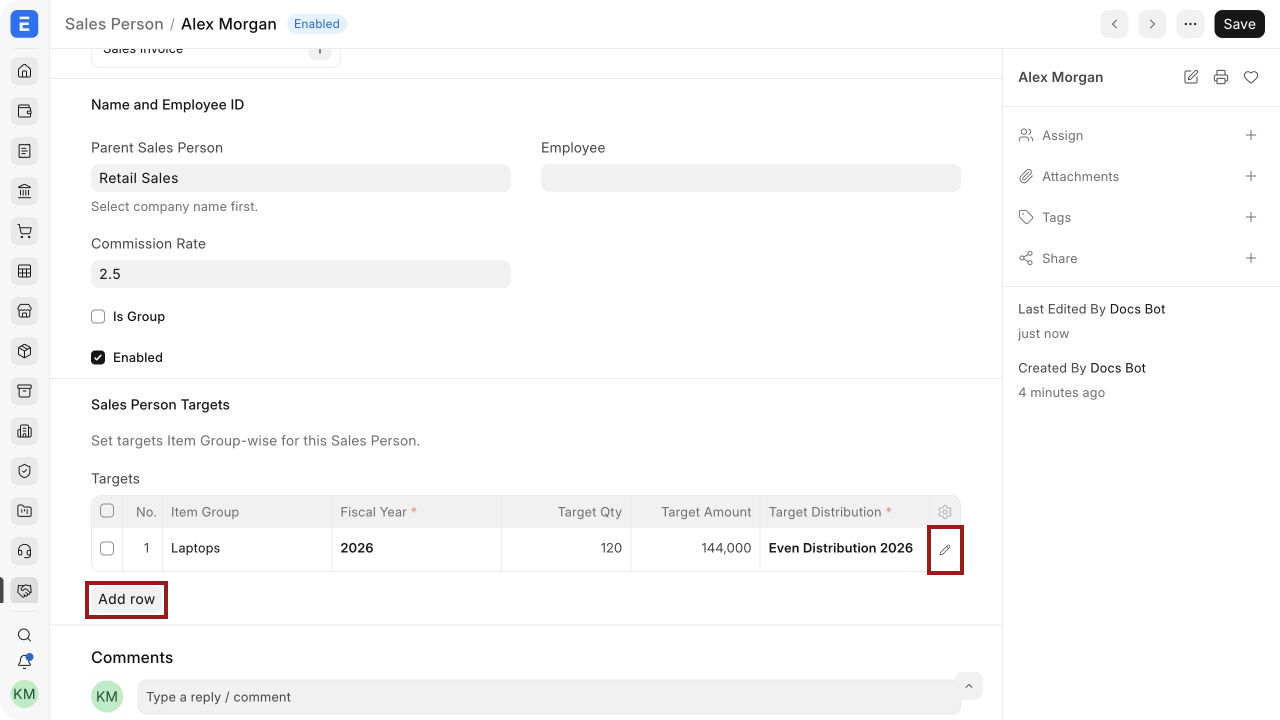
Target fields and what they mean
| Field | What it controls |
|---|---|
| Item Group | Limits the target to sales of items in that Item Group; leave it blank only when your reporting design expects an all-item target |
| Fiscal Year | The year in which ERPNext measures target and actual performance |
| Target Qty | Planned sales quantity for the Fiscal Year |
| Target Amount | Planned sales value for the Fiscal Year |
| Target Distribution | Monthly Distribution used to spread the annual target across months |
You can enter a quantity target, an amount target, or both. Use quantity when unit volume is meaningful and stable. Use amount when revenue is the primary measure. Use both when managers need to monitor volume and value together.
Avoid overlapping target rows unless you understand how the selected report groups them. For example, an all-item target and a separate Laptops target for the same person and Fiscal Year can represent different management goals, but they should not be interpreted as one simple total without review.
Distribute the annual target across months
A Monthly Distribution assigns a percentage of the annual target to each month. Use it for seasonal demand, ramp periods, product launches, or quarter-heavy sales cycles.
- Open Monthly Distribution.
- Select the Fiscal Year.
- Enter the percentage allocation for every month.
- Confirm that the full-year allocation totals 100%.
- Save, then select the record in Target Distribution on the Sales Person target row.
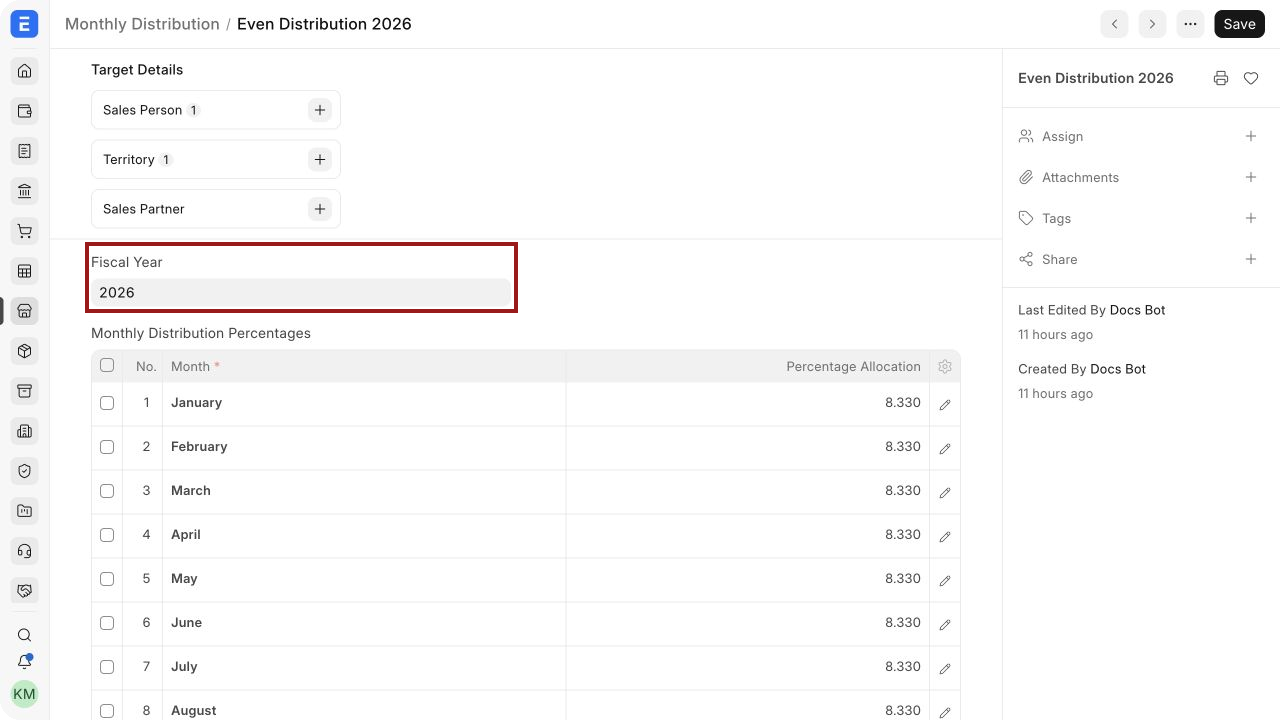
For an annual amount target of $144,000, an even distribution produces roughly $12,000 per month. A seasonal plan might allocate a larger percentage to the months in which demand is expected to peak.
Record Sales Person contribution on transactions
Actual performance is derived from submitted transactions and their Sales Team allocation.
On each supported Quotation, Sales Order, Delivery Note, or Sales Invoice, open the Sales Team table and:
- Select the Sales Person.
- Enter Contribution (%).
- Add other Sales Persons when the sale is shared.
- Confirm that the allocation reflects your reporting policy.
For target variance based on Sales Orders, the order must be submitted and contain the relevant Sales Person. Draft orders do not represent confirmed actual performance.
See Sales Persons in Sales Transactions for the complete transaction workflow.
Review Sales Person target variance
Open Sales Person Target Variance from Selling reports. Set the company, Fiscal Year, period, and other filters required by your version.
The report compares:
| Measure | Meaning |
|---|---|
| Target | Planned quantity or amount for the selected period |
| Actual | Performance derived from qualifying submitted transactions |
| Variance | Difference between target and actual performance |
| Achievement | Progress toward the target, often interpreted as a percentage |
If an annual quantity target of 120 is evenly distributed, the monthly target is about 10 units. If qualifying orders contain 8 units for the month, the quantity variance is 2 units below target.
Allocate a target to a Territory
Territory targets measure sales performance for customers assigned to a geographic or market hierarchy.
- Open the required Territory.
- Select a Territory Manager for reference when appropriate.
- In Territory Targets, select Add row.
- Enter the Item Group, Fiscal Year, quantity or amount, and Target Distribution.
- Use the highlighted pencil icon to open the child row when needed.
- Save.
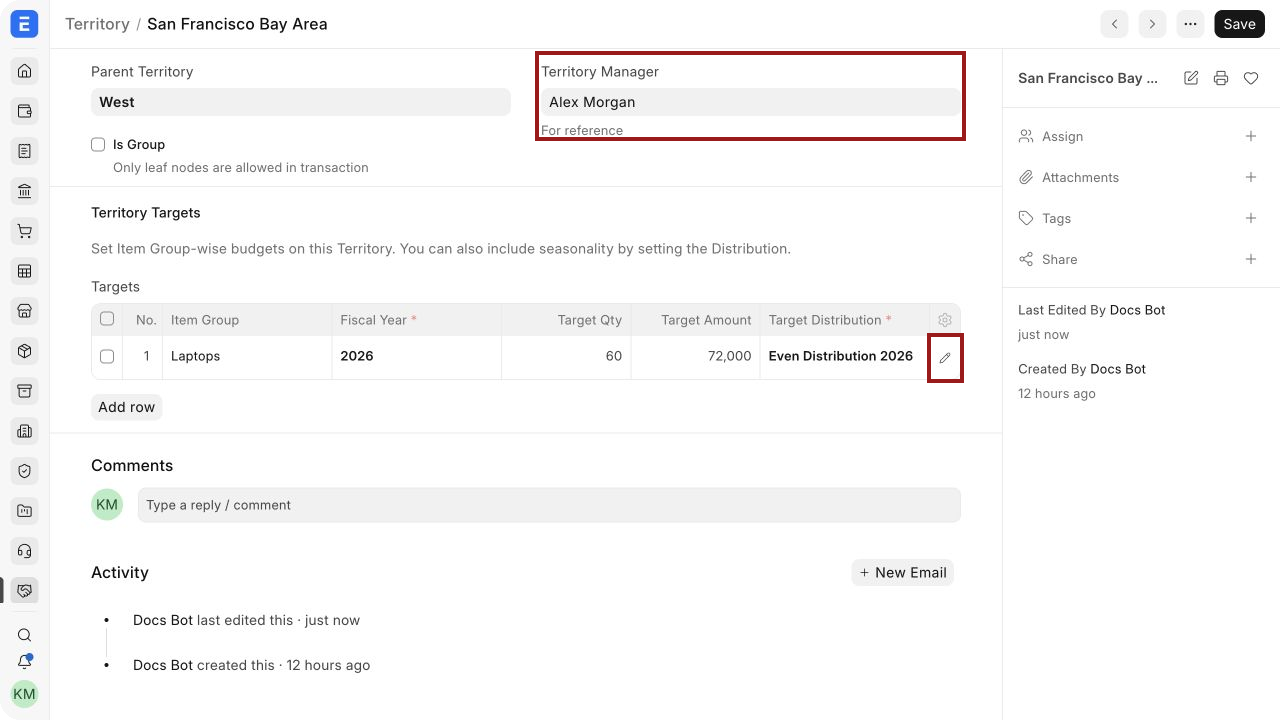
The Territory Manager link is for reference. Territory target variance is driven by the transaction's Territory, not by treating the manager as the Sales Person in a Sales Person variance report.
For accurate Territory reporting:
- Assign the correct Territory to each Customer.
- Confirm that sales transactions carry the expected Territory.
- Use leaf territories for customer transactions where required by your hierarchy.
- Review the report's company, date, and Item Group filters.
Open Territory Target Variance Item Group-wise to compare planned and actual sales for the territory.
Choose the right target level
| Goal | Recommended target |
|---|---|
| Measure an individual's performance | Sales Person target |
| Measure a team through hierarchy roll-up | Sales Person targets under a group |
| Measure a geographic or market area | Territory target |
| Measure a company-wide goal | Company Sales Goal |
| Spread an annual plan across months | Monthly Distribution |
Troubleshooting
The variance report shows no actual sales
Confirm that the Sales Orders are submitted, fall inside the report period, and contain the Sales Person in the Sales Team table. Also verify company and Fiscal Year filters.
The target does not appear for a month
Check that the target Fiscal Year matches the report and that the linked Monthly Distribution contains a valid percentage for that month.
Territory actuals are missing
Verify the Customer and transaction Territory. The Territory Manager alone does not assign sales to a territory report.
Actual value is lower than expected
Review contribution percentages when several Sales Persons share a transaction. Also confirm which document type and status the report uses in your ERPNext version.
The annual target is distributed incorrectly
Open the Monthly Distribution and confirm that all monthly percentages total 100%. Check that the intended distribution is selected on the target row.
Frequently asked questions
Can I set only an amount target?
Yes. Quantity and amount targets can be used independently or together.
Can one Sales Person have targets for several Item Groups?
Yes. Add one row for each Item Group and Fiscal Year combination that you need to track.
Can I use a different monthly distribution for each target row?
Yes. Each target row can link to its own Monthly Distribution.
Does a Territory Manager automatically receive Sales Person credit?
No. Add the Sales Person to the transaction's Sales Team table when individual credit is required.
Do draft Sales Orders count as actual performance?
No for the Sales Order target variance workflow described here. Submit the order after approval so it can qualify for actual performance.