


















Process Statement Of Accounts
Use Process Statement Of Accounts to generate and send account statements to several customers at once. Each customer receives a PDF based on the General Ledger, with an optional ageing summary. You can send the statements immediately or schedule them weekly, monthly, or quarterly.
Before you begin
- Configure an outgoing Email Account.
- Add a billing email to each customer's Contact. If Send To Primary Contact is enabled, the customer also needs a primary contact email.
- Submit the transactions that should appear in the statement.
Create a statement process
- Search for Process Statement Of Accounts and select Add Process Statement Of Accounts.
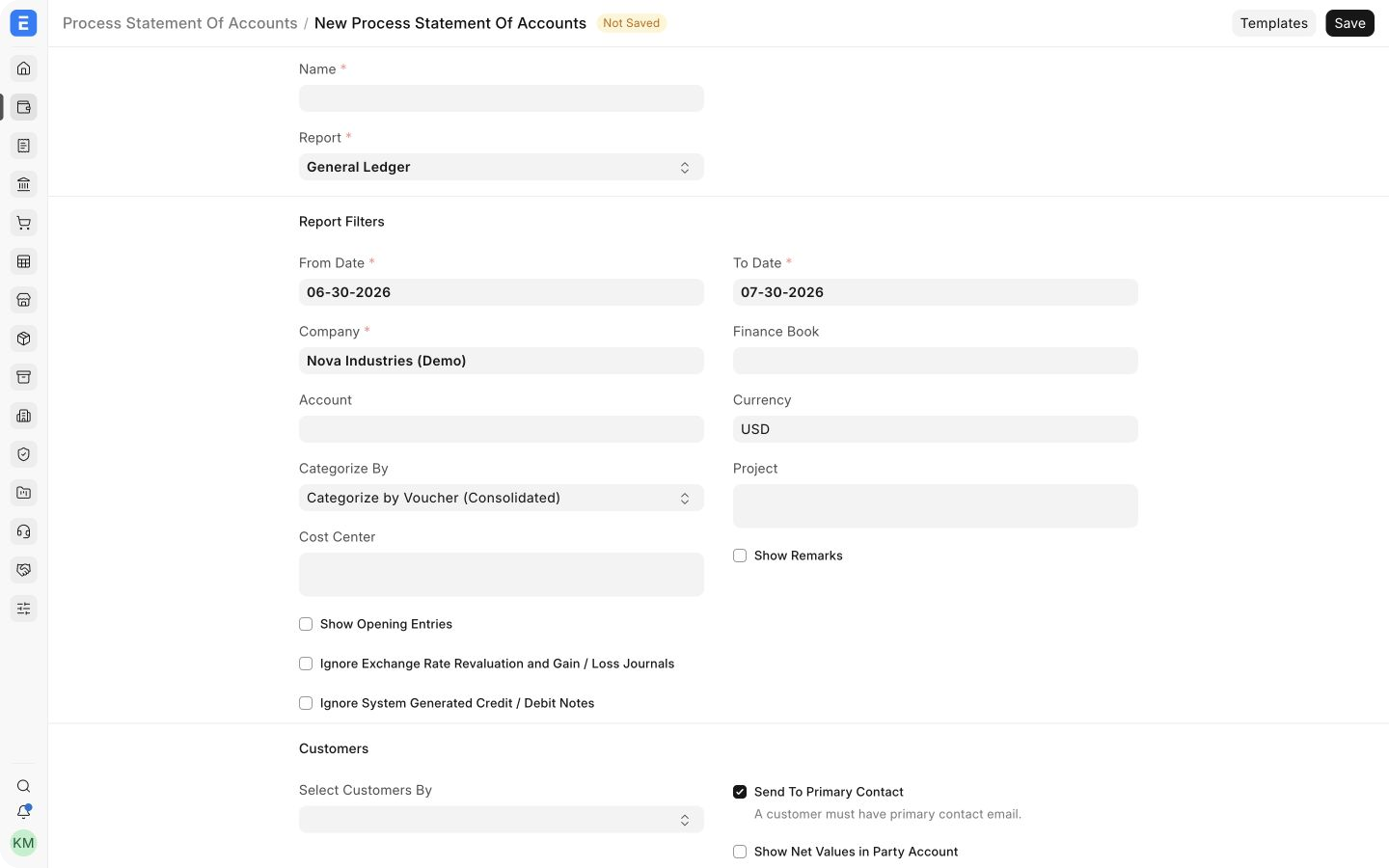
- Enter a recognizable Name.
- Select the report and set the date, Company, account, currency, Cost Center, or Project filters.
- Use Categorize By to control how entries are grouped in the PDF.
Select customers
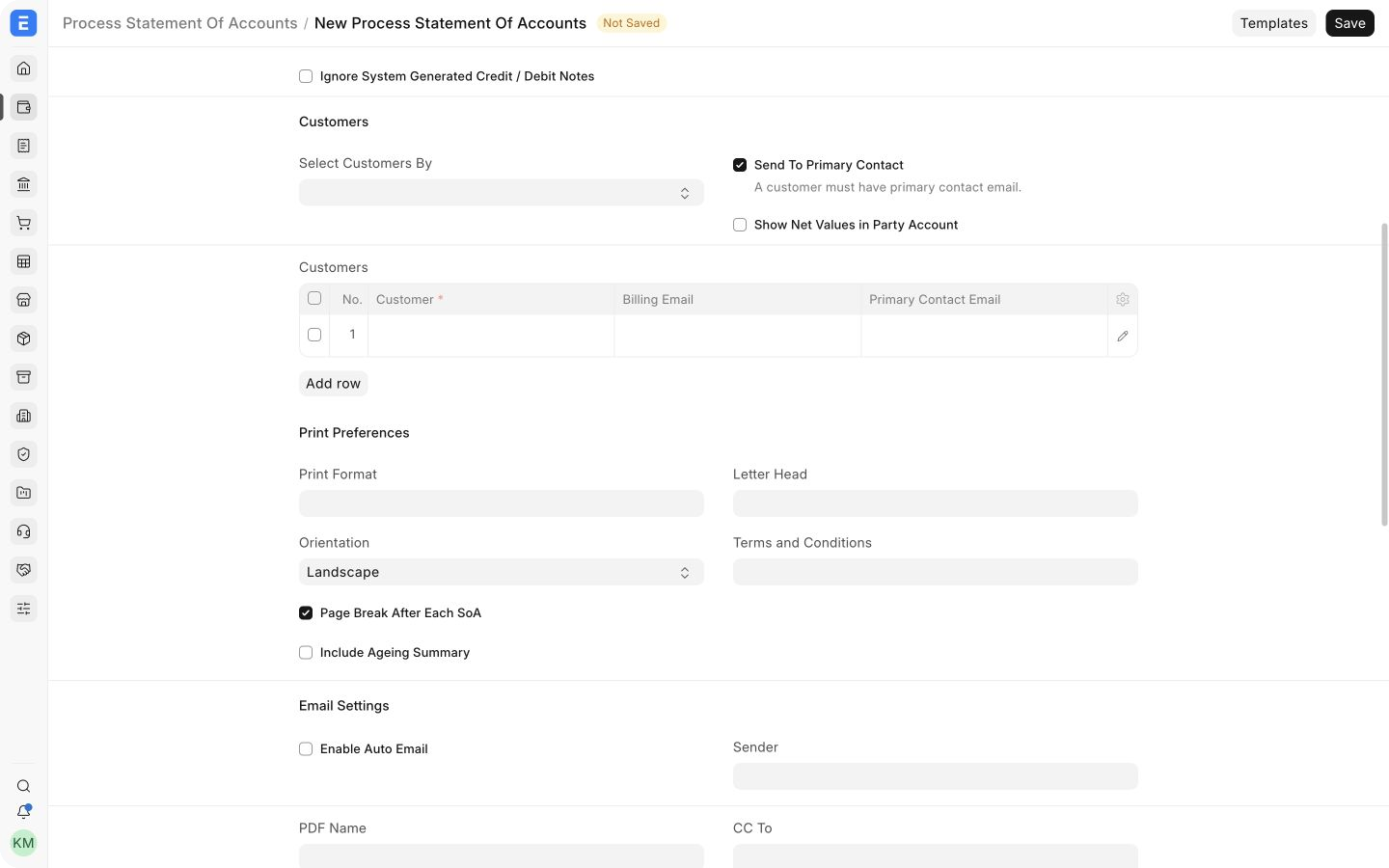
Add customers individually, or use Select Customers By to fetch customers from a Customer Group, Territory, Sales Partner, or Sales Person. The customer table displays the billing and primary email addresses that ERPNext will use.
If a customer cannot be added, check the Contact linked to that Customer. A billing email is required, and a primary email is required when Send To Primary Contact is selected.
Configure the PDF and email
| Setting | Use |
|---|---|
| Orientation | Choose Landscape for wider ledgers or Portrait for shorter statements |
| Include Ageing Summary | Adds receivable ageing to the statement |
| Page Break After Each SoA | Keeps each customer's statement on a separate page |
| Enable Auto Email | Sends statements on a schedule |
| Sender | Outgoing email account used to send the message |
| PDF Name | File name shown to the customer |
| Subject and Body | Email content; both support Jinja values |
Save the document. Use Download to review the consolidated PDF before sending. Use Send Emails for an immediate batch. Scheduled emails are queued by the background job at the configured frequency.
What the customer receives
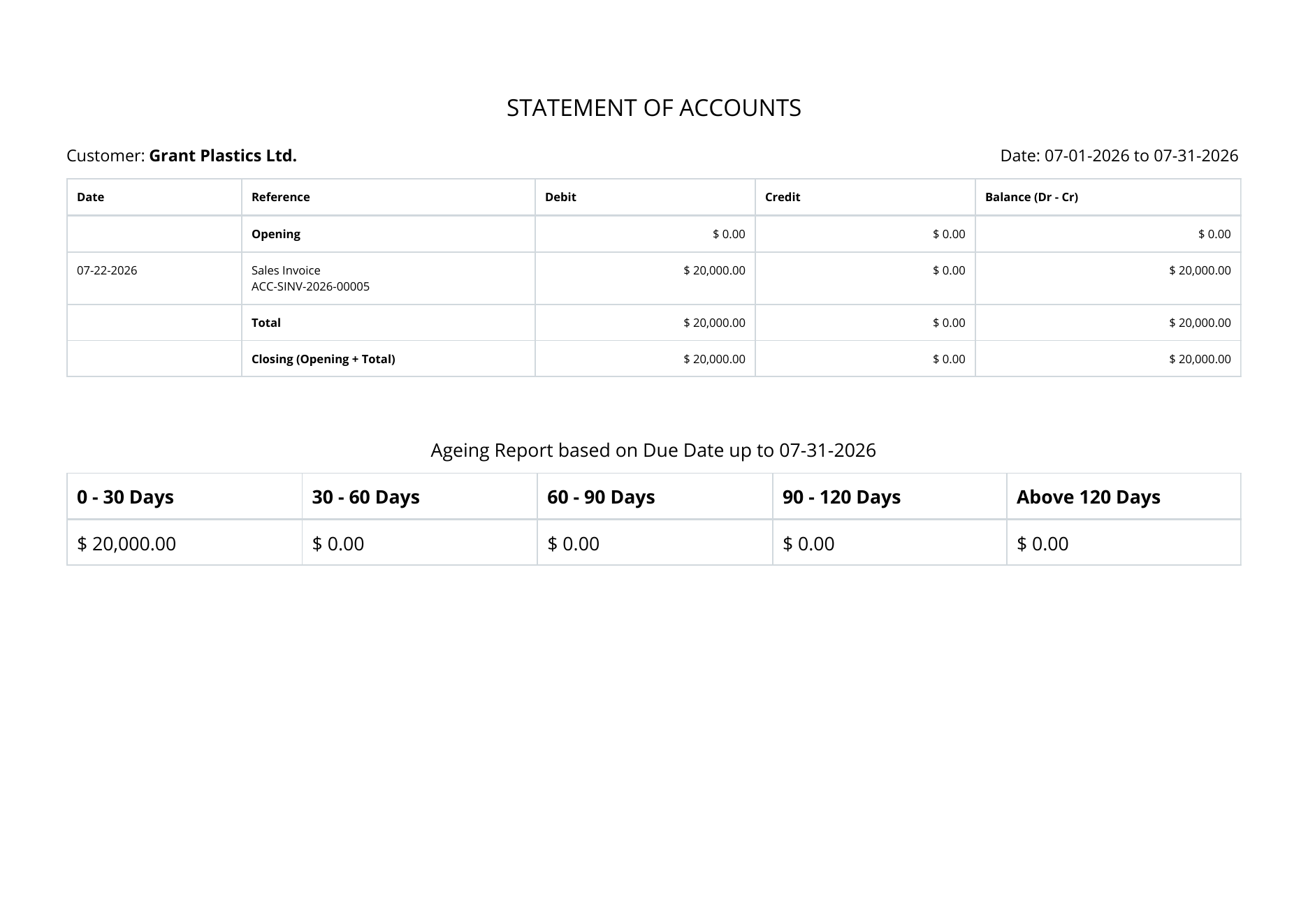
ERPNext creates a separate email and PDF for each customer. The PDF contains only that customer's ledger for the selected period. If Include Ageing Summary is enabled, the same PDF also shows how much is current and how much falls into each overdue bucket.
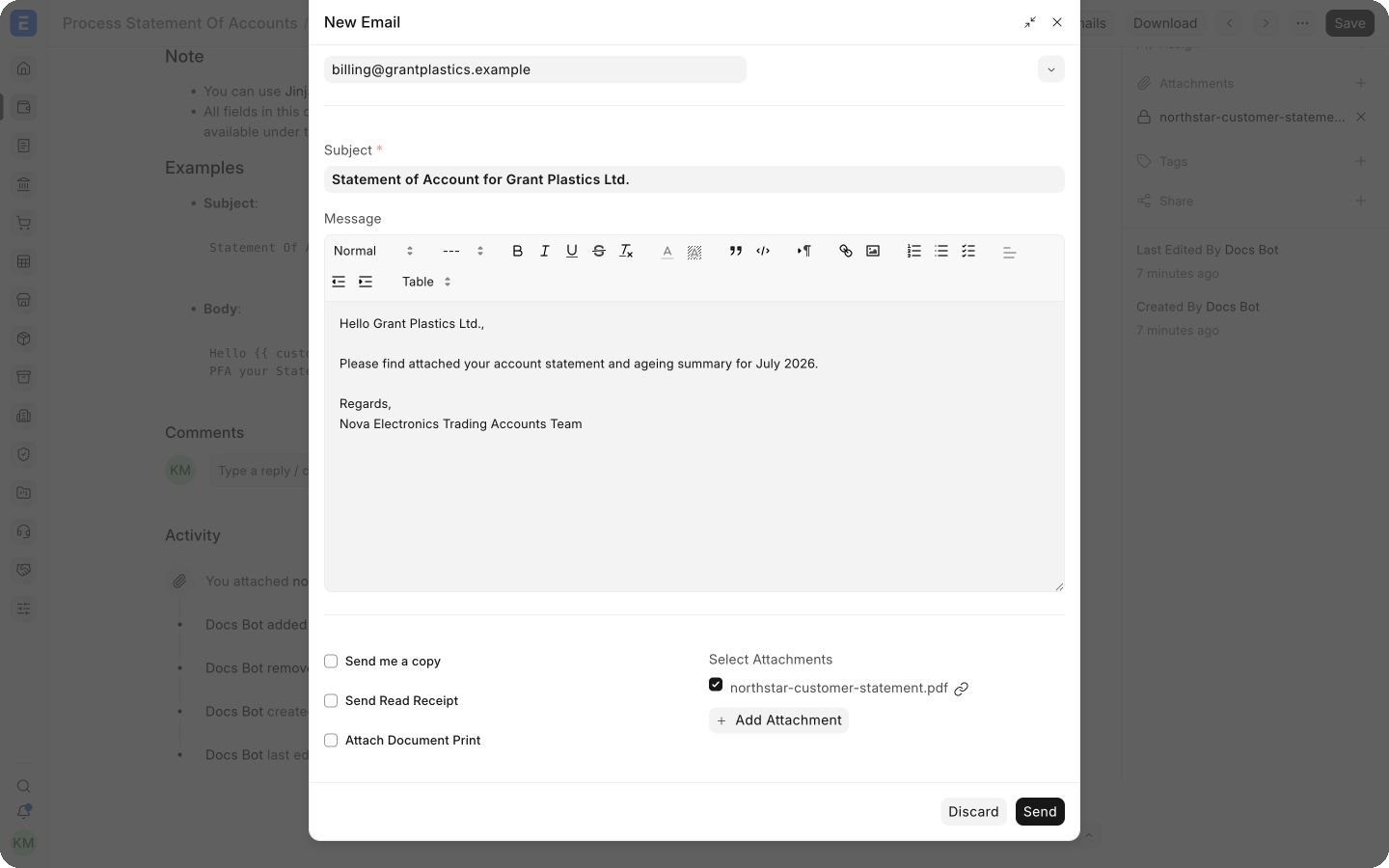
The example below shows the email composer with the customer-specific statement attached. This is a preview from the demo site. On a production site with an outgoing Email Account, Send Emails queues the message for delivery.
The attached statement shows the opening balance, each invoice or payment in the selected period, and the closing balance. Its ageing summary groups the outstanding amount by due date so the customer can see what needs attention.
Use dynamic values
You can personalize the subject and body with Jinja. For example:
Statement of Account for {{ customer.customer_name }}
Hello {{ customer.customer_name }},
Please find your statement from {{ doc.from_date }} to {{ doc.to_date }} attached.
Test the output with a small customer set before enabling automatic email for all customers.
Troubleshooting
A customer is missing from the selection
Check the Customer's billing Contact and its email address. Also review the grouping filter used to fetch customers.
The PDF is empty or incomplete
Confirm the Company, date range, currency, and account filters. Only submitted ledger entries are included.
Emails do not arrive
Check the outgoing Email Account and the Email Queue. Scheduled messages are not sent when the document is merely saved; the background scheduler must be running.