


















Selling in Different UoM
ERPNext can sell the same Item in different Units of Measure while maintaining stock in one Stock UOM. Configure each allowed UOM and conversion factor on the Item, then select the selling UOM in a transaction.
Before you begin
Confirm:
- The required Units of Measure.
- The Item's Stock UOM.
- Accurate conversion factors.
- UOM-specific Item Prices or a conversion-based pricing policy.
- Whether fractional quantities are allowed.
Changing a conversion factor affects how transaction quantity translates into stock quantity. Test it before use.
Add an alternative UOM to an Item
- Open the Item.
- Confirm the Stock UOM.
- In the UOMs table, add the selling UOM.
- Enter the Conversion Factor relative to one Stock UOM.
- Save.
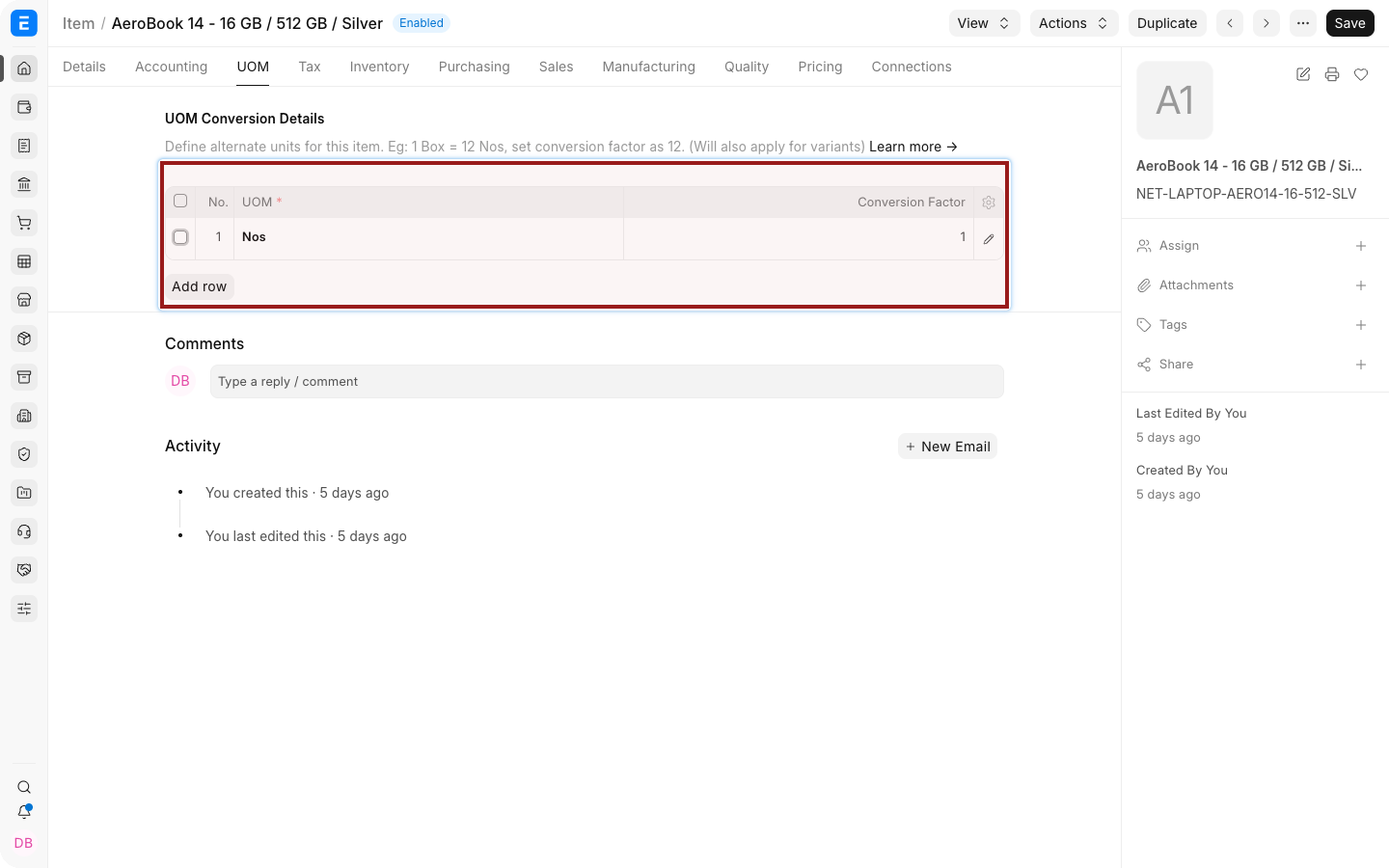
Example: if one Carton contains 10 Units and Unit is the Stock UOM, set the Carton conversion factor to 10.
Create UOM-specific prices
Create one Item Price for each deliberately priced UOM:
- Open Item Price.
- Select the Item and selling Price List.
- Select the UOM.
- Enter the Rate.
- Save.
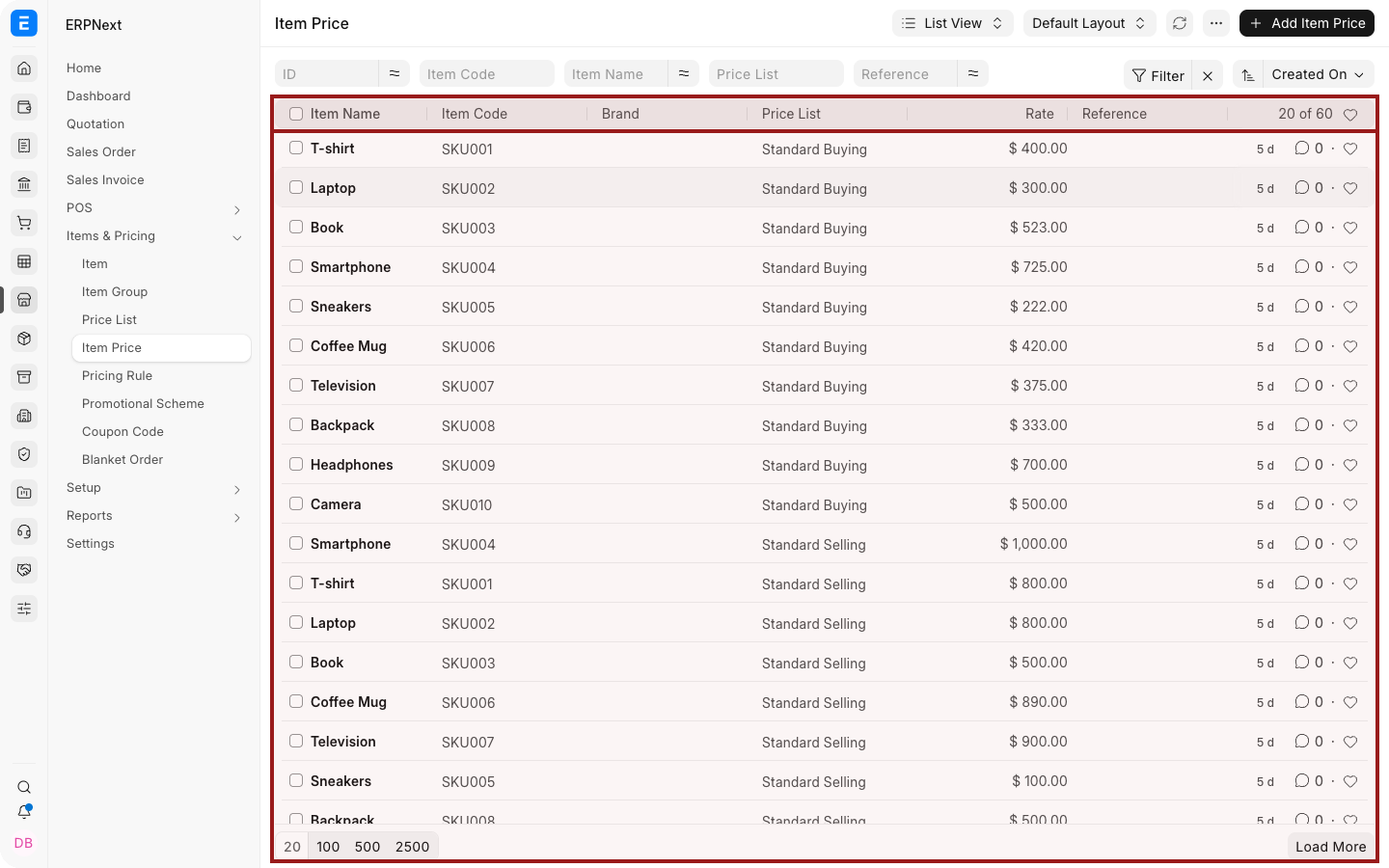
Use separate prices when a carton has a negotiated price rather than exactly ten times the unit price.
Alternatively, enable Price Not UOM Dependent on the Price List when ERPNext should derive the alternate-UOM price using the conversion factor.
Sell in an alternative UOM
- Create a Quotation, Sales Order, Delivery Note, or Sales Invoice.
- Add the Item.
- Select the highlighted pencil icon to open the complete row editor.
- Select the UOM.
- Confirm the Conversion Factor, Quantity, Stock Qty, and Rate.
- Save or submit.
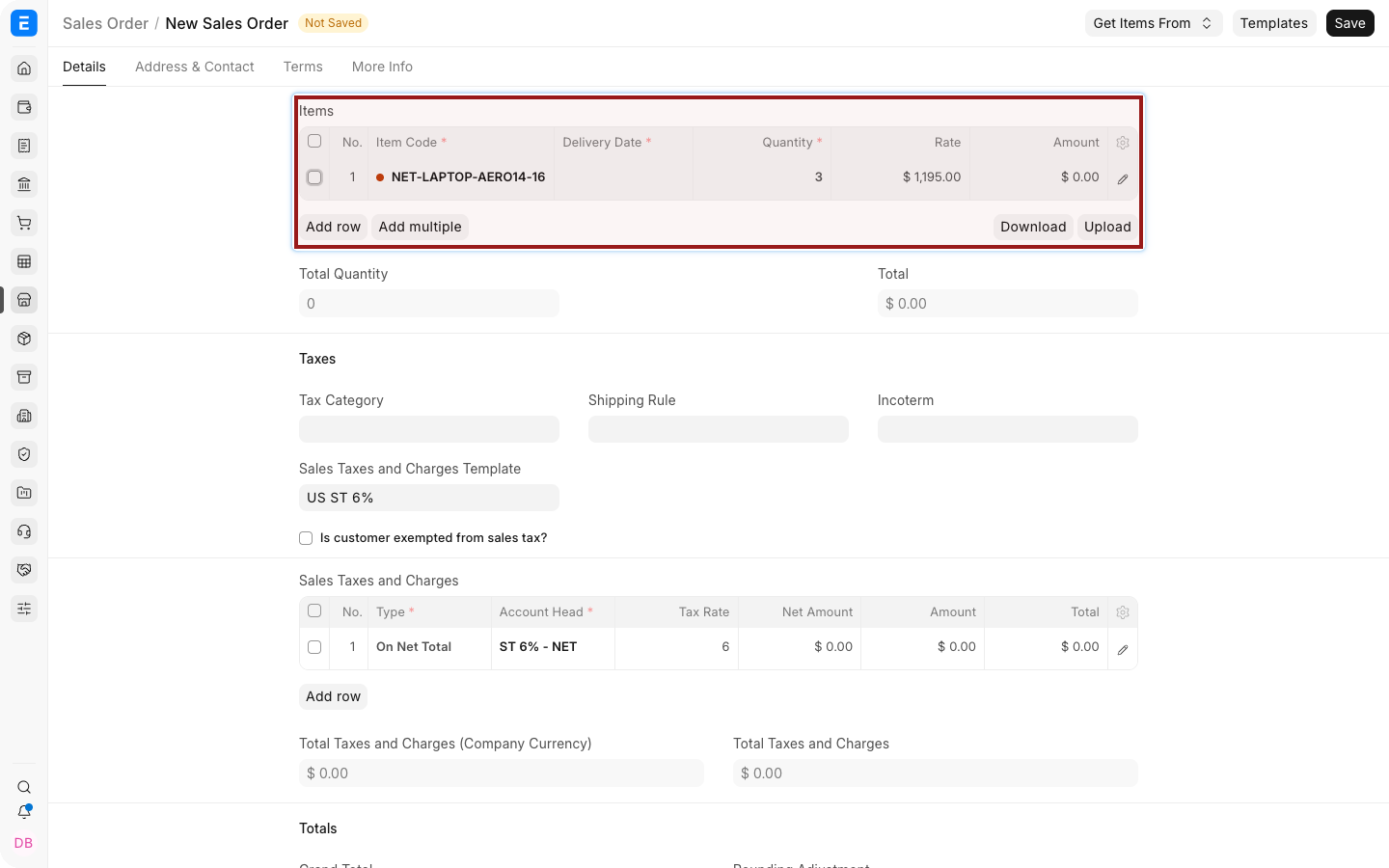
The dot before an Item Code shows stock availability at a glance: green means in stock and red means out of stock.
Understand transaction and stock quantities
If one Carton equals 10 Units:
| Transaction value | Result |
|---|---|
| UOM | Carton |
| Qty | 3 |
| Conversion Factor | 10 |
| Stock Qty | 30 Units |
Inventory reports and stock ledgers use the Stock UOM. The sales document can display the selected selling UOM.
Fractional quantities
Use fractional quantities only when the UOM and Item allow them. For example, a service can be billed as 1.5 Hours, while a serialized laptop cannot usually be sold as 0.5 Unit.
Review UOM Must be Whole Number behavior and Item serialization or batching requirements.
Troubleshooting
| Problem | What to check |
|---|---|
| Alternative UOM is unavailable | Add it to the Item's UOM table and save |
| Stock Qty is incorrect | Correct the conversion factor |
| No rate is fetched | Create an Item Price for the selected UOM or review Price Not UOM Dependent |
| Fractional quantity is rejected | Check the UOM whole-number setting and Item constraints |
| Delivered stock differs from ordered quantity | Compare transaction Qty, UOM, Conversion Factor, and Stock Qty |
Frequently asked questions
Can I keep stock in cartons and sell in units?
Yes. Choose the most appropriate Stock UOM and define the reciprocal business conversion accurately.
Do I need a separate Item Price for every UOM?
Use separate Item Prices for deliberate UOM pricing. Use Price Not UOM Dependent for conversion-based pricing.
Can the UOM change after submission?
Submitted stock and sales quantities should not be reinterpreted. Use the supported amendment or return workflow.
Which quantity appears in the stock ledger?
Stock Qty in the Item's Stock UOM.