


















Book discount allowed and received separately
ERPNext normally records the net value of an invoice after commercial discounts. Use the workflow on this page when your accounting policy requires the discount to appear in a separate ledger account.
A discount allowed is a reduction that your Company gives a Customer. It is commonly recorded in an expense or contra-revenue account. A discount received is a reduction that a Supplier gives your Company. It is commonly recorded in an income or contra-expense account. Confirm the account classification with your accountant because presentation and tax rules vary by jurisdiction.
This page uses a negative row in the Sales or Purchase Taxes and Charges table. Despite the table name, ERPNext uses it for taxes and other additions or deductions. The negative row reduces the amount payable while posting the discount to the selected Account Head.
| Example | Gross amount | Separate discount | Net amount due |
|---|---|---|---|
| Sales Invoice | $1,398.00 | $139.80 debit to Sales Discounts Allowed | $1,258.20 receivable |
| Purchase Invoice | $1,040.00 | $104.00 credit to Purchase Discounts Received | $936.00 payable |
Choose the appropriate discount method
Use this negative-charge workflow when you need explicit control over the separate account, especially for Purchase Invoices. ERPNext's newer Discount Accounting workflow provides dedicated sales-side Discount Account fields and can be more convenient for item and invoice-level sales discounts.
Do not use both methods on the same discount. A normal item discount, an additional discount, a Pricing Rule, and a negative charge row can all reduce the transaction. Combining them without an intentional calculation can double-count the reduction.
This workflow records a transaction-wide discount. It does not allocate a different discount to each item row for margin analysis. If item-level commercial pricing matters, set an intentional Item Price or item discount and decide separately whether the ledger also needs a distinct discount account.
Before you begin
- Confirm with your accountant whether discount allowed belongs under Expense or contra-revenue, and whether discount received belongs under Income or contra-expense.
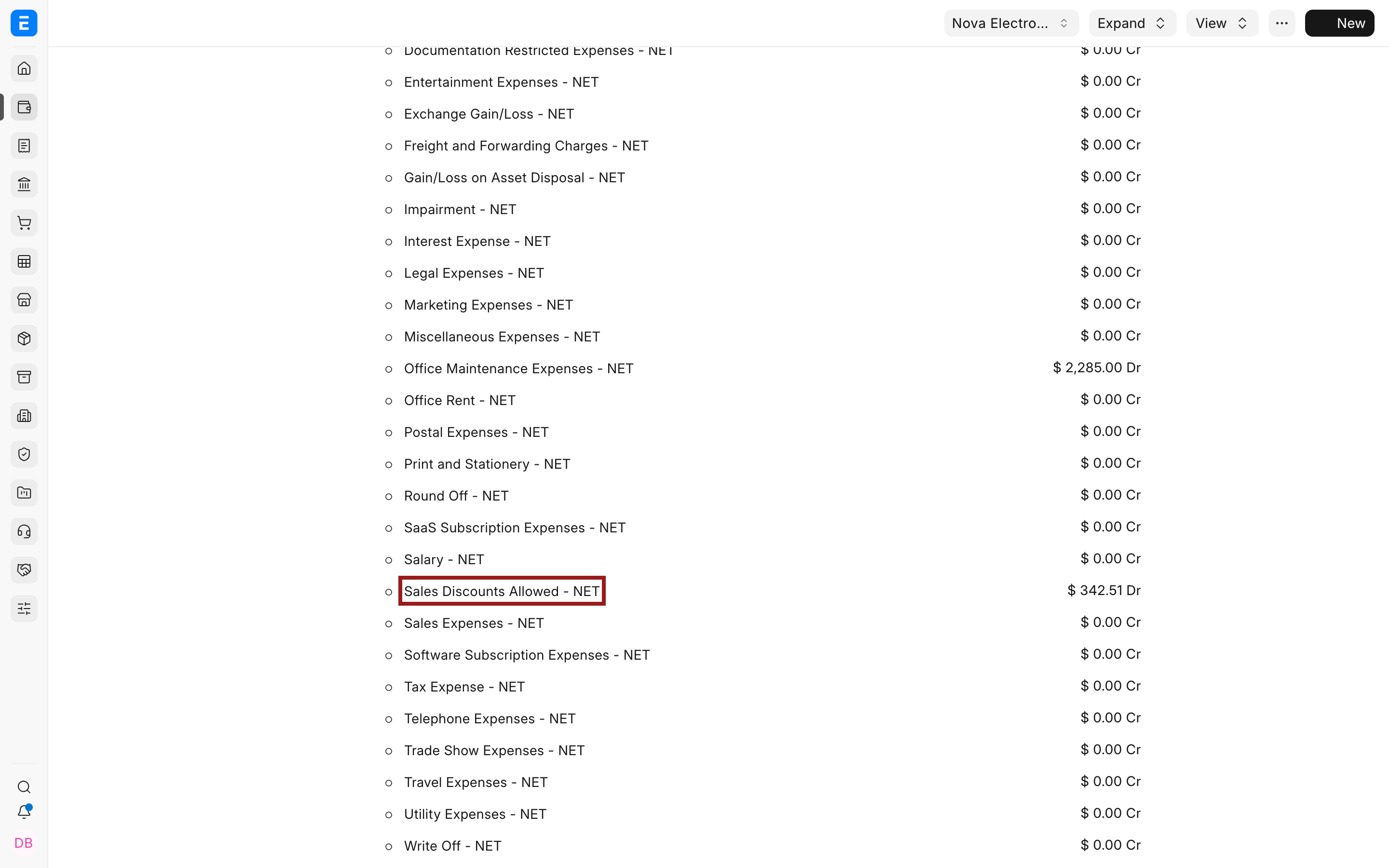
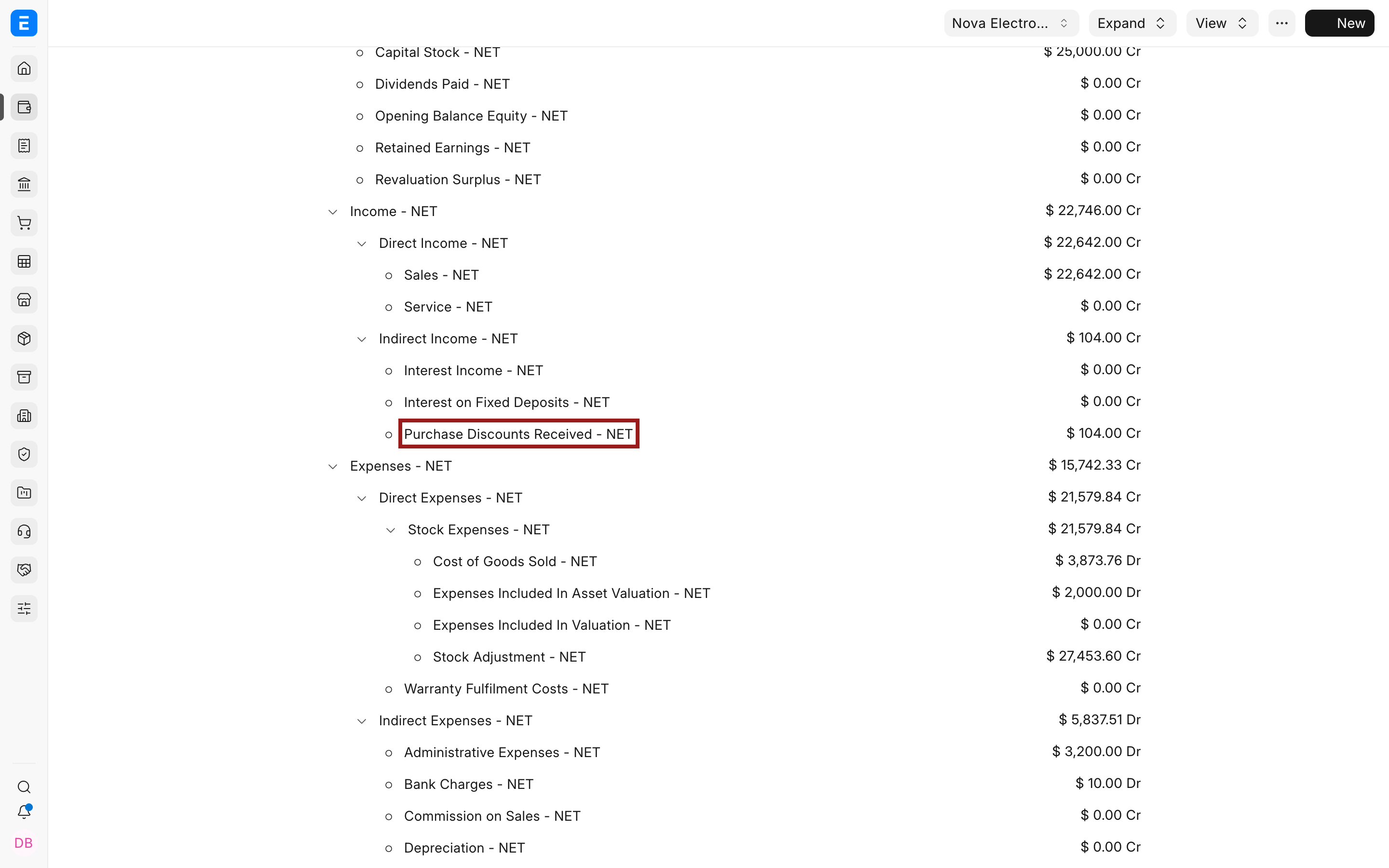
- Create non-group ledgers in the Company's Chart of Accounts. The example uses Sales Discounts Allowed - NET and Purchase Discounts Received - NET.
- Confirm the discount basis. On Net Total applies the rate to the complete Net Total. Other charge types can calculate against a prior row or a fixed amount.
- Confirm how the discount affects tax. The order and type of rows in the charge table determine the running total used by later taxes.
- Test a representative transaction and review its ledger before using the method in production.
The sales discount account appears under Expenses in this example.
The purchase discount account appears under Income.
Book a discount allowed on a Sales Invoice
- Create a Sales Invoice and add the Items at their gross selling rates.
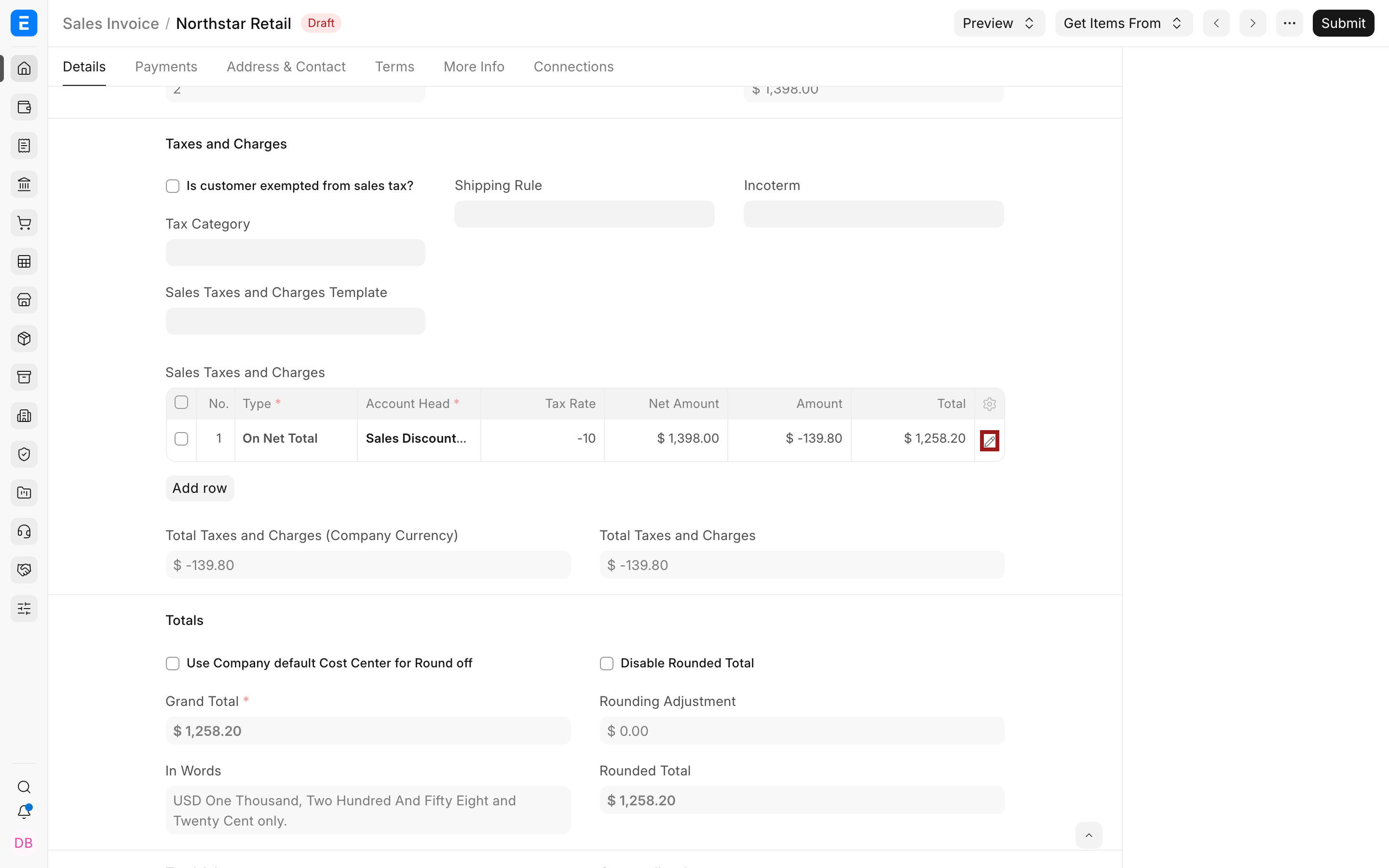
- In Sales Taxes and Charges, add a row. A reusable Sales Taxes and Charges Template can provide the same row when this treatment is standard.
- Select the highlighted pencil icon to open the complete row editor.
- Set Type to On Net Total.
- Set Account Head to the discount-allowed account.
- Enter the discount percentage as a negative Tax Rate. For a 10% discount, enter -10.
- Enter a clear Description and the required Cost Center or other Accounting Dimensions.
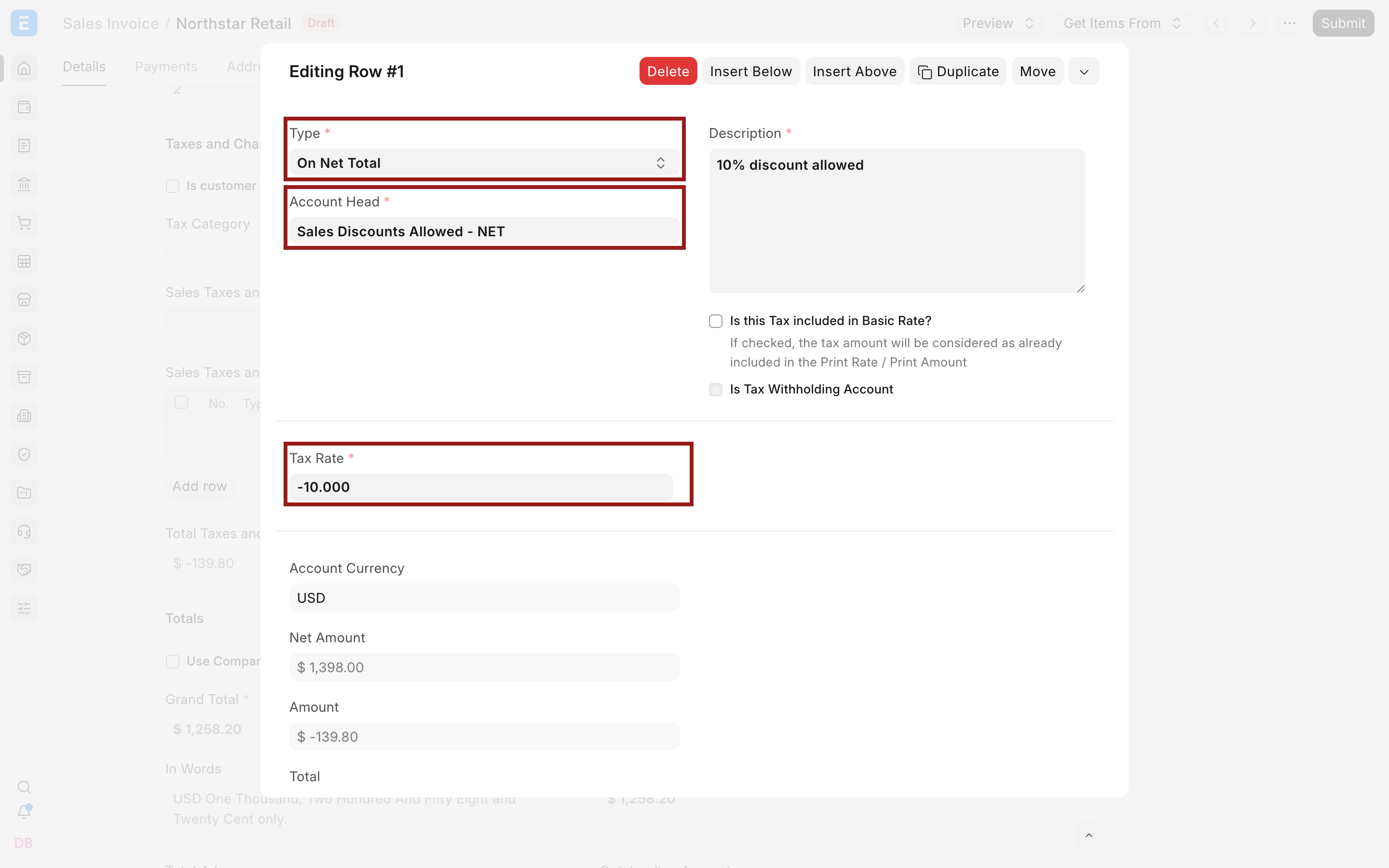
The example starts with two phones at $699 each, or $1,398. A -10% row produces -$139.80, reducing the Grand Total to $1,258.20.
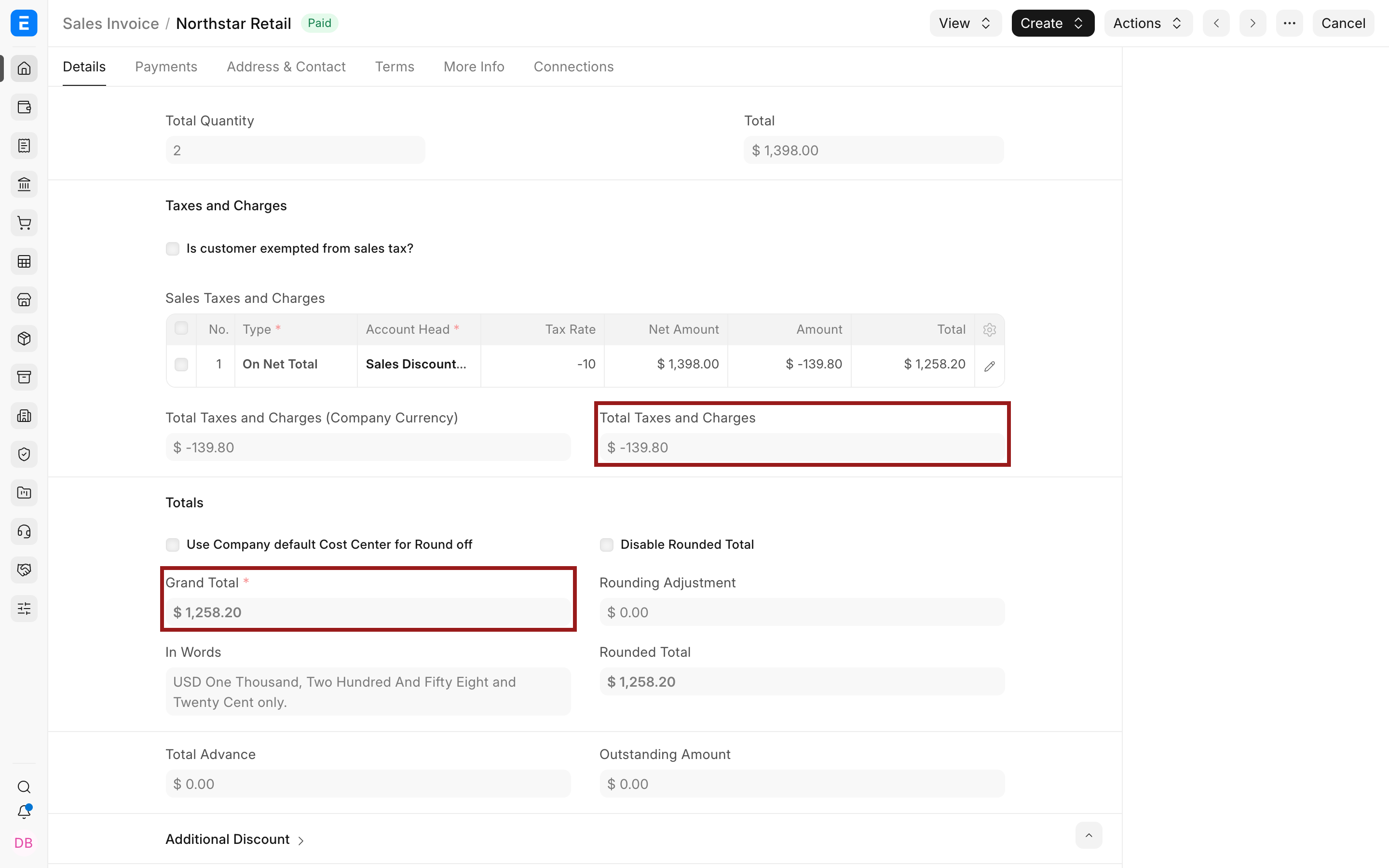
- Review taxes, rounding, Grand Total, and the charge row, then submit.
- Open View > Accounting Ledger and verify the result in the General Ledger.
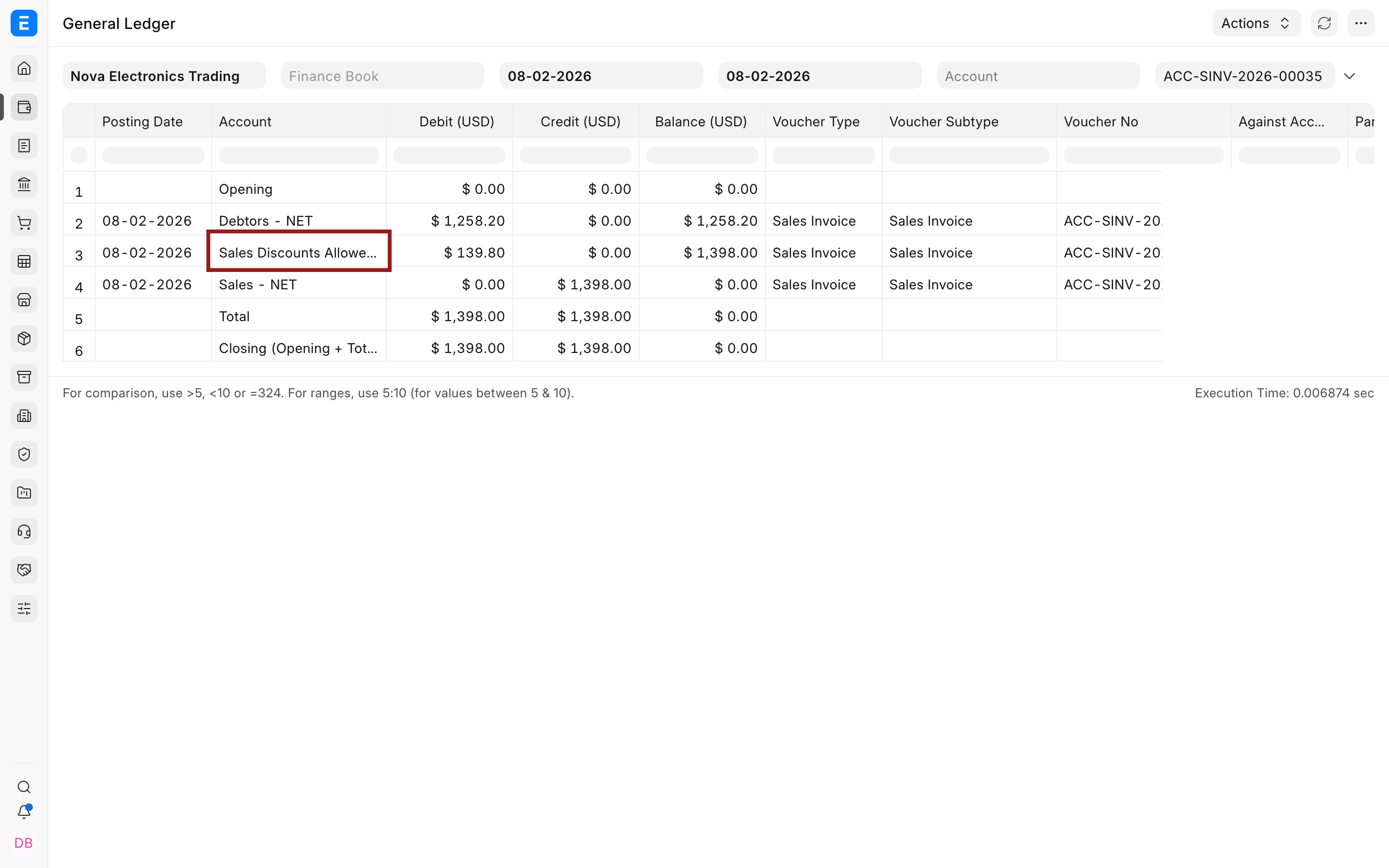
The ledger debits Debtors by $1,258.20, debits Sales Discounts Allowed by $139.80, and credits Sales by the gross $1,398.00.
Book a discount received on a Purchase Invoice
- Create a Purchase Invoice and add the Items at their gross purchase rates.
- In Purchase Taxes and Charges, add a row. Use a Purchase Taxes and Charges Template when the same treatment is reusable.
- Select the pencil icon on the row.
- Set Type to On Net Total.
- Set Account Head to the discount-received income or contra-expense account approved by your accountant.
- Enter the percentage as a negative Tax Rate. The example uses -10.
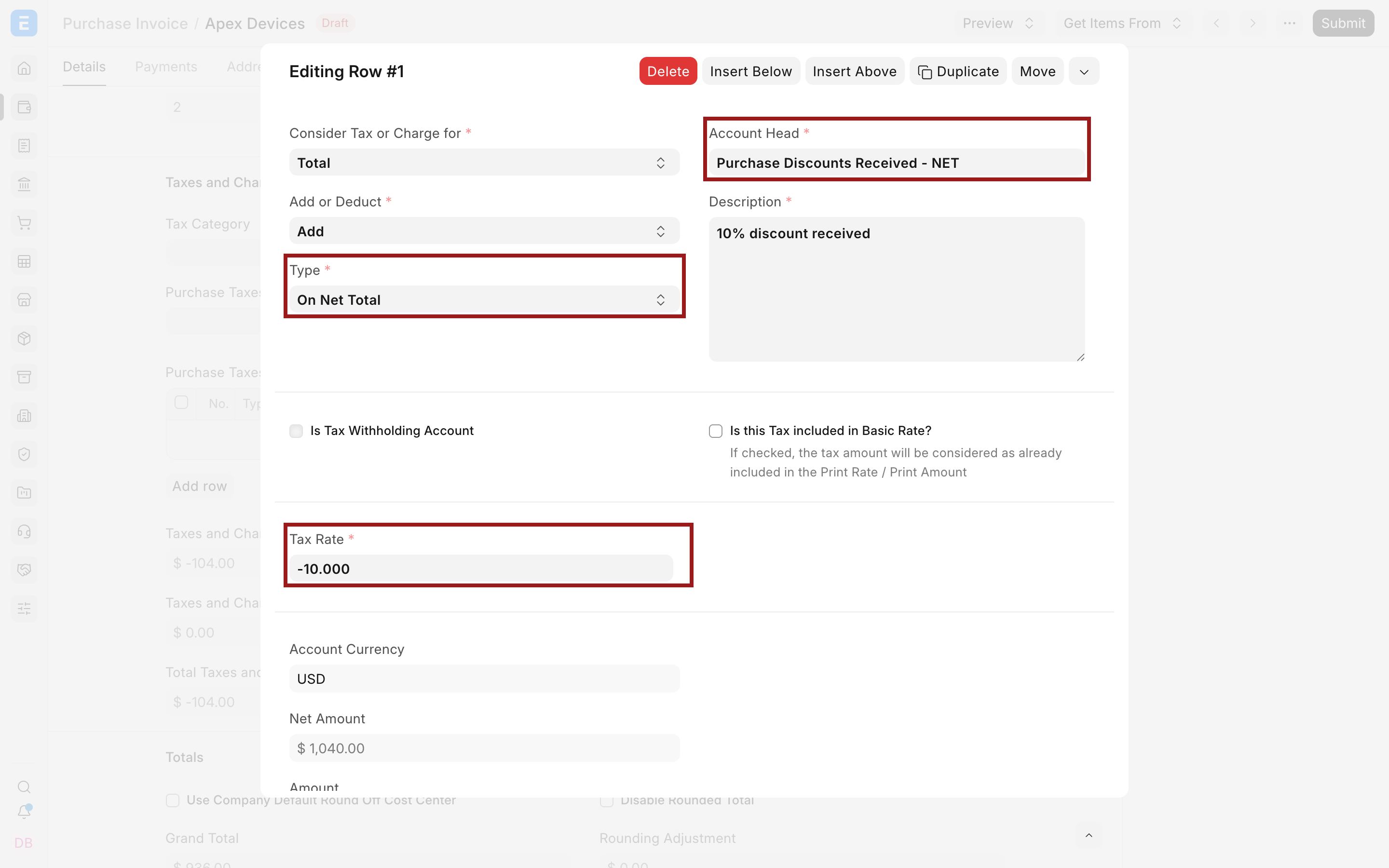
The gross purchase is $1,040. The -10% row deducts $104, so the Supplier is owed $936.
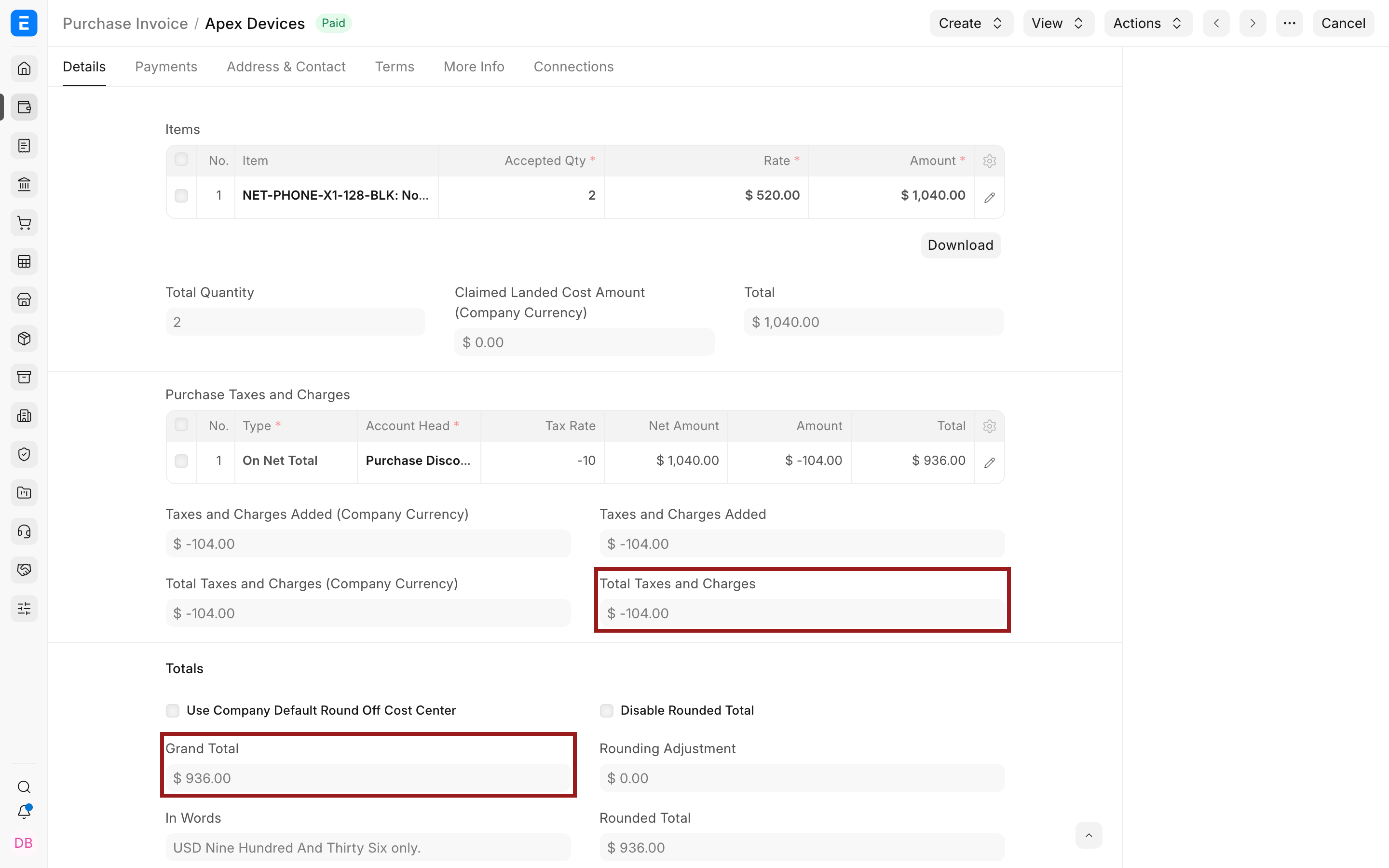
- Submit and open the Accounting Ledger.
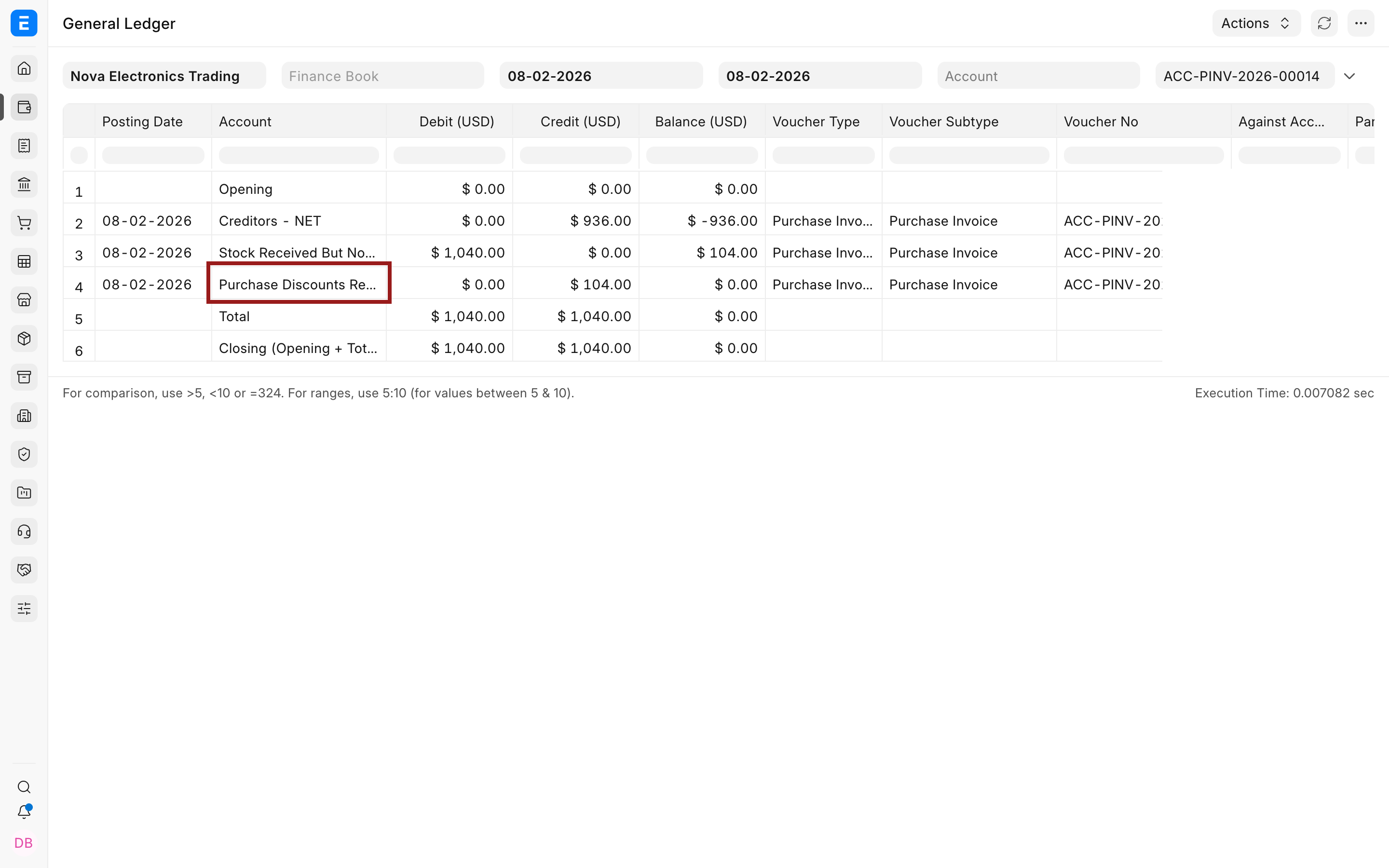
The ledger credits Creditors by $936, debits the purchase or stock-received account by $1,040, and credits Purchase Discounts Received by $104.
If a Purchase Receipt was already posted at a different amount, do not assume the Purchase Invoice discount will correct stock valuation or clear Stock Received But Not Billed automatically. Apply the commercial treatment consistently across the purchase cycle and verify both stock and accounting ledgers.
Record the net payment
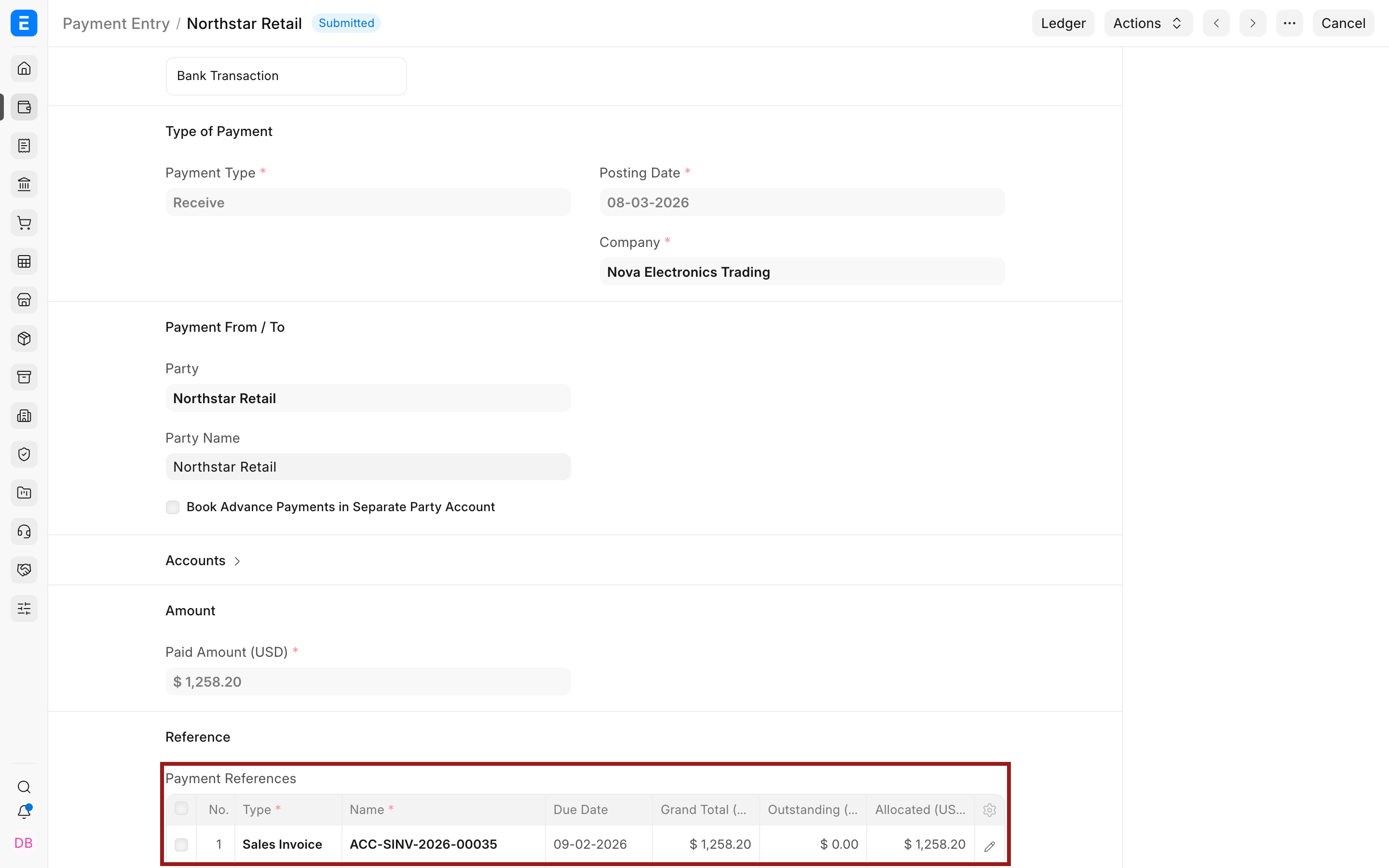
Create a Payment Entry for the invoice's final outstanding amount, not its gross amount before discount.
For the sales example, the Customer pays $1,258.20. The Payment References row allocates that amount to the Sales Invoice.
For the purchase example, the Company pays $936 to the Supplier.
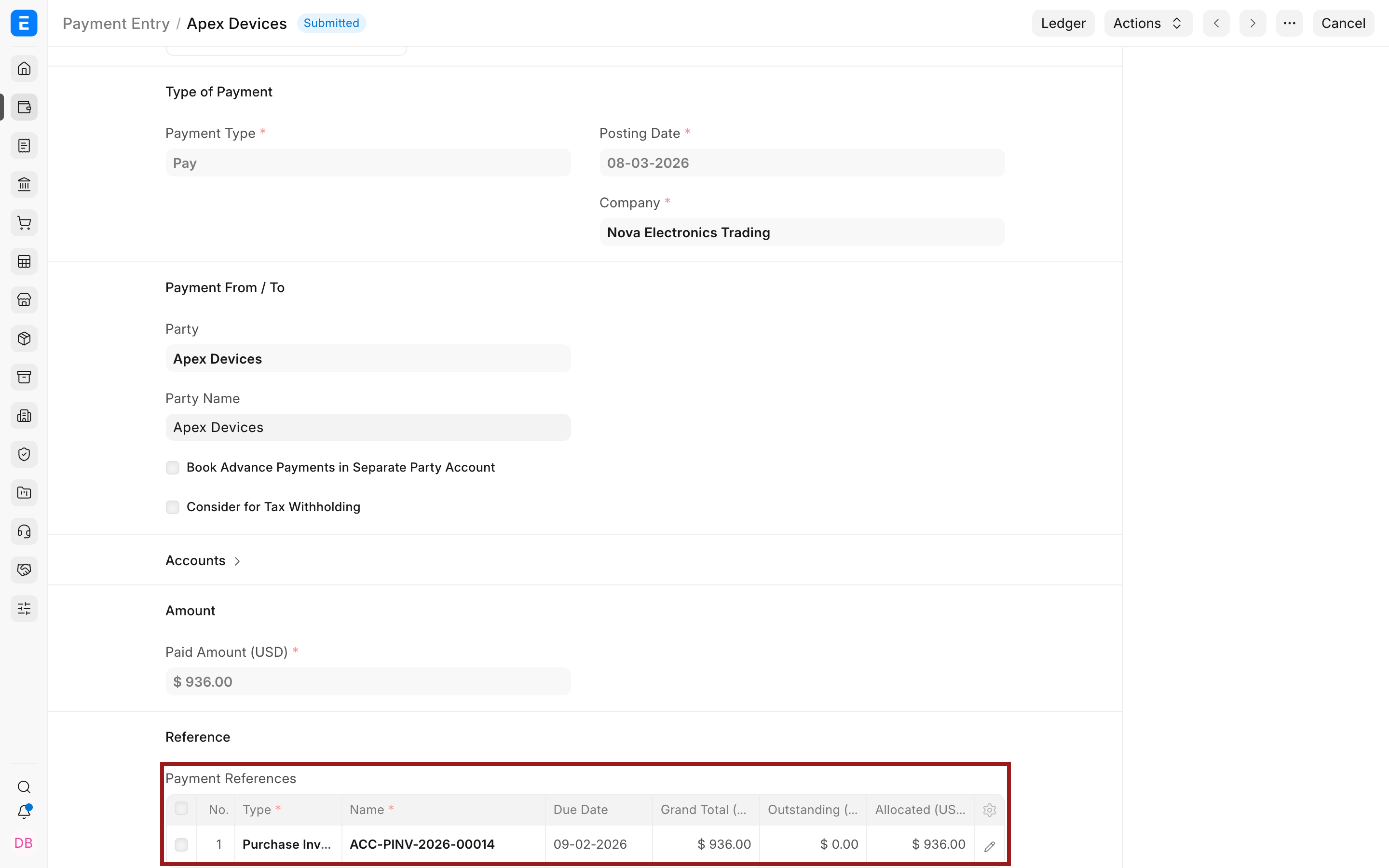
The discount was already posted by the invoice. Do not add the same discount again as a deduction in Payment Entry unless a separate payment-time adjustment genuinely occurred.
Important fields and what they mean
| Field | What it controls |
|---|---|
| Type | Calculation basis for the row. On Net Total applies the percentage to the invoice Net Total. |
| Account Head | Ledger that receives the discount posting. It must belong to the selected Company. |
| Tax Rate | Percentage used by the row. Enter a negative value to deduct the discount. |
| Amount | Calculated or entered deduction. Review its sign and value before submission. |
| Description | Text shown on the invoice and useful for reviewers. It does not determine the ledger. |
| Cost Center and dimensions | Reporting segments applied to the discount posting. |
| Grand Total | Net amount due after all charge, tax, discount, and rounding rows. |
| Payment References | Invoice allocation on the Payment Entry. Allocate the final outstanding amount. |
Troubleshooting
| Issue | What to check |
|---|---|
| The discount increases the invoice | Confirm Tax Rate is negative. A positive charge row increases the total. |
| The discount posts to the wrong account | Correct Account Head while the invoice is Draft. After submission, follow the supported cancel-and-amend process. |
| Tax is calculated on the wrong amount | Review row order, Type, Row ID, and whether the next tax uses Net Total, Previous Row Amount, or Previous Row Total. |
| The purchase clearing account does not settle | Compare Purchase Receipt and Purchase Invoice rates, discounts, taxes, and linked quantities. Verify stock valuation and Stock Received But Not Billed. |
| The payment does not close the invoice | Allocate the current outstanding amount, use the correct Party and receivable or payable account, and confirm the Payment Entry is submitted. |
Frequently asked questions
Should Discount Allowed always be an expense account?
Not always. Some accounting policies classify it as a contra-revenue account. ERPNext posts to the Account Head you select, so your accountant should determine the correct classification.
Why is the discount entered in a taxes table?
ERPNext uses the table for taxes and other additions or deductions. A negative row reduces the running total and posts to its Account Head.
Can I enter a fixed discount instead of a percentage?
Yes, use an appropriate fixed-amount charge type and enter a negative amount. Confirm how later tax rows use the running total.
Can I reuse the same discount row?
Yes, create a sales or purchase taxes-and-charges template when the account, basis, description, and rate are standard. Review the fetched row on every transaction.
Does a purchase discount automatically update stock valuation?
Not in every purchase sequence. The outcome depends on whether stock was received separately, the accounts used, and the settings governing receipt and invoice valuation. Verify the Purchase Receipt, Purchase Invoice, stock ledger, and General Ledger together.