


















A Quotation in ERPNext records the products or services, quantities, prices, taxes, validity, delivery expectations, and commercial terms offered to a Lead or Customer. It is a submittable sales transaction that can be shared as a proposal and converted into a Sales Order after acceptance.
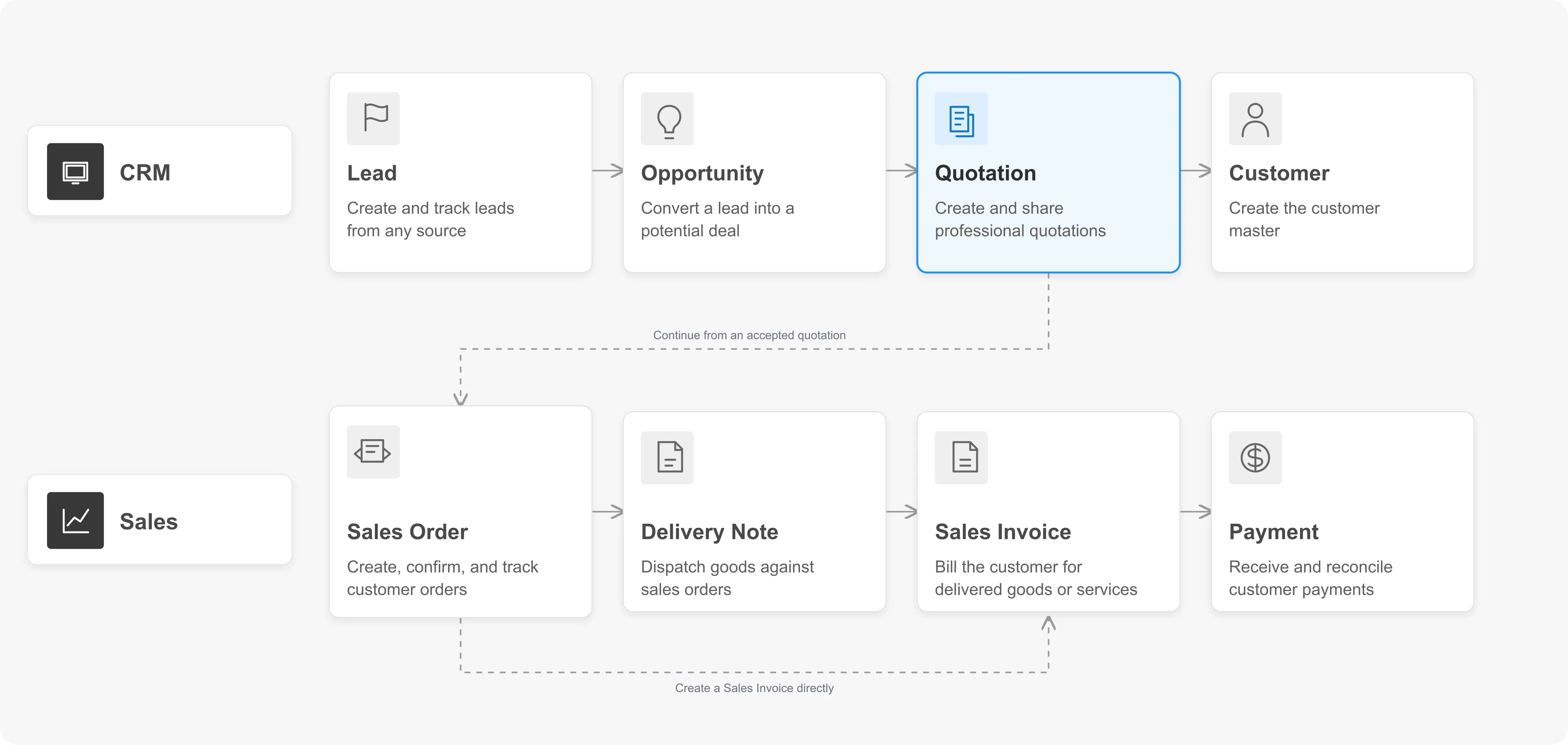 Quotation highlighted within the ERPNext CRM and sales flow.
Before you begin
Create or confirm the following records:
- A Lead or Customer.
- The required Items and selling prices.
- A selling Price List and Currency.
- Applicable Sales Taxes and Charges Templates.
- Approved Terms and Conditions and Payment Terms when required.
Create a Quotation
- Go to Selling > Sales > Quotation.
- Select Add Quotation.
- In Quotation To, select Customer or Lead, then select the party.
- Enter the Date and Valid Till date.
- Confirm the Order Type and Company.
- Add each Item, Quantity, Rate, and Warehouse in the Items table.
- Add taxes, shipping, discounts, payment terms, and terms and conditions as applicable.
- Review the totals, then save the draft.
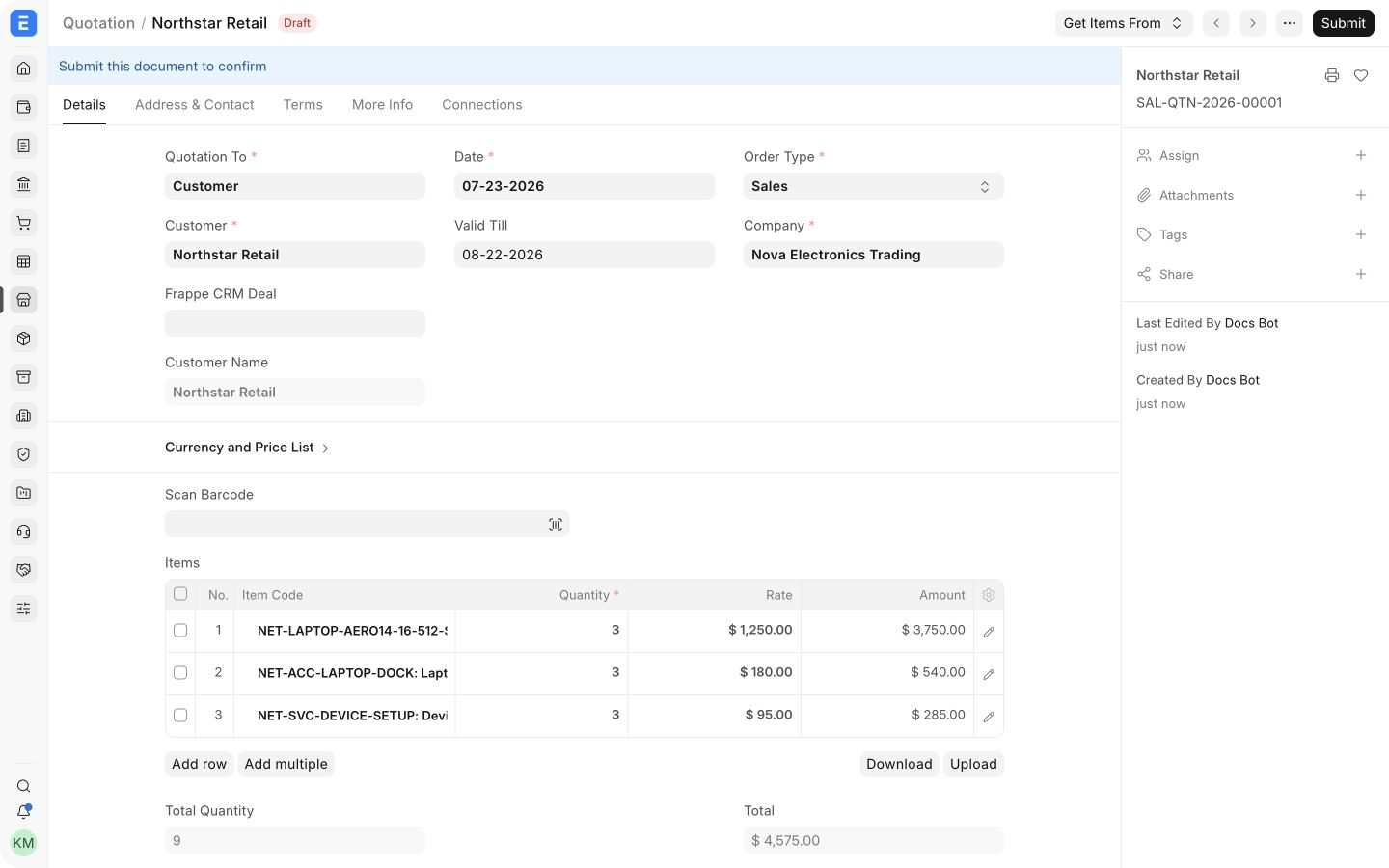
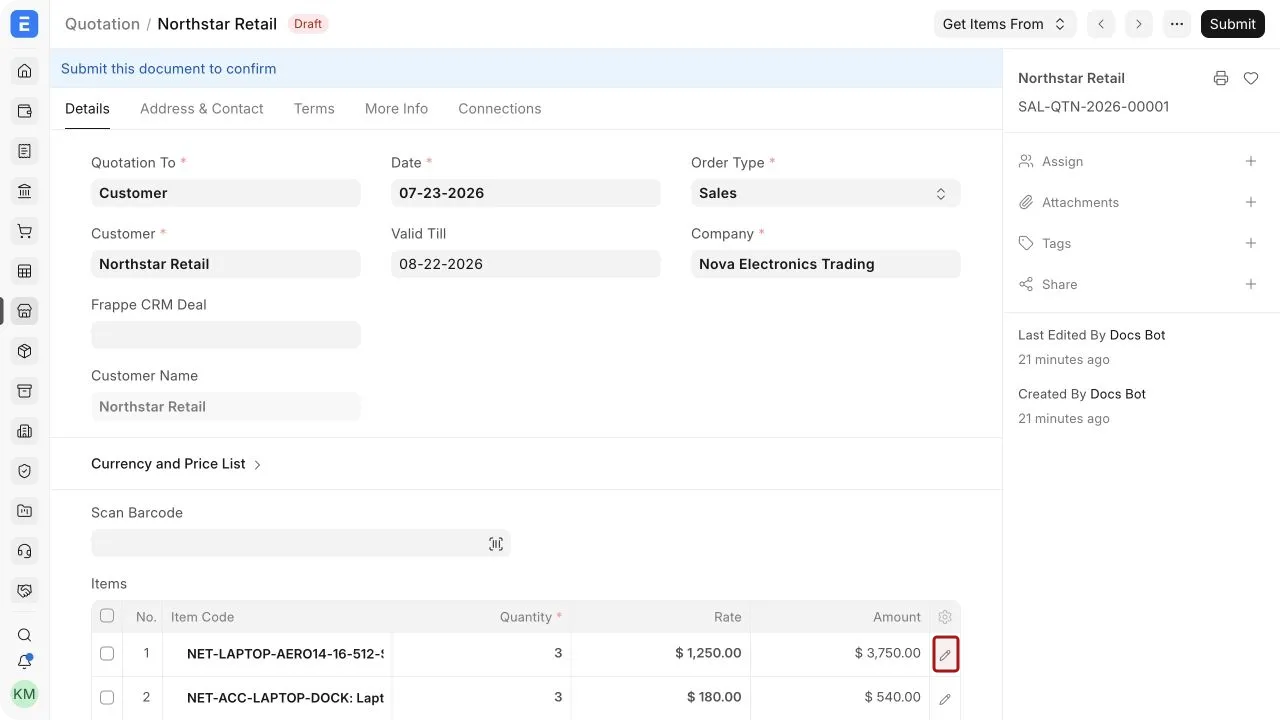
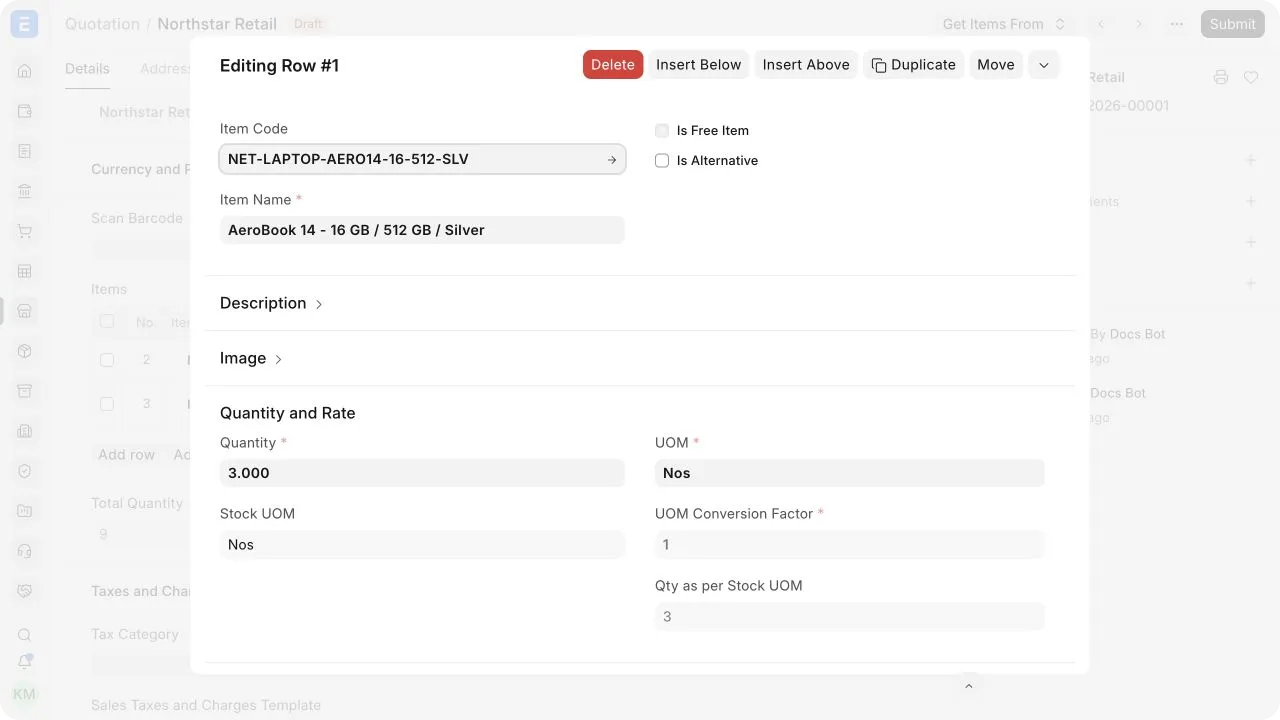
The example quotation combines laptops, accessories, and a setup service. In an Item row, the stock indicator before the Item Code is green when the item is in stock and red when it is out of stock. Select the row's pencil icon to open the full row editor when additional item fields are required.
Alternative ways to create a Quotation
A Quotation can be created from an Opportunity, which carries the party and requested items into the new transaction. You can also use Get Items From > Opportunity in a draft Quotation. Review every mapped quantity, rate, date, and term before saving.
For repeated quoting, use reusable masters such as Price Lists, Item Prices, tax templates, payment terms, and terms templates instead of copying an old transaction whose conditions may be outdated.
Important fields and what they mean
| Field | What it means |
|---|---|
| Quotation To | Determines whether the offer is addressed to a Customer or Lead. |
| Party | The selected Customer or Lead. Address and contact details can be fetched from this party. |
| Valid Till | The last date on which the offer is valid. |
| Order Type | Identifies Sales, Maintenance, or Shopping Cart usage. Use Shopping Cart only for the relevant website flow. |
| Currency | The currency shown on the Quotation. Conversion rates apply when it differs from the Company currency. |
| Selling Price List | Supplies the default item prices for the selected party and currency. |
| Ignore Pricing Rule | Prevents configured Pricing Rules from changing item prices or discounts. |
| Item Code | The product or service being quoted. It fetches the name, description, UOM, and applicable price defaults. |
| Quantity and UOM | The amount offered and its unit of measure. |
| Rate | The offered unit price before multiplying by Quantity. |
| Warehouse | The source warehouse used for stock context and downstream mapping where applicable. |
| Margin and Discount | Adjusts the item rate by an amount or percentage. |
| Shipping Rule | Applies configured shipping charges based on the selected rule. |
| Incoterm and Named Place | Records the agreed delivery responsibility and location for international or formal trade terms. |
| Payment Terms Template | Creates the proposed payment schedule. |
| Print Heading | Displays an approved alternative heading, such as Proposal or Proforma Invoice, without changing the DocType. |
Items, pricing, and alternatives
ERPNext fetches defaults from the Item and Item Price, but every quoted rate remains the responsibility of the user preparing the offer. Apply an item discount or margin in the row, or use Additional Discount for the transaction total. Confirm whether the additional discount applies to the Net Total or Grand Total.
To offer substitute products, add the alternative immediately after its primary item and enable Is Alternative in the row. Alternative items are excluded from the Quotation totals. When a Sales Order is created from an individual Quotation, ERPNext can ask which alternative should be selected.
Taxes, shipping, and payment terms
Select a tax template or enter rows in the Sales Taxes and Charges table. Use Tax Breakup to review the components before sharing the document. A Shipping Rule can calculate freight, while an Incoterm records delivery responsibility.
Use a Payment Terms Template when payment is divided into deposits or milestones. The resulting schedule is a proposal on the Quotation and should match the commercial agreement.
Submit and next steps
Before submitting, check the party, validity date, items, quantities, rates, discounts, taxes, payment schedule, terms, delivery expectations, and final print output. Submission freezes the offered transaction as the version sent for approval.
After submission, use Create > Sales Order when the Customer accepts the offer. If the deal does not proceed, use Set as Lost and record a useful loss reason. Cancel and amend the Quotation when a submitted offer must be formally revised.
Status
| Status | Meaning |
|---|---|
| Draft | The Quotation is editable and has not been confirmed. |
| Open | The submitted offer is active and awaits an outcome. |
| Ordered | A Sales Order has been created from the Quotation. |
| Lost | The offer did not convert. Record the reason for later analysis. |
| Expired | The Valid Till date has passed. |
| Cancelled | The submitted Quotation was cancelled. |
Print and share
Review the print preview before sending the Quotation. Confirm that the selected Print Format, Letter Head, item images, terms, tax details, and Print Heading appear correctly. A Print Heading changes the displayed title only. It does not convert the record into another DocType.
Frequently asked questions
Can I quote a Lead without creating a Customer?
Yes. Select Lead in Quotation To. Create the Customer when the party is qualified and your workflow requires customer transactions.
Can I edit a submitted Quotation?
Cancel and amend it when a formal revision is required. Avoid silently changing an offer that has already been sent.
Can I create a Sales Invoice directly from a Quotation?
The standard confirmed sales path is normally Quotation to Sales Order, followed by delivery and billing. Use the transaction path approved for your organization and version.
Why did an item rate change automatically?
Check the Price List, Item Price, Pricing Rules, party, quantity, date, currency, UOM, and whether Ignore Pricing Rule is enabled.