


















Cost Center Allocation
Cost Center Allocation automatically splits an amount posted to one main cost center across several receiving cost centers. It is useful when a shared transaction is entered once but management reporting needs the amount distributed consistently.
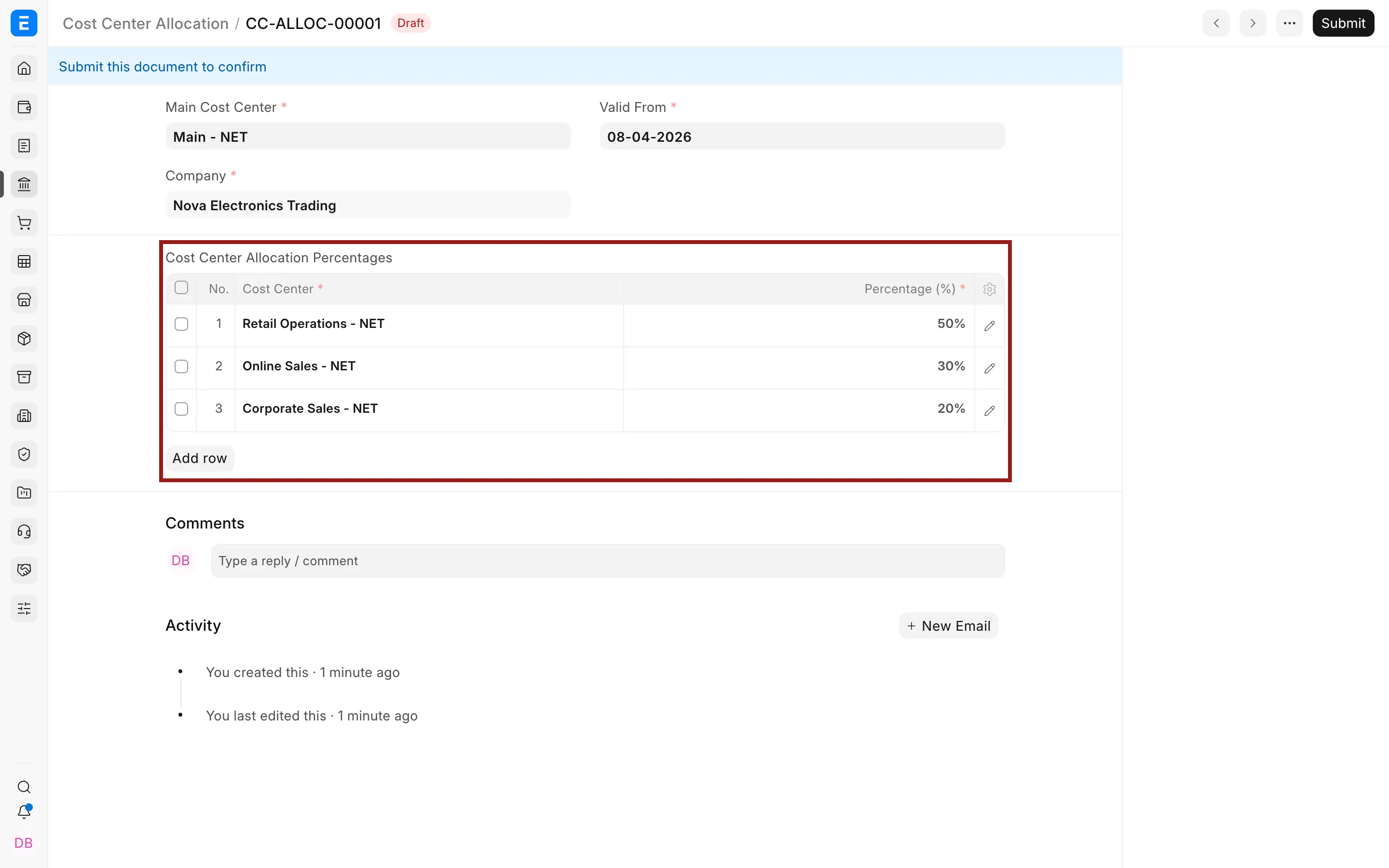
For example, Nova Electronics Trading may book a shared advertising expense to Main - NET. Instead of manually dividing every invoice, an allocation can send 50% to Retail Operations, 30% to Online Sales, and 20% to Corporate Sales.
Before you begin
Create the required Cost Centers and decide which cost center users will select in transactions. The receiving cost centers must belong to the same company.
Choose percentages that represent a defensible business basis, such as revenue, headcount, floor area, or usage. The total allocation must equal 100%.
Create a Cost Center Allocation
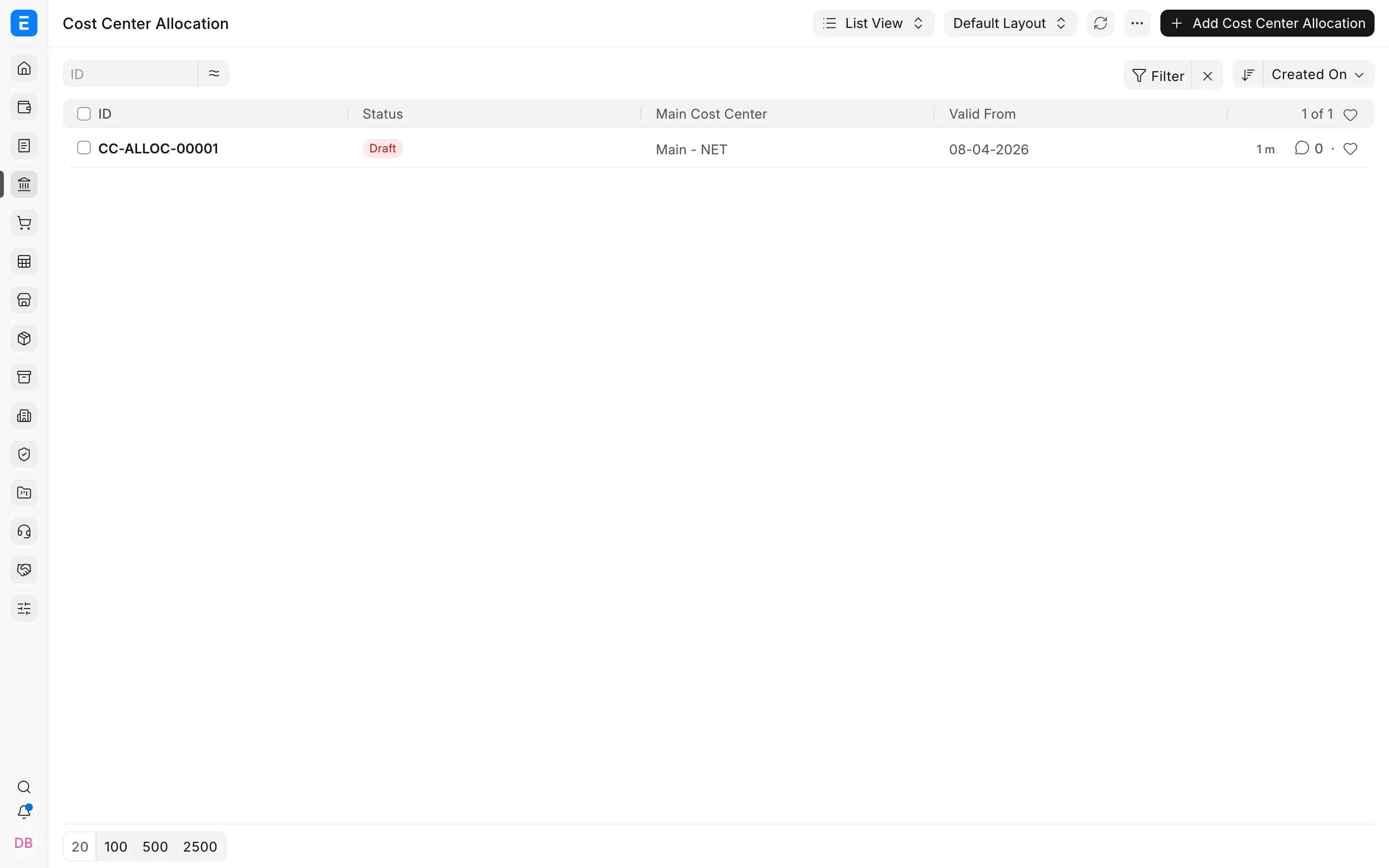
Open the Cost Center Allocation list and select Add Cost Center Allocation.
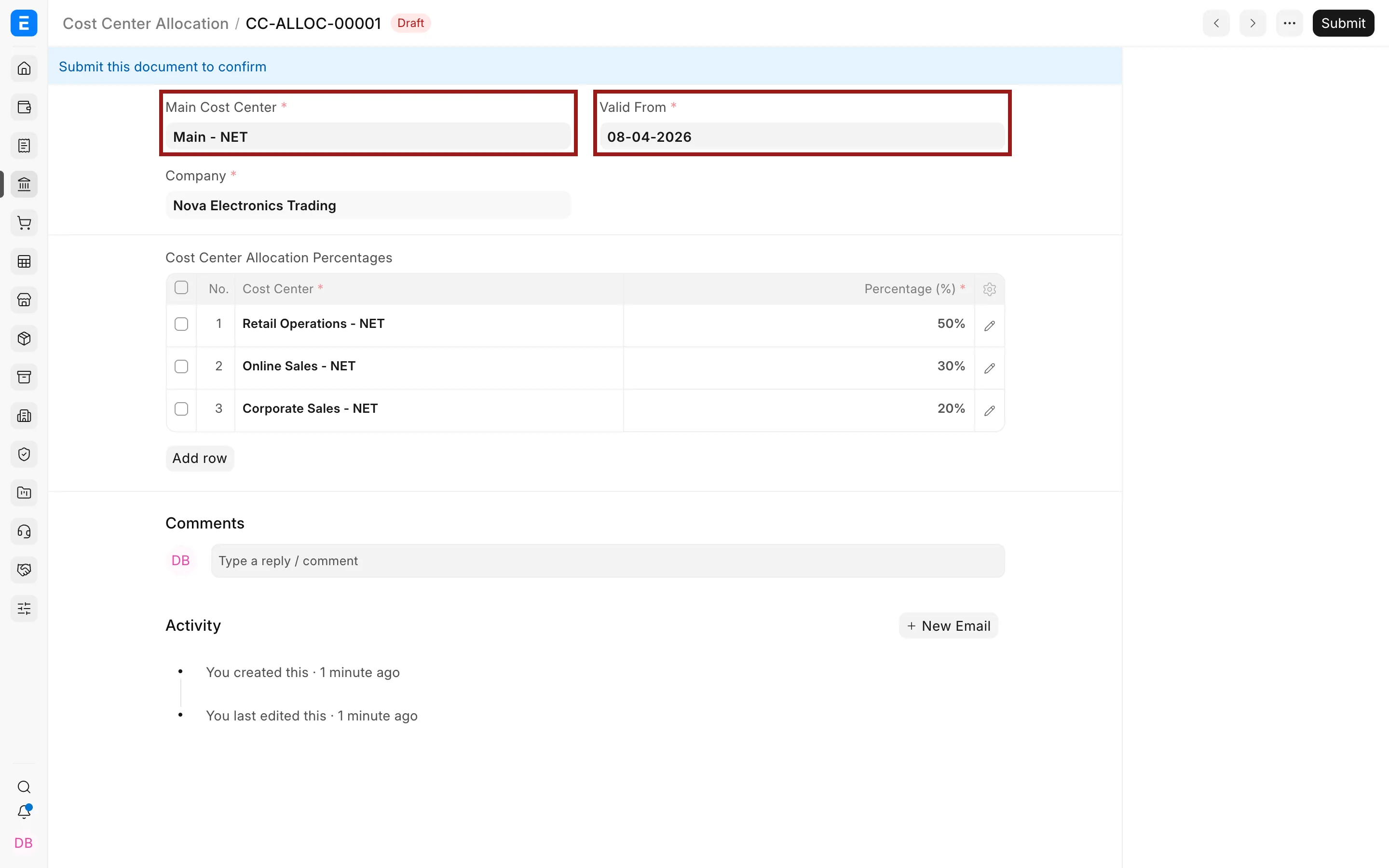
Select the Main Cost Center. This is the cost center that users will choose on invoices, journal entries, and other accounting transactions. Set Valid From to the date from which the rule should apply.
In Cost Center Allocation Percentages, add each receiving cost center and its percentage. Use the pencil icon when you need to open a row and edit its details.
Save and submit the allocation. ERPNext applies only submitted allocations.
How allocation changes the ledger
The source transaction still shows the main cost center. When ERPNext creates General Ledger entries, it replaces the main cost center on eligible lines with the receiving cost centers and divides the amount using the submitted percentages.
If a $10,000 expense is posted to Main - NET using the example allocation, the expense-side ledger entries are distributed as follows:
| Receiving cost center | Percentage | Allocated amount |
|---|---|---|
| Retail Operations - NET | 50% | $5,000 |
| Online Sales - NET | 30% | $3,000 |
| Corporate Sales - NET | 20% | $2,000 |
The transaction total does not change. Only the cost center classification of the affected ledger amount is split. The payable, receivable, bank, or other balancing account continues to follow the transaction's normal accounting treatment.
Important fields and what they mean
| Field | Meaning |
|---|---|
| Main Cost Center | The cost center entered in transactions that triggers the allocation. |
| Company | The company to which the allocation and cost centers belong. |
| Valid From | The first date on which the allocation can be applied. |
| Cost Center | A receiving cost center that will appear on the resulting ledger entries. |
| Percentage | The share assigned to that receiving cost center. |
Review the result
After submitting a transaction that uses the main cost center, open its Accounting Ledger from the document menu. Confirm that the relevant ledger amount has been divided across the expected cost centers and that the split totals the original amount.
You can also open the General Ledger report and filter by each receiving cost center. For period-level comparison, use the Profit and Loss Statement with a cost center filter.
Changing an allocation
Do not alter an allocation to rewrite the meaning of transactions already posted. Create a new allocation with a later Valid From date when the business basis changes. This keeps historical and future reporting rules understandable.
ERPNext checks the most recent applicable submitted rule for the transaction date. Avoid overlapping or ambiguous rules for the same main cost center.
Troubleshooting
The percentages cannot be saved
Check that every row has a cost center and percentage and that the percentages total exactly 100%.
The transaction was not split
Confirm that the allocation is submitted, its Valid From date is on or before the transaction posting date, and the transaction uses the exact Main Cost Center from the allocation.
ERPNext rejects the Valid From date
A new allocation cannot begin before the latest ledger entry already posted against that main cost center. Use a later date, then apply the rule to future transactions.
Frequently asked questions
Does allocation split the source invoice into several invoices?
The business document remains one transaction. ERPNext splits the applicable General Ledger amount by cost center.
Can I allocate between companies?
A Cost Center Allocation works within one company. Use inter-company transactions for cross-company accounting.
Can I use different percentages from a later date?
Create a new allocation with the revised percentages and a later Valid From date.
Does the user need to select every receiving cost center?
The user selects the main cost center. The submitted allocation supplies the receiving cost centers automatically.