


















Packing List
The Packing List in an ERPNext Sales Order shows the individual stock Items that must be delivered when the Customer orders a Product Bundle. It converts the bundled parent Item into an exploded list of its components for stock fulfillment.
The Packing List appears only when the Sales Order contains a Product Bundle.
Before you begin
Create the Product Bundle before creating the Sales Order. The bundle should have:
- a non-stock parent Item that appears on the Customer-facing order;
- the stock Items contained in the bundle;
- the required quantity of every component.
Maintain stock and Warehouse details for the component Items.
Generate the Packing List
- Create a Sales Order and select the Customer.
- Add the Product Bundle's parent Item under Items.
- Enter the ordered quantity and selling rate.
- Select a Delivery Warehouse for the Product Bundle Item.
- Save the Sales Order.
- Open the Packing List section and review the generated component rows.
ERPNext generates the Packing List when the Sales Order is saved. It multiplies each component quantity by the ordered quantity of the Product Bundle.
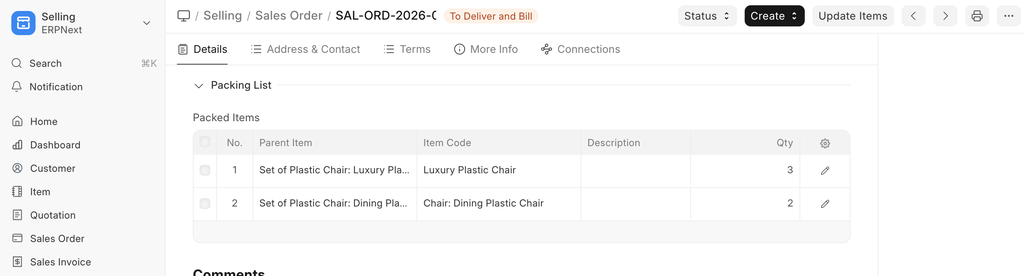
Review Packing List fields
| Field | What it means |
|---|---|
| Parent Item | The Product Bundle Item entered in the Sales Order Items table. |
| Item Code | A stock Item contained in the Product Bundle. |
| Quantity | The total component quantity required for the ordered bundles. |
| Warehouse | The Warehouse from which the component will be delivered. |
| Serial Number | Identifies serialized units selected for the component when applicable. |
| Batch Number | Identifies the batch selected for a batched component when applicable. |
The Delivery Warehouse selected for the Product Bundle is copied to its Packing List rows. Components can use different Warehouses when required.
Select the pencil icon at the end of a Packing List row to open the full row editor and review fields that are not visible in the table.
Deliver and invoice the order
Create a Delivery Note from the submitted Sales Order. ERPNext uses the Packing List components for stock movement while retaining the Product Bundle parent on the commercial transaction.
Create the Sales Invoice from the Sales Order or Delivery Note according to your process. Review the selected print format to control whether the Customer sees the parent Item, components, or both.
Troubleshooting
The Packing List is empty
Confirm that the Item in the Sales Order is an active Product Bundle with valid component Items. If the bundle was created or changed later, remove and add the parent Item again on the draft Sales Order, then save it.
A component uses the wrong Warehouse
Open the component row with the pencil icon and select the correct Warehouse. Confirm that sufficient stock exists there before delivery.
A component is out of stock
Choose another Warehouse with suitable stock or complete the required procurement or manufacturing process before creating the Delivery Note.
Frequently asked questions
Does the Product Bundle parent Item create a stock movement?
The component Items in the Packing List drive the stock movement. The parent Item represents the bundle sold to the Customer.
Can components come from different Warehouses?
Yes. Review and change the Warehouse on individual Packing List rows when the components will be fulfilled from different locations.