


















Alternative Finished Goods
Problem
In process industries (e.g. chemicals), a Work Order sometimes produces a sellable item that differs from the expected finished good, a different grade or specification identified during QC. It is not scrap but also not the expected finished good.
What is this feature?
With this feature you can, in one click, tell ERPNext: "This Work Order actually produced Item B instead of Item A." The system creates a stock entry that is linked to the Work Order, moves the stock from the planned item to the actual item, carries the production cost over, and shows the real output in production reports.
When should you use it?
Use Change Finished Item when all of these are true:
- The Work Order is submitted and some quantity has already been produced.
- QC (or any inspection) found that the output is a different but sellable item — a different grade, purity, or specification.
- The actual item is one of the pre-approved alternatives of the planned item.
Do not use it when:
- The output is waste or scrap → use the normal scrap flow instead.
- You simply produced less than planned → use process loss.
- You want to repackage into different pack sizes → use a normal Repack Stock Entry.
Real-life example
Sunrise Chemicals runs a Work Order to produce 100 kg of Epoxy Resin – Grade A.
Production completes and 100 kg is booked into the Finished Goods warehouse. During QC, the lab finds that 20 kg of the batch does not meet Grade A viscosity limits — but it fully meets Grade B specification, which the company also sells (at a lower price).
Without this feature, the store keeper would make a manual Repack entry that has no link to the Work Order — reports would forever say "100 kg Grade A produced", which is wrong.
With this feature, the supervisor opens the Work Order, clicks Change Finished Item, selects Epoxy Resin – Grade B and enters 20. ERPNext:
- removes 20 kg of Grade A from the FG warehouse,
- adds 20 kg of Grade B in the FG warehouse at the same production cost,
- keeps the entry linked to the Work Order,
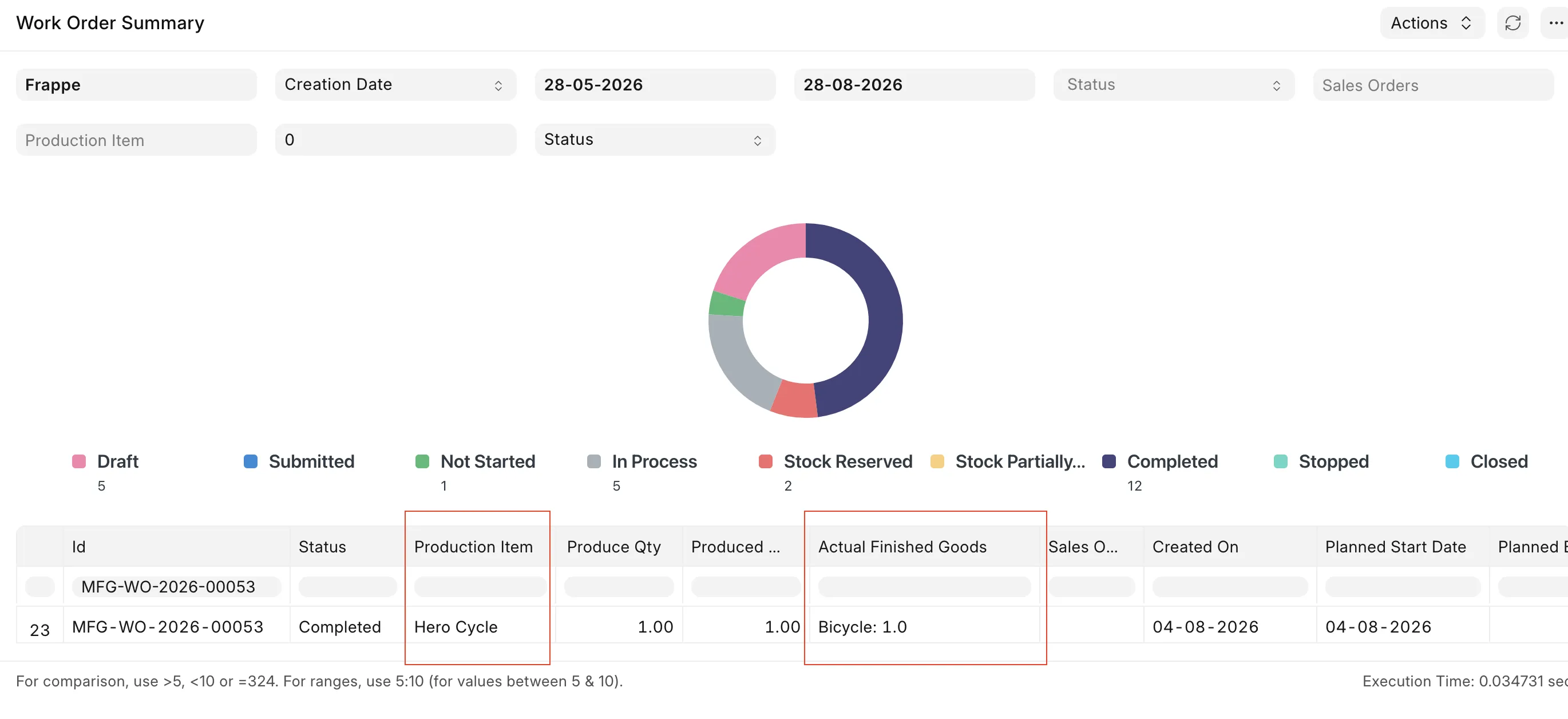
- and the Work Order Summary report now shows:
Grade A: 80, Grade B: 20.
One-time setup (Manager)
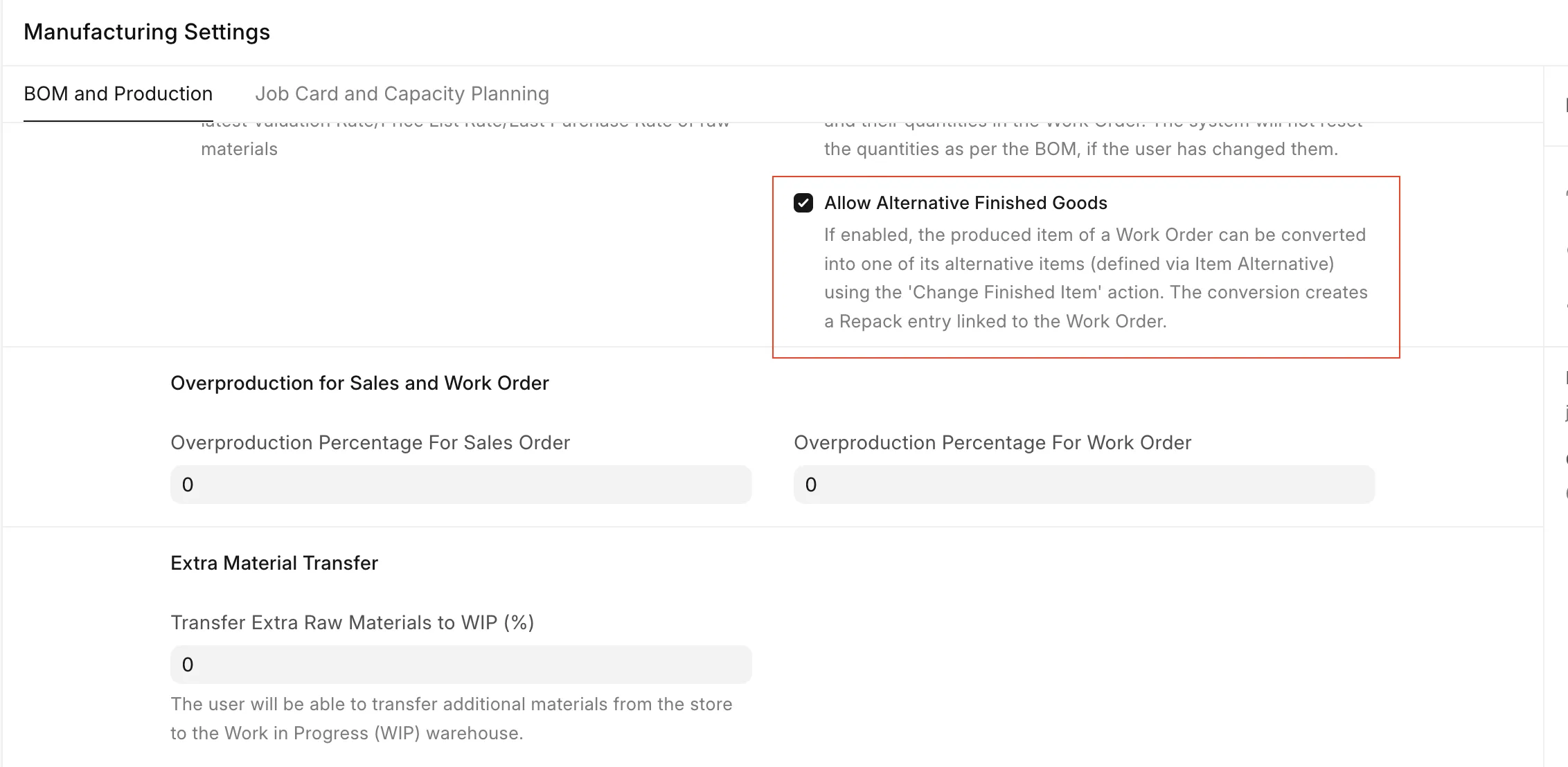
Step 1 — Turn the feature on
Open Manufacturing Settings and enable Allow Alternative Finished Goods (in the BOM and Production tab), then save.
Step 2 — Allow alternatives on the planned item
Open the Item you normally produce (e.g. Epoxy Resin – Grade A) and enable Allow Alternative Item, then save.
Step 3 — Define the allowed grades
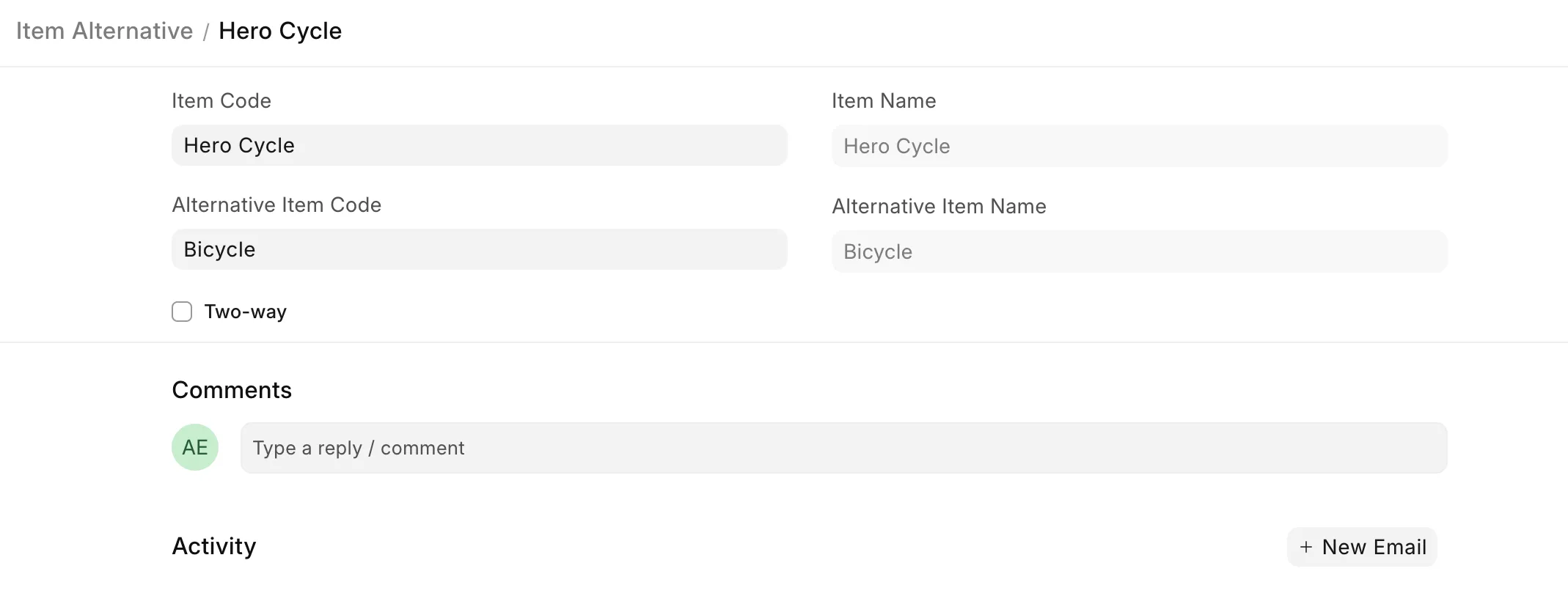
Create an Item Alternative record for each grade the process may produce:
| Field | Example value |
|---|---|
| Item Code | Epoxy Resin – Grade A (the planned item) |
| Alternative Item Code | Epoxy Resin – Grade B (the possible actual output) |
| Two-way | Tick only if Grade B Work Orders can also be regraded to Grade A |
Setup is done. You never need to repeat this unless a new grade is introduced.
Daily usage (Operator / Supervisor)
- Finish production as usual. Complete the Work Order's Manufacture entry so the produced quantity is booked.
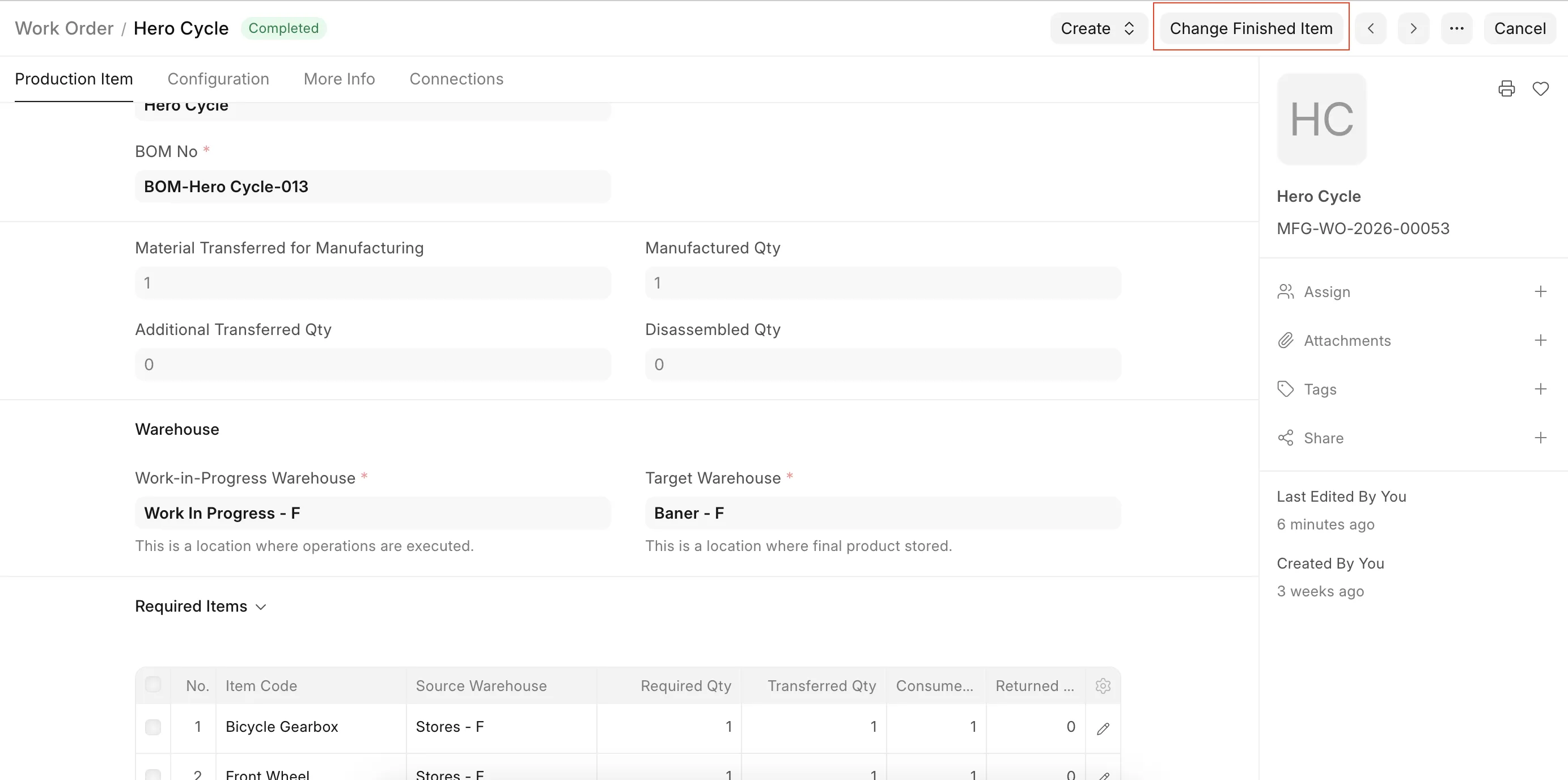
- Open the Work Order. After QC identifies a grade change, open the Work Order and click the Change Finished Item button.
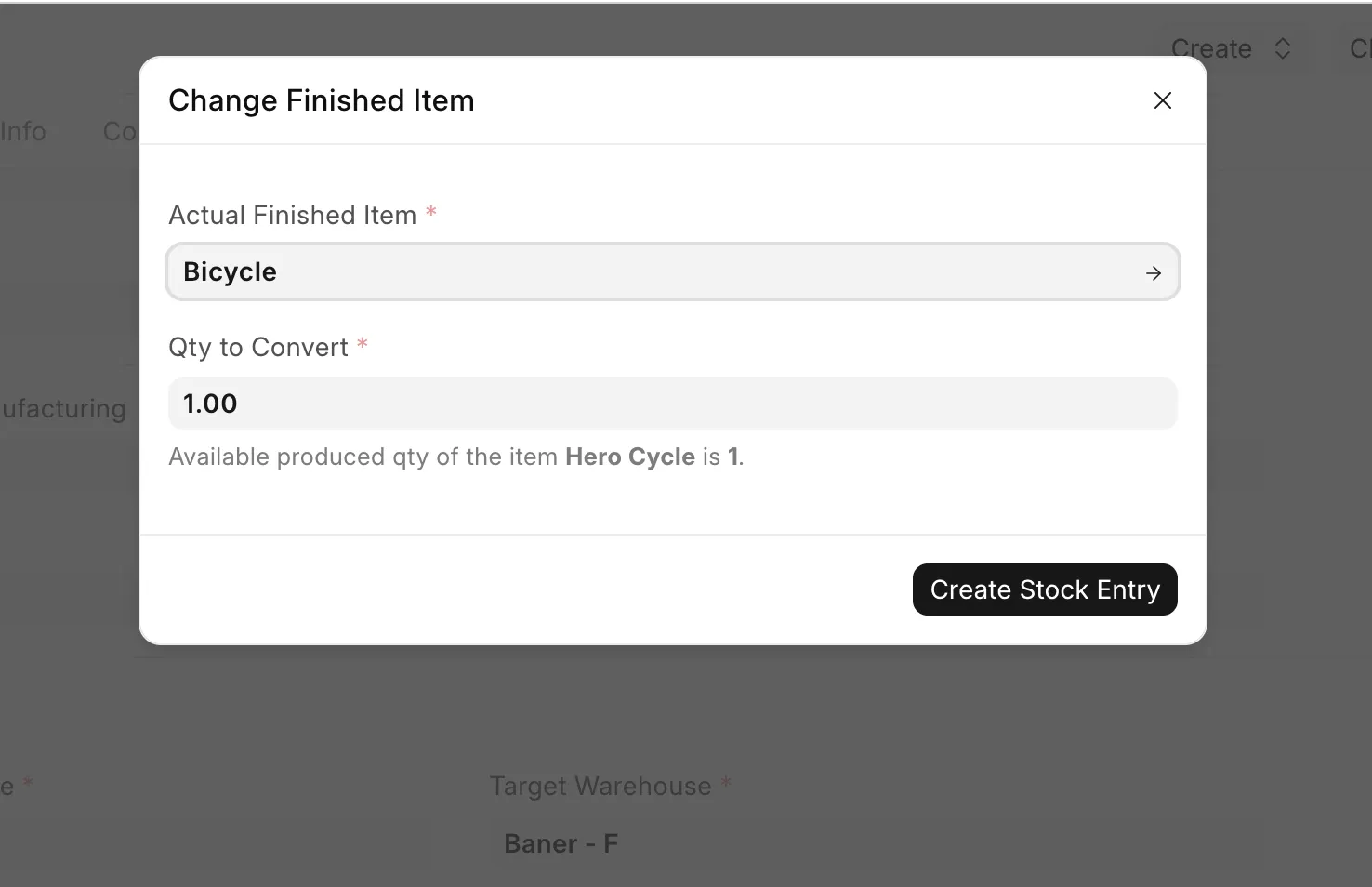
- Fill the dialog.
-
Actual Finished Item - System will auto default when there's only one alternative or pick the grade QC approved (only pre-approved alternatives are shown).
-
Qty to Convert - how much of the produced quantity is actually the other grade. The dialog shows how much is available to convert.
-
Create Stock Entry.
- In the popup, you will see Create Stock Entry, click on it and ERPNext opens a ready-made draft Repack entry. Fill in the batch / serial numbers for both rows (the batch being consumed and the new batch being created), then Submit.
-
Check the report (optional). Open Work Order Summary — the Actual Finished Goods column shows the true output
Good to know
- Cost is transferred automatically. The actual item is valued at the same cost the Work Order produced — no manual rate entry needed.
- You cannot convert more than was produced. The system tracks earlier conversions and blocks anything above the remaining produced quantity.
- Quantity in = quantity out. The converted quantity and the new item's quantity must match. (For genuine quantity-changing operations, use a normal Repack entry.)
- Partial conversions are fine. You can convert 20 kg today and another 10 kg tomorrow, as long as the total stays within the produced quantity.
- Wrong entry? Cancel the conversion Stock Entry - stock and cost return to the planned item, and the converted quantity becomes available again.
- Nothing changes if the feature is off. The button and report column appear only when Allow Alternative Finished Goods is enabled in Manufacturing Settings.