


















For Nova Industries, an electronics manufacturer and distributor, enabling EUR is the first step toward invoicing European customers.
Nova keeps its books in USD, but a European customer expects an invoice in EUR. Before EUR can appear correctly, ERPNext needs to know its code, symbol, fractional unit, and number format. The Currency record stores these display rules.
Enabling EUR makes it available for selection. It does not convert money, create a EUR ledger, or change the Company currency. Those decisions belong to the Company, foreign-currency Account, Customer, Price List, transaction, and Currency Exchange records. Use this page to enable a currency and verify how its values will appear throughout ERPNext.
Before you begin
Confirm the currency's official code, symbol, fractional unit, and display convention. Use the standard three-letter code when it already exists. Changing a widely used Currency record affects how values appear across forms, reports, and print formats, so test presentation before changing a standard definition.
You also need permission to read or update Currency masters. If the purpose is to enter a conversion rate, use Currency Exchange instead. If the purpose is to change a Company's base currency, review the Company and existing ledger entries first. A Currency record does not convert historical accounting data.
Enable and review a currency
- Open the Currency list from Accounting > Multi Currency > Currency.
- Search for the standard code, such as EUR.
- Open the record and select Enabled.
- Review the fraction, symbol, and number format.
- Save the record.
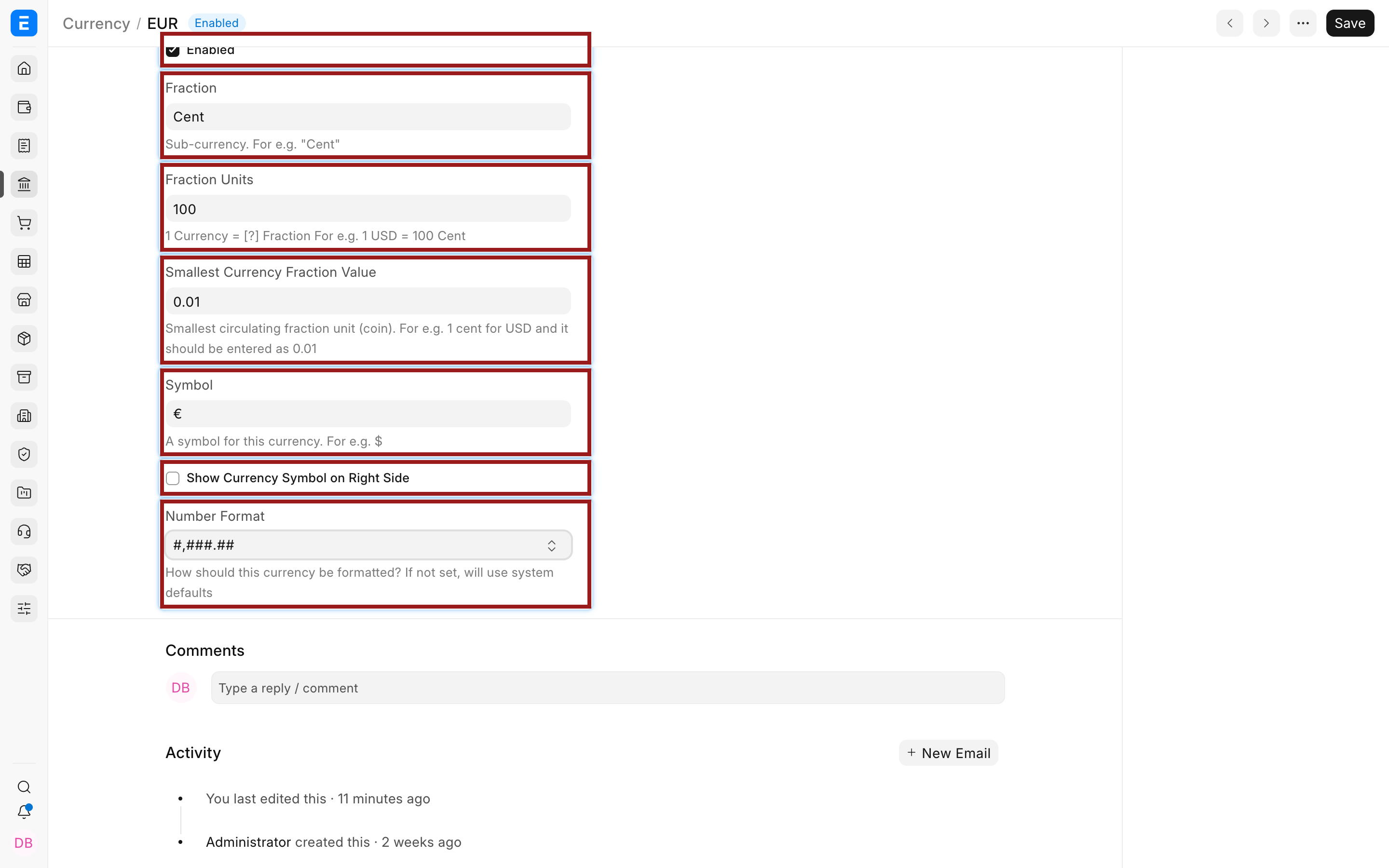
Enabling a currency makes it available for selection. It does not make it the default currency of any Company, party, account, Price List, or document.
Confirm the saved symbol and separators with a realistic amount, including thousands and decimals, before using the currency in customer-facing documents.
After saving, reload the record and test the formatted value on a Draft transaction and its print preview. This confirms that both Desk and the party-facing output use the expected symbol position, separators, and fraction wording.
Important fields and what they mean
| Field | Meaning |
|---|---|
| Currency Name | The standard currency code used as the record name, such as EUR, USD, or GBP. |
| Enabled | Makes the currency available in Link fields. Disable an unused currency only after confirming that no current process requires it. |
| Fraction | The singular name used for the sub-currency when amounts are converted to words, such as Cent or Penny. |
| Fraction Units | The number of fractional units in one currency unit. EUR uses 100 because one euro equals 100 cents. |
| Smallest Currency Fraction Value | The smallest circulating denomination, entered as a decimal value. For EUR, 0.01 represents one cent. This is not the same setting as calculation precision. |
| Symbol | The display symbol, such as €, $, or £. |
| Show Currency Symbol on Right Side | Places the symbol after the number where that is the accepted convention. |
| Number Format | Defines grouping and decimal separators. For example, #,###.## displays 12345.67 as 12,345.67. |
The system-wide System Settings and field precision still affect how many decimal places ERPNext calculates or displays. A number format changes presentation; it does not necessarily round the underlying General Ledger value. Test reports if you use a currency with no minor unit or unusually high precision.
Where currency is selected
Currency has several distinct roles in ERPNext:
| Record | What the currency controls |
|---|---|
| Company | The base currency used for the Company's accounting books and base-currency values. |
| Account | The fixed account currency used for that ledger. One bank or cash account should represent one currency. |
| Customer or Supplier | The default billing currency and, when configured, the matching receivable or payable account. See Multi Currency Setup. |
| Price List | The currency in which Item Prices are maintained. |
| Sales or Purchase transaction | The currency shown to the party and used for document totals. ERPNext also records the Company-currency equivalent through an exchange rate. |
Do not assume that enabling EUR automatically creates a EUR bank account or EUR receivable account. Create those ledgers deliberately in the Chart of Accounts, then connect them to the relevant Customer or Supplier.
Number format and precision
Number format answers how a number is shown. Precision answers how many decimal places are retained or displayed. For example, a format containing two decimal placeholders cannot by itself guarantee that every posting is rounded to two decimals. Review currency precision and the precision of the relevant fields if a report appears to contain unexpected decimals.
Use a format familiar to the people reading the document. #,###.## uses a comma for thousands and a period for decimals. #.###,## uses a period for thousands and a comma for decimals. Users should enter values according to the locale and input behavior configured for the site, then verify the parsed value before saving a transaction.
After enabling a currency
Configure the rest of the workflow in this order:
- Create the required foreign-currency ledger accounts.
- Set the party's Billing Currency and default account when the party normally uses that currency.
- Create a matching Price List if prices are maintained in the foreign currency.
- Add a manual rate in Currency Exchange or verify the configured exchange-rate provider.
- Test a draft Sales Invoice, Purchase Invoice, or Payment Entry and compare the transaction and Company-currency totals.
Troubleshooting
The currency does not appear in a transaction
Open the Currency record and confirm that Enabled is selected. Then check whether the party account or Price List restricts the transaction to another currency. A foreign-currency party account normally requires the transaction currency to match that account.
The symbol or separators look wrong
Review the Currency symbol, symbol position, and Number Format. Also check the site's number format and currency precision. Clear the browser cache or reload the document after saving a master change.
A whole-number currency still has decimals in a report
Hiding decimal places is not the same as changing stored precision. Review System Settings, report behavior, tax rounding, stock valuation, and the relevant field precision before relying on a visually rounded report for statutory output.
FAQs
Do I need to create every currency my business may use?
No, most standard currencies already exist. Enable only those required by your Companies, parties, accounts, price lists, transactions, or reports.
Can I change a Currency code after transactions exist?
Treat the code as a stable identifier. Create or enable the correct standard currency rather than renaming a code used by existing records.
Does disabling a currency change old transactions?
No, it removes the currency from normal selection but does not translate or delete historical values. Confirm that reports, recurring documents, integrations, and imports no longer need it before disabling it.
Is Smallest Currency Fraction Value the same as Currency Precision?
No, the smallest fraction describes the circulating denomination. Precision controls numeric calculation or display detail elsewhere in the system.
Where do I enter the exchange rate?
Use Currency Exchange for a stored rate, or let ERPNext use the active provider when no eligible manual rate exists. The Currency master itself contains no rate.