


















Why are UOM and item details not filled in when I add an item to a Material Request
You select an item in the Items table of a Material Request, but UOM, Stock UOM, UOM Conversion Factor and the item details stay blank. When you click Save, you see Stock UOM is required in every row. This page explains why and how to fix it.
What you see
After you select an item in the Item Code column, the row stays blank. When you click Save, this message shows:
Missing Fields
Please fill the following mandatory fields before saving:
In Items, Stock UOM is required in every row.
If you open the browser console (press F12, then open the Console tab), you can also see one of these errors for erpnext.stock.get_item_details.get_item_details:
pydantic_core._pydantic_core.ValidationError: 1 validation error for is-instance[_dict]
Input should be an instance of dict [type=is_instance_of, input_value='{"item_code":"...","uom":""}', input_type=str]
frappe.exceptions.FrappeTypeError: Argument 'ctx' in 'erpnext.stock.get_item_details.get_item_details' should be of type 'frappe.types.frappedict._dict' but got 'str' instead.
What should happen
When you select an item, ERPNext gets the item details from the Item master and fills the row:
- Item Name and Description
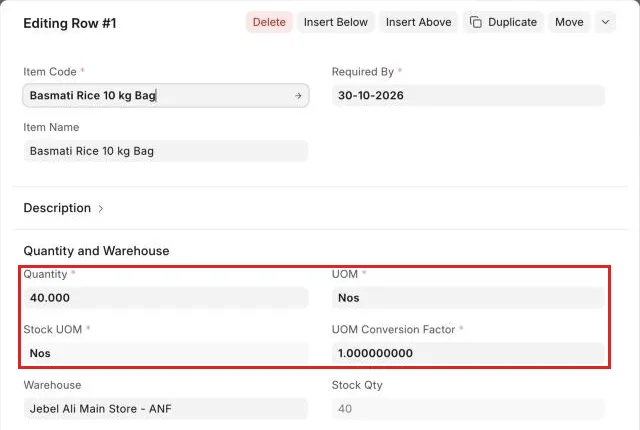
- UOM: the purchase unit of measure of the item, or its default unit of measure
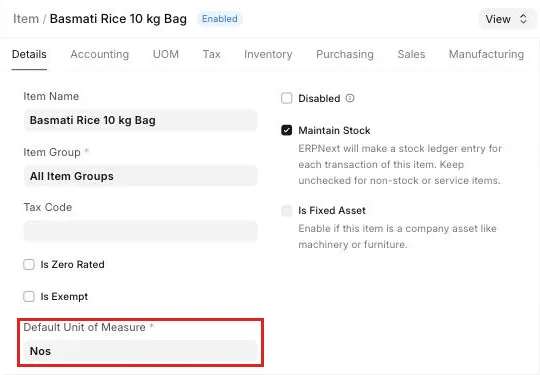
- Stock UOM: the Default Unit of Measure of the item
- UOM Conversion Factor: how many stock units are in one UOM
- Warehouse, from Set Warehouse or the item defaults
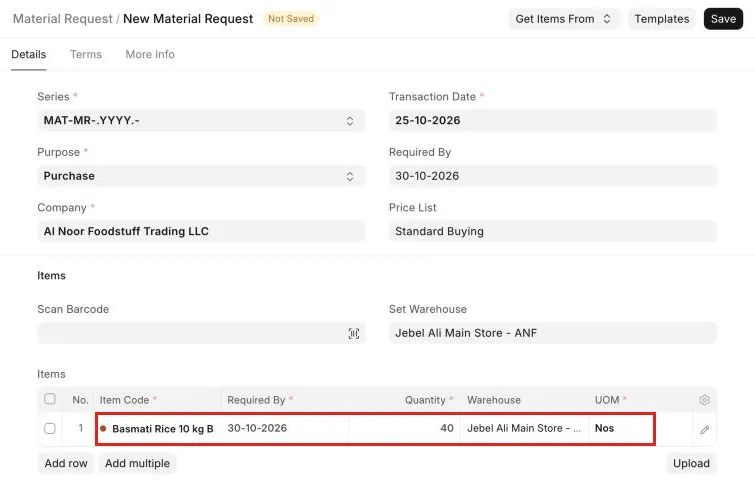
To see all the fields of a row, click the edit icon at the end of the row.
Why this happens
ERPNext fills the row with one server call, get_item_details. If this call fails, nothing is filled in, and the row cannot be saved because Stock UOM is mandatory.
The usual causes are:
- A bug in ERPNext v16. From ERPNext v16.30.0,
get_item_detailsfailed on sites that run on Python 3.14. So the item details were not filled in on Material Request and some other forms. ERPNext v16.32.3 fixes this (pull request #58118). Most tickets about this problem came from this bug. - A customization on Material Request Item. A Property Setter (a saved change to a standard field) or a Client Script can change how the Item Code or UOM field works. For example, a changed Fetch From on the UOM field leaves Stock UOM blank. A changed link filter on Item Code makes the item list empty.
- A problem in the Item master. The item has no Default Unit of Measure, or the item is disabled.
- An old copy of the page in your browser. After an update, the browser can still use old JavaScript files.
How to fix it
Do these checks in order. Stop when the row fills in.
1. Update ERPNext
- Check your version. Open the Help menu and click About. If ERPNext shows a v16 version older than v16.32.3, update your site.
- If your site is on Frappe Cloud on a shared bench, the weekly update installs the fix. You do not need to do anything.
- If your site is on Frappe Cloud on your own bench group, deploy the latest version of the bench group. Then update your site.
- If you host ERPNext yourself, run
bench update, or ask your service provider to update the site.
2. Reload the page
- Open the Material Request.
- Press Ctrl + Shift + R (on macOS, Cmd + Shift + R). The browser loads the new files.
- Select the item again in the Item Code column.
3. Check the Item master
- Open the item: go to Stock → Item and open the item.
- Make sure Disabled is not selected.
- Make sure Default Unit of Measure has a value.
- If you buy the item in a different unit, open the UOM tab. Add the unit and its Conversion Factor in the table. Set Default Purchase Unit of Measure in the Purchasing tab.
- Click Save.
4. Check customizations
You need the System Manager role for these steps.
- Go to Property Setter list. Filter by DocType =
Material Request Item. - Look for changes to the fields item_code, uom, stock_uom or conversion_factor. For example,
link_filterson item_code orfetch_fromon uom. - If a change is not needed, delete it. Or go to Customize Form, select Material Request Item, and click Actions → Reset All Customizations. This removes every customization on that table.
- Go to Client Script list. Filter by DocType =
Material Request. Clear Enabled on each script, then test again. - If the row now fills in, the customization caused the problem. Correct the script or the setting, then enable it again.
If you need to make a Material Request now
On an affected version, there is no reliable workaround. Some customers could not save the row even after they entered the UOM manually. The fix is to update ERPNext.
To check: whether you can save if you open the row with the edit icon and enter UOM, Stock UOM and UOM Conversion Factor manually.
How to prevent it
- Keep your site on the latest minor version of ERPNext v16.
- If you use a private bench, test updates on a staging site before you update the production site.
- Keep a list of your customizations on Material Request. After each update, test that adding an item still fills the row.
If this does not fix it
Raise a support ticket and attach:
- Your site name and the ERPNext and Frappe versions from About.
- The Material Request name, or the steps to make the problem happen again.
- A screenshot of the blank row and the error message.
- The error from the browser Console (press F12). Copy the full text of the red error for
get_item_details. - If you use a custom app, its name, and whether the problem stops when the app is not installed on a test site.