


















A Journal Entry records a balanced debit and credit directly in the General Ledger. Use it for accounting adjustments, accruals, transfers, opening balances, write-offs, revaluations, and other postings that do not belong in a normal sales, purchase, or payment workflow.
For routine money received from Customers or paid to Suppliers, prefer a Payment Entry. It selects the expected bank, cash, party, currency, and invoice-allocation fields for you. Use a Journal Entry when you need deliberate control over the accounts and understand the accounting effect.
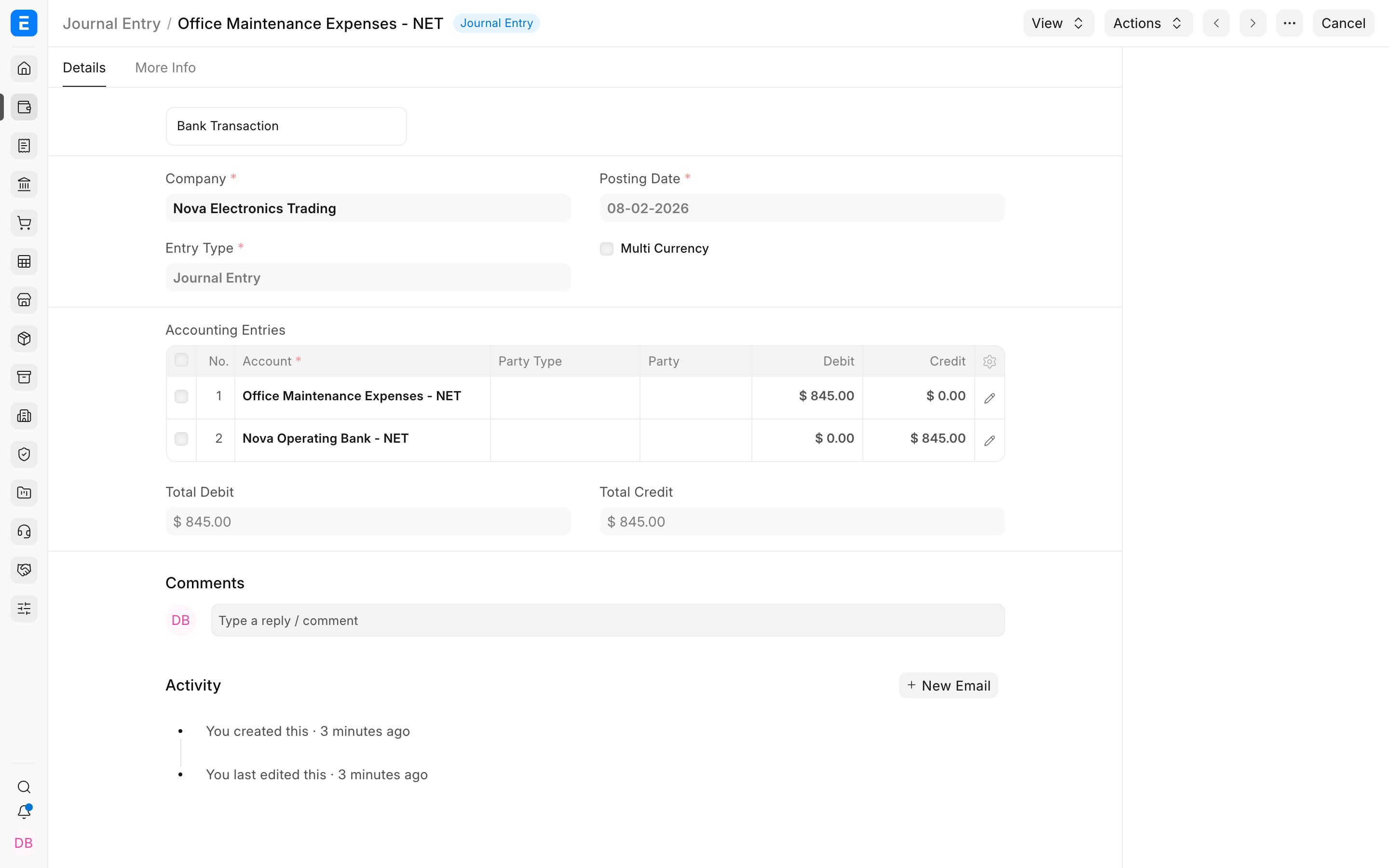
This guide uses a simple example: Nova Industries pays $845 of office-maintenance expense from its operating bank account.
| Account | Debit | Credit | Meaning |
|---|---|---|---|
| Office Maintenance Expenses - NET | $845 | $0 | Recognizes the expense |
| Nova Operating Bank - NET | $0 | $845 | Reduces the bank balance |
Before you begin
Confirm that the Company, Chart of Accounts, Fiscal Year, and Posting Date are correct. The accounts must be non-group accounts belonging to the selected Company. Configure a Cost Center, Project, or other Accounting Dimension before using it on an account row.
If the entry records a Customer or Supplier balance, use the correct receivable or payable account and select the Party Type and Party. Add a document reference when the entry should change an invoice, order, expense claim, employee advance, asset, or another supported outstanding balance.
Create a Journal Entry
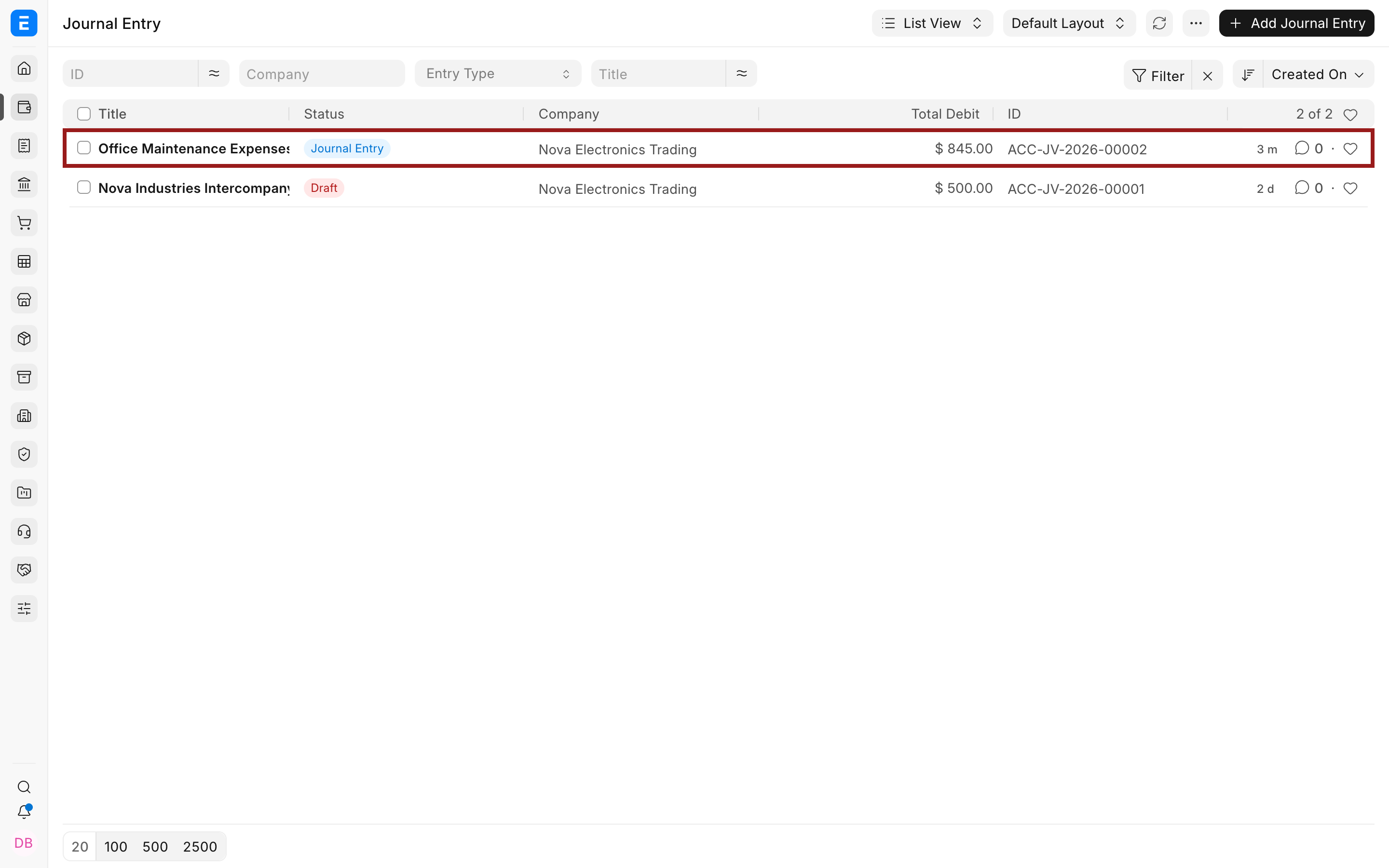
- Open the Journal Entry list and select Add Journal Entry.
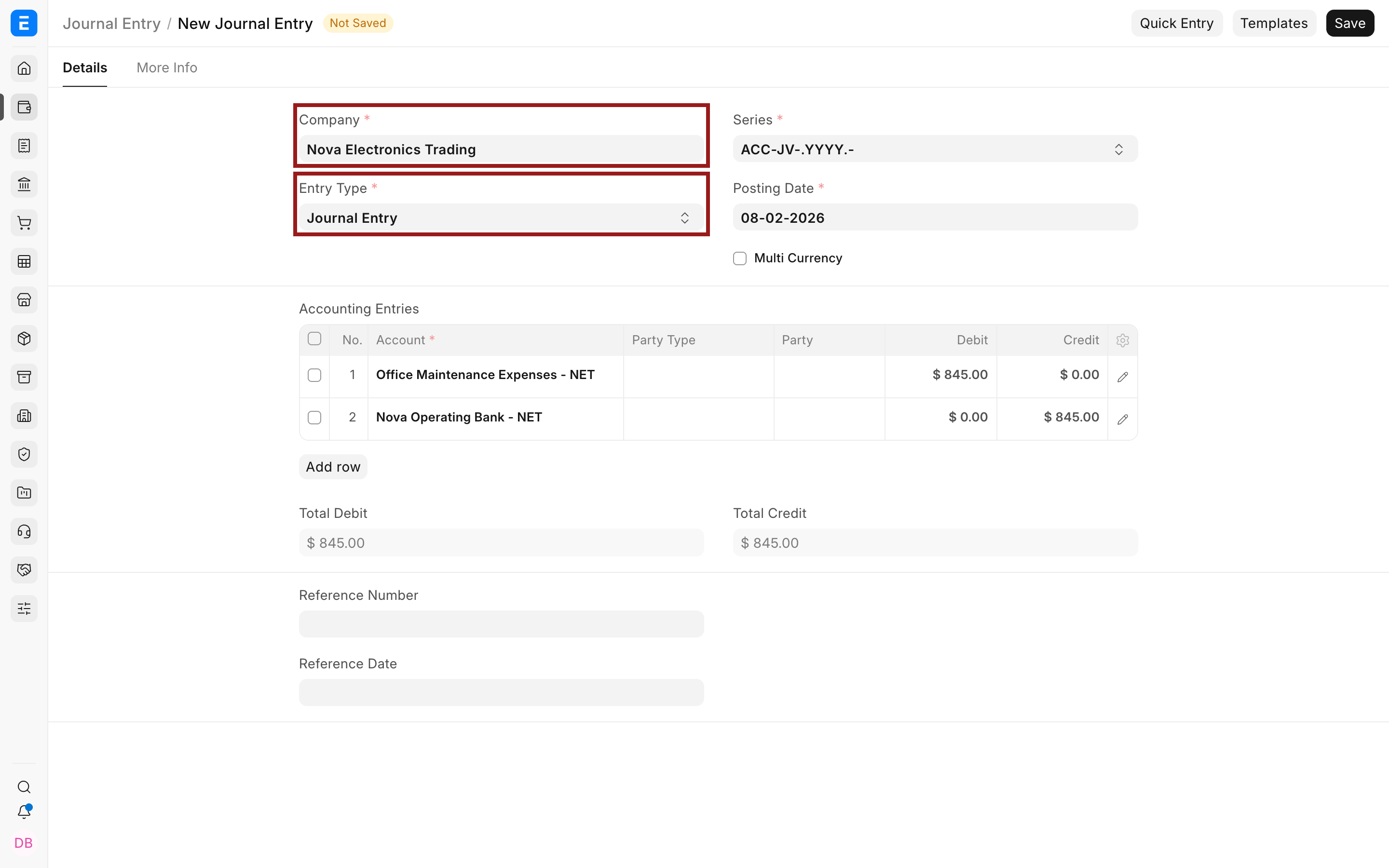
- Select the Company, Entry Type, and Posting Date. For a general adjustment, keep Entry Type as Journal Entry.
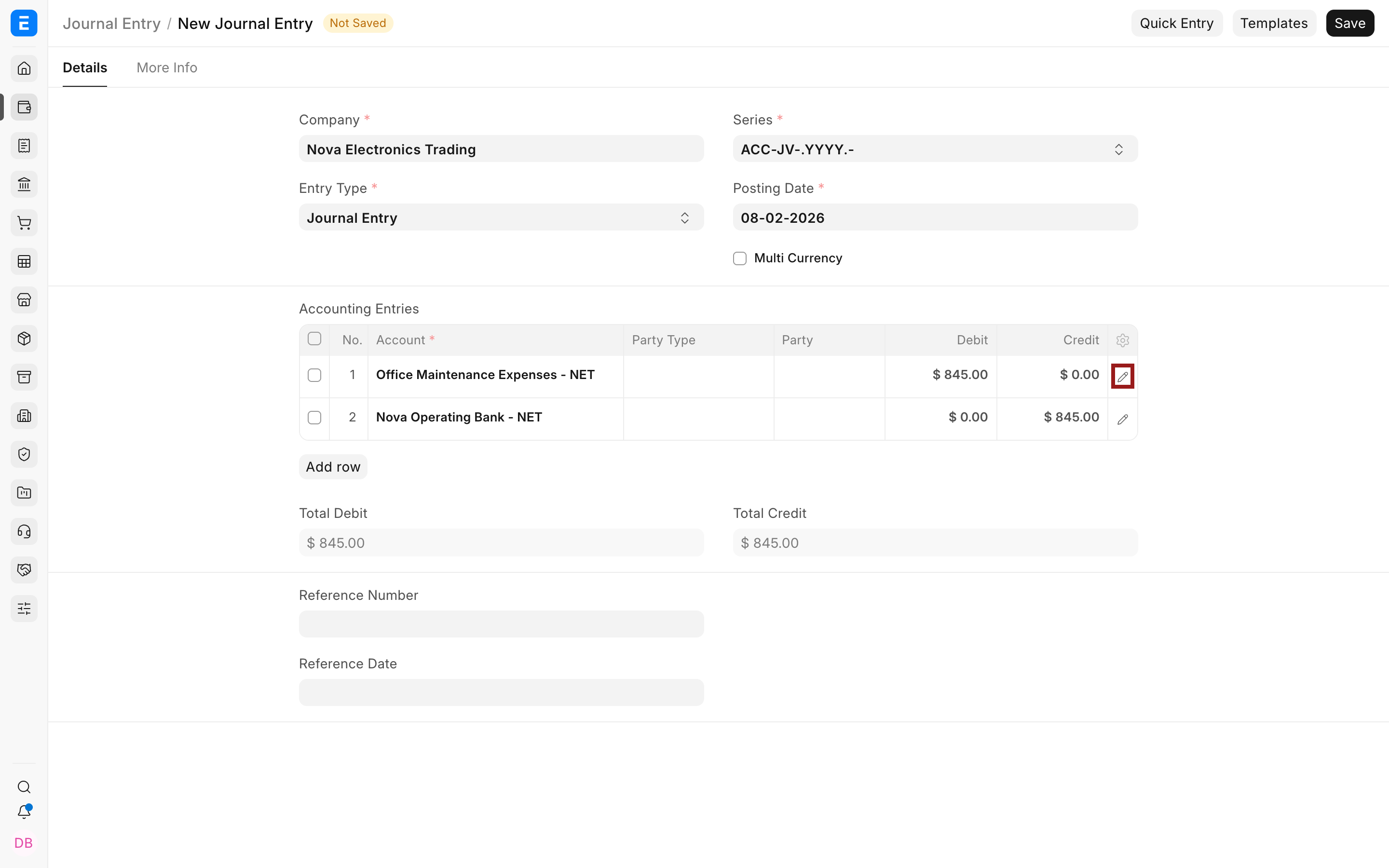
- In Accounting Entries, add the account to debit and enter the debit amount. Add the offsetting account and enter the credit amount. Total Debit and Total Credit must be equal before submission.
The grid shows the main columns. Select the highlighted pencil icon to open the complete row editor when you need Party, reference, currency, Cost Center, Project, or other row-level fields.
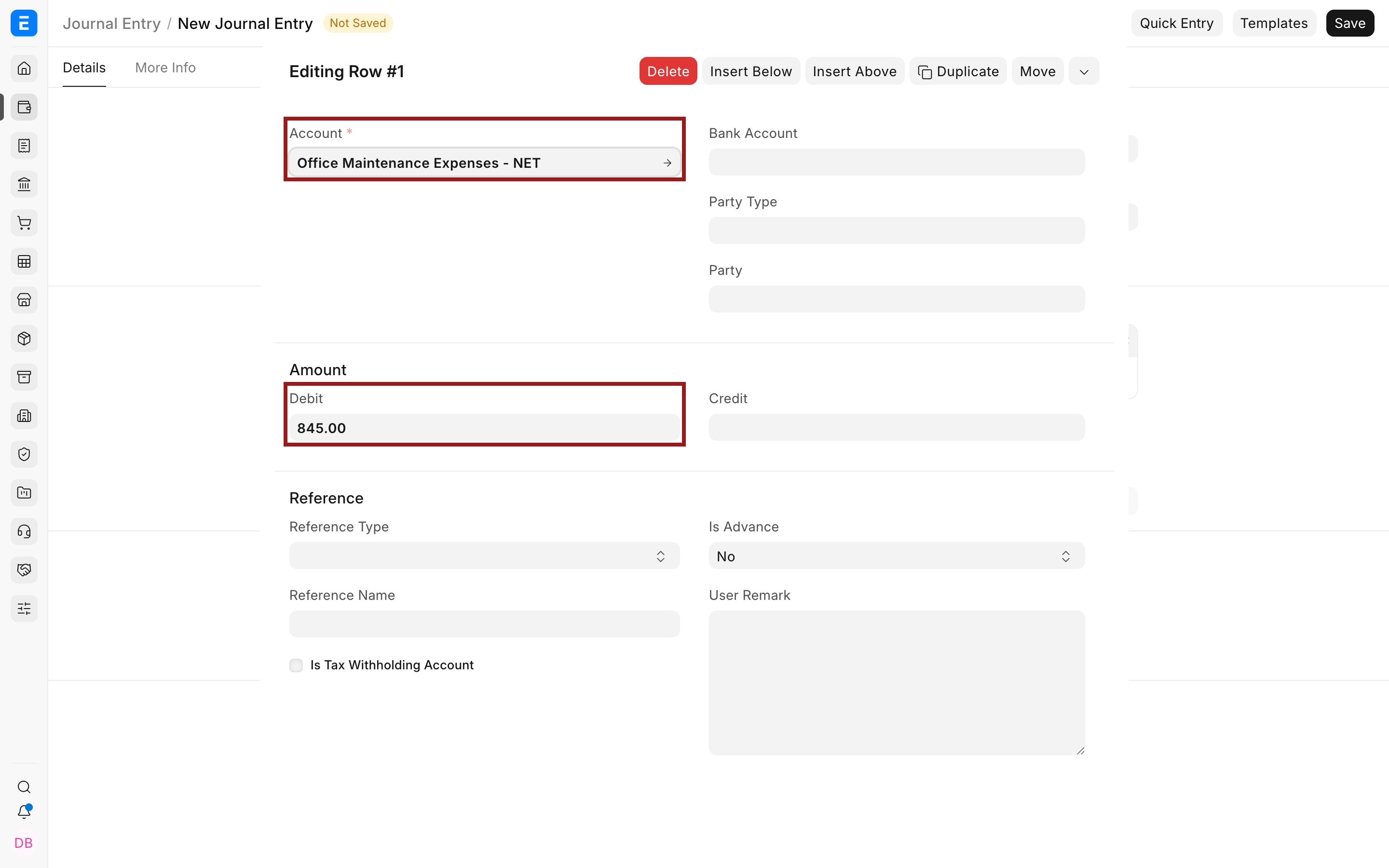
4. In the row editor, confirm the Account and enter either a debit or a credit, never both on the same row. In the example, Office Maintenance Expenses is debited by $845.
5. Add a clear User Remark and, when applicable, a Reference Number, Reference Date, Bill Number, Bill Date, and Due Date. These supporting fields do not replace a formal link to an ERPNext document.
6. Save, review the accounts and dimensions, then submit. Submission posts the debit and credit to the General Ledger.
Create a Journal Entry with Quick Entry
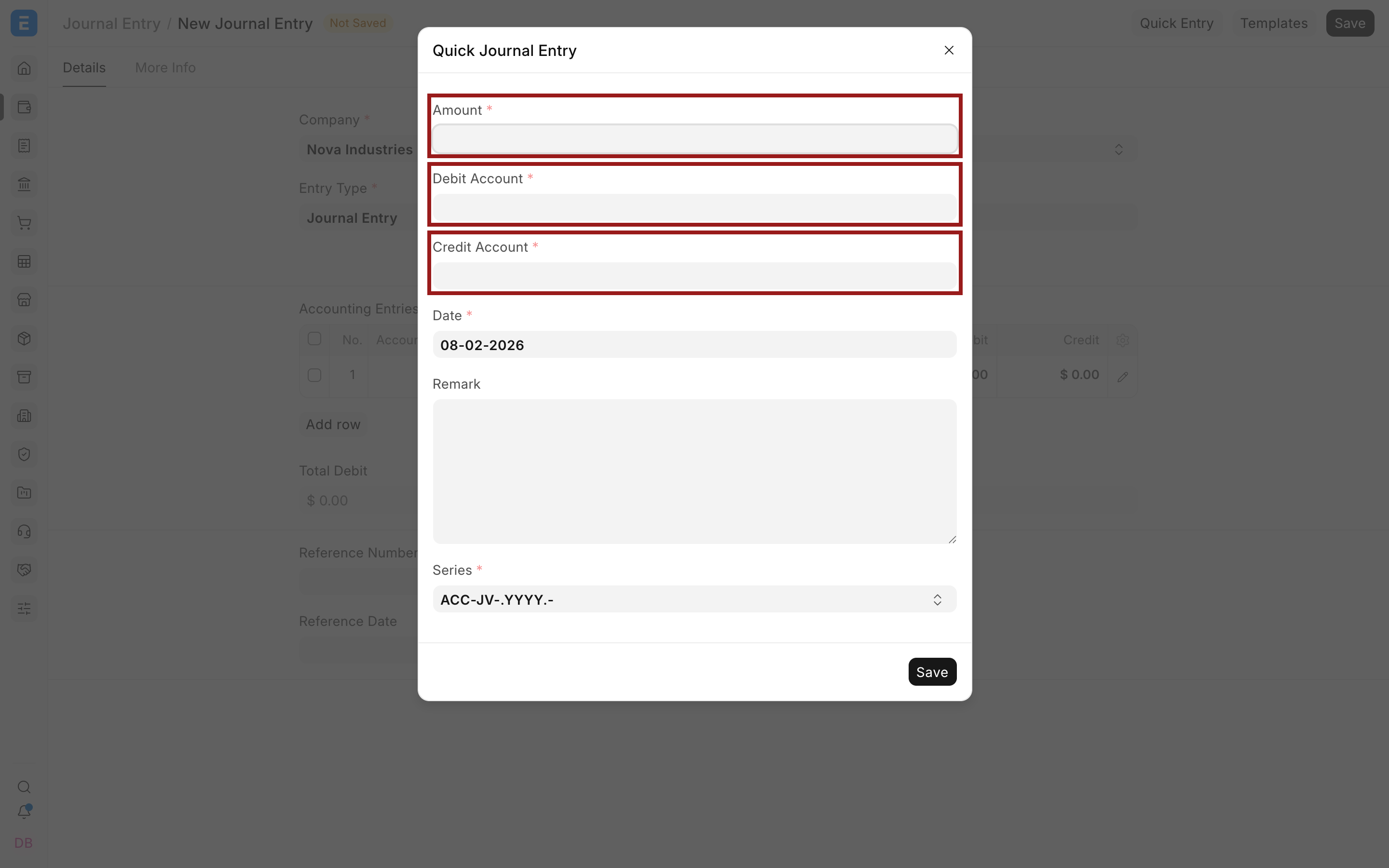
Use Quick Entry for a straightforward two-account posting. Enter the amount, debit account, credit account, date, and remark. ERPNext fills the Accounting Entries table and saves the draft. Open the full form before submission when you need a Party, document reference, multiple rows, dimensions, or multiple currencies.
You can also select a reusable Journal Entry Template. Loading a template replaces the current account rows and brings in its Entry Type, Company, naming series, opening-entry setting, multi-currency setting, and accounts. You can add or edit rows after loading it.
Important fields and what they mean
| Field | What it controls |
|---|---|
| Entry Type | Classifies the posting and can enable type-specific behavior, such as Inter Company Journal Entry or Opening Entry. |
| Finance Book | Limits the posting to a specific Finance Book. Leave it blank when the entry should appear in every Finance Book. |
| Multi Currency | Shows account currency, exchange rate, and debit or credit in account currency. The selected accounts determine which currencies are available. See Multi Currency Accounting. |
| Party Type and Party | Identifies the Customer, Supplier, Employee, or other party represented by a receivable or payable row. |
| Reference Type and Reference Name | Links a row to a submitted transaction and can change its outstanding or advance position. Do not select an unrelated document merely as a note. |
| Is Advance | Identifies an advance against a supported order or party. Prefer the supported advance-payment workflow where available so the amount remains reconcilable. |
| Cost Center, Project, and dimensions | Attribute income, expense, asset, or liability movement for reporting. These values are stored on each account row. |
| Mode of Payment and Bank Account | Add payment context and can fetch configured bank information. For routine payments, a Payment Entry is usually safer. |
| Pay To / Recd From | Supplies the name used by applicable print formats, including cheque-oriented formats. |
| Is Opening | Marks a migrated opening posting. Use the documented Opening Balance process and validate the temporary opening account. |
Supported references can include Sales Invoice, Purchase Invoice, Journal Entry, Sales Order, Purchase Order, Expense Claim, Asset, Loan, Payroll Entry, Employee Advance, Exchange Rate Revaluation, and Invoice Discounting. Availability depends on the selected account, party, document status, and current outstanding amount.
Do not manually set Payment Entry as a Journal Entry row reference. Current ERPNext blocks this because payment-allocation relationships must be created through the supported payment and reconciliation workflow.
Entry types
| Entry type | Typical use |
|---|---|
| Journal Entry | General accrual, adjustment, direct expense, or multi-account posting |
| Inter Company Journal Entry | Mirrored posting between related Companies. Follow the Inter Company Journal Entry workflow. |
| Bank Entry, Cash Entry, Credit Card Entry | Classification for account movements using the corresponding account type |
| Contra Entry | Cash-to-bank, bank-to-cash, bank-to-bank, or cash-to-cash transfer inside the Company |
| Debit Note and Credit Note | Accounting classification for an adjustment. For invoice returns, use the supported Debit Note or Credit Note workflow. |
| Write Off Entry | Writes off a receivable or payable against an appropriate expense or income account. Review Accounting for Bad Debts where applicable. |
| Opening Entry | Migrates balance-sheet balances and outstanding positions |
| Depreciation Entry and Asset Disposal | System or controlled postings connected to Asset Depreciation and disposal |
| Exchange Rate Revaluation, Exchange Gain Or Loss | Currency revaluation and realized or unrealized exchange differences |
| Deferred Revenue, Deferred Expense, Periodic Accounting Entry | System-supported recognition or periodic stock-accounting postings |
| Excise Entry | Legacy or regional classification. Confirm applicability with the relevant localization and tax adviser before use. |
Verify the General Ledger impact
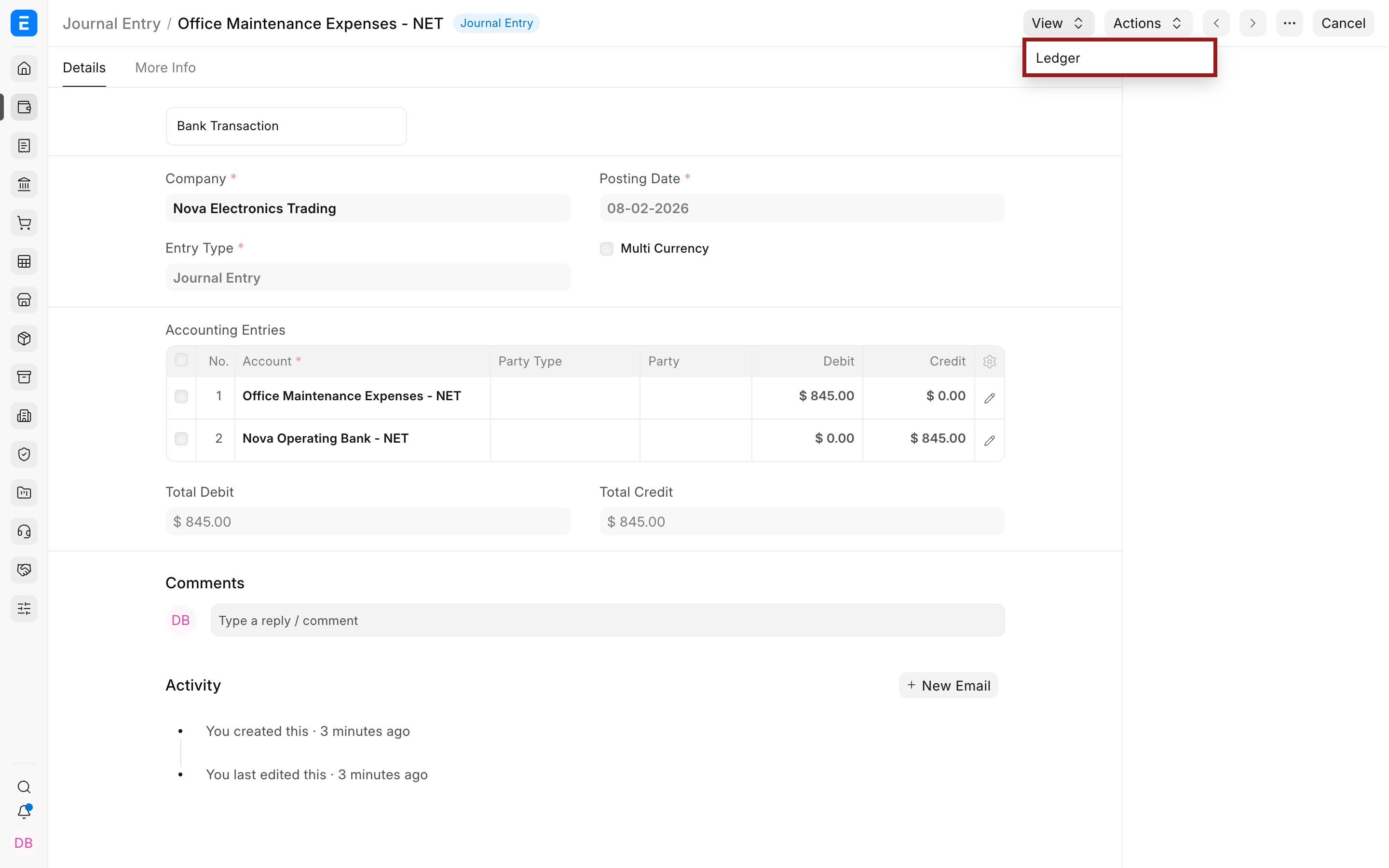
On the submitted Journal Entry, open View > Ledger.
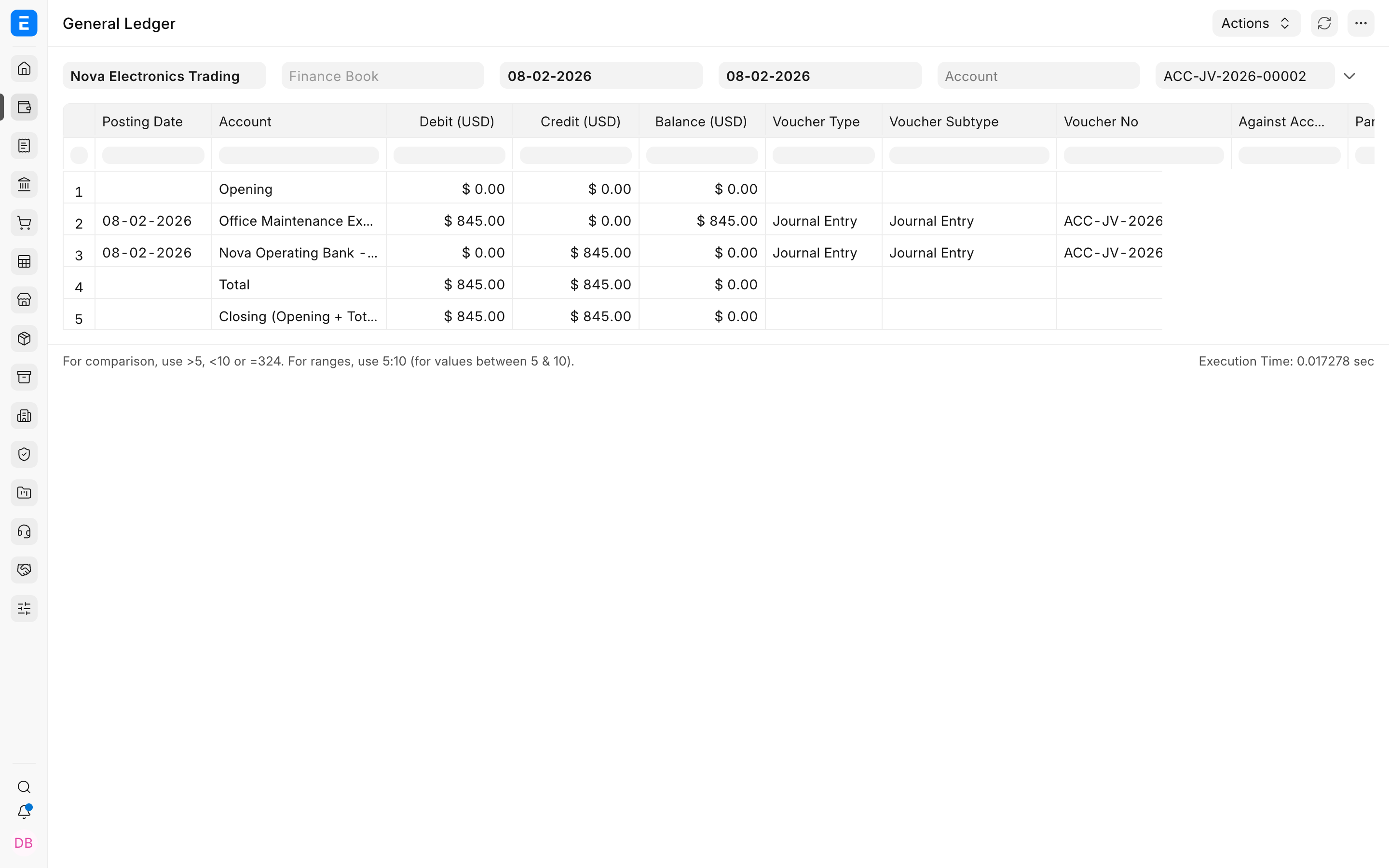
The report should show the same total debit and credit under the Journal Entry voucher. In this example, Office Maintenance Expenses is debited by $845 and Nova Operating Bank is credited by $845.
For very large entries with more than 100 account rows, current ERPNext can queue submission or cancellation in the background. Wait for processing to finish before relying on the ledger or financial reports.
Correct or reverse a Journal Entry
Do not edit a submitted posting. If the original should be cancelled and corrected, follow the permitted cancellation and amendment process, subject to linked documents, frozen periods, and Immutable Ledger rules.
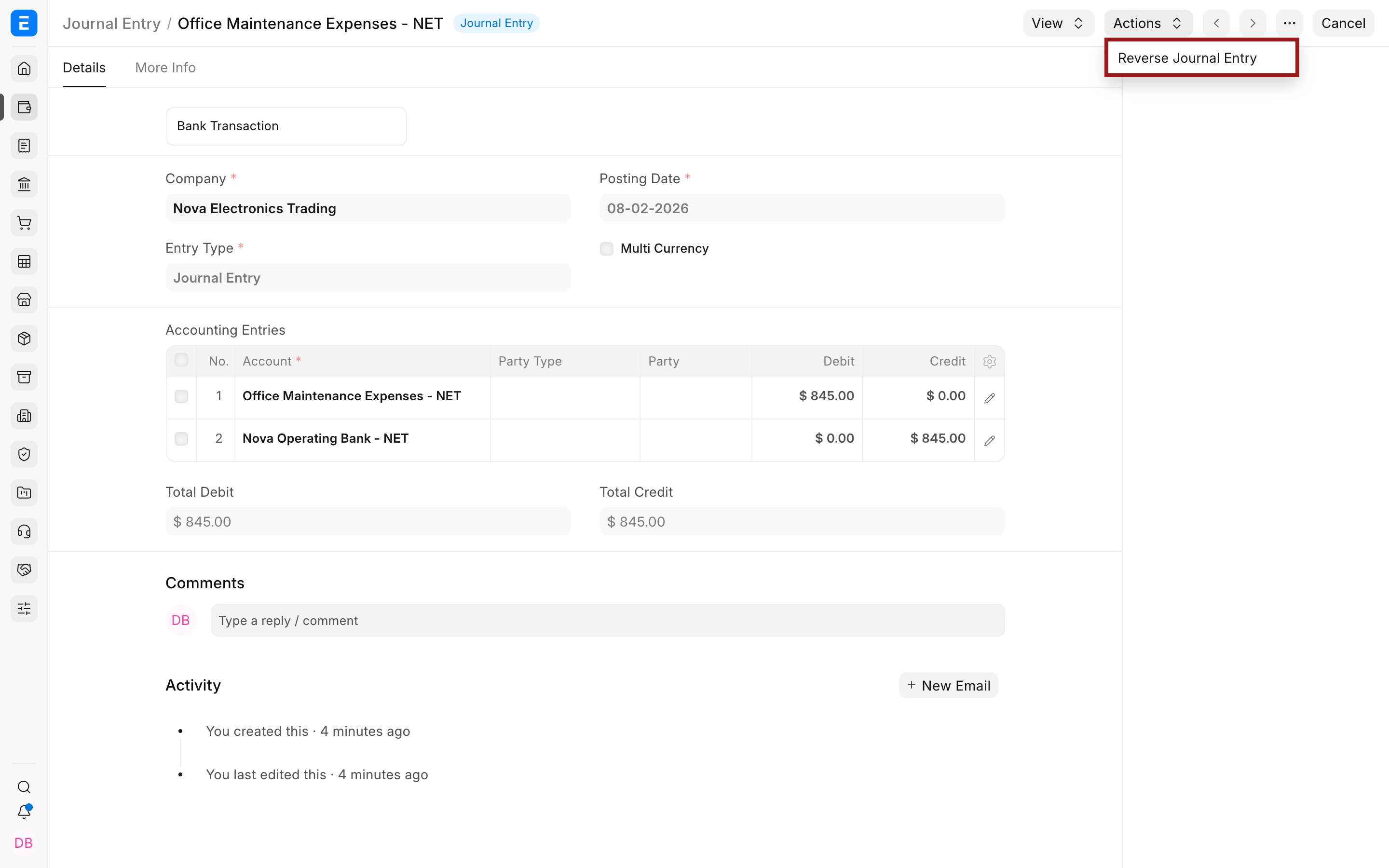
Use Actions > Reverse Journal Entry when the accounting correction should be recorded as a new posting with the debit and credit sides exchanged. Review the generated draft and its Posting Date before submission. On current develop versions, reversal entries are linked to their originals and protected from casual field changes.
Troubleshooting
Total debit and credit do not match
Review each row and confirm that an amount was entered on only one side. Add the intended offsetting account. The difference must be zero; do not use a miscellaneous account merely to force balance without understanding the cause.
A Customer or Supplier cannot be selected
Select the correct receivable or payable account first. Confirm the account belongs to the Company and that the Party Type is valid for that account.
A document is missing from Reference Name
The document normally must be submitted, belong to the relevant party and account, and have a compatible outstanding or unbilled position. Confirm the row's Account, Party Type, Party, Reference Type, and Cost Center.
A foreign-currency account is unavailable
Enable Multi Currency and confirm that the account was created with the required currency. ERPNext does not let a transaction arbitrarily override an account's currency.
Frequently asked questions
Should I use a Journal Entry for normal Customer receipts and Supplier payments?
Usually no. Use Payment Entry because it handles party accounts, bank or cash accounts, invoice allocations, advances, exchange rates, references, and later reconciliation more explicitly. Use Journal Entry for a deliberate accounting adjustment or a workflow that specifically requires it.
Does saving a draft affect the General Ledger?
No, The General Ledger is posted when the Journal Entry is submitted. Cancelling or reversing it creates the corresponding accounting effect according to the current ledger rules.
Can one Journal Entry contain more than two accounts?
Yes, It may contain several debit and credit rows as long as the total debit equals the total credit and every row passes account, party, reference, currency, and dimension validation.
Can I use a Journal Entry to settle an invoice?
ERPNext can update an invoice's outstanding position when the correct receivable or payable row is linked to the invoice. For an actual receipt or payment, Payment Entry and Payment Reconciliation normally provide a clearer audit trail.
What is the difference between reversing and cancelling?
Cancellation reverses the submitted document under ERPNext's cancellation rules. Reverse Journal Entry creates a separate draft with exchanged debit and credit sides so the correction can be reviewed and posted as its own voucher.