


















Opening Invoice Creation Tool
Imagine that a company will start using ERPNext on 1 January. Their customer, Northstar Retail still owes $2,500 across three invoices from the old accounting system. If you import only one $2,500 receivable balance, the total will be correct, but the collection team will not know which invoice is overdue, which due date to use, or where to allocate a later payment.
The Opening Invoice Creation Tool creates opening Sales Invoices and Purchase Invoices for those unpaid amounts. It preserves the party, legacy invoice reference, posting date, due date, currency, and outstanding amount without recreating the historical order, stock, tax, or item-level workflow.
Use this page after deciding the cutover date in Opening and Closing During Migration. It explains how to prepare a controlled invoice schedule, create the opening invoices, and prove that receivables, payables, and the General Ledger agree before go-live.
When to use this tool
Use the Opening Invoice Creation Tool when an unpaid or partly paid customer or supplier invoice must remain visible after migration. The result should appear in Accounts Receivable or Accounts Payable with a usable due date and outstanding amount.
| Requirement | Recommended method |
|---|---|
| Import individual unpaid customer or supplier invoices | Opening Invoice Creation Tool |
| Import Customers, Suppliers, Items, or other masters | Data Import |
| Bring forward stock quantity and value | Stock Reconciliation with Opening Stock purpose |
| Bring forward bank, equity, loan, or other residual ledger balances | Opening Balance in Accounts and an approved opening Journal Entry |
| Recreate years of detailed sales or purchase history | Keep the old system available for historical reporting instead of using this tool |
Do not import fully paid invoices, quotations, orders, stock movements, or invoices that must retain their original tax and item-level analysis. The tool is designed to continue collections and payments, not reproduce every historical transaction.
Before you begin
Complete the Chart of Accounts, fiscal year, company defaults, currencies, and default receivable and payable accounts. Import and review the Customer and Supplier masters first. Also create any Cost Centers, Projects, or accounting dimensions that the opening invoices must carry.
Export two approved schedules from the old system: one for unpaid customer invoices and one for unpaid supplier invoices. Their totals must agree with the final receivable and payable control accounts in the legacy Trial Balance.
For Nova Industries, the customer schedule contains:
| Legacy invoice | Posting date | Due date | Customer | Currency | Amount still outstanding |
|---|---|---|---|---|---|
| Legacy invoice 1048 | 15 October 2025 | 14 November 2025 | Northstar Retail | USD | 1,200 |
| Legacy invoice 1096 | 20 November 2025 | 20 December 2025 | Northstar Retail | USD | 850 |
| Legacy invoice 1132 | 18 December 2025 | 17 January 2026 | Northstar Retail | USD | 450 |
| Control total | 2,500 |
For a partly paid invoice, enter only the amount still outstanding at cutover. Keep the original invoice total and payments in the migration workbook if auditors need that history.
Prepare and reconcile the import schedule
Include the legacy invoice number, party, posting date, due date, currency, outstanding amount, quantity, and any required Cost Center or Project. Use a positive quantity, normally 1, because the tool creates a simplified opening invoice rather than the original item lines.
Check the schedule before opening ERPNext. Remove zero-balance invoices, find duplicate references, separate Sales and Purchase rows, and total each party and currency. Confirm that party names match ERPNext and that every posting date belongs to a valid fiscal year.
Treat credit notes as a separate test batch. Create one representative credit note first and confirm that it reduces the correct party balance before importing the remaining notes.
Create the opening invoices
- Go to Home > Accounting > Opening and Closing > Opening Invoice Creation Tool.
- Select the Company.
- Set Invoice Type to Sales for customer invoices or Purchase for supplier invoices.
- Leave Create Missing Party cleared when reviewed Customers or Suppliers already exist. Enable it only when the migration owner has approved creating basic party records from the import.
- Add rows in the Invoices table, or select Upload and provide the prepared file.
- Review every row before continuing. Sales and Purchase invoices must be created in separate batches.
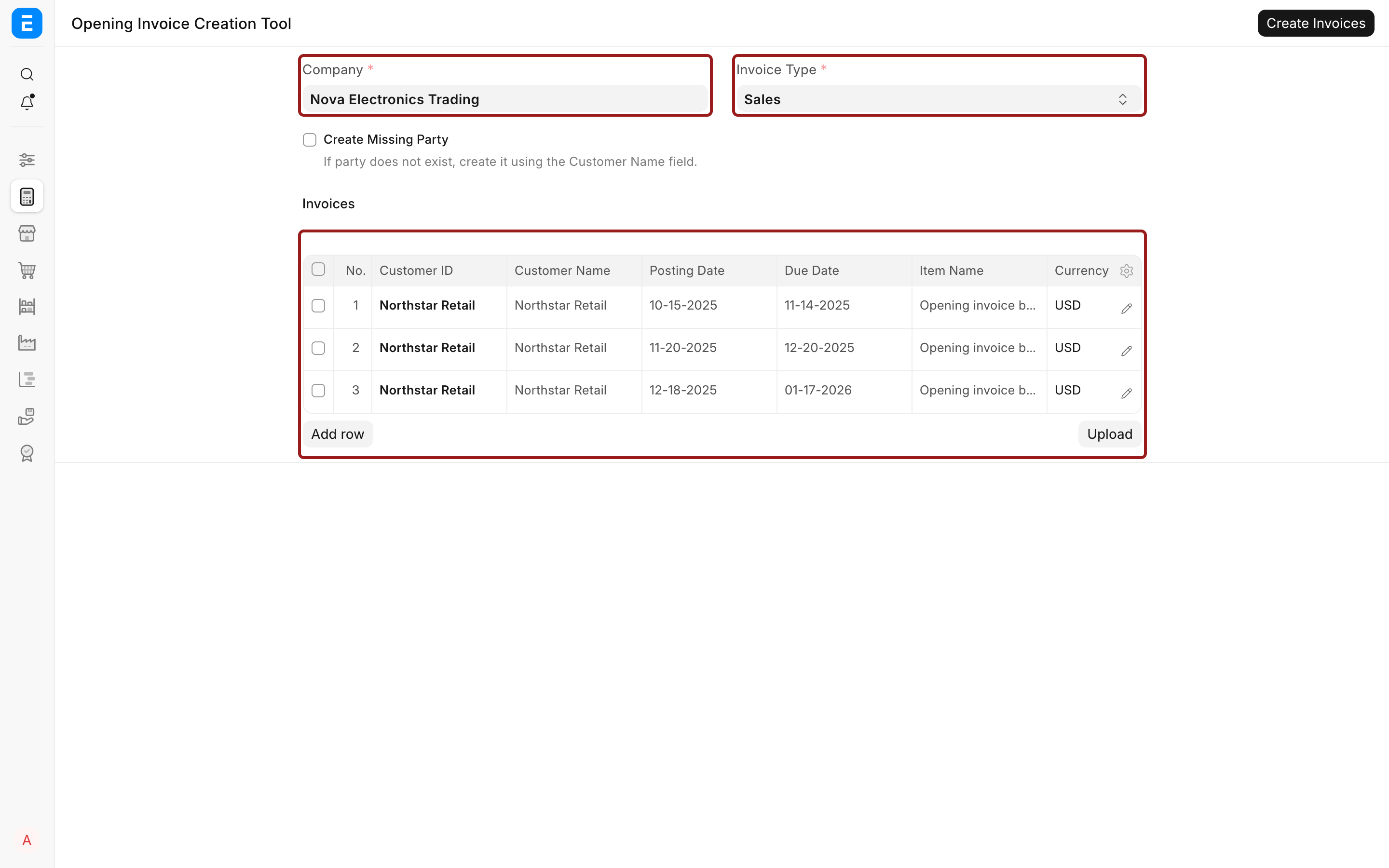
The batch is for Sales invoices in Nova Electronics Trading. The three Northstar Retail rows retain different posting dates and due dates in USD.
Open a row and check the fields that determine later ageing and settlement:
| Field | What to enter |
|---|---|
| Invoice Number | The reference from the old accounting system. Use a value that helps users trace the invoice back to the source schedule. |
| Customer or Supplier ID | The reviewed ERPNext party record. |
| Posting Date | The original invoice date used for ageing. |
| Due Date | The unpaid invoice's due date. |
| Item Name | A clear generic description such as Opening invoice balance. The original item detail is not recreated. |
| Currency | The currency of the outstanding amount. Current ERPNext versions respect the row currency and reuse a uniquely matching existing party. |
| Quantity | A positive quantity, normally 1. ERPNext flags invalid quantities and preserves the opening amount when quantity rounding would otherwise change it. |
| Outstanding Amount | The amount still unpaid at the cutover date, including tax already present in the legacy balance. |
| Cost Center or Project | The reporting value approved in the migration mapping, when required. |
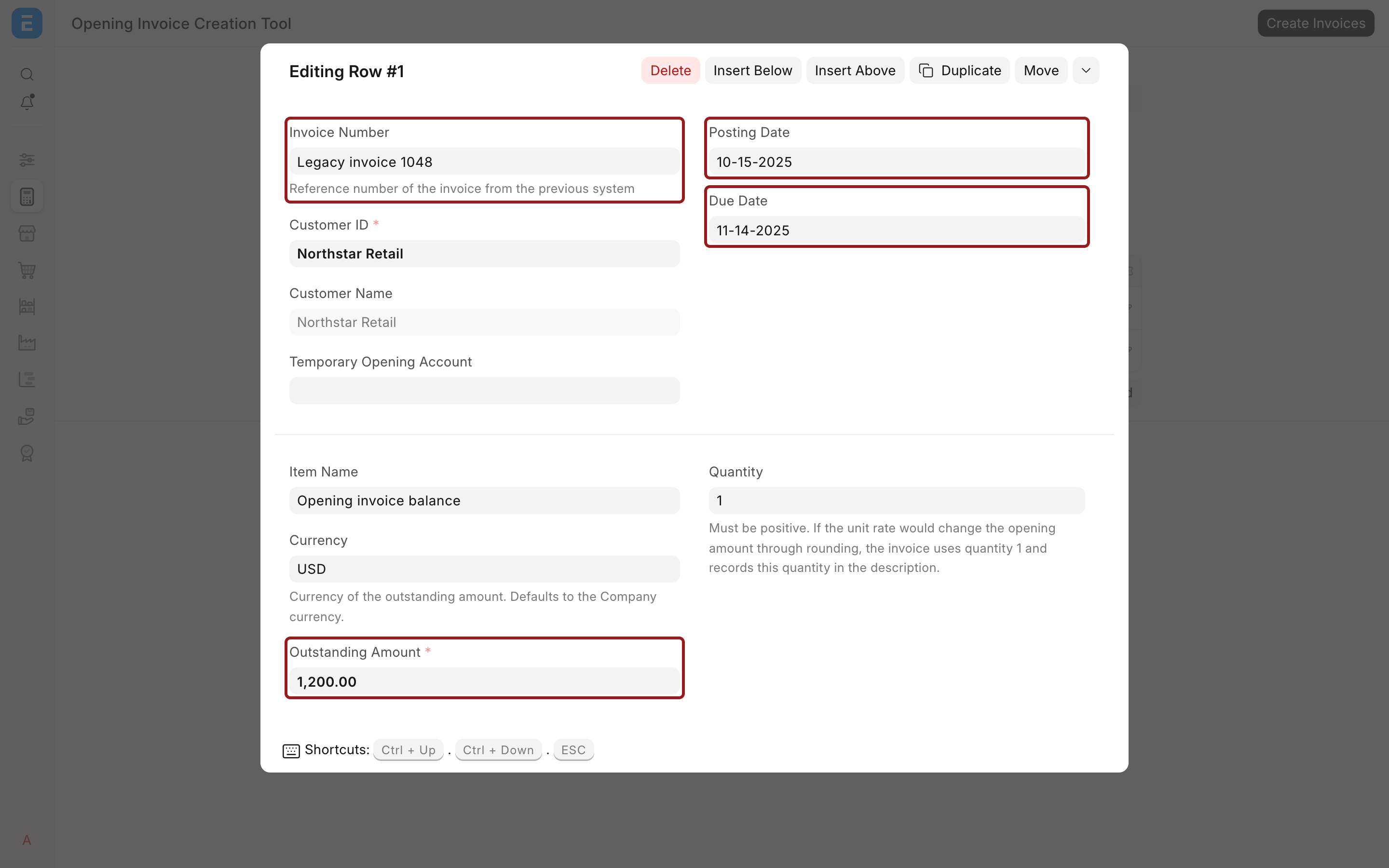
The complete field, including its label and description, is visible before the invoices are created.
The outstanding amount is already the tax-inclusive balance from the old system. ERPNext therefore does not add taxes automatically to these opening invoices.
When the batch is correct, select Create Invoices. Do not run the same approved batch twice. Record the source filename, control total, run date, and person who reviewed it in the migration log.
Verify the result
Open representative created invoices and confirm the party, opening status, legacy reference, posting date, due date, currency, outstanding amount, and dimensions. A Sales opening should create a receivable; a Purchase opening should create a payable.
Run Accounts Receivable and Accounts Payable at the cutover date. Compare invoice counts, party totals, currency totals, due dates, and ageing buckets with the approved source schedules. Nova's Northstar Retail rows must total $2,500 even though the three invoices fall into different ageing buckets.
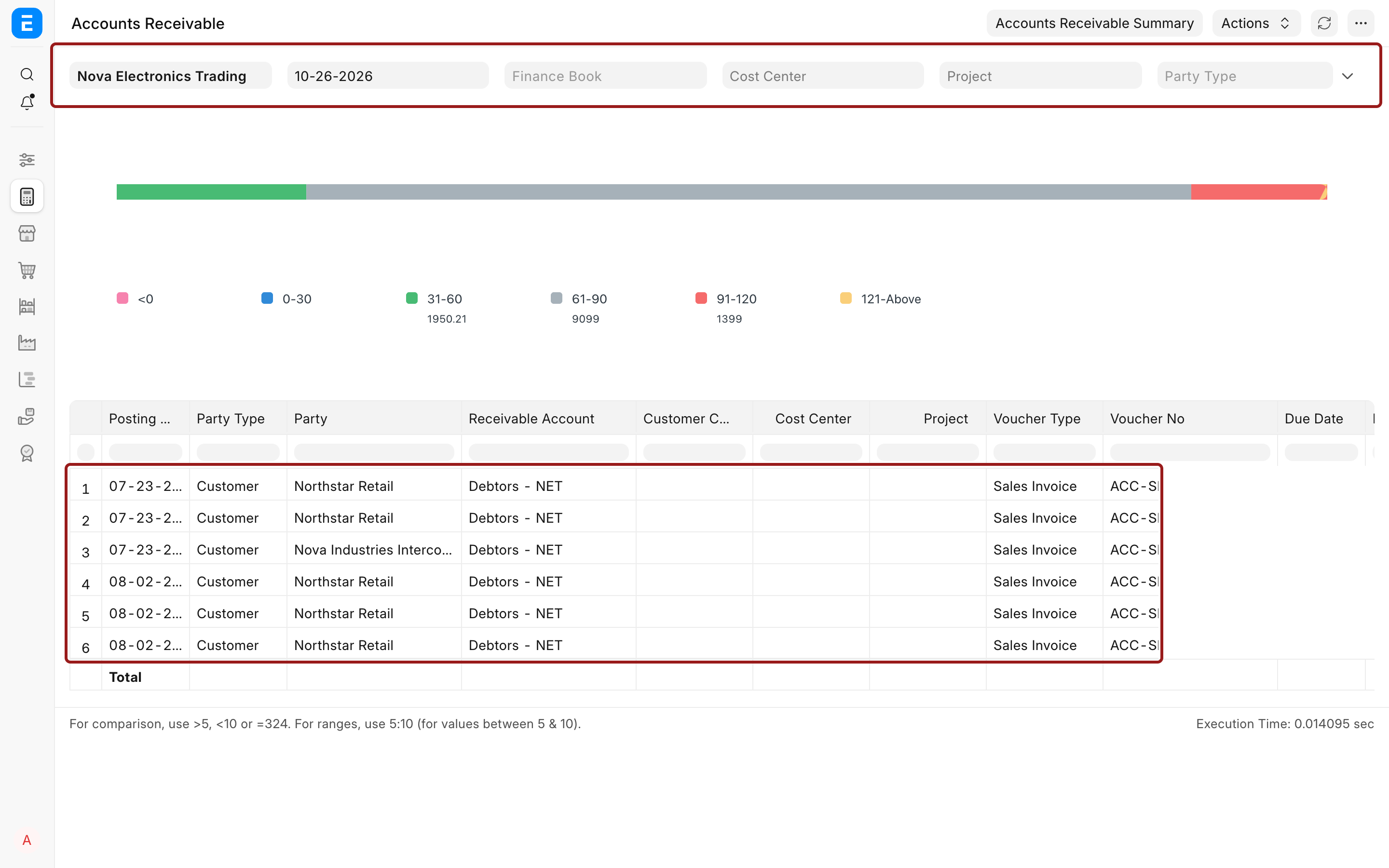
Use a fully loaded report with real records. Filter to the migration company and compare the visible party rows and ageing totals with the control schedule.
Run the Trial Balance and inspect the General Ledger for the receivable or payable account and the Temporary Opening account. The invoice schedule must agree with the control account.
The tool already creates the receivable or payable ledger balance. Exclude the same control-account amount from the opening Journal Entry, or the balance will be counted twice. After every opening component is loaded, investigate any remaining Temporary Opening balance instead of hiding it in equity or rounding.
Foreign-currency invoices
Select the invoice currency shown in the legacy schedule. Reconcile both the outstanding amount in that currency and its company-currency effect. If the source system and ERPNext use different approved exchange rates, document the difference and post an authorized exchange adjustment rather than changing the legacy amount merely to force agreement.
Test one foreign-currency customer invoice and one supplier invoice before the full import. Confirm that the party account supports the selected currency and that the amounts appear correctly in the ageing and ledger reports.
Correct an import problem
Correct the approved source file, not an uncontrolled copy. Rerun only rows that failed to create. If an invoice was created with the wrong party, date, currency, or amount, cancel and amend it before go-live, then rerun the affected ageing and ledger checks.
Use Payment Reconciliation after migration when an opening payment or advance must be allocated to one of these invoices. Do not alter the opening invoice merely to imitate a later allocation.
Troubleshooting
The party is duplicated after import
The source name may not have matched a reviewed Customer or Supplier. Disable Create Missing Party, correct the master or mapping, and test the row again. Current ERPNext versions reuse a uniquely matching existing party, but ambiguous or inconsistent names still require cleanup.
The ageing report total does not match the source schedule
Check the report company and date first. Then compare invoice counts, outstanding amounts, currencies, posting dates, and duplicate references. A partly paid invoice must carry its remaining balance, not its original total.
Temporary Opening does not return to zero
The counterbalances for other opening components may be missing or duplicated. Reconcile opening invoices, payments, stock, assets, bank balances, and the residual opening Journal Entry one component at a time. Do not post an unexplained plug entry.
The tool rejects a quantity
Use a positive quantity, normally 1. Current versions validate quantities and preserve the opening amount when rounding could otherwise alter it.
Frequently asked questions
Does the tool recreate the original Items and taxes?
It creates simplified opening invoices for the unpaid balances. It does not recreate the original order, delivery, receipt, stock movement, detailed item mix, or tax calculation. Keep the old system read-only when users need that history.
Should fully paid invoices be imported?
Fully paid invoices do not need to appear in opening receivables or payables. Leave them in the legacy system unless a separate legal or reporting requirement justifies migrating them.
Will a customer credit limit block an opening invoice?
Current ERPNext versions skip credit and overdue-limit checks for opening balances. This allows approved legacy receivables to be brought forward without treating the migration as a new sale.
Can Create Missing Party replace a proper master-data import?
It is useful for controlled exceptions, but it should not replace a reviewed master-data migration. Import Customers and Suppliers first when you need addresses, tax identifiers, payment terms, credit limits, groups, and other operating details.