


















Sales Order
Imagine you manage sales at Nova Chemicals. A customer confirms an order for 200 drums of industrial cleaner, to be delivered next month at an agreed price. If this agreement remains in an email or spreadsheet, the warehouse may not know what to prepare, finance may invoice the wrong quantity, and the sales team cannot easily track what remains to be delivered.
A Sales Order turns this confirmed agreement into a shared operational record. It records the customer, items, quantities, prices, delivery dates, taxes, and terms before the goods are dispatched or the customer is invoiced.
For Nova Chemicals, the Sales Order becomes the starting point for preparing the goods, creating one or more Delivery Notes, billing the customer, and tracking the order until it is fully delivered and invoiced.
A Sales Order in ERPNext records a customer's confirmed request, including Items, prices, quantities, delivery dates, shipping details, and terms.
Submitting the Sales Order confirms the commitment and makes it available for the next steps, such as picking, delivery, invoicing, purchasing, manufacturing, or collecting payment.
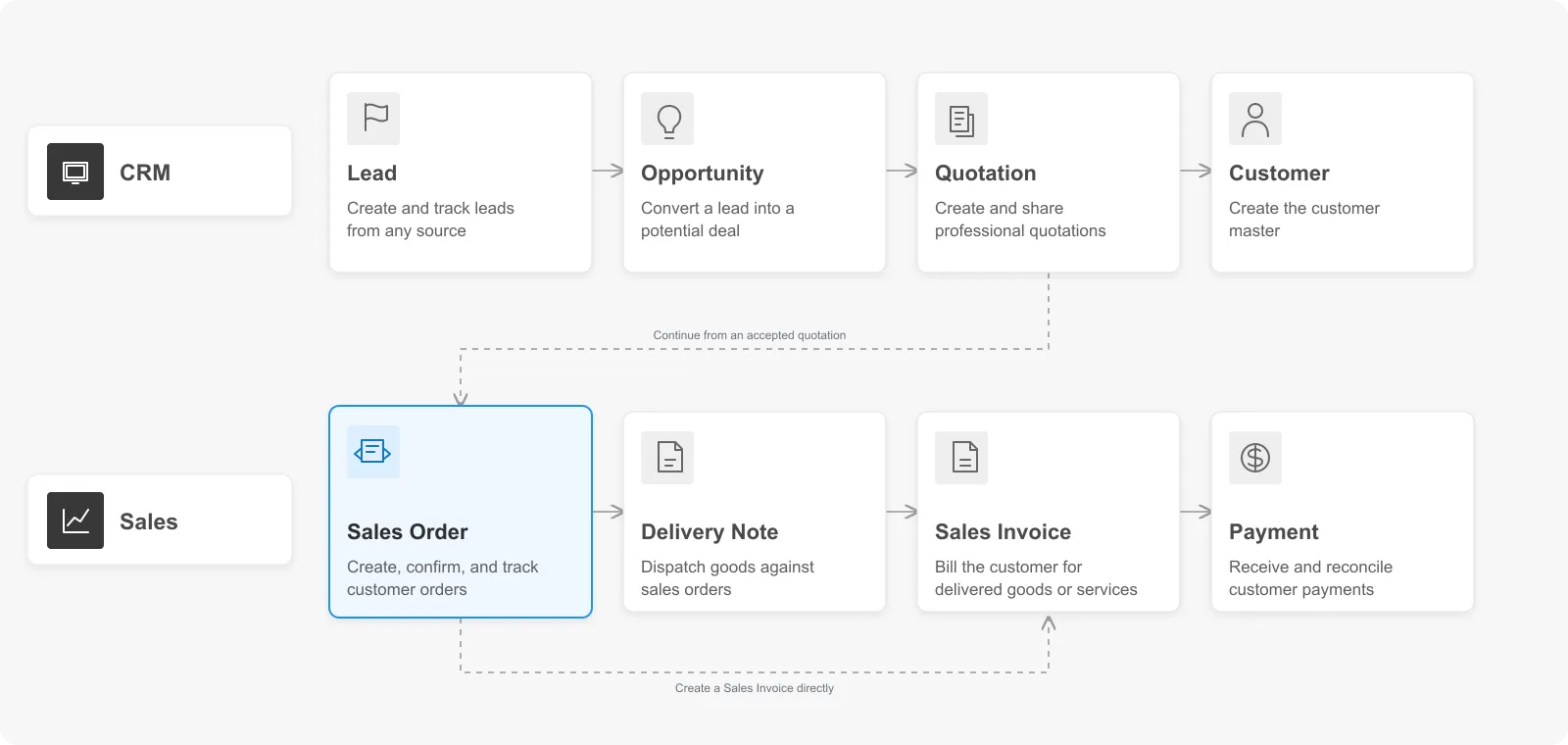
The standard order-to-cash flow is Quotation → Sales Order → Delivery Note → Sales Invoice → Payment Entry. You can also create a Sales Invoice directly from a submitted Sales Order when a separate delivery transaction is not required. You can also start without a Quotation or add picking, manufacturing, and purchasing steps.
Before you begin
Create or confirm the following records:
- a Company and Customer;
- at least one Item;
- an Item Price or a rate you can enter manually;
- a source Warehouse if you deliver stock items;
- taxes, payment terms, and shipping rules when your sales process requires them.
You need create permission and submit permission to confirm an order.
Create a Sales Order
- Open Sales Order from the Selling workspace.
- Select Add Sales Order.
- Select the Company and Customer.
- Keep Order Type as Sales for a standard customer order.
- Set the transaction Date and promised Delivery Date.
- Under Items, optionally set Set Source Warehouse to apply one warehouse to all stock items.
- Add each Item and enter its Quantity. Review the delivery date, rate, and amount for every row.
- Review taxes, totals, addresses, and commercial terms.
- Save the document. ERPNext keeps it in Draft status.
- Select Submit when the order is confirmed.
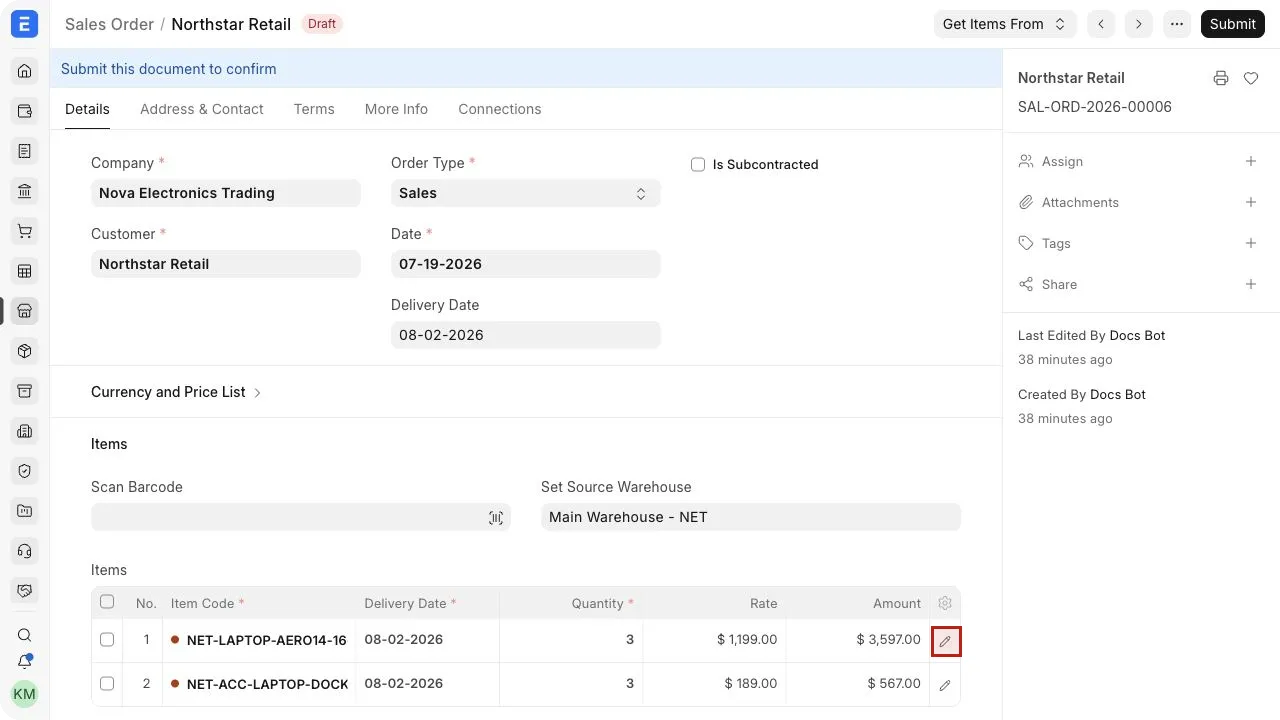
Select the pencil icon at the end of an item row to open its full row editor. Use it when you need to review or update fields that are not visible as table columns.
The dot before an Item Code shows stock availability at a glance: green means the Item is in stock, while red means it is out of stock.
Saving and submitting are different actions. You can edit a draft freely. Submission confirms the order and enables downstream transactions.
Alternative ways to create a Sales Order
You can create a Sales Order from a submitted Quotation, which carries forward the customer, items, rates, taxes, and terms. Depending on your configuration, orders can also originate from integrations or the shopping cart.
For recurring requirements, use a Blanket Order or Auto Repeat only when the corresponding business process calls for it.
Important fields and what they mean
The table covers fields that affect pricing, fulfillment, accounting, or downstream documents.
| Area | Field | What it means |
|---|---|---|
| Order | Company | The company fulfilling the order and the basis for its currency, warehouses, and accounting defaults. |
| Order | Customer | The party placing the order. ERPNext can fetch its address, contact, territory, price list, and payment terms. |
| Order | Order Type | Use Sales for a normal customer order, Maintenance for maintenance work, or Shopping Cart for website orders. |
| Order | Date | The Sales Order transaction date. |
| Order | Delivery Date | The default promised date. An item row can use a different date for split delivery schedules. |
| Order | Customer's Purchase Order | The customer's purchase-order reference and date, useful for matching documents and communication. |
| Pricing | Currency | The transaction currency used for rates and totals. |
| Pricing | Price List | The Price List from which ERPNext fetches item rates. Whether users can change a fetched Price List Rate is controlled in Selling Settings. |
| Pricing | Exchange Rate | Converts the transaction currency to company currency when they differ. |
| Pricing | Ignore Pricing Rule | Prevents configured Pricing Rules from being applied. Use it only when the order requires an exception. |
| Items | Scan Barcode | Finds and adds an Item using its configured barcode; scanning the same barcode again increases its quantity. |
| Items | Set Source Warehouse | Applies one source warehouse to stock-item rows and overrides an Item's default warehouse; a row-level Warehouse can override it again. |
| Items | Item Code | Identifies the product or service being ordered. |
| Items | Delivery Date | Sets the promised date for that item row. |
| Items | Quantity | Records how many units the customer ordered in the selected unit of measure. |
| Items | Rate | The selling price per unit before row-level taxes; you can change a fetched rate when permissions allow. |
| Items | Warehouse | Sets the location that will fulfill a stock-item row. |
| Items | Reserve Stock | Allocates available stock to the order when stock reservation is configured; it does not create a stock-ledger movement. |
| Address | Customer Address | The customer's billing address used on the order and print format. |
| Address | Shipping Address | The destination for delivery. Confirm it when it differs from the billing address. |
| Address | Contact Person | The customer contact associated with the order. |
| Taxes and delivery | Tax Category | Helps ERPNext select the applicable tax treatment or template. |
| Taxes and delivery | Sales Taxes and Charges Template | Applies a reusable tax and charge structure; its rows can be adjusted when permitted. |
| Taxes and delivery | Sales Taxes and Charges | Lets you add tax or charge rows manually when a template is not suitable. Review Tax Breakup to understand the calculated taxes. |
| Taxes and delivery | Shipping Rule | Adds freight or shipping charges according to the rule's conditions. |
| Taxes and delivery | Incoterm and Named Place | Records agreed delivery responsibilities and the location to which the Incoterm applies. |
| Discount | Apply Additional Discount On | Chooses whether an order-level discount applies to the Net Total or Grand Total. |
| Discount | Additional Discount Percentage or Amount | Reduces the order total by the entered percentage or value; item-level discounts remain on their rows. |
| Terms | Payment Terms Template | Generates the payment schedule from reusable payment terms. |
| Terms | Payment Schedule | Shows due dates and amounts generated by a template, or lets you enter the schedule manually. |
| Terms | Terms and Conditions | Adds standard or order-specific commercial terms to the document. |
| Reference | Project | Links the order to an existing Project for project-based tracking. |
| Reference | Inter Company Order Reference | Links the related Purchase Order when the Sales Order belongs to an inter-company transaction. |
Submit and next steps
After submission, the Sales Order normally moves to To Deliver and Bill. Available actions depend on the order, installed modules, settings, and your permissions.
From Create, ERPNext v17 can offer documents such as:
- Pick List to organize item picking;
- Delivery Note to record shipment or delivery;
- Sales Invoice to bill the customer;
- Payment Request or Payment to collect or record funds;
- Material Request or Purchase Order for procurement;
- Work Order, Production Plan, or Request for Raw Materials for manufacturing;
- Project for project-based delivery.
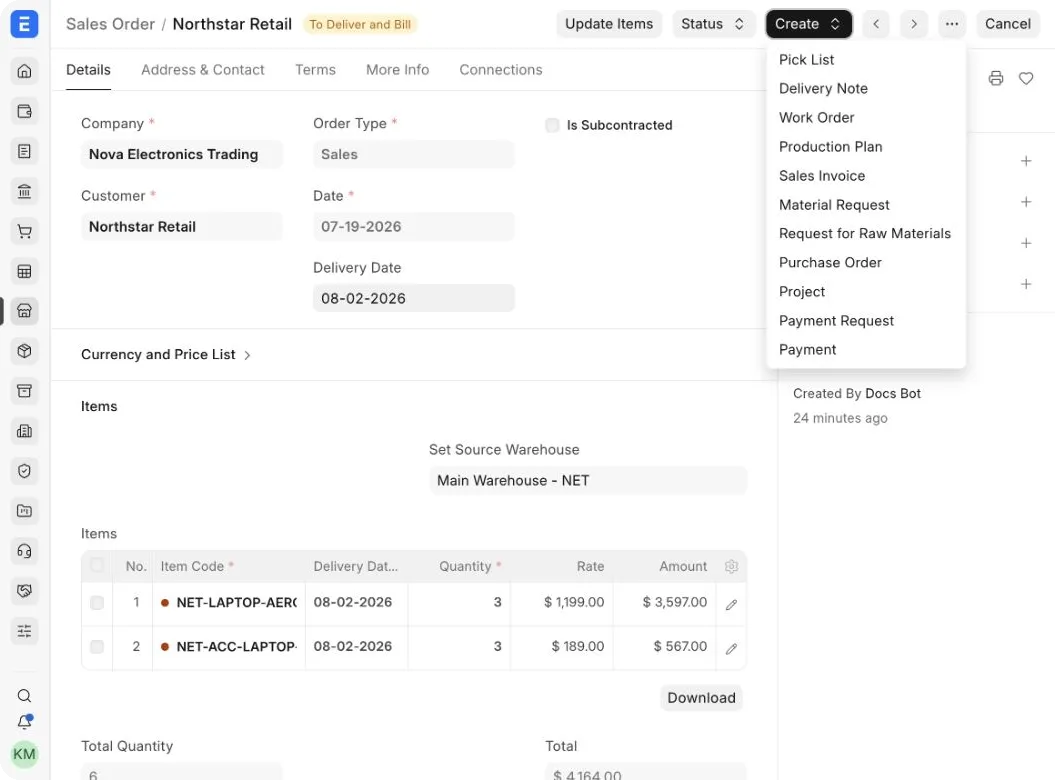
An order can be partially delivered or billed across multiple documents. ERPNext updates its delivery and billing percentages.
Skip a Delivery Note
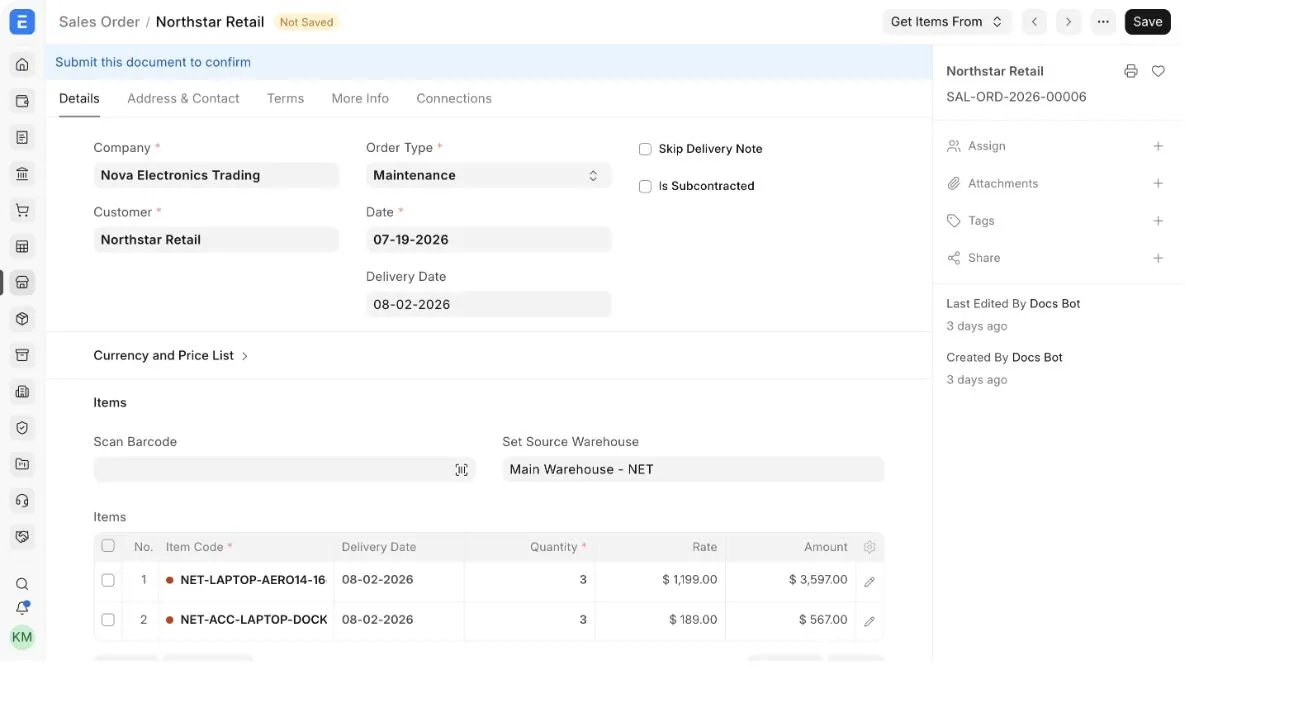
For a Maintenance Sales Order, enable Skip Delivery Note when the service should be invoiced without a separate delivery transaction. See Maintenance Sales Orders for the complete workflow.
Update, hold, close, amend, or cancel
- Use Update Items after submission when the allowed item values need to change. ERPNext restricts changes that conflict with quantities already picked, delivered, billed, or assigned to production.
- Use Status > Hold to pause fulfillment and Resume when work can continue.
- Close an order when you intentionally will not fulfill its remaining quantity.
- Cancel a submitted order when the entire transaction should be reversed and its linked-document state permits cancellation.
- To revise a cancelled order, use Amend. ERPNext creates a new draft linked to the cancelled order.
Status
The Sales Order list shows the overall status, delivery date, grand total, percentage delivered, and percentage billed.
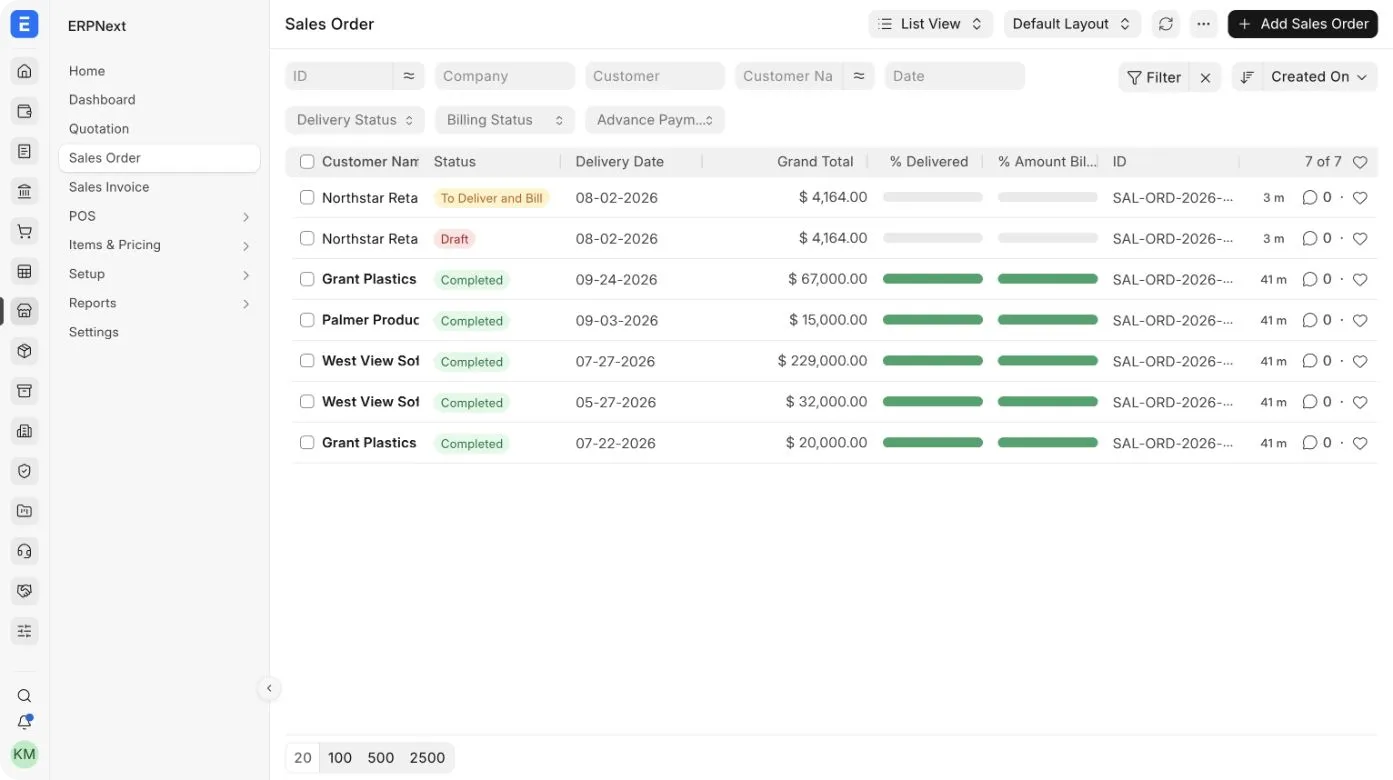
Important statuses include:
| Status | Meaning |
|---|---|
| Draft | Saved but not confirmed |
| To Deliver and Bill | Submitted; delivery and billing are pending |
| To Deliver | Billing is complete but delivery remains |
| To Bill | Delivery is complete but billing remains |
| Completed | Delivery and billing requirements are complete |
| On Hold | Processing is paused |
| Closed | Remaining fulfillment was intentionally closed |
| Cancelled | The submitted order was cancelled |
Use the separate Delivery Status, Billing Status, and Advance Payment Status filters for a more precise view.
Types of Sales Order
- Sales is the standard order for goods or services.
- Maintenance supports maintenance-related fulfillment. See Maintenance Sales Orders.
- Shopping Cart identifies orders originating from the web-shopping flow.
Downstream actions change with the order type and installed features.
Troubleshooting
Item rates are empty
Confirm that the Item has an active price in the selected selling Price List and currency. Otherwise, enter an allowed rate manually. Also check whether a pricing rule changes the expected rate.
The expected address or contact is unavailable
Open the Customer and confirm that the Address or Contact is linked to that Customer. Then reload or reselect the Customer on the draft Sales Order.
Submit is unavailable or fails
Confirm that all mandatory fields are complete and that your role has submit permission. Review the validation message for missing delivery dates, invalid items, disabled masters, or other configuration issues.
A fulfillment option is missing from Create
The menu is conditional. Check the Sales Order's status and order type, your permissions, installed modules, company settings, and whether the relevant quantity has already been delivered or billed.
The order remains open after delivery or billing
Check both the delivered and billed percentages and review all linked Delivery Notes and Sales Invoices. A partially processed item or an intentionally skipped step can leave a remaining quantity.
Frequently asked questions
Does submitting a Sales Order change stock or create accounting entries?
The Sales Order itself records a commitment. Normal submission does not deliver stock or recognize an invoice. Stock and accounting effects occur through the linked fulfillment and billing documents used by your process.
Can one Sales Order have multiple delivery dates?
Yes. The order has a default Delivery Date, and individual item rows can use different dates.
Can I deliver or invoice only part of an order?
Yes. Create the Delivery Note or Sales Invoice for the required rows and quantities. ERPNext tracks the remaining percentages on the Sales Order.
Can I edit a Sales Order after submission?
You can use Update Items for supported changes, subject to linked-document and fulfilled-quantity restrictions. For broader changes, cancel and amend the order when the transaction state allows it.
When should I close instead of cancel a Sales Order?
Close the order when the submitted order remains historically valid but you will not fulfill the outstanding quantity. Cancel it when the submitted transaction itself should be reversed.