


















Proforma Invoice
A Proforma Invoice is a preliminary, non-binding invoice sent to a customer before the goods are delivered or the final (tax) invoice is raised. It is commonly used to request an advance payment, to support a letter of credit or customs paperwork, or to give the customer a formal statement of what an order will cost.
In ERPNext, a Proforma Invoice is raised against a Sales Order. It is a purely informational document: it does not post any accounting (General Ledger) or stock entries, does not affect the delivery or billing status of the Sales Order, and does not consume the ordered quantity. You can raise as many proformas against a Sales Order as you need.
To create a Proforma Invoice, you must first enable the feature, and then create it from a submitted Sales Order.
Enable Proforma Invoice
The feature is off by default. To turn it on, go to:
Selling Settings > Transaction
Select Enable Proforma Invoice.
You can optionally set a Default Proforma Print Format that will be pre-selected whenever a proforma is created.
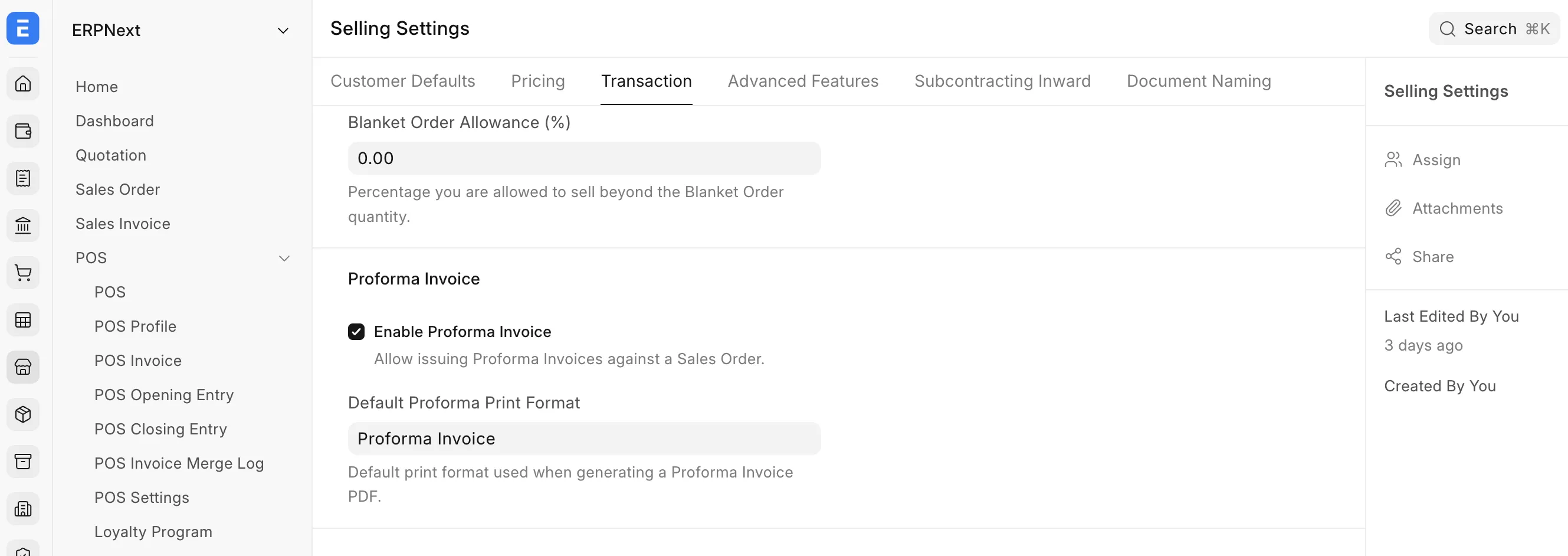 Enable Proforma Invoice
Naming Series
The naming series used for Proforma Invoices can be configured under:
Selling Settings > Document Naming > Proforma Invoice
By default, proformas are named using the PRO-.YYYY.- series.
Create a Proforma Invoice
Open a submitted Sales Order and click:
Create > Proforma Invoice
A dialog opens where you configure the proforma.
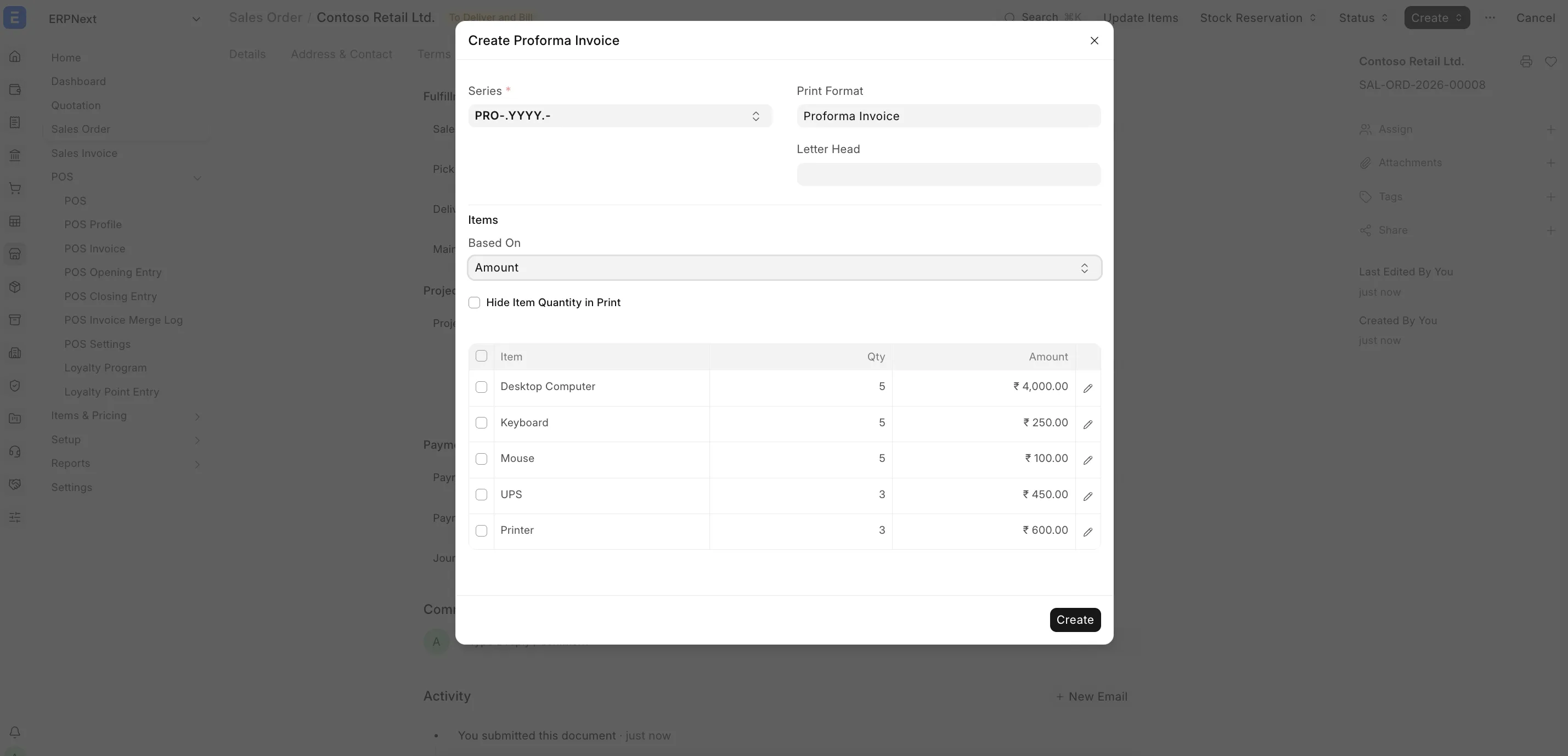 Proforma creation dialog
The dialog has the following fields:
- Series: the naming series for this proforma.
- Print Format and Letter Head: control how the printed proforma looks. The default print format from Selling Settings is pre-selected; you can override it per proforma.
- Based On: whether you specify each line by Quantity or by Amount (see below).
- Items: the Sales Order lines. Each line is pre-filled with its remaining value (ordered minus what has already been proforma'd).
Enter the quantity or amount for the lines you want to include (set a line to 0 to leave it out), then click Create. The proforma is created, its PDF is generated and attached, and the Proforma tab of the Sales Order opens automatically.
Based On: Quantity
This is the default. Enter the Quantity for each item; the amount is calculated automatically from the Sales Order rate (Amount = Quantity × Rate).
Use this when the proforma represents a partial (or full) shipment of the ordered items, for example a staged delivery.
Based On: Amount
Switch Based On to Amount to enter a monetary Amount per line directly. Both Quantity and Amount are editable, and the rate is derived from them (Rate = Amount ÷ Quantity).
Use this for value-based or advance proformas, for example "30% advance against this order".
Hide Item Quantity in Print
When Based On is Amount, an additional option, Hide Item Quantity in Print, becomes available. Enable it to omit the quantity and rate columns from the printed proforma, so it shows only the item and the amount. This produces a clean value-based document where you do not want to disclose a per-unit rate.
Quantity/Amount Warning
Proforma quantities and amounts are not enforced; a proforma is informational. However, if the total proforma quantity or amount for a line (this proforma plus any previously issued proformas) exceeds the ordered value, a warning is shown below the items table. You can still create the proforma; the warning is only there to flag it.
The Proforma Tab
Once at least one proforma exists for a Sales Order, a Proforma tab appears on the Sales Order. It lists every proforma raised against that order, showing the number, date, grand total and status.
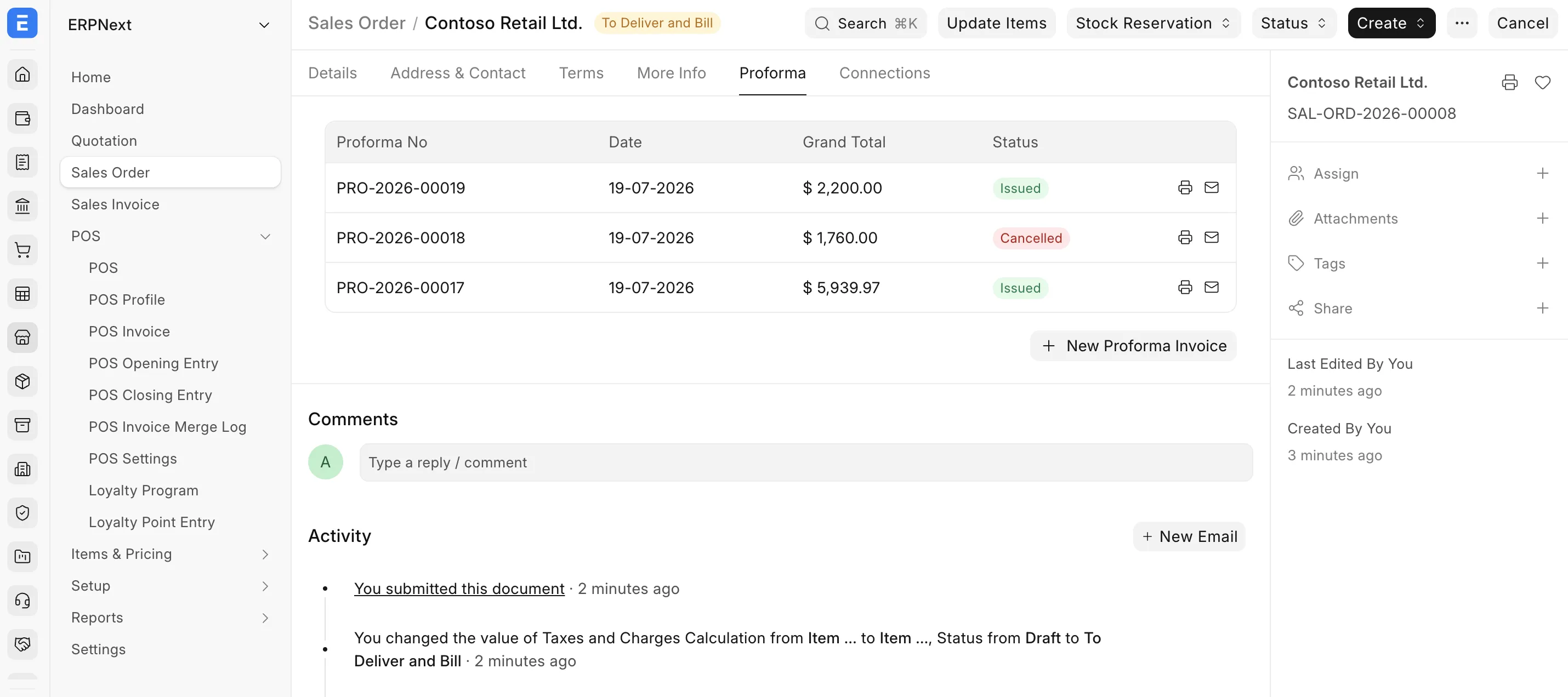 Proforma lists
From this list you can:
- View PDF: open the attached proforma PDF.
- Send Email: email the proforma PDF to the customer.
- New: create another proforma.
Print and Email
Every proforma has its PDF generated and attached automatically on creation, using the selected print format and letterhead. You can:
- Open the PDF from the Proforma tab (View PDF) or from the Proforma Invoice record.
- Email it to the customer using Send Email from the tab, or the standard print/email options on the Proforma Invoice record.
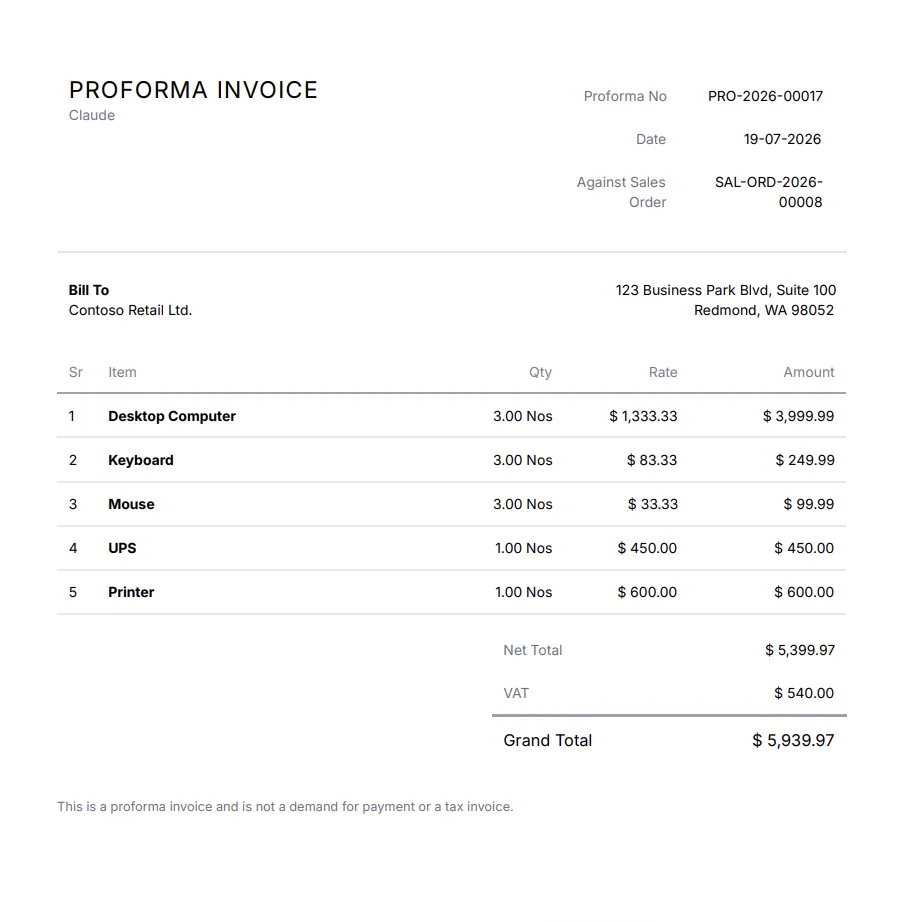 Proforma Invoice PDF
Cancel a Proforma Invoice
To void a proforma, open the Proforma Invoice record and Cancel it. Cancelling marks the proforma as Cancelled but keeps its PDF for reference, and cancelled proformas remain listed in the Proforma tab (shown with a red Cancelled status) so you retain a full audit trail. A cancelled proforma no longer counts towards the total proforma quantity/amount used by the warning.