


















Journal Entry Template
A Journal Entry Template stores the structure of a recurring Journal Entry. It can prefill the company, entry type, naming series, opening-entry setting, multi-currency setting, and account rows. Use a template when the same accounts and dimensions recur, but the amount, date, reference, or remark changes each time.
For example, Nova Electronics Trading pays office maintenance from its operating bank account every month. A template can preload Office Maintenance Expenses and Nova Operating Bank, while the accountant enters the actual amount and reference for that month.
Templates reduce repetitive selection and help users choose the intended accounts consistently. They do not post to the General Ledger by themselves. The resulting Journal Entry must still be reviewed, balanced, saved, and submitted.
Before you begin
Confirm that:
- The accounts exist in the company’s Chart of Accounts.
- Each account is a ledger account, not a group account.
- You know which account should be debited and which should be credited for the recurring transaction.
- Any required Cost Center, Project, or other Accounting Dimension is available.
- If the template uses accounts in different currencies, multi-currency accounting is configured.
Create a Journal Entry Template
To open the list, search for Journal Entry Template from the Awesome Bar. Select Add Journal Entry Template or open an existing template.
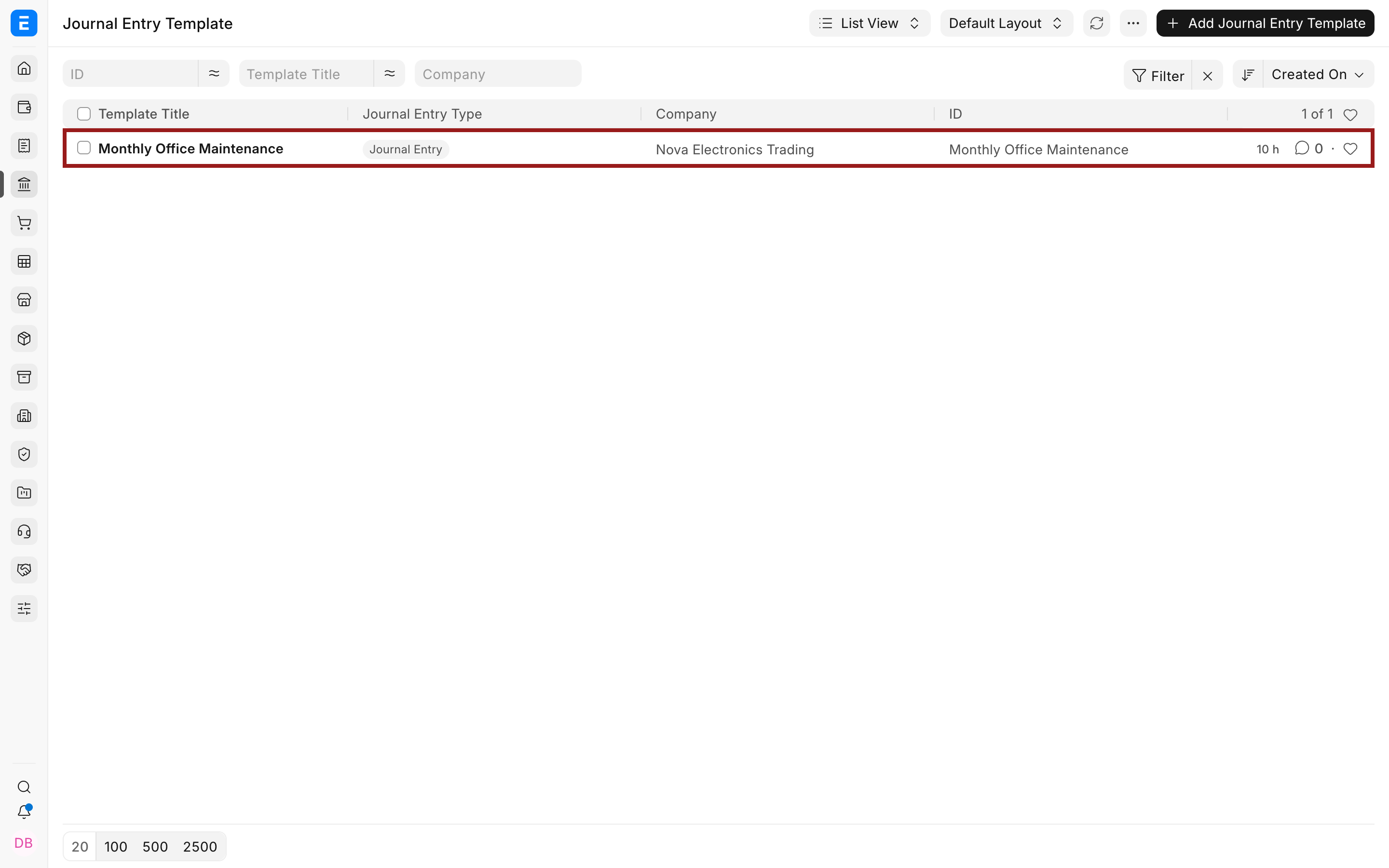
Enter a clear Template Title that identifies the recurring purpose, such as Monthly Office Maintenance.
Select the Journal Entry Type, Series, and Company. Set Is Opening to Yes only when the resulting Journal Entry records an opening balance. Enable Multi Currency when the template uses an account whose currency differs from the company currency.
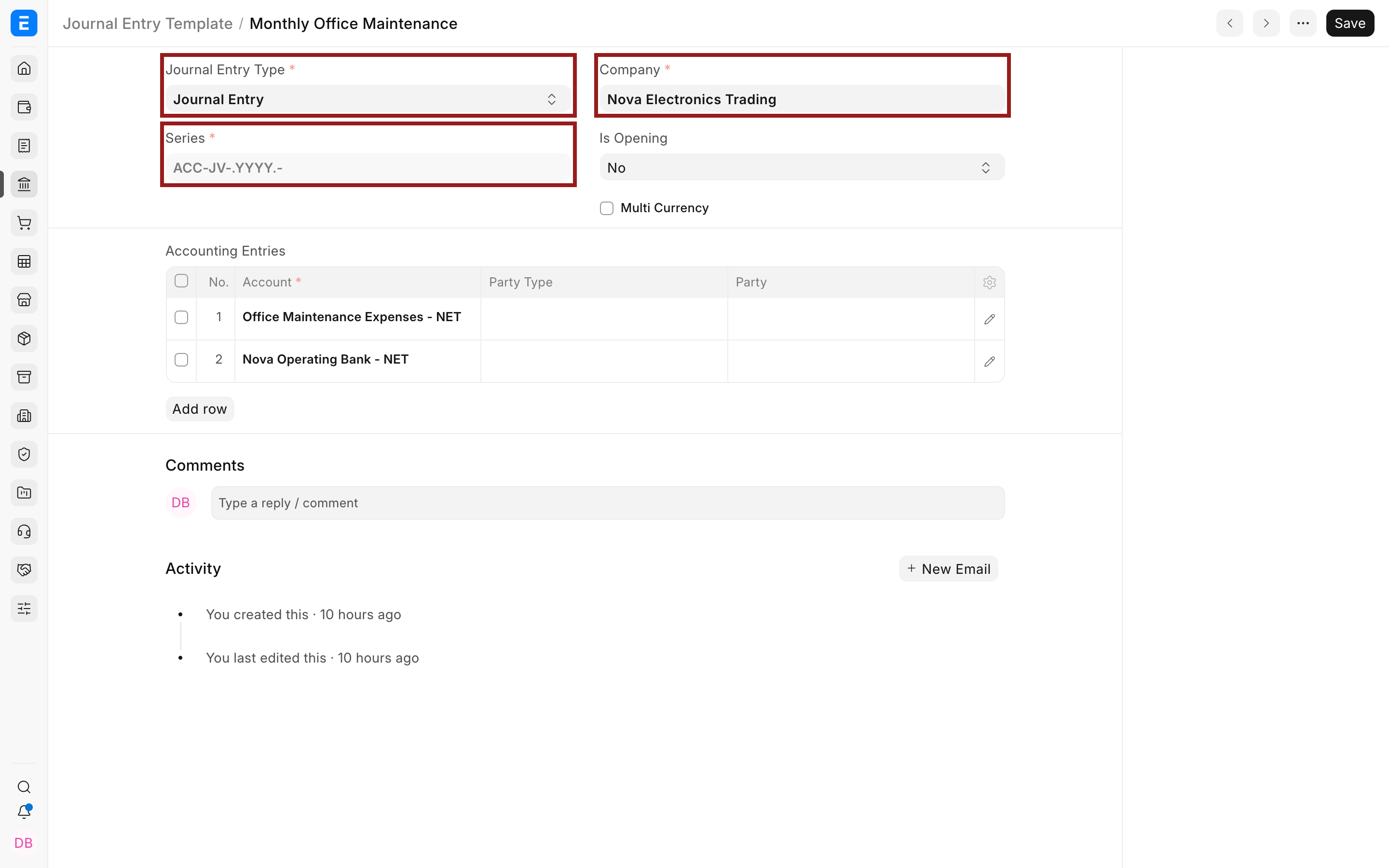
In Accounting Entries, add the accounts that should be copied to each Journal Entry. Do not enter transaction amounts in the template. Amounts belong to the actual Journal Entry because they can change for every occurrence.
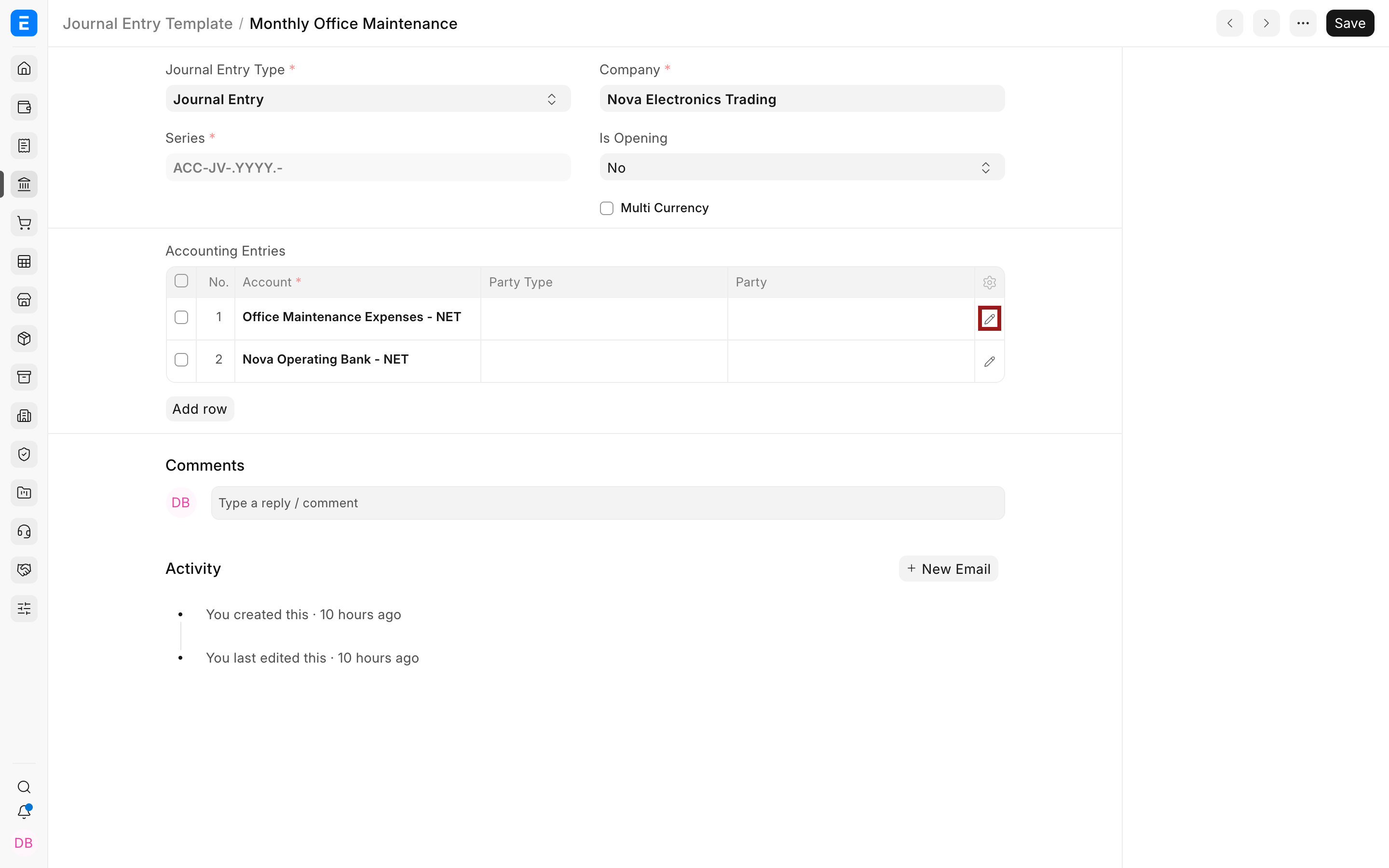
Select the pencil icon to edit a row and add its Party, Cost Center, Project, or other dimensions when required.
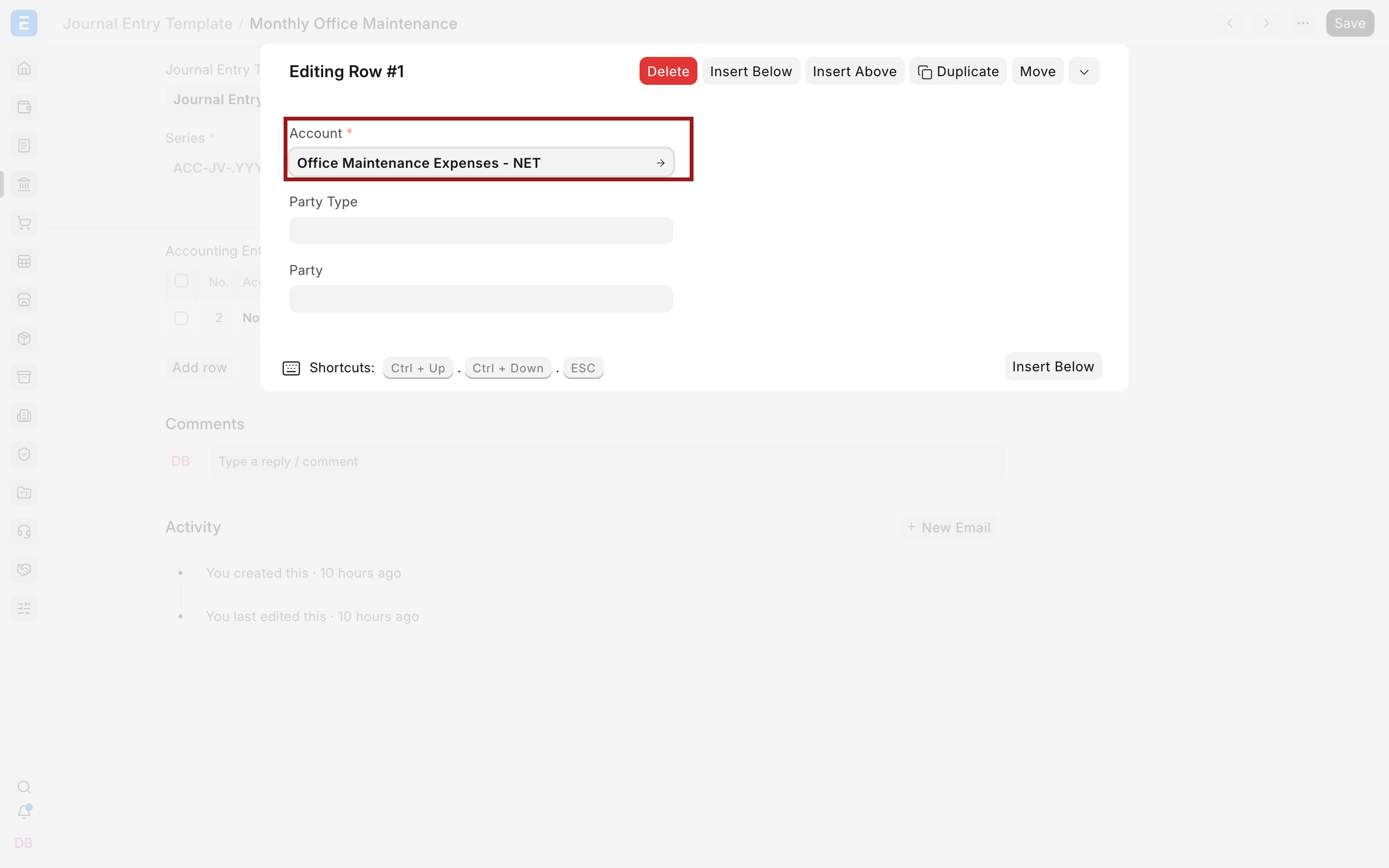
Save the template.
Important fields and what they mean
| Field | What it controls | Guidance |
|---|---|---|
| Template Title | The name users select from a Journal Entry | Use a purpose-based name, not a month or voucher number. |
| Journal Entry Type | The intended kind of Journal Entry | Choose the type that matches the transaction. It can also influence defaults such as bank or cash behavior. |
| Series | The naming series copied to the new Journal Entry | Use the company’s approved Journal Entry series. |
| Company | The company copied to the new Journal Entry | Accounts in the template must belong to this company. |
| Is Opening | Marks the resulting entry as an opening entry | Use this only for migration or opening balances. See Opening Balance. |
| Multi Currency | Allows accounts in currencies other than the company currency | Review exchange rates and account currencies in the resulting entry. |
| Account | A ledger account copied into the Journal Entry | Add at least two accounts so the resulting entry can be balanced. |
| Party Type and Party | Associates the row with a Customer, Supplier, Employee, or another supported party | Set these only when the selected account requires party-wise accounting. |
| Cost Center | Tracks income or expense by business unit | Set a default here only if it applies to every entry created from the template. |
| Project | Tracks the row against a project | Leave it blank when the project changes each time. |
Choose the right entry type
The template supports the Journal Entry types available in the current ERPNext version, including Journal Entry, Inter Company Journal Entry, Bank Entry, Cash Entry, Credit Card Entry, Debit Note, Credit Note, Contra Entry, Write Off Entry, Opening Entry, Depreciation Entry, and Exchange Rate Revaluation.
The most commonly used choices are:
| Entry type | When it is useful |
|---|---|
| Journal Entry | General adjustments and recurring accruals where a more specific transaction is not available. |
| Bank Entry | A journal-based bank transaction. For routine customer and supplier payments, prefer a Payment Entry. |
| Cash Entry | A journal-based cash transaction. |
| Opening Entry | Opening balances during setup or migration. ERPNext marks Is Opening accordingly. |
| Inter Company Journal Entry | Adjustments between companies. See Inter Company Journal Entry. |
| Exchange Rate Revaluation | Adjustments arising from currency revaluation. |
Selecting Bank Entry or Cash Entry on a normal Journal Entry can load the company’s default bank or cash account when the account table is still empty. A template can also store the intended account rows directly. Opening Entry identifies the voucher as an opening transaction, but it does not automatically add the entire Chart of Accounts. Add only the accounts needed for the opening entry.
Create a Journal Entry from the template
- Create a new Journal Entry.
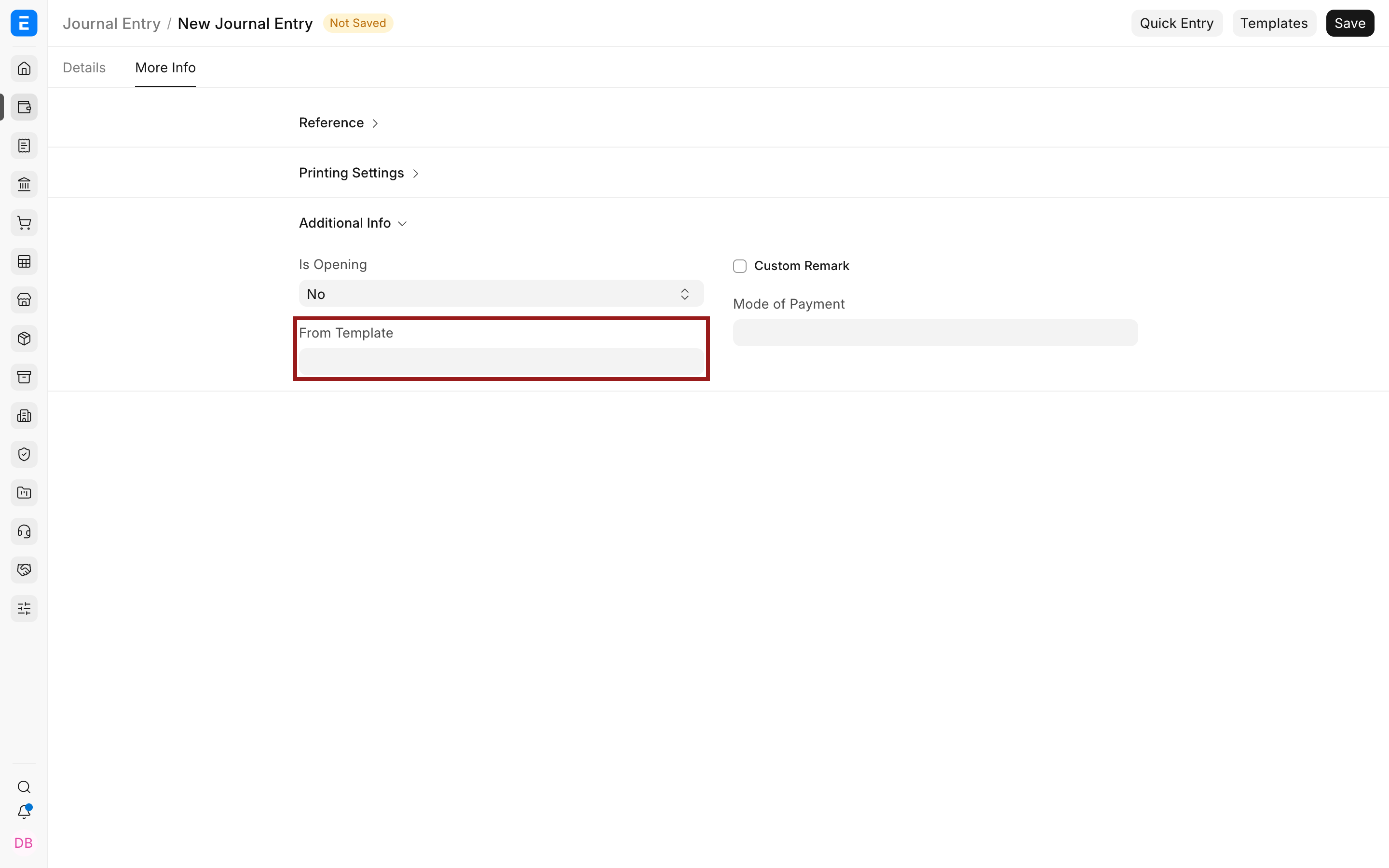
- Open the More Info tab.
- Expand Additional Info.
- Select the template in From Template.
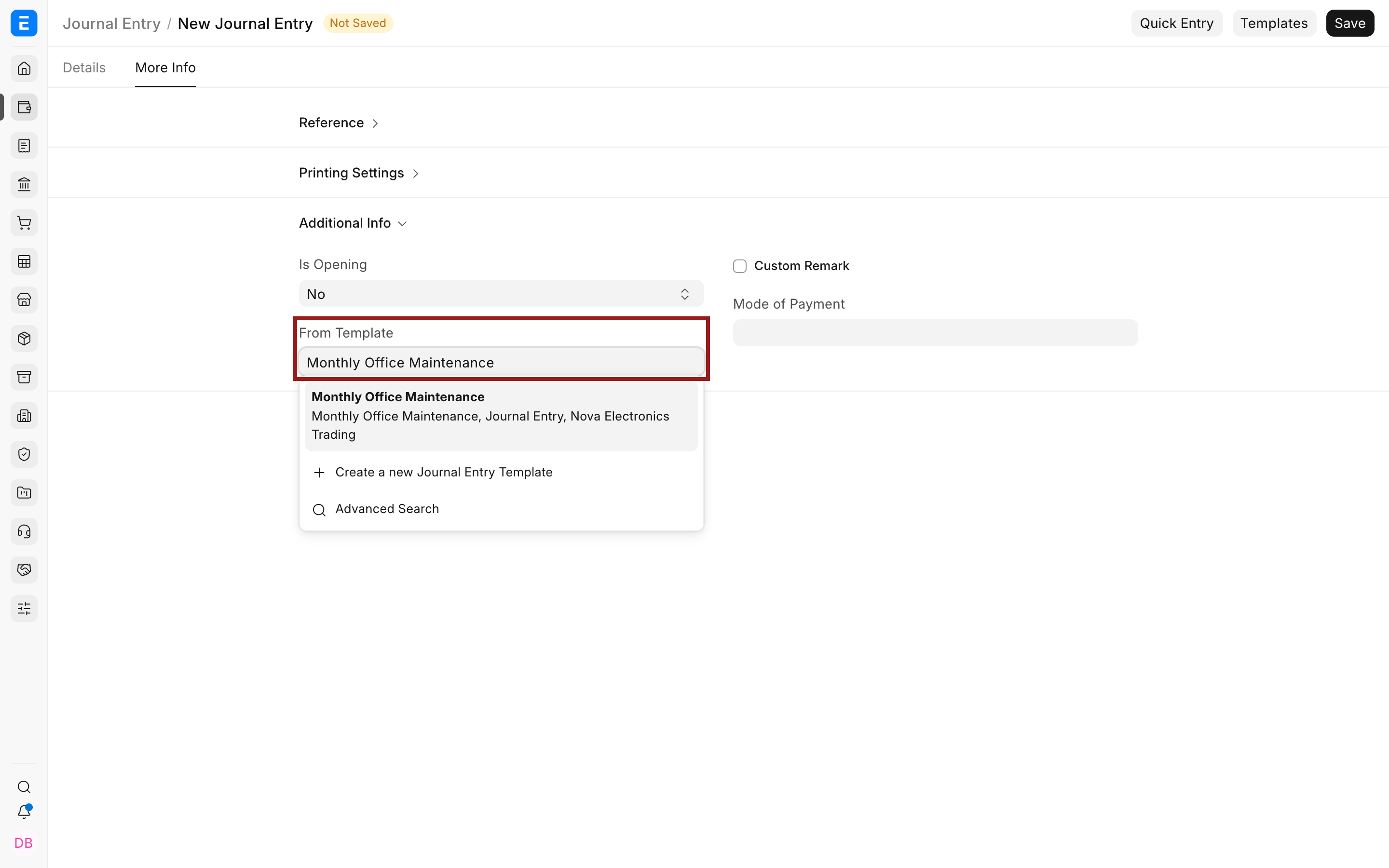
ERPNext copies the template’s company, entry type, naming series, opening setting, multi-currency setting, and account rows into the new Journal Entry.
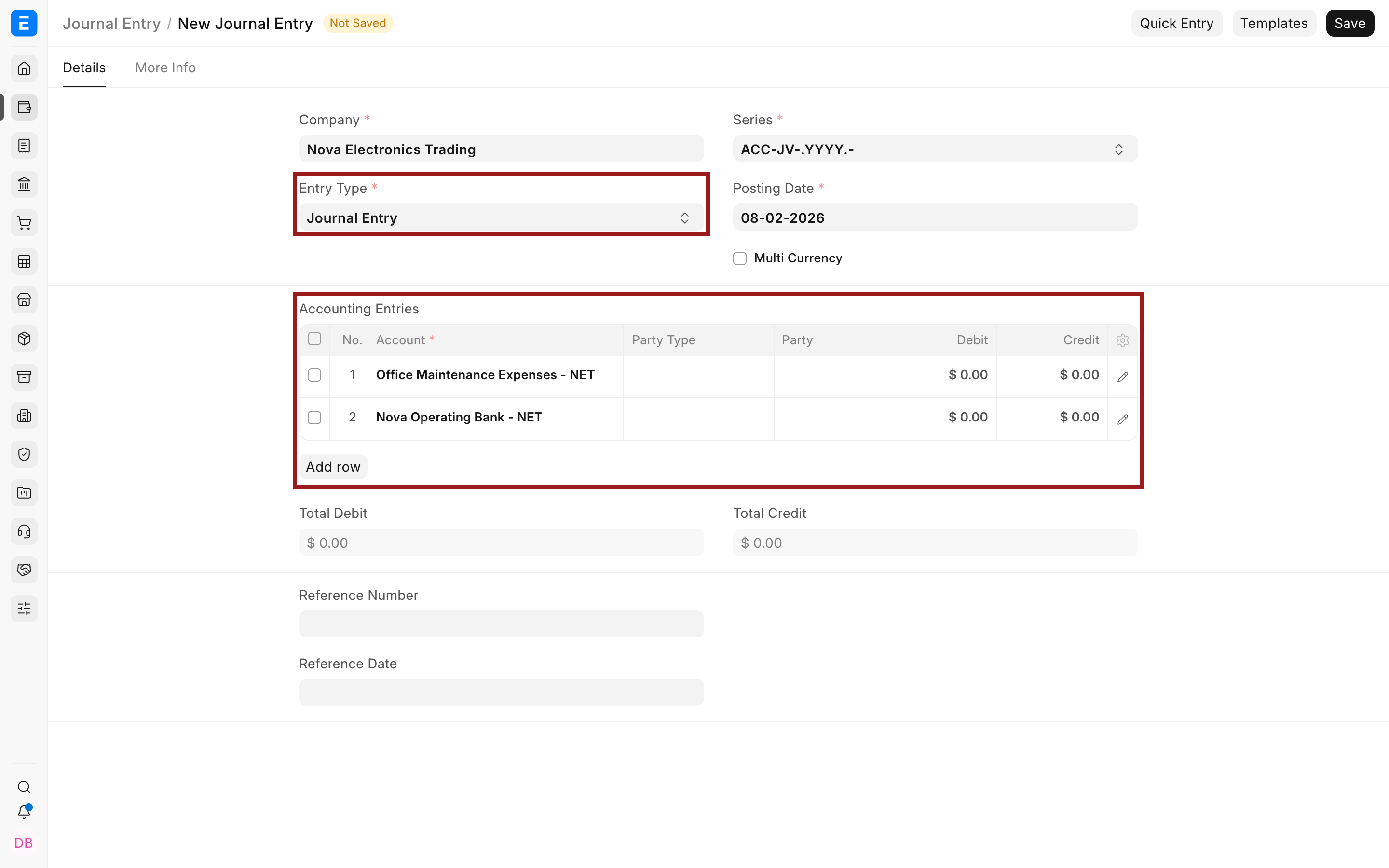
Enter the debit and credit amounts, posting date, reference details, and remarks. Add or remove account rows if this occurrence needs them. Confirm that total debit equals total credit, then save and submit the Journal Entry.
Important warning when selecting a template
Selecting From Template clears the existing Accounting Entries rows before loading the template’s rows. Choose the template before entering account rows, or copy any work you need to retain.
The template is a starting structure, not a lock. After it loads, you can add more accounts or change copied values before saving. Review every resulting Journal Entry because the template does not validate whether the accounts and dimensions remain appropriate for that month’s transaction.
Maintain templates safely
Update a template when the recurring accounting treatment changes for future entries. Previously submitted Journal Entries are not changed when a template is edited.
Avoid creating several templates with nearly identical names. Use titles that describe the business event, such as Monthly Office Maintenance, Payroll Accrual, or Bank Charges. Keep one approved template for each recurring pattern and review it when the Chart of Accounts or dimension structure changes.
Troubleshooting
The From Template field is not visible
In a new Journal Entry, open More Info and expand Additional Info. The top-right Templates button is the general Frappe form-template feature. It is different from the ERPNext Journal Entry Template selected in the From Template field.
The template does not appear in search
Confirm that the Journal Entry Template is saved and that you have permission to read it. Also confirm that the template’s company and accounts are available to your user.
Existing account rows disappeared
This is expected when From Template is selected. ERPNext clears the current Accounting Entries before copying the template’s rows. Select the template first, then add occurrence-specific rows.
An account cannot be selected
Confirm that it is a non-group ledger account belonging to the template’s company. Also check account currency restrictions when Multi Currency is not enabled.
The Journal Entry is not balanced
The template copies account structure, not debit and credit amounts. Enter the amount on each row and ensure total debit equals total credit before saving.
FAQs
Does a Journal Entry Template create or submit entries automatically?
No, It only prefills a new Journal Entry. A user must add the current amounts and references, review the entry, and submit it.
Can I change the accounts after loading a template?
Yes, You can edit, add, or remove rows before saving the Journal Entry. Treat the template as a reusable starting point.
Can one template be used for several companies?
No, A template stores one company, and its accounts belong to that company. Create a separate template for each company when the same accounting pattern is needed.
Should I store amounts in the template?
No, Journal Entry Template account rows define accounts, parties, and dimensions. Enter debit and credit amounts in each actual Journal Entry.
Can a template include Cost Center or Project?
Yes, Add the dimension on the account row when it should apply every time. Leave it blank when the dimension changes for each transaction.
Does editing a template update past Journal Entries?
No, Changes affect only entries created from the template after the change. Existing drafts and submitted entries retain their own values.