


















Process Deferred Accounting
Process Deferred Accounting runs recognition for eligible deferred revenue or deferred expense schedules. Each submitted process record is also a log of the run.
ERPNext can create these records automatically through a background job. Create one manually when automatic processing is disabled, a scheduled run was missed, or you need a controlled run for a specific date range or deferred account.
This tool does not create deferred schedules by itself. The schedules come from submitted Sales Invoice or Purchase Invoice rows whose Item and transaction settings enable deferred accounting, specify a deferred account, and provide valid service dates.
Before you begin
Confirm:
- Deferred Revenue or Deferred Expense is configured.
- The Item and invoice row have the applicable deferred option enabled.
- The deferred account and final income or expense account are correct.
- The Sales Invoice or Purchase Invoice is submitted.
- The service start and end dates cover the period you intend to process.
- Accounts Settings reflect the approved day/month and direct/Journal Entry policy.
If Journal Entry posting is enabled but automatic submission is disabled, generated Journal Entries will remain Draft and will not affect the General Ledger until reviewed and submitted.
Create a processing run
Go to Accounting > Deferred Accounting > Process Deferred Accounting, then select New.
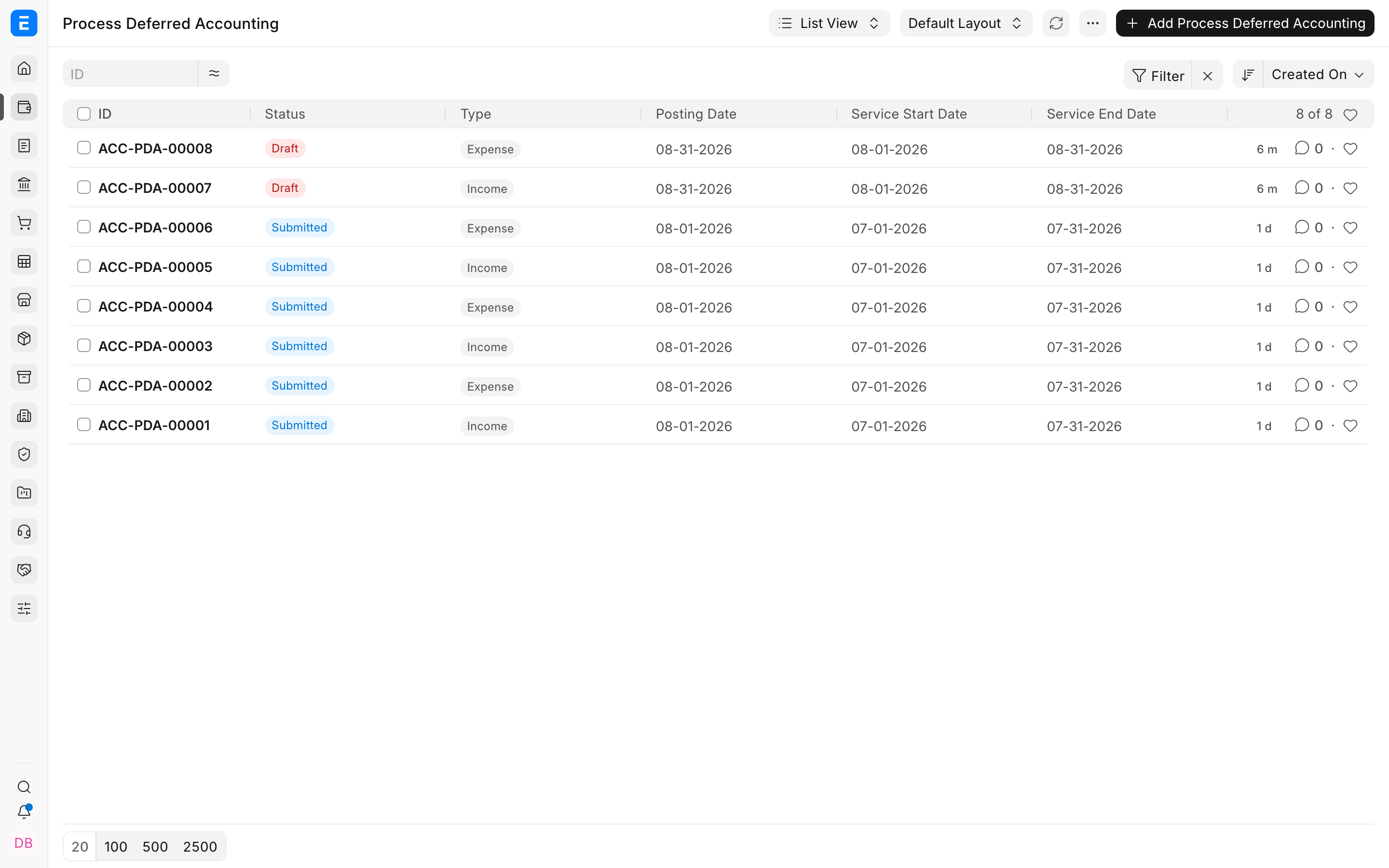
The list contains automatic and manual processing logs. Review recent records before creating another run so you understand what was already processed.
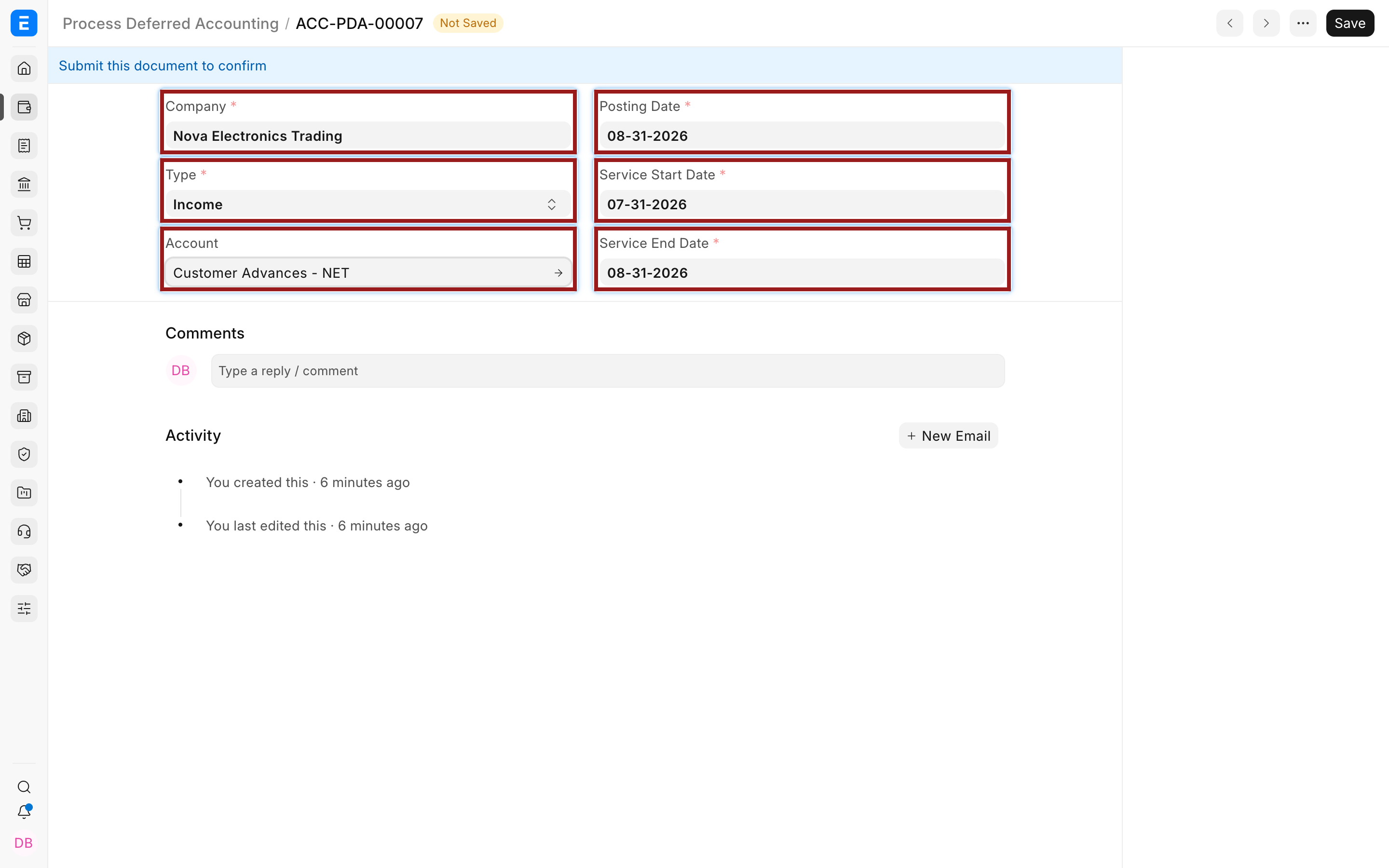
Complete the fields:
| Field | What it controls |
|---|---|
| Company | Limits processing to one Company and its accounting records |
| Type | Select Income for deferred revenue or Expense for deferred expense |
| Account | Optional Chart of Accounts filter that limits processing to one deferred account |
| Posting Date | Date used for the recognition posting or generated Journal Entry |
| Service Start Date | Beginning of the service period to evaluate |
| Service End Date | End of the service period to evaluate |
For deferred revenue, select Income. The example limits processing to Customer Advances - NET.
For prepaid costs, select Expense and use the applicable deferred asset account, such as Prepaid Expenses - NET.
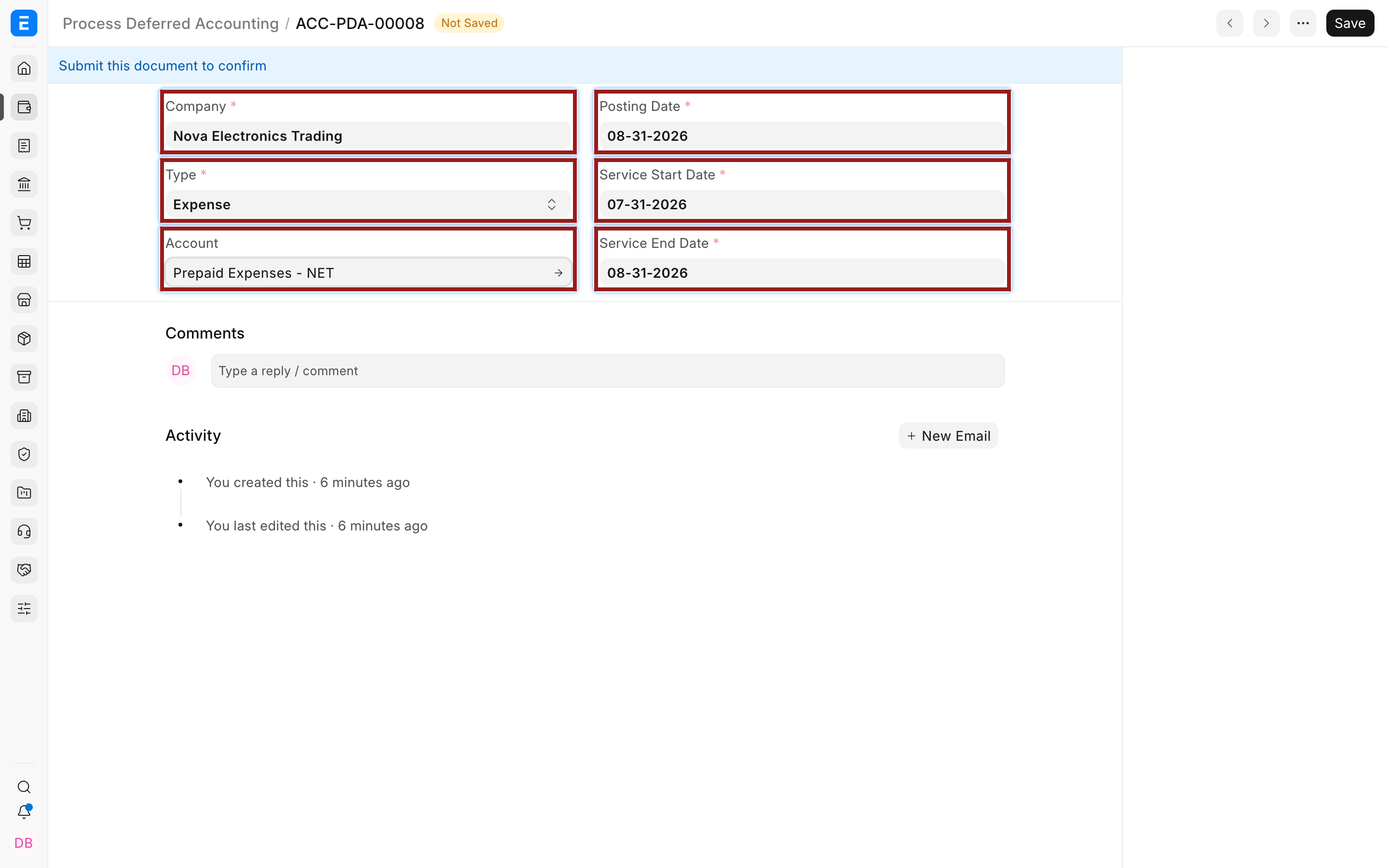
Use the Account filter when you deliberately want a narrow run. Leave it blank when all eligible deferred accounts for the Company and date range should be processed.
Choose the dates carefully
The service date range decides which eligible invoice schedules the run evaluates. The posting date decides when the recognition effect appears in the ledger.
For a month-end run, the service range normally covers the period being recognized and the posting date normally falls in that accounting period. Follow your organization's closing policy.
Do not use a future posting date merely to make a missing entry appear. First confirm whether the prior run, invoice dates, and service period were correct.
Save and submit
Save the document and review all fields. Submission starts the processing behavior. Depending on Accounts Settings, ERPNext either:
- posts the recognition directly to the General Ledger; or
- creates Journal Entry documents.
When Journal Entries are created, Submit Journal entries determines whether they are submitted automatically. Draft Journal Entries provide a review gate but leave the recognition unposted until someone submits them.
The original documentation correctly described Process Deferred Accounting as a log created on every processing run. Retain the submitted process document for audit instead of treating it as a disposable utility record.
What the run processes
ERPNext looks for eligible submitted invoices whose deferred Item rows overlap the selected service range and match the Company, Type, and optional Account filter. It calculates the portion allowed by the service dates and the Days or Months basis.
For Income:
| Debit | Credit |
|---|---|
| Deferred Revenue liability | Income Account from the Sales Invoice Item |
For Expense:
| Debit | Credit |
|---|---|
| Expense Head from the Purchase Invoice Item | Deferred Expense asset |
The tool should not recognize an amount twice. ERPNext uses prior processing and recognized amounts to determine what remains. If a repeated run produces an unexpected result, stop and review the underlying documents and earlier logs.
Verify the completed run
After submission:
- Check whether Journal Entries were generated and whether they are Draft or Submitted.
- Run the Deferred Revenue/Expense Report for the Company and period.
- Open the General Ledger for the deferred account and final income or expense account.
- Compare the recognized amount with the service days or months included in the run.
- Confirm that the pending amount and remaining service period are reasonable.
If the process creates a Draft Journal Entry, the report and ledger may not show the final recognition until that Journal Entry is submitted.
Automatic processing
Enable Automatically process deferred Accounting entry in Accounts Settings when ERPNext should run the process through scheduled background jobs.
Automatic processing reduces month-end manual work, but it still requires monitoring. Confirm that the scheduler is active, processing logs are being created, generated Journal Entries are handled, and the deferred report agrees with the ledger.
Manual processing is useful for controlled cutoffs, recovery after a scheduler interruption, or a filtered run. It should not become a substitute for fixing background-job failures.
Corrections
If a run is wrong, first identify the source:
- incorrect service dates or stop date on the invoice row;
- wrong deferred or income/expense account;
- wrong Days/Months policy;
- incorrect process range or posting date;
- generated Journal Entries left Draft;
- cancelled or amended source invoice;
- a prior run already covering the same period.
Correct the source through the supported workflow. Do not delete General Ledger entries or force a balancing Journal Entry without understanding the deferred schedule.
Troubleshooting
| Problem | What to check |
|---|---|
| No entries were generated | Verify submitted eligible invoices, service overlap, Type, Company, Account filter, and pending deferred amount |
| Journal Entries exist but ledger did not change | Check whether the generated documents are still Draft |
| Only one account was processed | Check whether the optional Account filter was set |
| Amount differs from a simple monthly division | Check whether processing is based on Days or includes a partial month |
| Automatic runs are missing | Check the Accounts Setting, scheduler, background jobs, and error logs |
FAQs
Should I create this document every month?
Not when automatic processing is enabled and working. Use manual records for controlled processing, recovery, or deliberate account/date filtering.
What is the difference between Posting Date and Service End Date?
Service End Date limits the service period evaluated. Posting Date determines when the resulting accounting entry is recorded.
Can one run process both revenue and expense?
No, select either Income or Expense. Use separate runs when both sides require manual processing.
Does submitting the process always create a Journal Entry?
Only when Accounts Settings enables Journal Entry posting. Otherwise ERPNext posts the recognition directly.
Why does a repeated run not post the same amount again?
ERPNext considers the amount already recognized and processes only the eligible remainder. Verify the prior logs and deferred report if the result is unexpected.