

















Receiving Bulk Payments
When a Customer sends one payment for several invoices, record one Payment Entry and allocate the amount across all matching invoices. This keeps the bank receipt intact while clearing each invoice correctly.
Before you begin
Confirm the correct Company, currency, receivable or payable account, and bank or cash ledger. Use submitted source documents and keep the bank reference or remittance advice available.
Use Receiving Bulk Payments in ERPNext
- Create a Receive Payment Entry for the Customer.
- Enter the actual bank amount and reference.
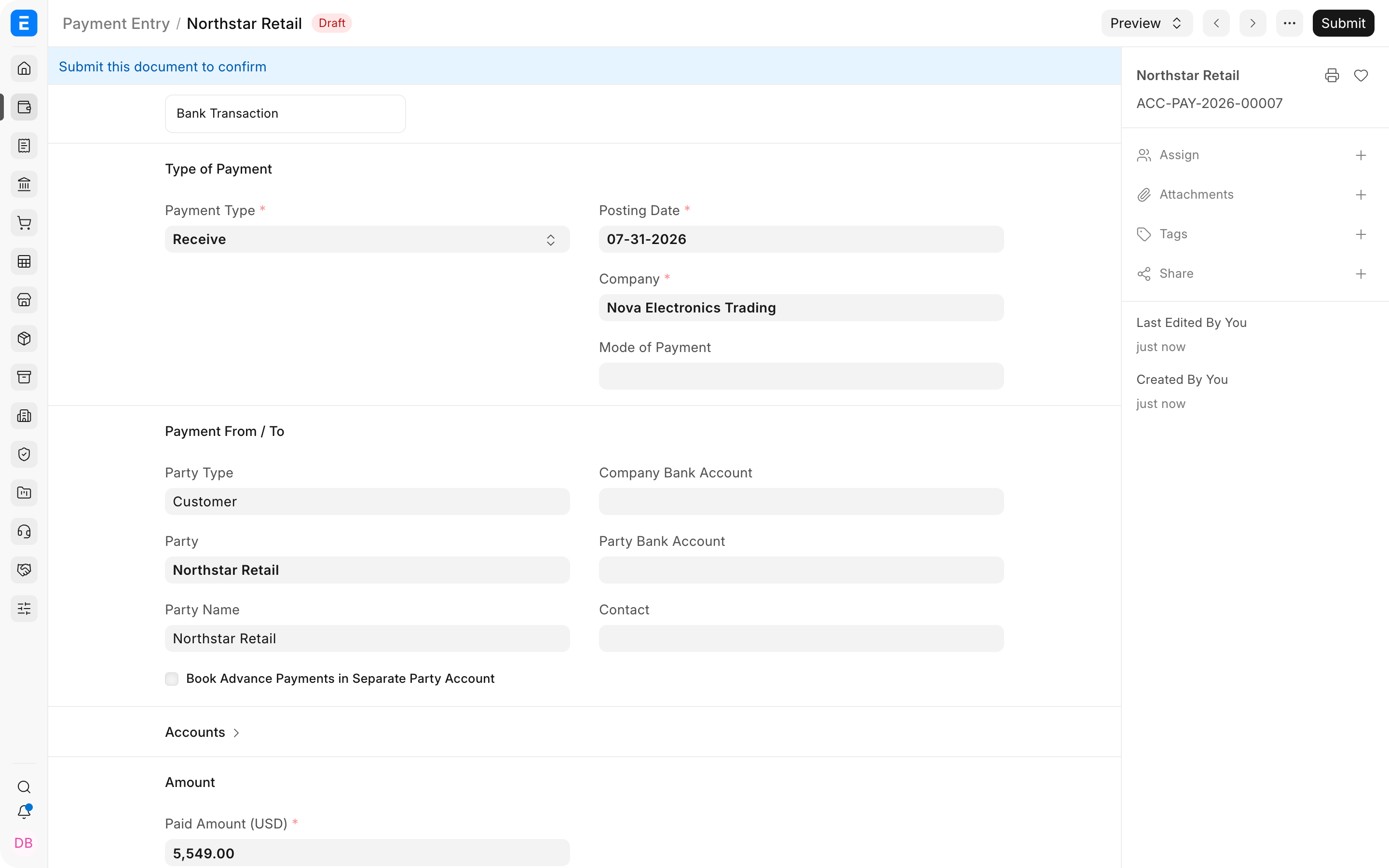
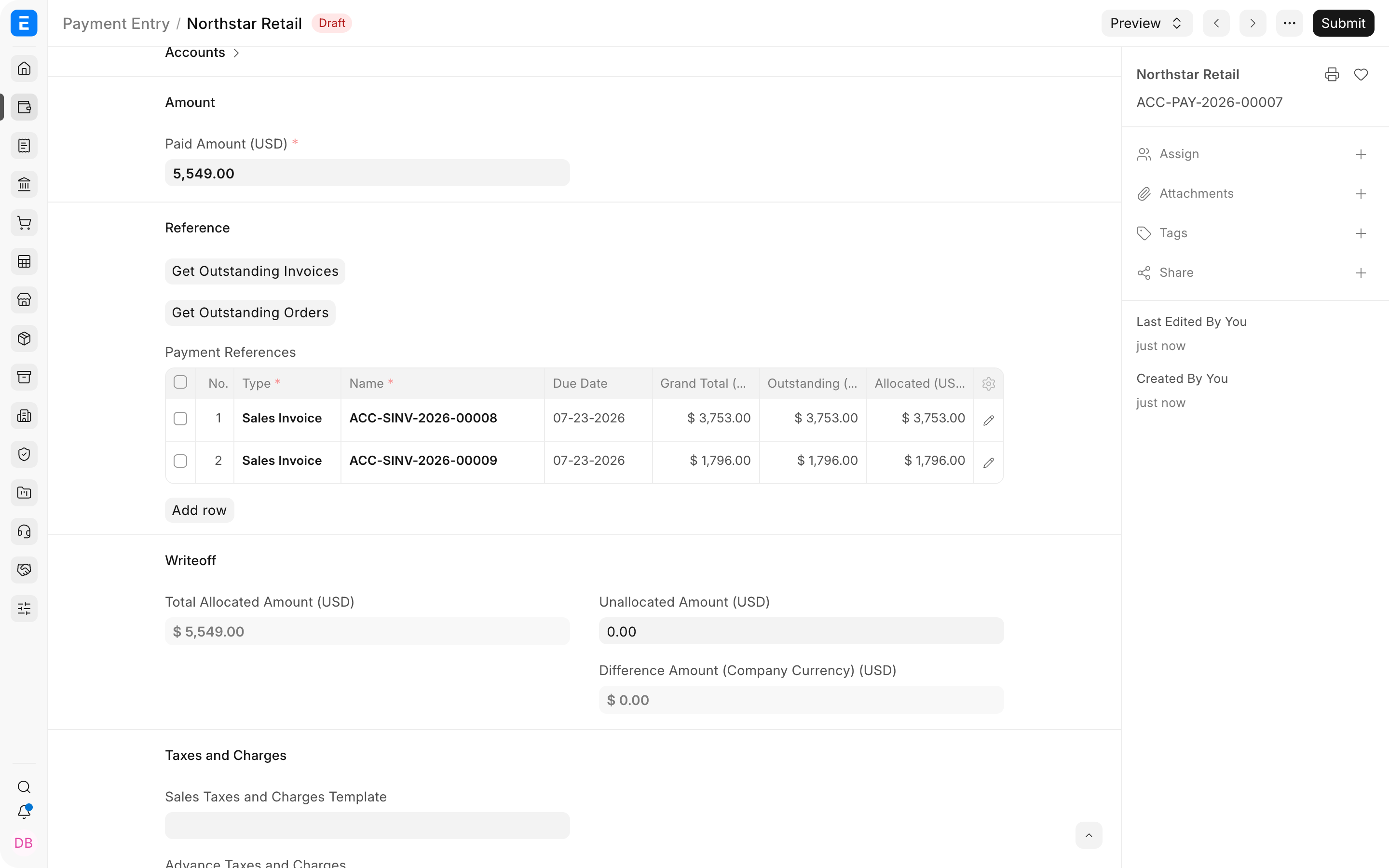
- Select Get Outstanding Invoices.
- Choose the invoices covered by the remittance advice.
- Enter the allocated amount for each row.
- Confirm that the total allocation, deductions, and unallocated balance explain the receipt, then submit.
Important fields and what they mean
| Field | What it controls |
|---|---|
| Total Allocated Amount | Sum assigned to invoice references. |
| Unallocated Amount | Receipt balance not yet assigned. |
| Allocated Amount | Amount clearing a specific invoice. |
| Outstanding Amount | Invoice balance before this allocation. |
| Difference Amount | Amount that must be explained by deductions, exchange difference, or a correction. |
What happens after you submit or process
ERPNext updates the relevant accounting records and, where applicable, the outstanding or unallocated amounts. Review the General Ledger, party ledger, and source document status before treating the workflow as complete. A saved draft does not affect the ledger.
Troubleshooting
One or more invoices are missing from Get Outstanding Invoices
Confirm that every invoice belongs to the same Customer, Company, and receivable account selected in the Payment Entry. Check that it is submitted, has an outstanding balance, and falls within the dialog's date and filter range.
Selecting invoice rows does not change the payment amount
The row selection controls which references you keep or remove; it does not replace the actual bank amount. Enter the amount received, then set the Allocated Amount for each retained invoice and review Total Allocated Amount.
The receipt is smaller than the combined invoice balances
Allocate the receipt according to the customer's remittance advice. An invoice can remain partially outstanding. Do not reduce an invoice or create an unsupported discount merely to make the allocations equal the invoice totals.
The customer paid more than the selected invoices
Allocate only the amounts that should clear the invoices. Leave the genuine excess as Unallocated Amount so it remains available as a customer advance, or record a separately supported deduction when the difference is a fee or adjustment.
Frequently asked questions
Can one receipt be allocated across invoices for different customers?
A Payment Entry has one party. Create separate Payment Entries for each Customer, then reconcile those entries with the combined bank deposit if the bank statement shows one total.
Can one receipt partially pay several invoices?
Partial allocation is supported. Enter the exact allocation for every invoice. ERPNext reduces each invoice's outstanding amount by its allocation and leaves the unpaid balances open.
How do I decide which invoice receives the payment first?
Follow the customer's remittance advice. If none is provided, use your documented accounting policy, such as oldest due invoice first, and retain evidence of the decision.
What if the customer deducts bank fees or withholding tax?
Record the bank receipt exactly as received and use the appropriate deduction, withholding, or adjustment workflow with explicit ledger accounts. Do not silently reduce allocations without explaining the difference.
Should I use this workflow for a bank deposit containing payments from many customers?
Record a Payment Entry per Customer so party ledgers remain correct. Use Bank Reconciliation to match the individual accounting entries to the combined bank deposit when required.