


















Unreconcile Payments
Unreconciliation removes an allocation between a payment or credit and an invoice. It does not erase the original vouchers. Use it when the payment was linked to the wrong invoice or for the wrong amount.
Before you begin
Confirm the correct Company, currency, receivable or payable account, and bank or cash ledger. Use submitted source documents and keep the bank reference or remittance advice available.
Use Unreconcile Payments
- Identify the incorrect allocation and verify the source documents.
- Open the unreconciliation tool from the supported voucher or workspace.
- Select only the allocation that must be removed.
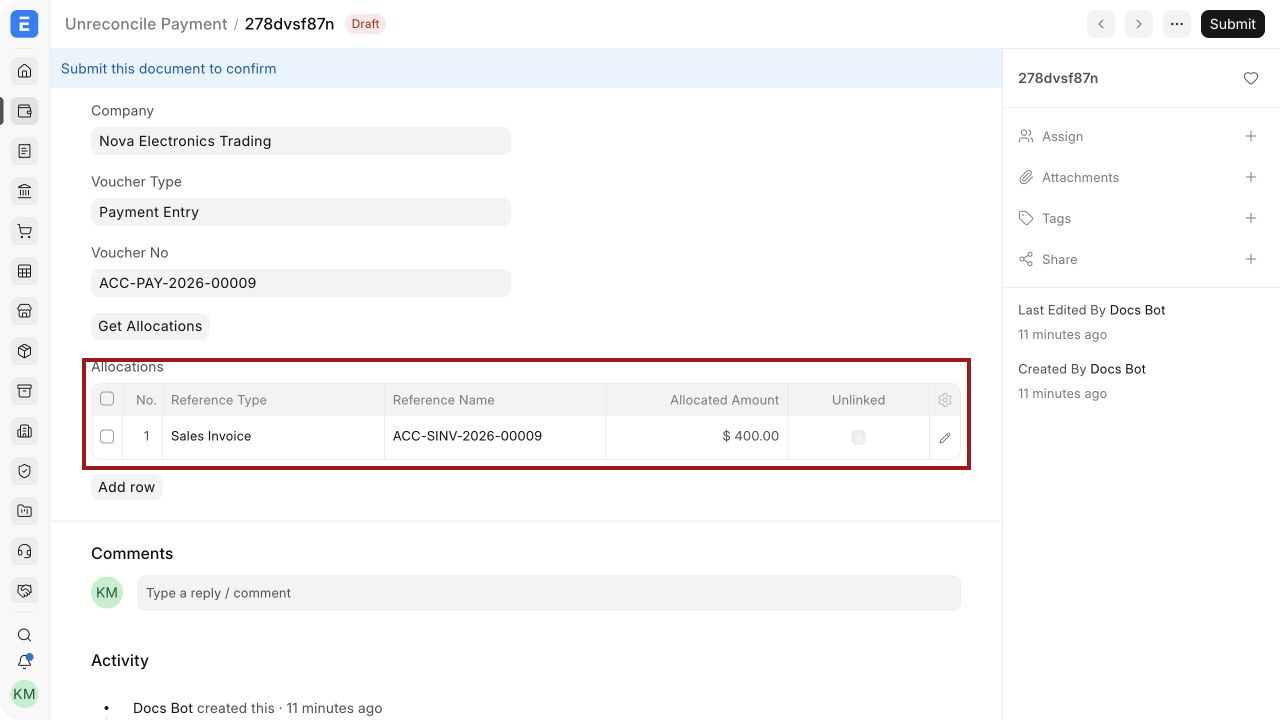
- Confirm the action and review the resulting outstanding and unallocated balances.
- Apply the payment to the correct invoice when appropriate.
Before submitting, verify the Payment Entry, the linked invoice, and the amount that will be unlinked.
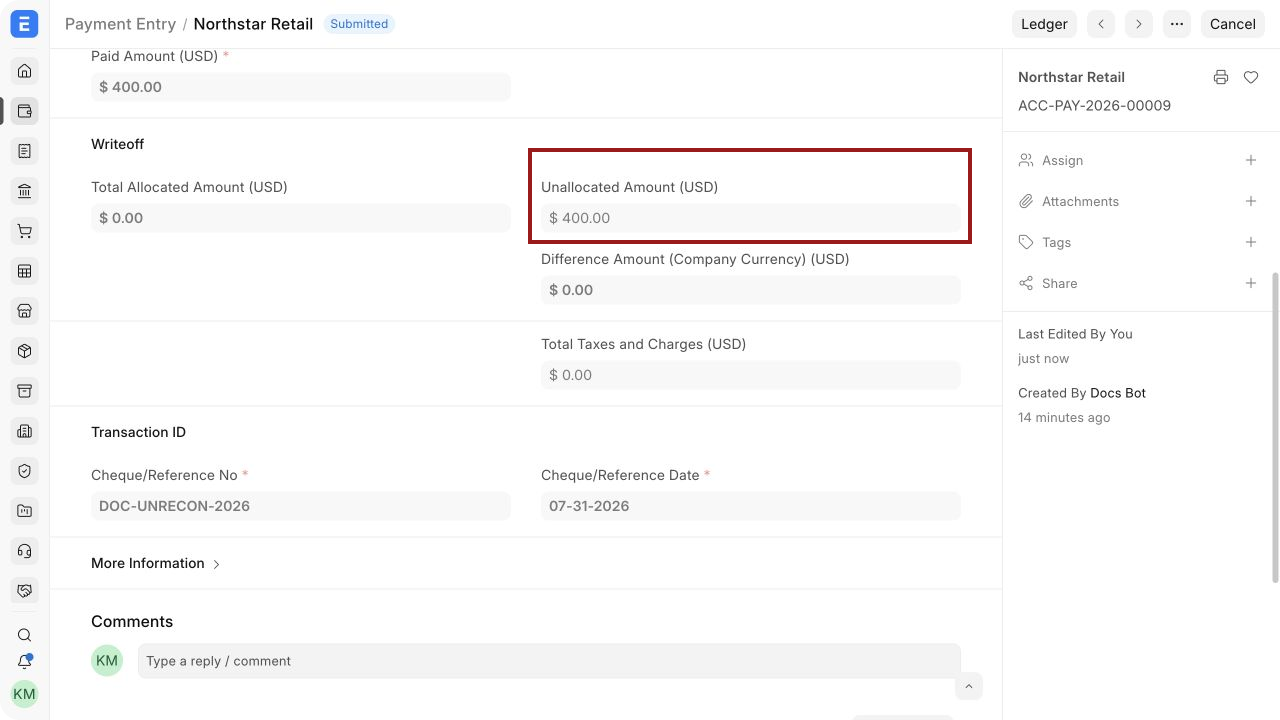
After submission, the example Payment Entry has no invoice allocation and its 400 USD is available again as an unallocated amount.
Important fields and what they mean
| Field | What it controls |
|---|---|
| Voucher | Payment Entry, Journal Entry, or credit document containing the allocation. |
| Against Voucher | Invoice from which the allocation will be removed. |
| Allocated Amount | Amount to delink. |
| Posting Date | Date associated with the original allocation. |
| Delinked Status | Indicates that the allocation is no longer active. |
What happens after you submit or process
ERPNext updates the relevant accounting records and, where applicable, the outstanding or unallocated amounts. Review the General Ledger, party ledger, and source document status before treating the workflow as complete. A saved draft does not affect the ledger.
Troubleshooting
The Unreconcile action is unavailable
Confirm that the payment is currently reconciled, the document and version support unreconciliation, and your role has permission. Some older allocations require cancellation and amendment instead.
The wrong invoice still shows as paid after unreconciliation
Refresh the report and inspect Payment Ledger for other allocations, credit notes, or payments. Removing one allocation does not remove other valid settlements.
The payment does not become available for reallocation
Check its unallocated amount, party, account, currency, and document status. Verify that the unreconciliation process completed without an error.
Frequently asked questions
Does unreconciliation cancel the Payment Entry?
It does not reverse the bank movement. It removes the selected payment-to-invoice allocation so the amount can be applied correctly.
Does unreconciliation change General Ledger entries?
The supported process updates the accounting references needed to reverse the allocation. Review General Ledger and Payment Ledger after processing.
Can only part of an allocation be unreconciled?
Use the controls available in the current version and select only the intended allocation where supported. Verify the resulting outstanding and unallocated amounts.
What should be done immediately afterward?
Reconcile the payment to the correct invoice or document the reason it remains unallocated. Leaving unexplained credits can distort collection and payable follow-up.