


















Blanket Order
A Blanket Order in ERPNext records a long-term commitment to buy or sell specified items within an agreed period and at negotiated rates. It does not deliver, receive, bill, or pay for goods by itself. Instead, it becomes the reference for multiple downstream transactions as quantities are released over time.
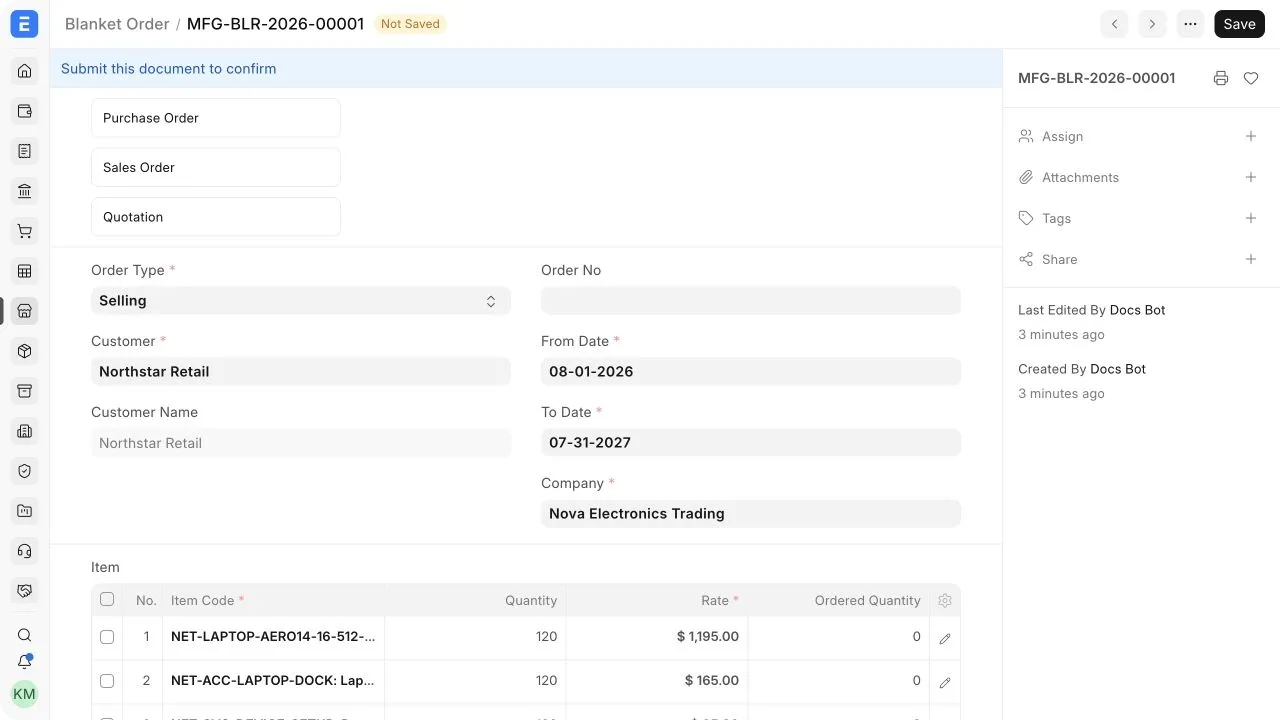
Before you begin
Create the relevant Customer or Supplier, Items, currencies, and agreed rates. Confirm the total committed quantity and validity period before entering the agreement.
Create a Blanket Order
- Go to Selling > Sales > Blanket Order and select Add Blanket Order.
- Set Order Type to Selling for a customer agreement or Purchasing for a supplier agreement.
- Select the Customer or Supplier.
- Enter the From Date and To Date.
- Add each Item, committed Quantity, Rate, and item-specific Terms and Conditions.
- Save and submit the Blanket Order.
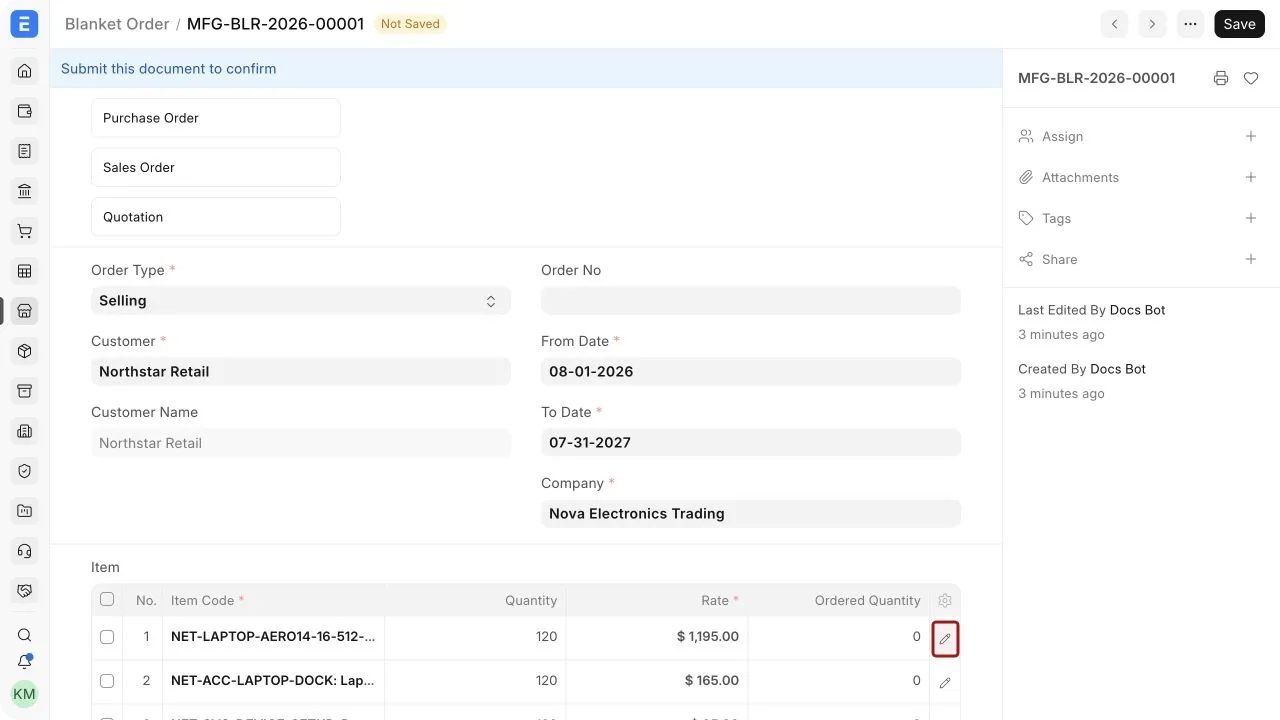
When editing an item row, select the pencil icon to open the complete row editor. This is useful when the row contains more fields than the table shows.
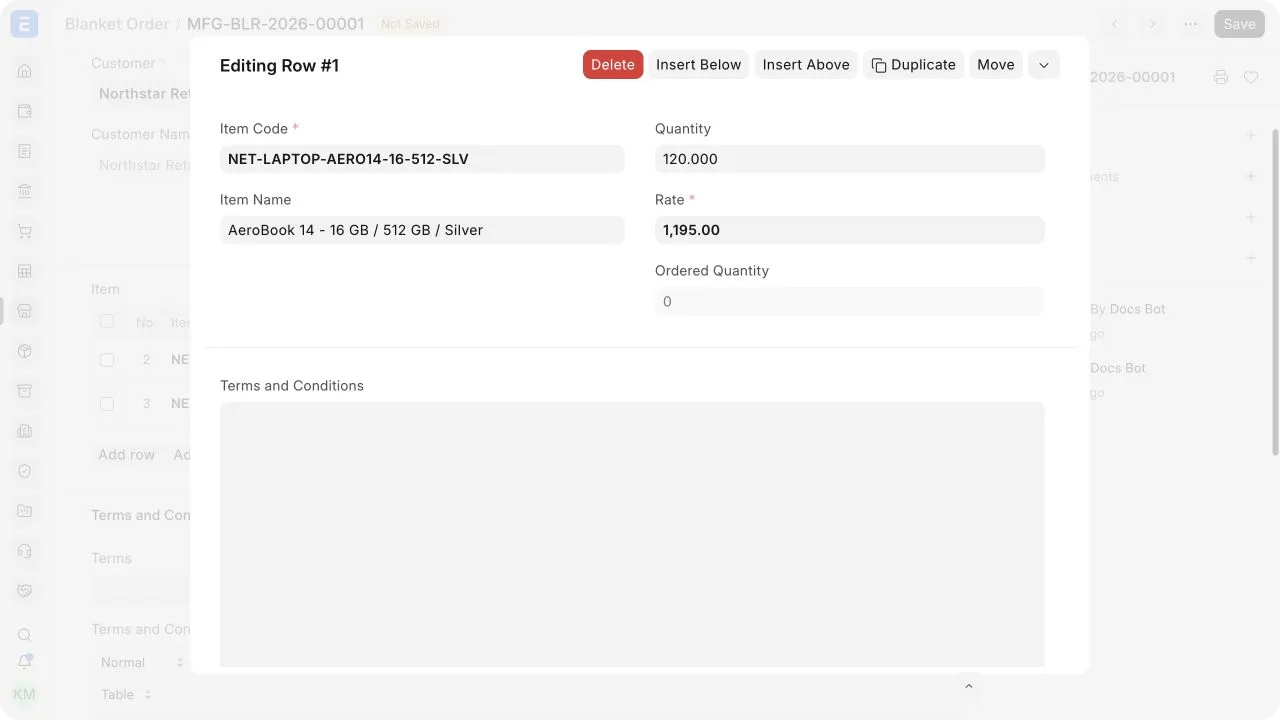
Important fields and what they mean
| Field | What it means |
|---|---|
| Order Type | Determines whether the agreement is for Selling or Purchasing. |
| Customer or Supplier | The party that made the commitment. The available field depends on Order Type. |
| From Date | The first date on which the agreement is valid. |
| To Date | The final date on which transactions should be created against the agreement. |
| Item Code | The product covered by the agreement. |
| Quantity | The total quantity committed for the validity period. |
| Rate | The negotiated unit rate used when transactions are created from the Blanket Order. |
| Ordered Quantity | The quantity already referenced by submitted downstream orders. Use it to monitor the remaining commitment. |
| Terms and Conditions | Item-specific commercial terms for the agreement. |
Create transactions from a Blanket Order
After submission, use Create to generate the appropriate transaction:
- For a Selling Blanket Order, create a Quotation or Sales Order.
- For a Purchasing Blanket Order, create a Purchase Order.
You can create multiple transactions from the same Blanket Order. ERPNext updates the ordered quantity as linked orders are submitted, making it easier to compare the commitment with actual releases.
You can also select a Blanket Order from an eligible downstream transaction. Always check the mapped item, remaining quantity, rate, schedule date, warehouse, taxes, and terms before saving.
Monitor the agreement
Use the Blanket Order dashboard to open linked Quotations, Sales Orders, and Purchase Orders. Compare the committed Quantity with Ordered Quantity for each line. The outstanding quantity is the portion that has not yet been released into submitted orders.
A Blanket Order does not replace operational planning. Each Sales Order or Purchase Order still needs its own delivery schedule, warehouse, taxes, and approval before it moves through the standard sales or buying cycle.
Amend an agreement
If a submitted Blanket Order contains an incorrect party, period, item, quantity, or rate, cancel and amend it according to your permissions and audit policy. Review linked orders before changing the source agreement. Do not create a replacement merely to hide an existing transaction history.
Status and completion
A draft remains editable. A submitted Blanket Order can be used to create downstream transactions. A cancelled Blanket Order cannot be used for new releases.
ERPNext may not automatically close an agreement when its period ends or its quantity is fully ordered. Use the dates, ordered quantities, dashboard, and internal review process to identify completed or expired commitments.
Video explaining Blanket Order
Frequently asked questions
Can one Blanket Order create multiple Sales Orders?
Yes. Create each release as a separate Sales Order until the commitment is fulfilled or the validity period ends.
Can I use a Blanket Order for purchasing?
Yes. Select Purchasing as the Order Type, choose the Supplier, and create Purchase Orders from the submitted record.
Does a Blanket Order reserve stock?
No, It records a commercial commitment. Stock is reserved or moved only through the applicable downstream processes and settings.
Why is Ordered Quantity not updated?
Check that the downstream order is submitted, linked to the correct Blanket Order and item row, and not cancelled.
Can I use different rates in downstream orders?
The negotiated rate is mapped from the Blanket Order. Any change should follow your permissions and commercial approval process.