


















This page answers the e-way bill questions that support receives most often: which document to generate it from, why generation fails, how to update Part B or the transporter, and what to do when the e-way bill PDF or log is missing.
For how to generate, update, extend and cancel an e-way bill, see
e-Waybill in the India Compliance documentation.
Which document can generate an e-way bill?
The Sales Invoice can always generate one. The other documents need a setting in
GST Settings → General, in the e-Waybill section:
| Movement | Document | Setting to turn on |
|---|---|---|
| Sale | Sales Invoice | Enable e-Waybill Features |
| Goods sent before the invoice | Delivery Note | Enable e-Waybill Generation from Delivery Note |
| Purchase return or debit note | Purchase Invoice with Is Return | Enable e-Waybill Generation from Purchase Invoice |
| Goods received (for example from an unregistered supplier) | Purchase Receipt | Enable e-Waybill Generation from Purchase Receipt |
| Transfer between your own warehouses, or goods sent for job work | Stock Entry (Material Transfer or Send to Subcontractor) | Enable e-Waybill Generation for Subcontracting and Material Transfer |
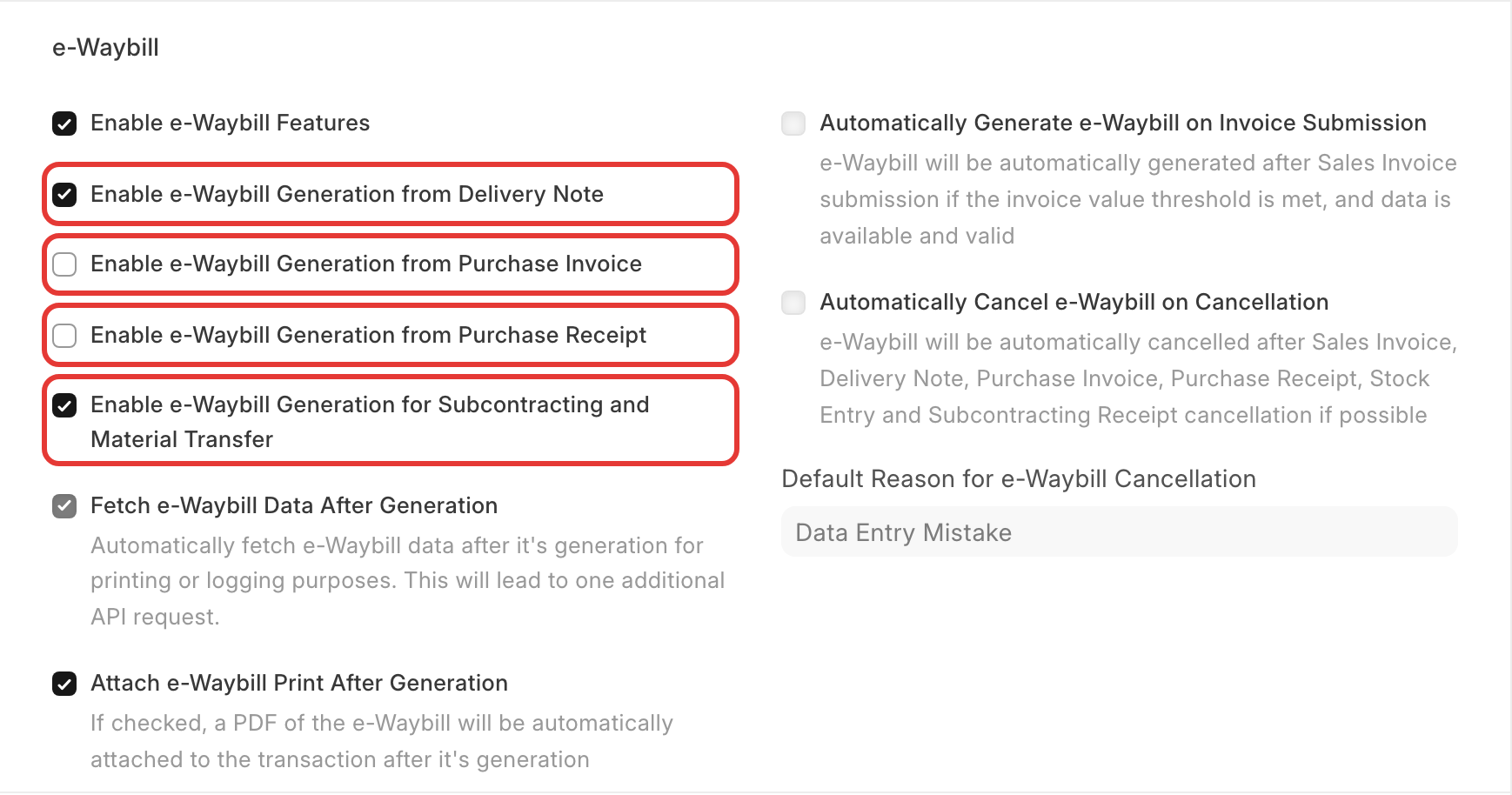
For a return (Is Return ticked), the supply type is Inward. Older versions do not have all of these
settings. If a setting is missing, update India Compliance.
Not supported: an e-way bill from an Asset Movement, and more than one e-way bill for one document. For several vehicles, make one Delivery Note per vehicle, generate an e-way bill from each, and then make one Sales Invoice from all the Delivery Notes. A change of vehicle during transport is done with Update Vehicle Info, or on the e-way bill portal for multi-vehicle movement.
Stock transfer to another state
A Stock Entry moves stock inside one company. To transfer goods to a branch with a different GSTIN, use a Sales Invoice to the branch (an internal customer) and a Purchase Invoice in the receiving branch. That charges IGST and gives both sides the right accounting. A Stock Entry e-way bill is for movement within the same GSTIN, and for job work.
Generation fails with an error
The error text comes from the government e-way bill system. The usual causes:
- Place of Supply. For bill-to/ship-to movement, the place of supply follows the billing address, not the shipping address. If the customer's GST Category is SEZ, the place of supply must be
96-Other Countries. Place of Supply cannot change after submit: amend the document. - Invalid HSN code. The government does not say which row is wrong. Check the HSN code of each item on the GST Portal's HSN search, correct it on the item, and amend the document.
- PIN code. The PIN code on the address must match its state. Check the billing, shipping and
dispatch addresses. - Transporter GSTIN. For a transporter ID (including a common enrolment number), tick Is
Transporter on the supplier and use its Transporter GSTIN field, not the normal GSTIN. - Rail. For mode of transport Rail, the transport document number must use the railway format.
- Credentials or API errors. See GST API errors.
Ship-To GSTIN and other new government rules
When the government changes the e-way bill rules (for example the Ship-To GSTIN changes from 1 August 2026), India Compliance releases the change for all supported versions. You only need to update the India Compliance app. Changes go live in sandbox mode first. Errors about shipping details or PIN codes after a rule change usually mean the site is on an older version.
Update Part B or the transporter
Use the e-Waybill menu on the document:
- Update Vehicle Info: add or change the vehicle (Part B).
- Update Transporter: change the transporter.
- Extend Validity: extend an e-way bill before it expires.
- Fetch Latest Data: get the current data, for example after the transporter updated Part B.
The government allows the first Part B update only within 15 days of Part A. After that the e-way bill is discarded. Use Mark as Cancelled on the document, then generate a new e-way bill.
The validity of an e-way bill is set only after Part B is added. To list documents still waiting for
Part B, open the e-Waybill Log list and filter for an empty Valid Upto.
The e-way bill PDF or the e-Waybill Log is missing
- With Attach e-Waybill Print After Generation on in GST Settings, the PDF is attached to the
document after generation. Reload the document to see it. - If the e-way bill was made on the government portal, record it with e-Waybill → Mark as Generated, or use Fetch if Generated.
- Missing logs and print errors after an update were fixed in later releases. Update India Compliance.