


















Why doesn't my budget stop a transaction?
A Budget sets a limit for one expense account, against a cost center, a project or another accounting dimension, for a period. When a Material Request, Purchase Order or expense would go over the limit, ERPNext stops it or warns, as you set. If nothing happens, one of the conditions below is not met.
Check these first
-
The budget is submitted. A draft budget is not checked.
-
The account is an expense account. Budgets are checked only for accounts with Root Type Expense. A budget on an income account is saved but never stops anything.
-
The transaction has the same cost center, project or dimension as Budget Against, on the item row. A budget on a parent cost center also covers its child cost centers.
-
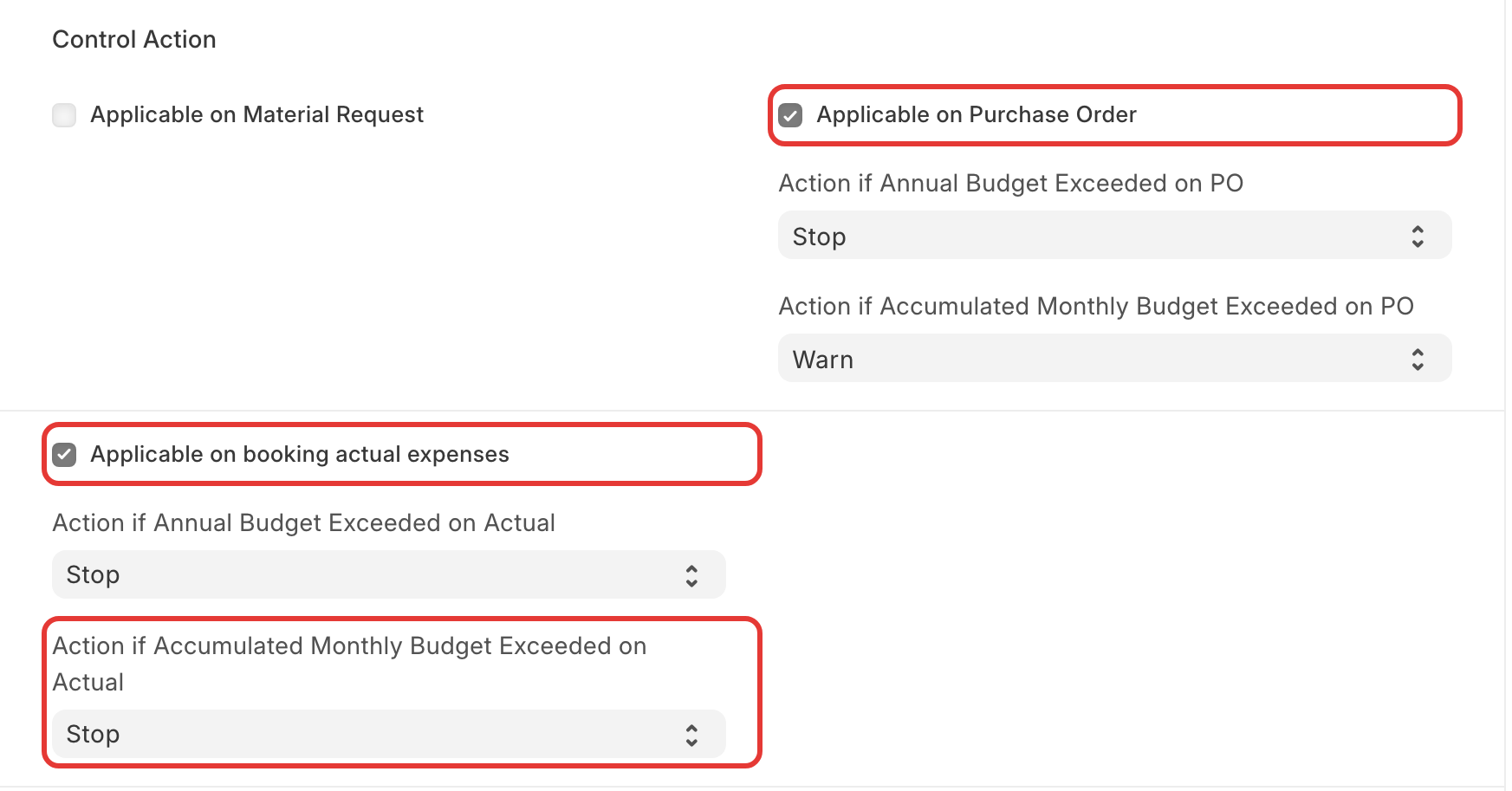
The document type is turned on. In the budget's Control Action section:
- Applicable on booking actual expenses: Purchase Invoices, Journal Entries, Expense Claims and other entries that post to the account.
- Applicable on Purchase Order: needs actual expenses on too.
- Applicable on Material Request: needs Purchase Order and actual expenses on too.
-
The action is Stop. For each document type there is an annual action and a monthly action, each Stop, Warn or Ignore. The monthly action is Warn by default, so going over the monthly amount only shows a message.
-
The date is inside the budget's period (From Fiscal Year and To Fiscal Year, or the budget dates).
When the check runs, you see:
Annual Budget for Account Office Rent - BBS against Cost Center Mumbai - BBS is ₹6,00,000.00. It will be exceeded by ₹20,000.00.
The monthly limit allows more than one month's amount
The monthly check uses the accumulated amount up to the posting date. With ₹50,000 a month and nothing spent in April, a ₹1,00,000 expense in May is allowed, because the budget for April and May together is ₹1,00,000.
Create a budget for an expense account
- Go to Budget and click + Add Budget.
- Select Budget Against (Cost Center, Project, or a dimension) and its value, the Company, and the fiscal years.
- Select one Account (a ledger, not a group) and enter the Budget Amount.
- Leave Distribute Equally on, or set the amounts per month in the distribution table.
- Turn on the document types and select the actions, then submit.
Make one budget per account. If the expense account is not in the list, check that it belongs to the selected company and is not a group account.
Can I set a budget on items, assets or a balance sheet account?
- Items: no. A budget is on an expense account. For a limit per item group, use a separate expense account for that item group (in the Item Defaults of the items) and budget that account.
- Asset purchases: no. An asset is posted to a fixed asset account (a balance sheet account), and budgets are only checked on expense accounts. Track asset spending against a project in the Budget Variance Report or the project's costing instead.
- Income accounts: allowed, but they are never checked. Use the Budget Variance Report to compare.
Compare budget and actual for any budget in Budget Variance Report.