


















Why does my Stock Reconciliation show a wrong difference amount or not match the General Ledger?
If the Difference Amount on a Stock Reconciliation looks wrong, or the Current Qty does not match your Stock Ledger or General Ledger, there is usually a reason. In most cases, a backdated entry changed the stock before the reconciliation date, and the repost that recalculates the values has not run yet.
This page explains how a Stock Reconciliation calculates its values. It also shows how to check the result and how to correct it.
The messages you can see
You can see one or more of these messages:
Item valuation reposting in progress. Report might show incorrect item valuation.
Insufficient Stock
10.0 units of Item Basmati Rice 10 kg Bag needed in Warehouse Jebel Ali Main Store - ANF on 2026-10-08 11:00:00 for Stock Entry Material Issue to complete this transaction.
Batches Exists In Future Transaction(s)
Since the stock reconciliation exists for future dates, cancel it first. For Serial/Batch, if you want to make a backdated transaction, avoid using stock reconciliation.
Difference Account must be a Asset/Liability type account, since this Stock Reconciliation is an Opening Entry
None of the items have any change in quantity or value.
Removed items with no change in quantity or value.
How a Stock Reconciliation works
A Stock Reconciliation does not add or remove a quantity, like a Stock Entry does. Instead, it sets the quantity and the valuation rate of an item in a warehouse on the posting date and time.
For each row, ERPNext does these steps:
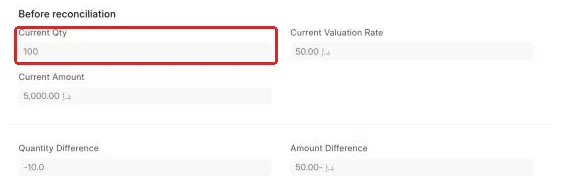
- It gets the stock just before the posting date and time. It shows this stock in Before reconciliation: Current Qty, Current Valuation Rate and Current Amount.
- It takes the Quantity and Valuation Rate that you enter. Amount = Quantity × Valuation Rate.
- It calculates Amount Difference = Amount − Current Amount. The Difference Amount of the document is the total of all rows.
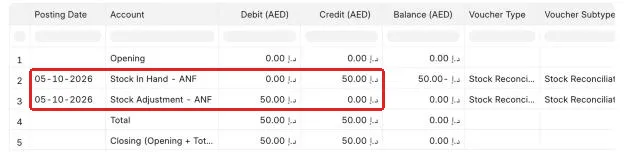
When you submit, ERPNext makes one Stock Ledger Entry for each row. This entry sets the balance to your quantity and rate. If perpetual inventory is on, ERPNext also makes two GL Entries for the Difference Amount:
| Difference Amount | Stock account (for example, Stock In Hand) | Difference Account |
|---|---|---|
| Positive (stock value goes up) | Debit | Credit |
| Negative (stock value goes down) | Credit | Debit |
The Difference Account is a field on the document. For the purpose Stock Reconciliation, it is the Stock Adjustment Account of the company. For the purpose Opening Stock, it is the Temporary Opening account.
Example
Al Noor Foodstuff Trading LLC has 100 bags of Basmati Rice 10 kg Bag at AED 50.00 in Jebel Ali Main Store. The stock value is AED 5,000.00. On 5 October, the warehouse team counts 90 bags. The new purchase rate is AED 55.00, so the team enters 90 at AED 55.00.
- Current Amount = 100 × 50.00 = AED 5,000.00
- Amount = 90 × 55.00 = AED 4,950.00
- Difference Amount = 4,950.00 − 5,000.00 = AED −50.00
10 bags are missing, but the Difference Amount is only AED −50.00. The value of the missing bags (AED 500.00) is almost cancelled by the higher rate on the remaining 90 bags (AED 450.00). The amount is correct. It shows the change in the value of the stock, not only the change in quantity.
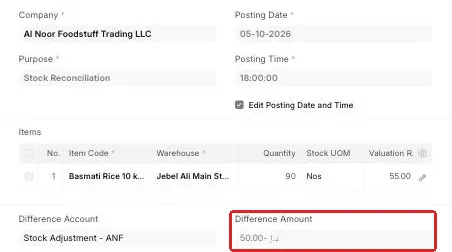
To see how ERPNext got this amount, click the edit icon on the item row. Look at the Before reconciliation section.
To see the GL Entries, click View → Accounting Ledger.

Why the Current Qty does not change, or changes when you do not expect it
ERPNext gets Current Qty and Current Valuation Rate at these times:
- When you select or change the Item Code, Warehouse or Batch No in a row.
- When you change the Posting Date or Posting Time. ERPNext gets the values again for all rows. It also replaces the Quantity and the Valuation Rate that you entered with the stock on the new date. If Scan Mode is selected, it keeps the Quantity but still replaces the Valuation Rate. Set the posting date and time first, then enter the counted quantities.
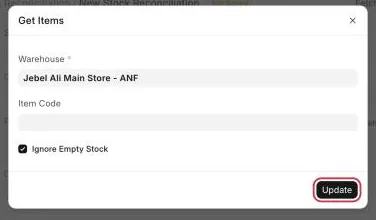
- When you click Fetch Items from Warehouse. ERPNext adds every item that has stock in the warehouse, with its current quantity and rate.
- When you save the document. ERPNext calculates the values again on the server.
- After a repost (see the next section), for a submitted document.
The Current Qty can still look wrong for these reasons:
- The values are for the posting date and time, not for today. If you backdate the reconciliation, the Current Qty is the stock on that date. To edit the date, select Edit Posting Date and Time.
- Scan Mode is on. When Scan Mode is selected, ERPNext does not fetch the existing quantity.
- The row has no change. If the quantity and the rate are the same as the current values, ERPNext removes the row when you save. You see the message "Removed items with no change in quantity or value." If no row has a change, you cannot save.
- You left the Valuation Rate empty. ERPNext then uses the current valuation rate. If there is no current rate, it uses the buying Item Price, and then the Valuation Rate of the Item.
- A backdated entry was made after you submitted. The values on a submitted document change only after the repost is complete.
- Your version is earlier than v16.26.0 or v15.115.0. In these versions, a repost corrects the Stock Ledger and the GL Entries, but not the Current Qty and the Difference Amount on the submitted document. The document keeps the values from the submit. Use the Stock Ledger and the General Ledger to check the values (see "Step 3: Check the result"). To see the correct values on the document, update ERPNext.
Fetch Items from Warehouse replaces the rows
Fetch Items from Warehouse opens the Get Items dialog. When you click Update in this dialog, ERPNext removes all rows from the table. Then it adds the items of the warehouse, with the quantity and the rate on the posting date and time.
- Rows that you entered before are lost. Fetch the items first, then edit the quantities.
- If you select Ignore Empty Stock, ERPNext does not add items with zero stock.
- If you select an Item Code, ERPNext adds only that item.
- Set the posting date and time before you enter the counted quantities. A change of the date or time later replaces your quantities.
The "Recalculate" buttons do not change a reconciliation
Some forms have a button that calculates the quantity again. These buttons correct a total that ERPNext keeps for fast display. They do not change a Stock Reconciliation, the Stock Ledger or the GL Entries.
| Button | Where | What it does |
|---|---|---|
| Recalculate Values | Bin (the stock total of an item in a warehouse) | Calculates the actual quantity and the stock value again from the last Stock Ledger Entry. It also calculates the ordered, reserved and planned quantities again. Use it when the Item dashboard shows a different stock from the Stock Ledger. |
| Recalculate Batch Qty | Batch | Calculates the batch quantity again from the Stock Ledger. Use it when the batch quantity is different from the Stock Ledger. |
To recalculate the values of a reconciliation, use Repost Item Valuation (see "How to fix it").
What the Stock Ledger shows for a reconciliation
A Stock Ledger Entry of a reconciliation stores the new balance, not a quantity in or out. For an item without serial numbers or batches, the entry has Qty Change 0 and Qty After Transaction equal to the quantity on the reconciliation.
The Stock Ledger report calculates In Qty or Out Qty for this entry from the balance of the entry before it. In the example, the balance before the reconciliation is 100 and the new balance is 90, so the report shows Out Qty −10. If you open the Stock Ledger Entry, or use a custom report on the Stock Ledger Entry table, you see Qty Change 0. This is correct.
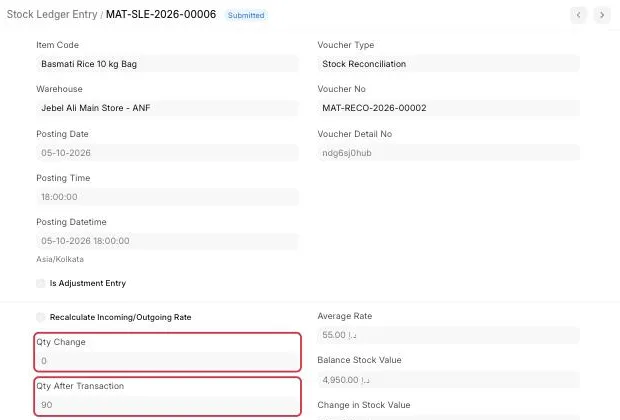
For an item with serial numbers or batches, ERPNext makes up to two entries for each row: one that takes out the current serial numbers or batches, and one that adds the new ones. These entries show a real In Qty and Out Qty.
Why the GL does not match the Stock Ledger after a backdated entry
A backdated entry is an entry with a posting date before other entries of the same item and warehouse. A backdated entry before a Stock Reconciliation has these effects:
- The quantity after the reconciliation does not change. The reconciliation sets the balance. In the example, the balance on 5 October stays 90 bags, and later entries continue from 90.
- The Current Qty and the Difference Amount of the reconciliation change. The stock before 5 October is now different, so the difference between "before" and "after" is different.
- The values are recalculated in the background. ERPNext makes a Repost Item Valuation entry (a background job that recalculates the stock values and the GL Entries after a backdated entry). Until this job is complete, the reconciliation and the GL show the old amounts.
Example: a receipt is entered after the count
On 13 October, the purchase officer enters a receipt of 20 bags at AED 50.00 with the posting date 3 October. The team had not entered it before the count.
The Stock Ledger now shows 120 bags before the reconciliation. The reconciliation sets the stock to 90, so the reconciliation row shows Out Qty −30.
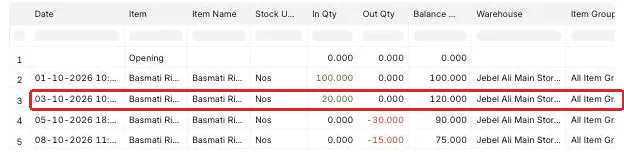
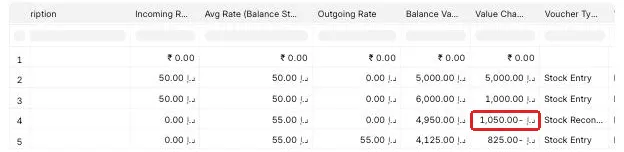
But the Value Change of the reconciliation is still AED −50.00. The correct value is 4,950.00 − 6,000.00 = AED −1,050.00. The report also shows the message "Item valuation reposting in progress".
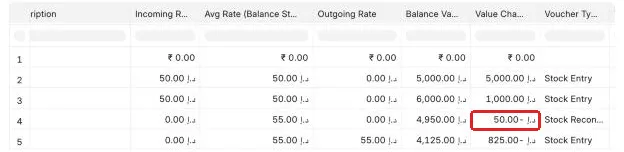

This is the mismatch customers see. The Stock Ledger quantity is correct, but the stock value, the Difference Amount and the GL Entries are old. They become correct when the repost is complete.
How to fix it
Step 1: Check that a repost is pending
- Go to Stock → Repost Item Valuation. You can also search for Repost Item Valuation in the search bar.
- Filter the list by Company.
- Look at the Status column. Queued or In Progress means that the values are not recalculated yet.

- If the status is Failed, open the entry and read the Error Log in the entry. Correct the cause first. The most common cause is negative stock (see "Errors when you backdate a reconciliation" below).
Step 2: Start the repost
The scheduler runs queued reposts in the background once an hour. If Limit timeslot for Stock Reposting is selected in Stock Reposting Settings, reposts run only between the Start Time and the End Time. If a repost stays Queued for a long time, start it yourself:
- Open the Repost Item Valuation entry.
- Click Start Reposting.
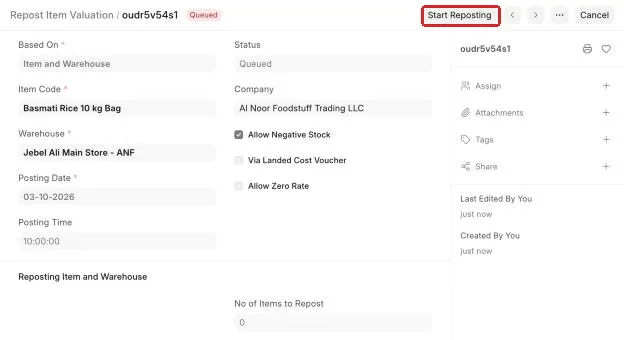
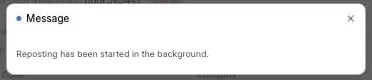
You see the message "Reposting has been started in the background."
- Wait for some minutes, then reload the page. The status changes to Completed.
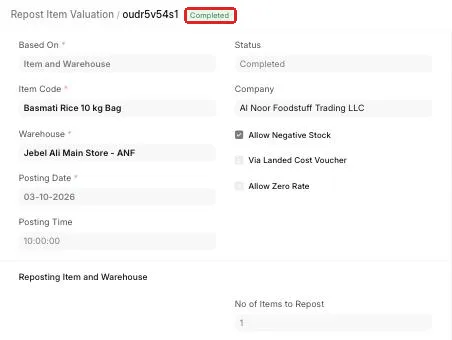
If there is no Repost Item Valuation entry, but the values are still wrong, make one manually:
- Go to Repost Item Valuation and click Add Repost Item Valuation.
- In Based On, select Item and Warehouse.
- Select the Item Code, the Warehouse and the Company.
- In Posting Date and Posting Time, enter the date and time of the first wrong entry.
- Save and submit the entry.
Step 3: Check the result
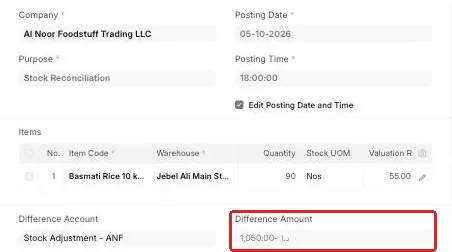
- Open the Stock Reconciliation again. The Difference Amount now uses the new stock before the reconciliation. In the example, it is AED −1,050.00.
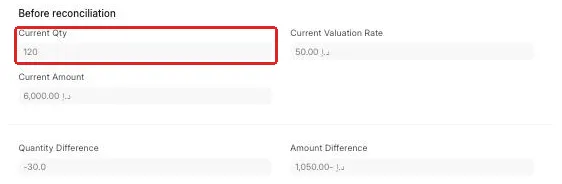
- Click the edit icon on the item row. Current Qty is now 120, and Amount Difference is AED −1,050.00.
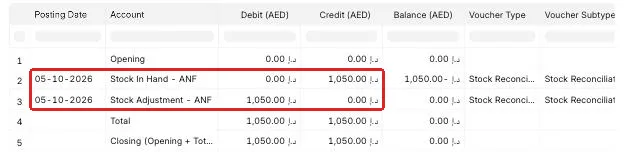
- Click View → Accounting Ledger. The GL Entries now show AED 1,050.00. This amount is the same as the Difference Amount.
- Open Stock → Reports → Stock Ledger. Filter by the item and the warehouse. Scroll right to Value Change. The value of the reconciliation row is the same as the GL amount.
To check many items at a time, use these reports:
- Stock and Account Value Comparison: compares the stock value with the balance of the stock account, voucher by voucher.
- Stock Ledger Variance: shows Stock Ledger Entries with a wrong balance quantity or value. You can select rows and make repost entries from the report.
Errors when you backdate a reconciliation
Insufficient Stock
You see this error when the new quantity is too low for the entries after the reconciliation.
For example, you make a reconciliation on 6 October that sets the stock to 5 bags. On 8 October, there is a Material Issue of 15 bags. After your reconciliation, the stock on 8 October becomes −10. ERPNext does not allow negative stock, so it stops the submit.
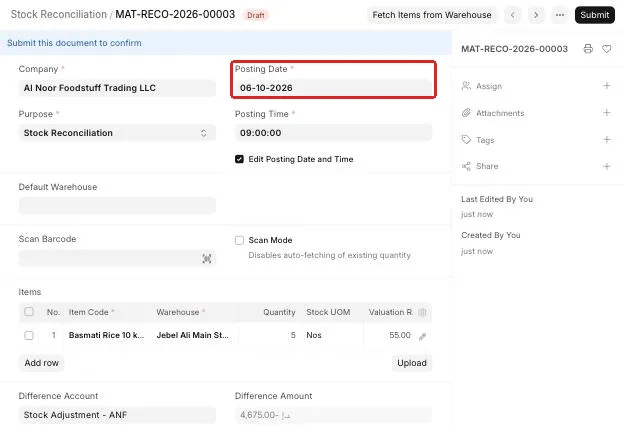
To correct it, do one of these:
- Use the correct posting date and time. A count is a fact at one time. Enter it at the time of the count, before the later issues.
- Enter the missing receipts before the reconciliation.
- If the later issue is wrong, cancel or amend it first.
Serial No or Batches Exists In Future Transaction(s)
For an item with serial numbers or batches, you cannot make a backdated entry before a submitted Stock Reconciliation of the same item. The reconciliation fixed the exact serial numbers or batches on that date.
To correct it:
- Open the reconciliation that the error message links to.
- Cancel it.
- Submit the backdated entry.
- Amend the reconciliation and submit it again.
Difference Account must be a Asset/Liability type account
For the purpose Opening Stock, the Difference Account must be a Balance Sheet account, for example Temporary Opening. ERPNext also treats a reconciliation as an opening entry if it is the first stock transaction of the site. Select a Balance Sheet account in Difference Account.
How to prevent it
- Enter all receipts, deliveries and transfers before you start a stock count.
- Use the real date and time of the count as the posting date and time. Set them before you enter the quantities.
- Do not use a Stock Reconciliation to correct one wrong entry. Cancel and amend the wrong entry instead.
- For serial and batch items, avoid backdated entries before a reconciliation.
- After a backdated entry, wait until the Repost Item Valuation status is Completed. Then compare the Stock Ledger and the General Ledger.
- Make sure that the Default Inventory Account and the Stock Adjustment Account are set in the Company. A wrong account gives GL Entries in the wrong place.
If this does not fix it
If the repost is Completed and the values still do not match, raise a support ticket. Attach:
- The Stock Reconciliation number.
- A screenshot of the Stock and Account Value Comparison report for the item.
- The name and the status of the Repost Item Valuation entry. If it failed, attach its error log.